
An inspection title is a unique way to identify a report. Over time, as you and your team conduct more inspections, it can become difficult to differentiate between them when they've been conducted from the same template. To ensure your inspections are uniquely named, you can create title formats or naming conventions for your inspections so that the title of an inspection populates automatically with responses from the title page.
What you'll need
Published changes made to templates only apply to new inspections moving forward.
Customize inspection title format
Select Templates in the sidebar or select it in More.
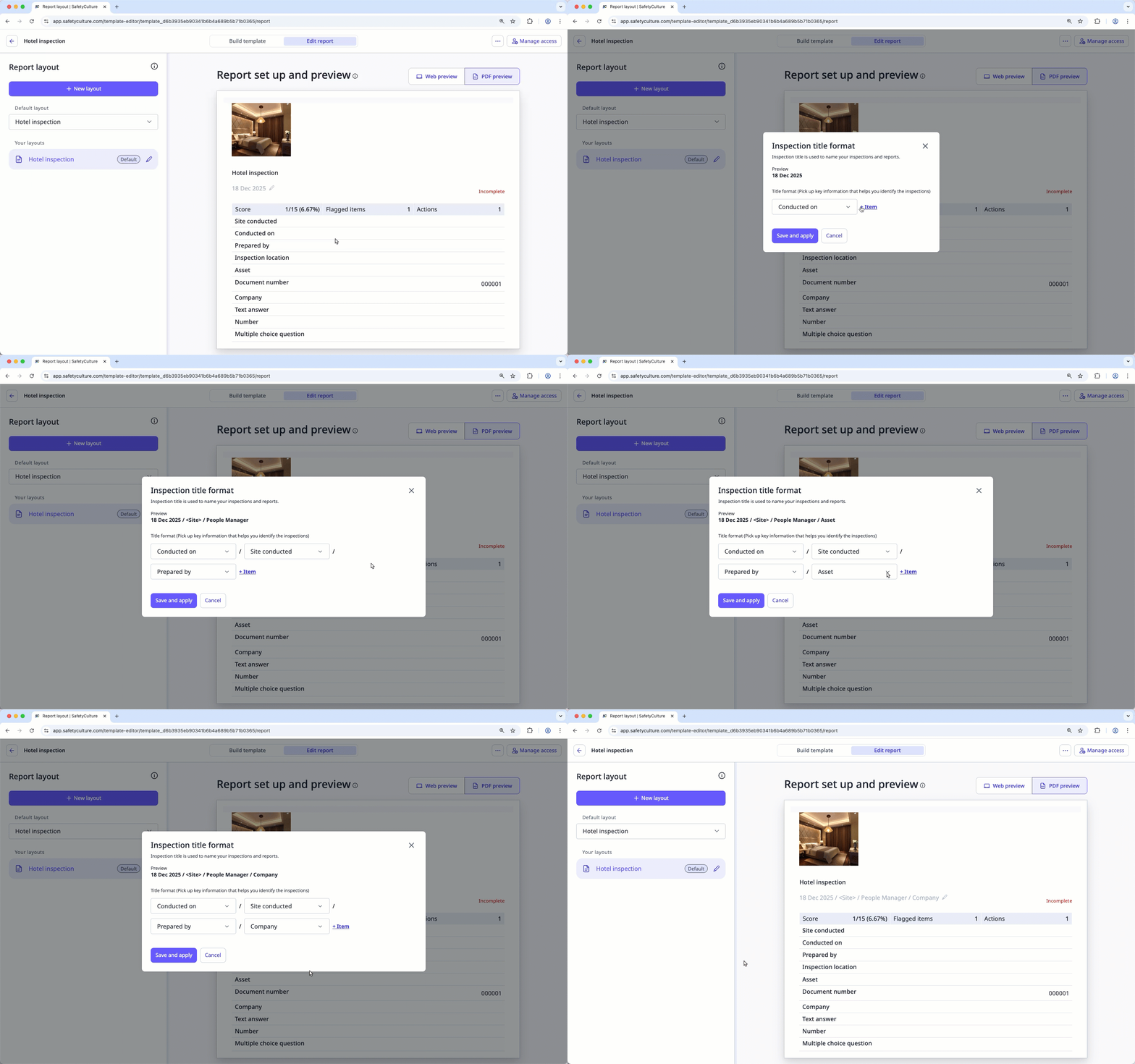
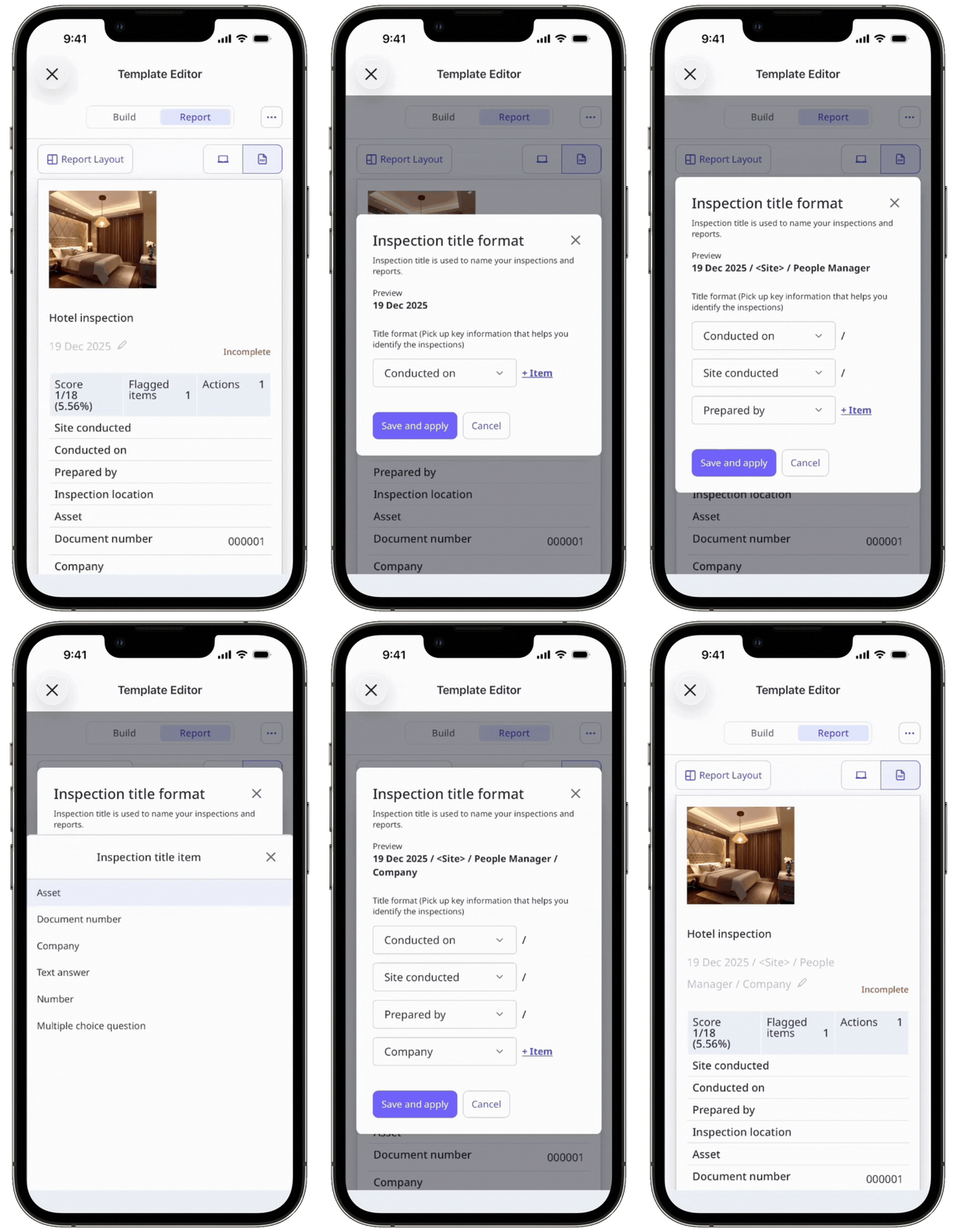
Click the template and select Edit report in the side panel.
Click below the template title.
In the pop-up window, click the existing question labels to change or remove the existing format item, or click Item to add new items. You can add up to eight items in the inspection title format.
Click Save and apply.
Click Build template at the top of the page.
Click Publish on the upper-right of the page to publish the template. If you're not ready to publish the template, you can go back to the templates list and come back when you're ready.
Limitations
If the inspection title is over the 250-character limit, exporting an inspection report as a PDF, Word, or CSV file automatically trims the file name.
Responses within repeat sections are not supported.
The inspection title format does not support including time in the "Inspection date" or "Date & Time"response types.
The following response types are currently not supported in the title format:
Inspection location
Checkbox
Media
Slider
Annotation
Signature
Location
Instruction
If you want to apply your new inspection title format to existing inspections, please contact our customer support team for assistance.


