
Why set multiple choice response colors?
Customizing multiple choice response colors provides instant visual context, making it easier for users to navigate and select answers during an inspection. By setting response colors, you create a more intuitive experience for frontline workers and generate reports that highlight critical information at a glance.
This is particularly effective for high-frequency workflows, such as daily machine checks. Instead of sifting through text-heavy options, your team can use color cues to identify and report equipment conditions immediately. This reduces the risk of human error and ensures that your team spends less time on documentation and more time on the task at hand. 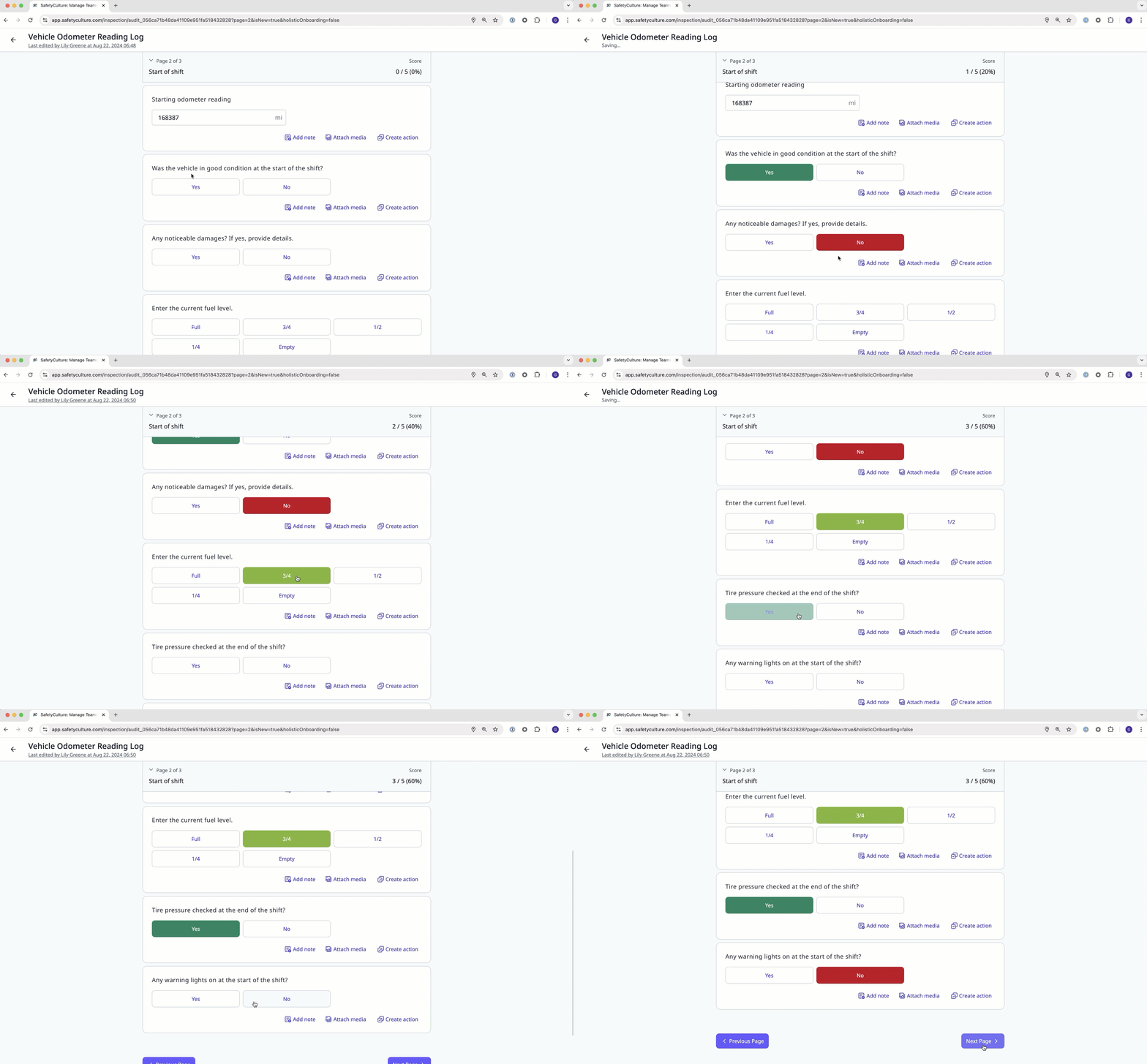
What you'll need
Published changes made to templates only apply to new inspections moving forward.
You can use custom colors by entering the color hex code in the text field when selecting the color of the multiple choice response.
Set a response color
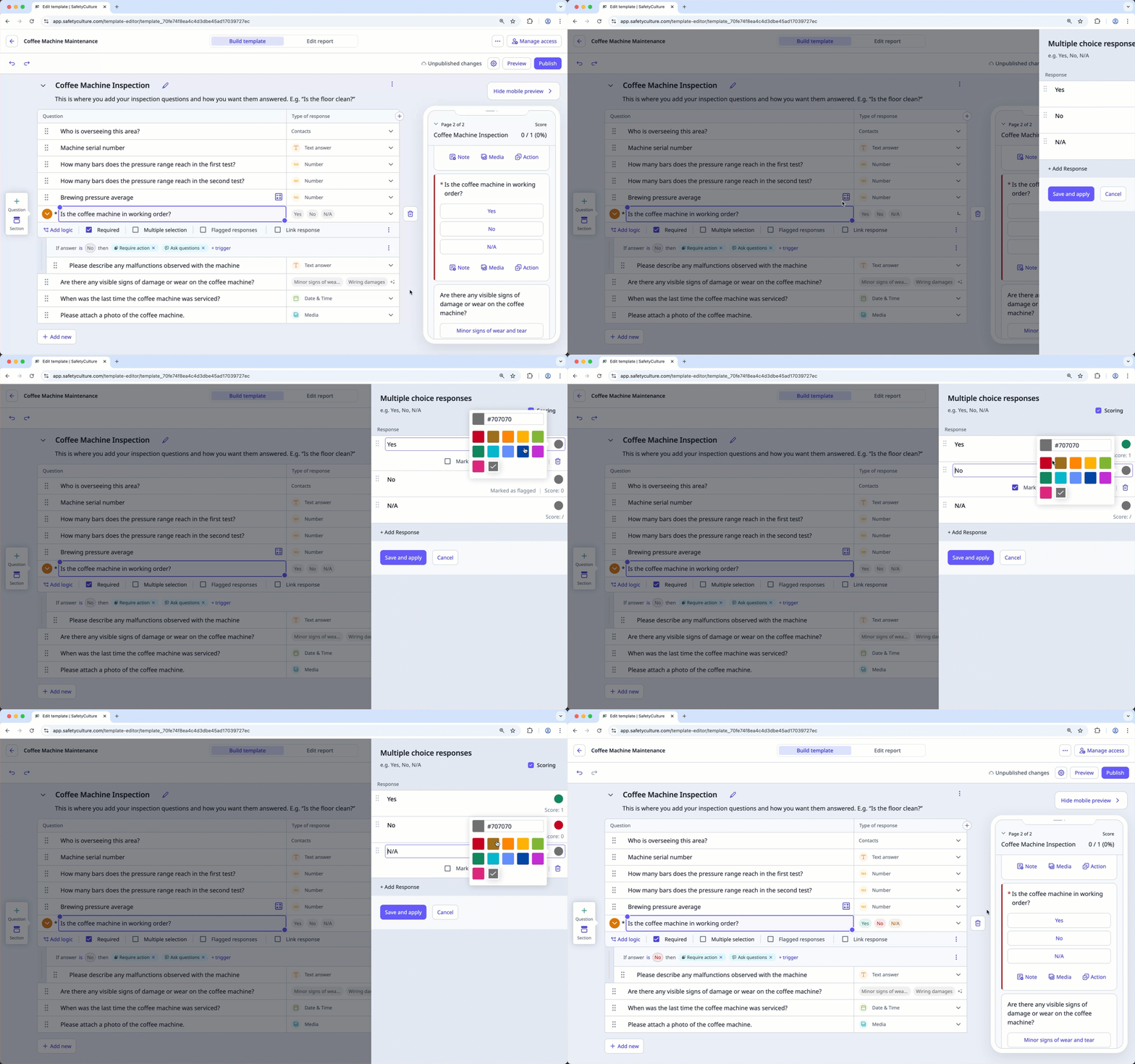
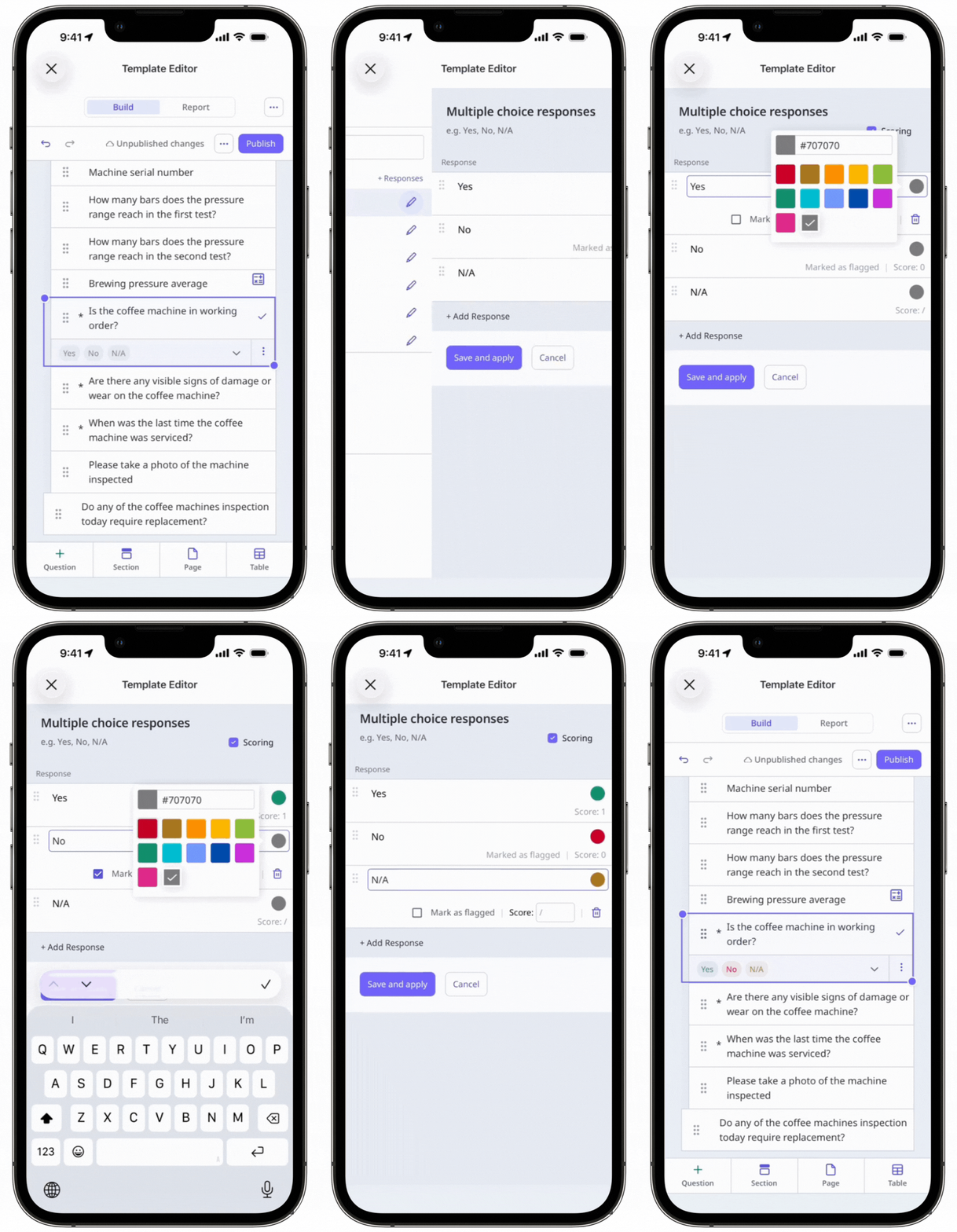
Select Templates in the sidebar or select it in More.
Click the template and select Edit template in the side panel.
Select any question and click on the right-hand side under "Type of response".
Click on the right-hand side of the custom response set.
In the side panel, click the circle on the right-hand side of the response to select the color or enter a custom color.
Click Save and apply.
Click Publish on the upper-right of the page to publish the template. If you're not ready to publish the template, you can go back to the templates list and come back when you're ready.
Changes made to a custom response set apply to all questions that use it. If you want to use a different set of response colors, you can create a new custom response set to use.


