
What you'll need
If your organization is on the Free Plan, you can sort templates by status to see which are active. If you no longer need some of these active templates, you can archive them to activate the next set of locked templates.
Archiving a template doesn't pause any schedule it's being used in. If you’re archiving a template, consider pausing the relevant schedules separately.
Archive a template
Click Templates from the sidebar or in More.
Click on the right-hand side of the template.
Select Archive template.
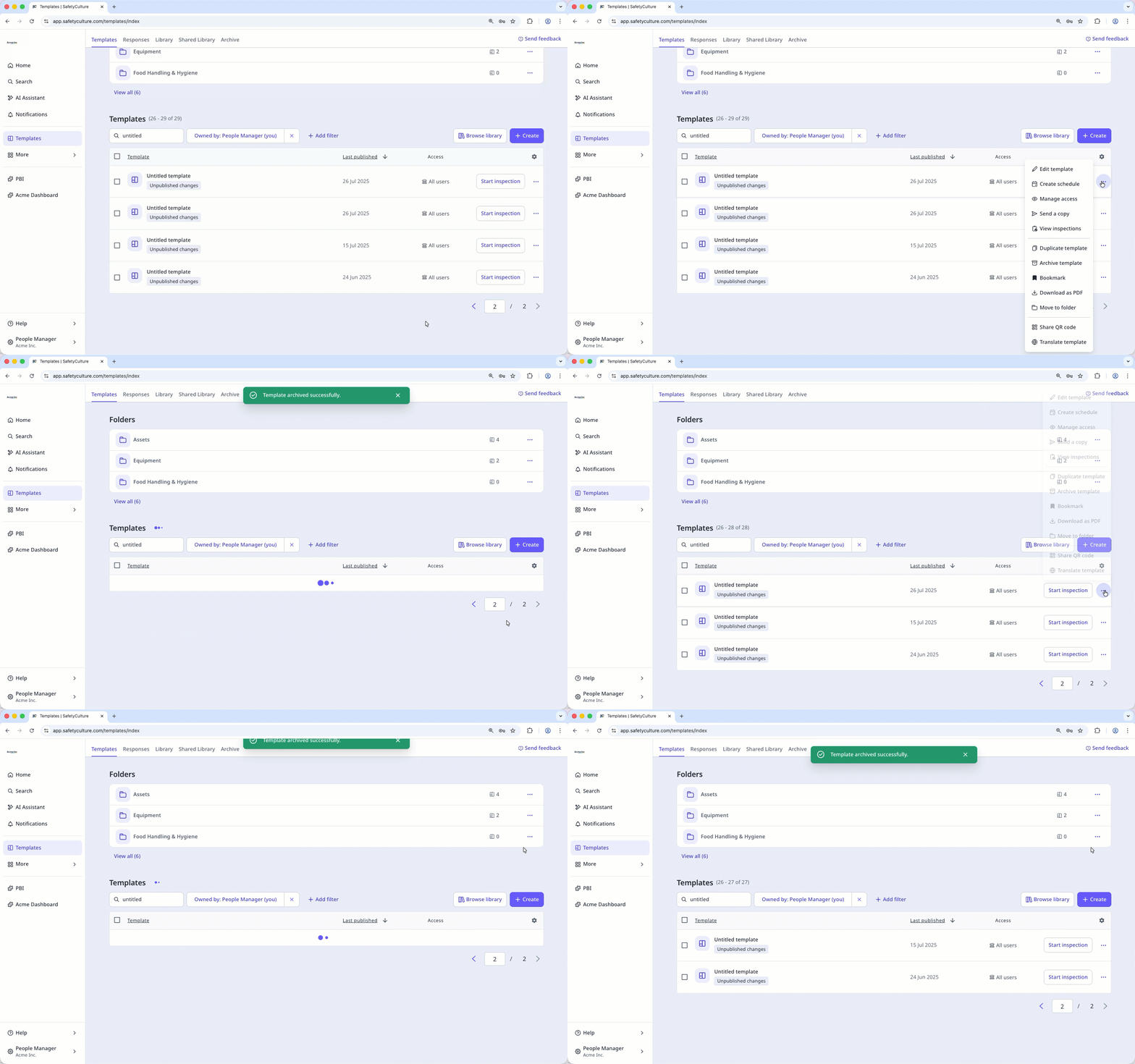
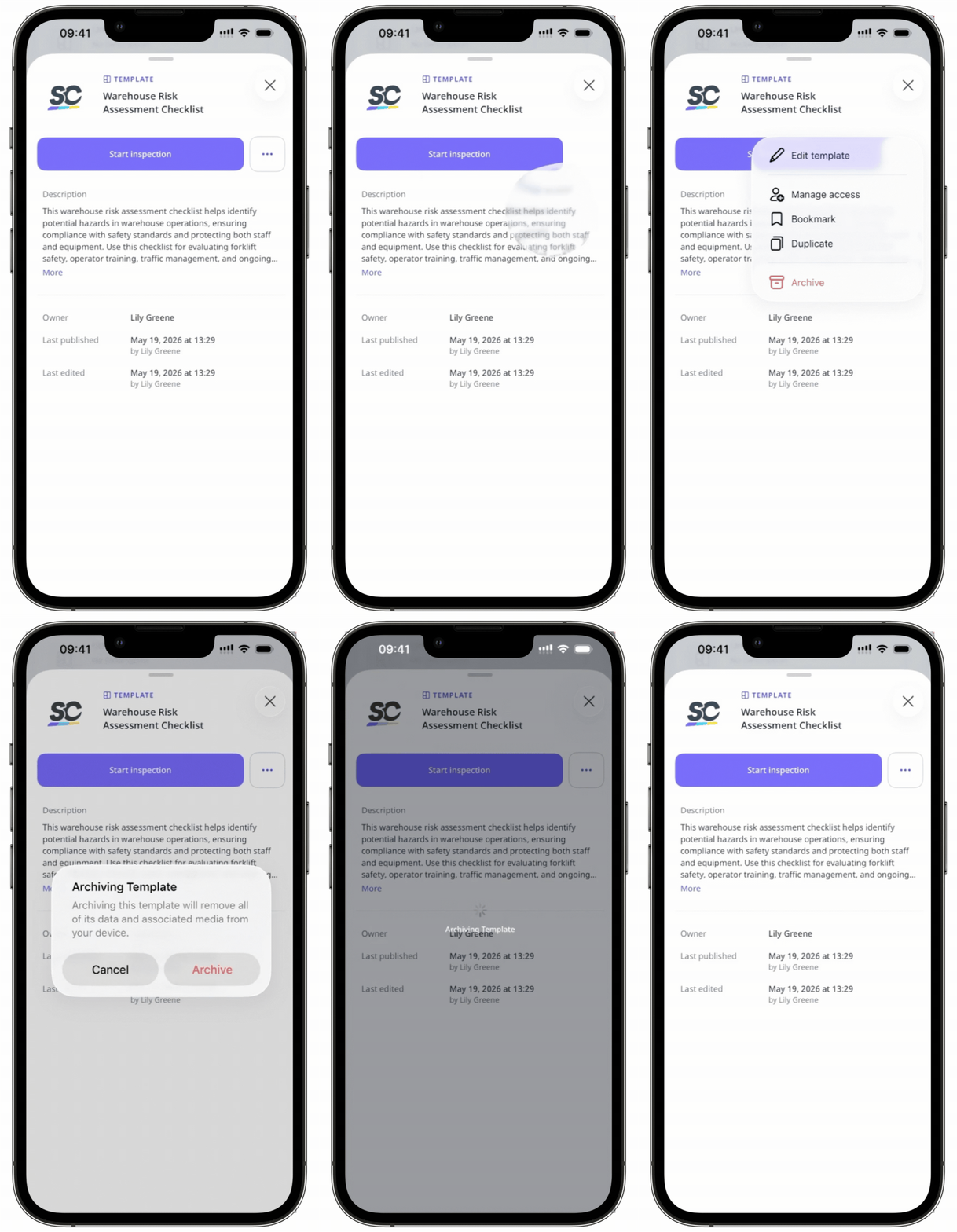
If a template is in a folder, archiving it will also remove it from the folder.
Bulk archive templates
Click Templates from the sidebar or in More.
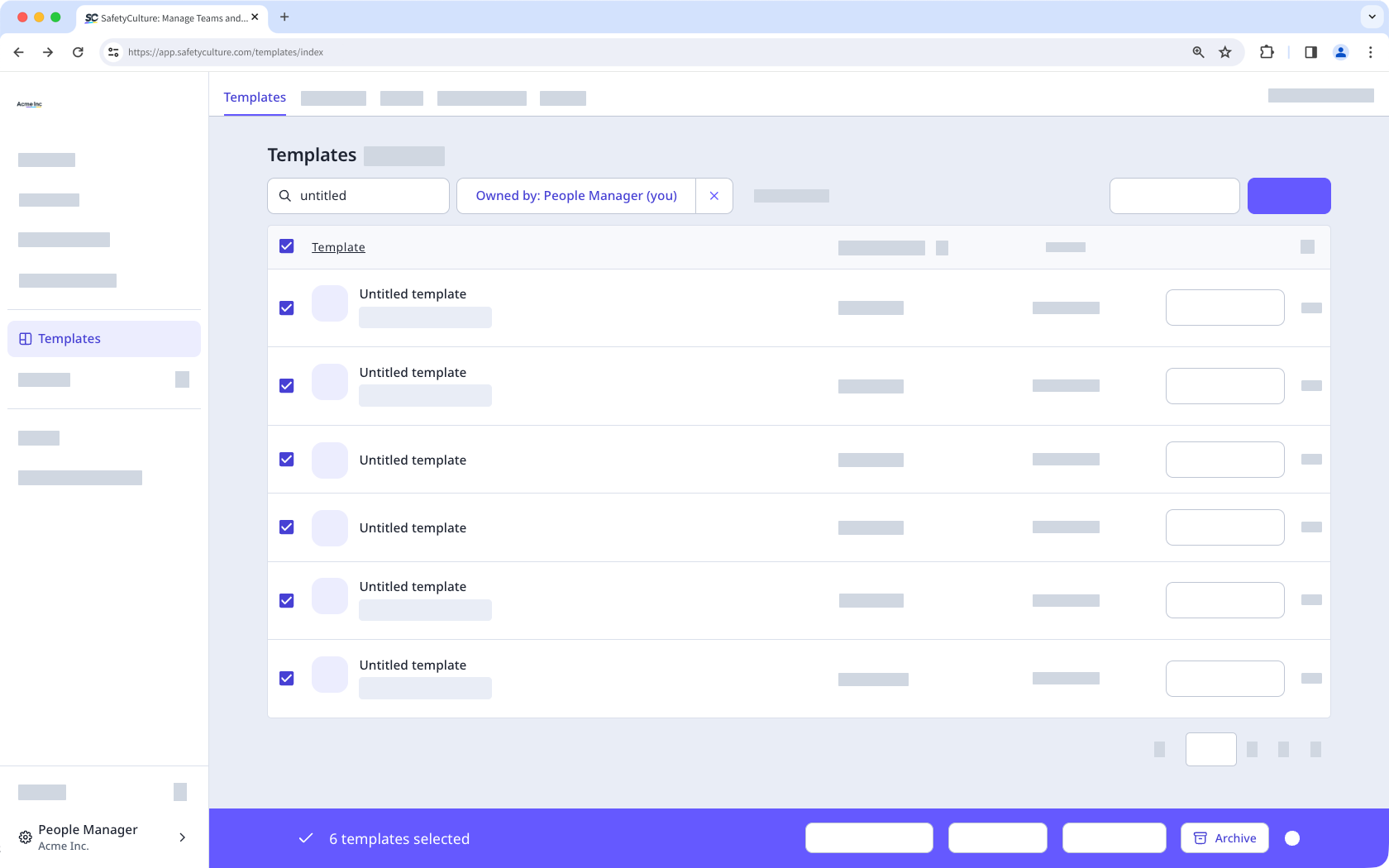
Check the box on the left-hand side of each template you want to archive. You can narrow down the list by using the search box or by clicking Add filter and selecting filter options.
Click Archive at the bottom of the page.
If you've accidentally archived the wrong templates, you can always restore templates via the web app.


