What you'll need
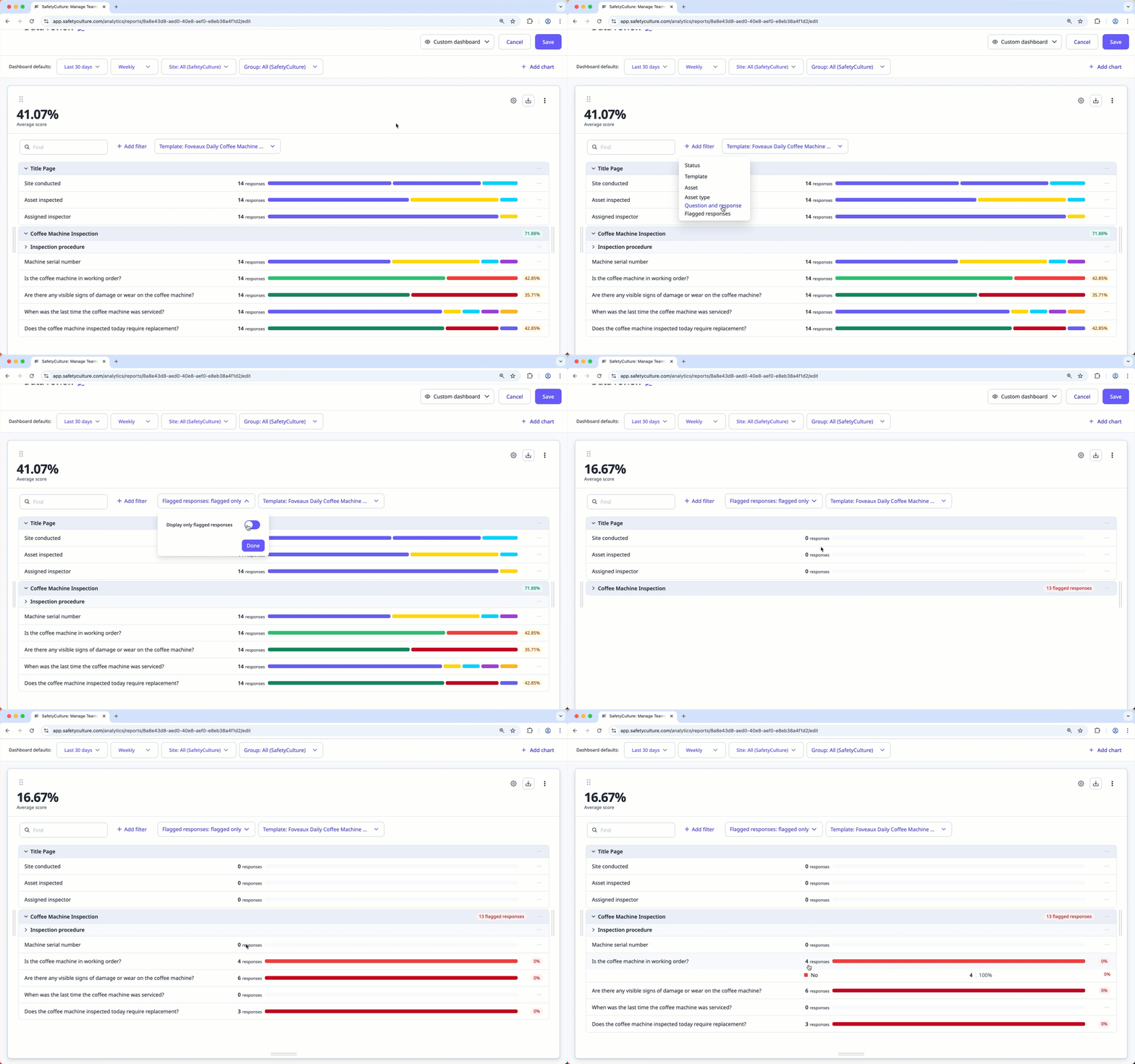
What chart filters are available?
Filtering by status will filter archived inspections regardless of whether they’re complete or incomplete.
What dashboard filters are available?
You can select up to 1,000 filters per dashboard and chart filter at a time in New Analytics. For example, you can select 1,000 templates and 1,000 sites to filter your data.
Apply Analytics filters
Select Analytics in the sidebar or select it in More.
On this page, you can:
Filter your dashboard by a predefined or custom date range, set the period interval, relevant group, and depending on the type of dashboard, filter by sites.
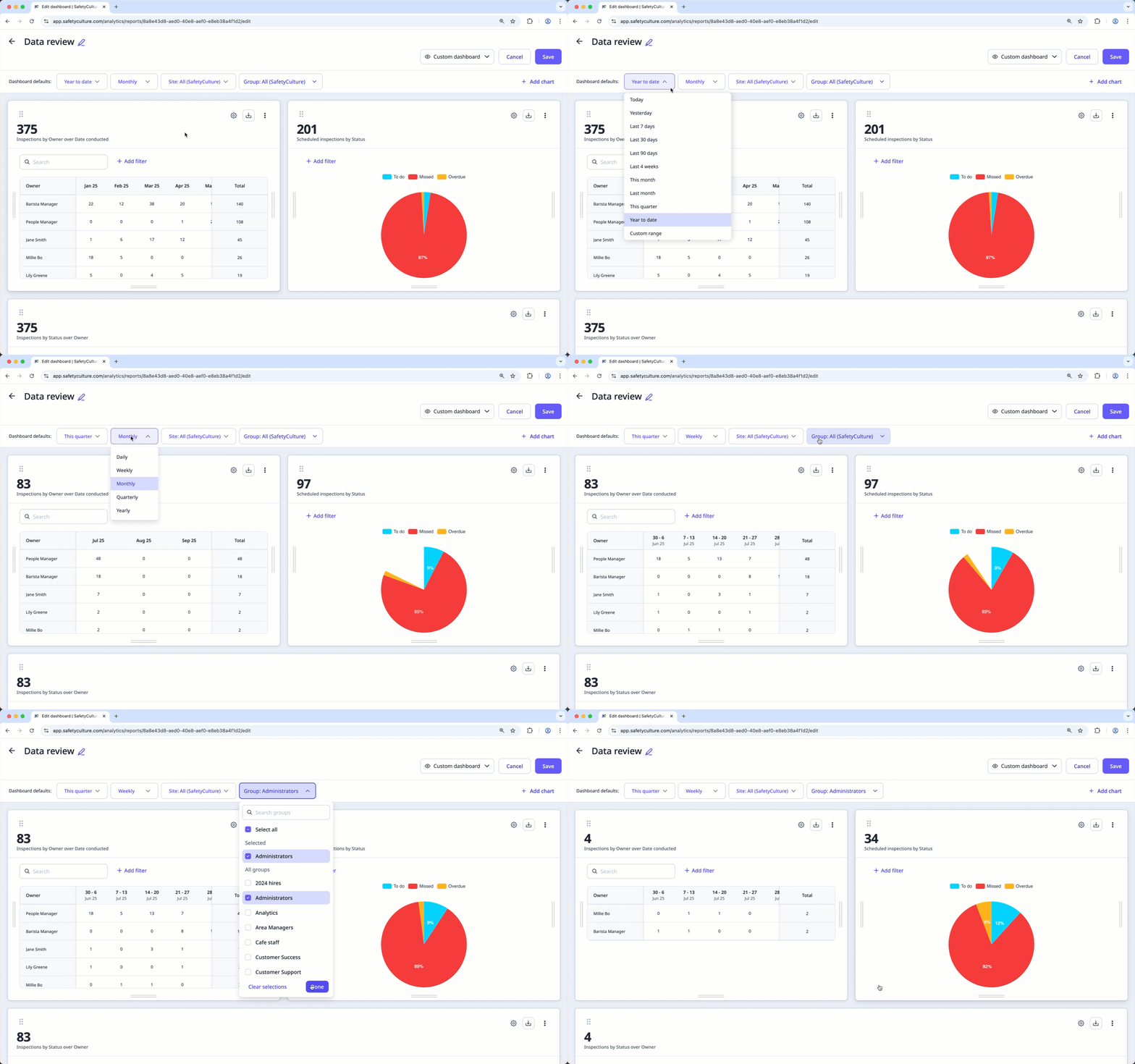
Depending on your access to the dashboard and the chart type, you can also customize each chart's filter to show more relevant results.