Quelle est la différence entre le rôle de Facilitateur EdApp et le rôle de Responsable d'équipe SafetyCulture ?
Fonctionnalité | Facilitateur EdApp | Responsable d'équipe SafetyCulture Formation |
|---|---|---|
Comment est-il configuré ? | L'utilisateur se voit attribuer le rôle de Facilitateur pour des groupes d'utilisateurs spécifiques | L'utilisateur reçoit Autorisation « Formation : Gérer les équipes » et est attribué à des groupes ou sites spécifiques |
Faciliter la formation de groupe | Oui | Oui |
Effectuez des évaluations pratiques | Oui | Oui |
Afficher les données analytiques de formation | Non. Cela est géré par un rôle distinct « Responsable de données analytiques » | Oui |
Champ d'application des données | Uniquement les groupes d'utilisateurs attribués | Groupes et sites attribués |
Ce dont vous aurez besoin
Avant d'attribuer à un utilisateur la fonction de responsable d'équipe, assurez-vous qu'il s'est vu attribuer un ensemble d'autorisations comportant Autorisation « Formation : Gérer les équipes ».
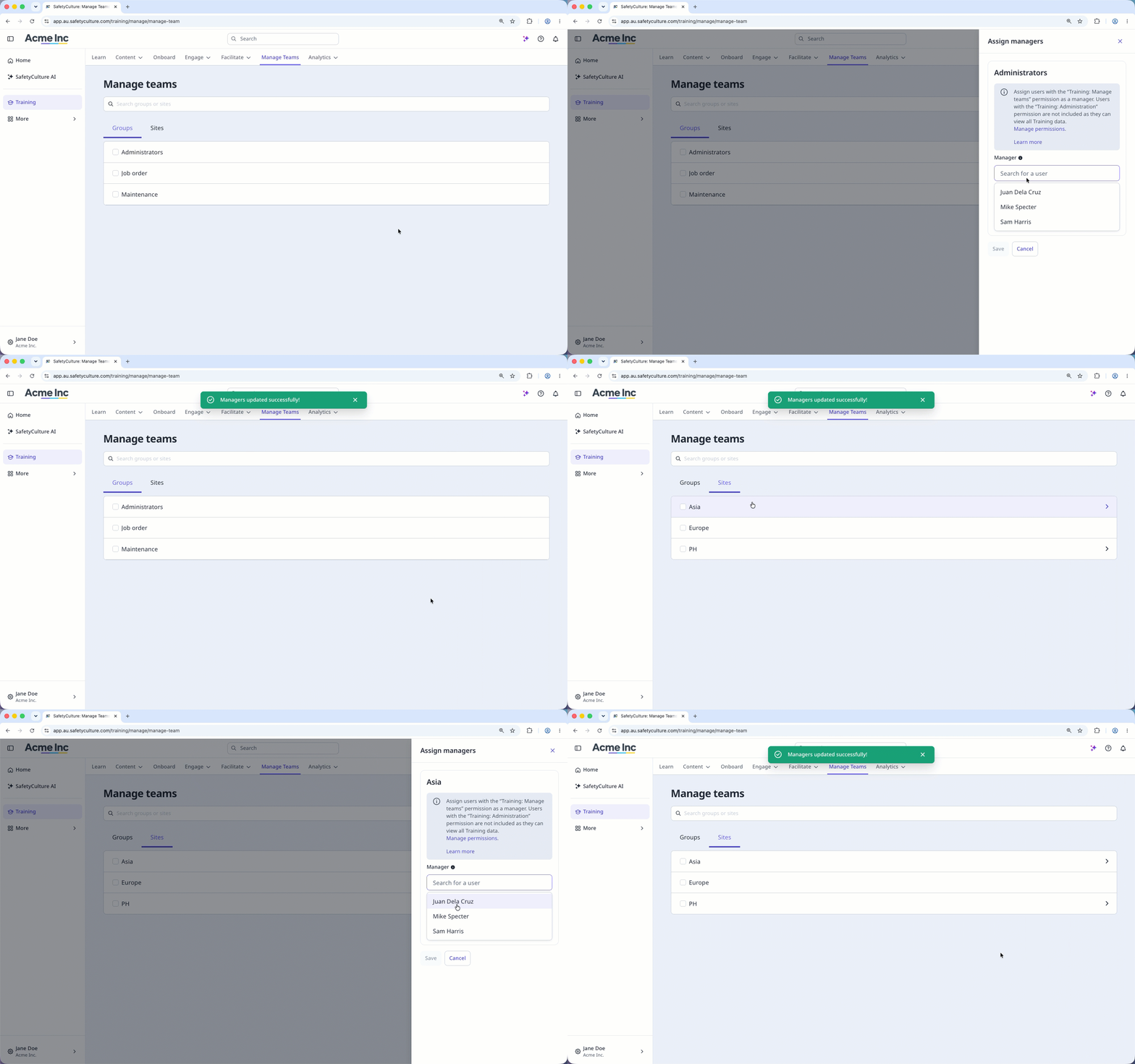
Attribuer un chef d'équipe
Select Formation in the sidebar or select it in Plus.
Select Gérer les équipes at the top of the page.
Click the group or site name.
In the side panel, search for the user in the "Manager" field and select them.
Click Enregistrer.
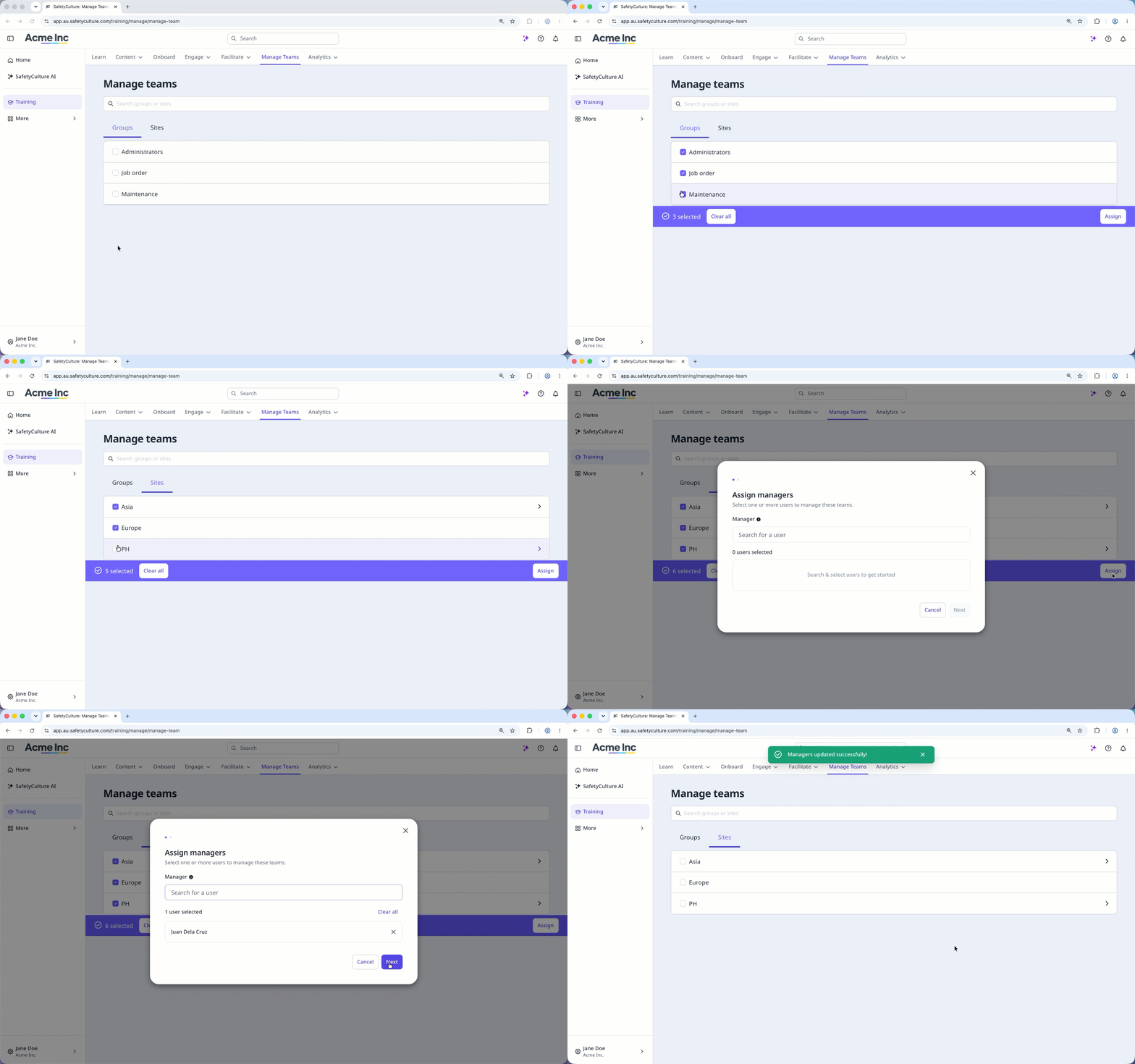
Attribution groupée de responsables d'équipe
Select Formation in the sidebar or select it in Plus.
Select Gérer les équipes at the top of the page.
Check the boxes of the groups and sites you want to assign team managers to. Your selections will be kept as you switch between the "Groups" and "Sites" tabs.
Click Attribuer on the lower-right corner of the page.
In the pop-up window, search for the user in the "Manager" field and select them.
Click Suivant.
Click Attribuer des responsables.
Désattribuer un responsable d'équipe
Sélectionnez Formation dans la barre latérale ou sélectionnez-le dans Plus.
Sélectionnez Gérer les équipes en haut de la page.
Cliquez sur le nom du groupe ou du site.
Dans le panneau latéral, cliquez sur à droite de l'utilisateur ou cliquez sur Tout effacer.
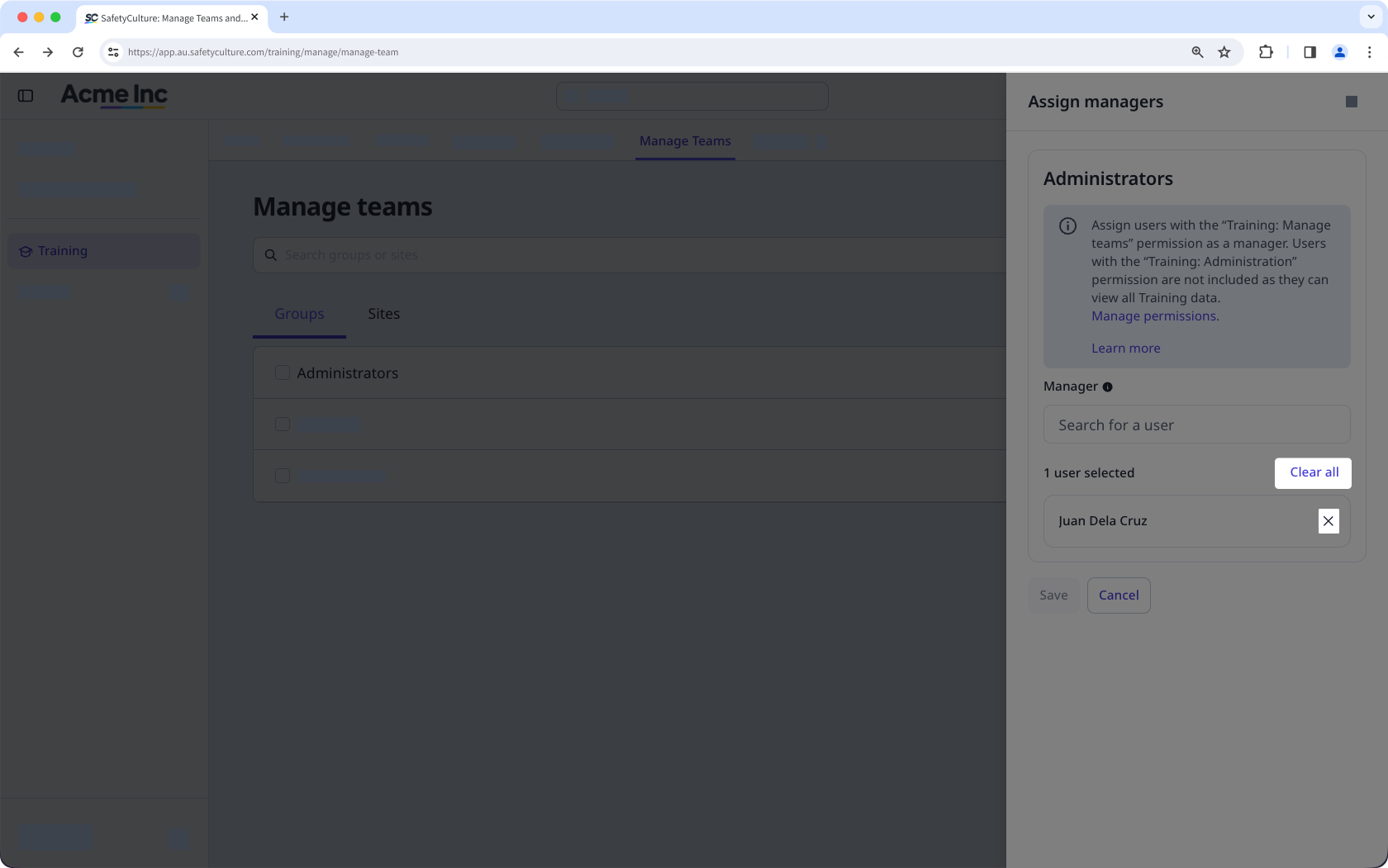
Cliquez sur Enregistrer.