Ce dont vous aurez besoin
Vous pouvez ajouter un nouvel utilisateur ou un utilisateur existant dans l'prestataire et lui attribuer le rôle de contact clé lorsque vous demandez un document ou un formulaire.
Ajoutez un utilisateur à une société
Select Prestataires in the sidebar or select it in Plus.
Select a company.
Click Travailleurs tab in the company profile.
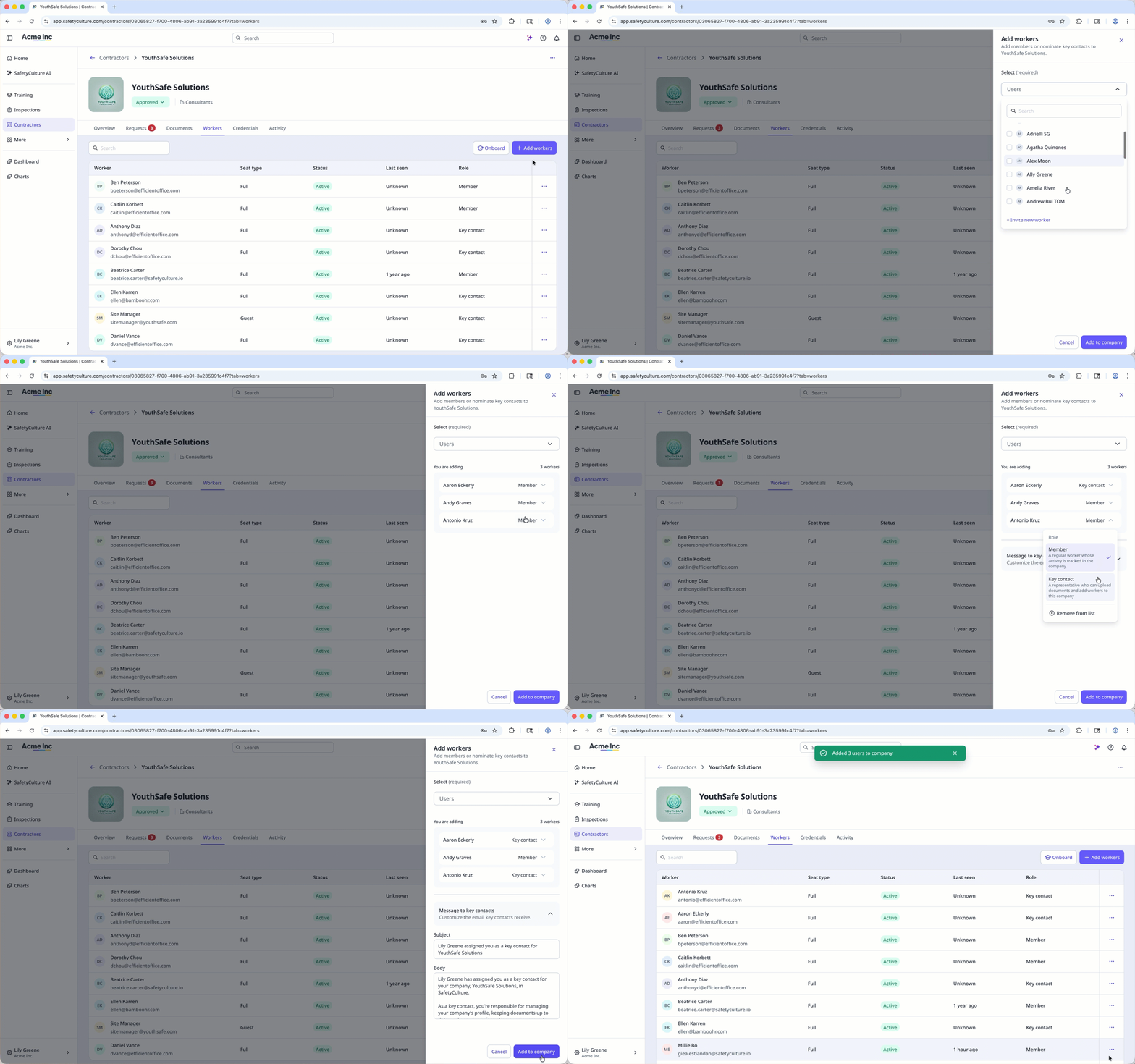
Click Ajouter des travailleurs on the upper-right of the user list.
In the side panel, choose whether to select an existing user or invite a new one:
To select an existing user: Select a user from the dropdown menu.
To invite a new user: Click Inviter un nouveau travailleur from the dropdown menu. In the pop-up window, enter the user's email address, first name and last name, and select a seat type. Then, click Ajouter à l'équipe.
Click next to the user's name and select their role:
Membre: A regular worker whose activity is tracked in the company.
Key contact: A representative who can upload documents and add workers to the company. You can also customize the email key contacts receive in the “Message to key contacts” section.
You can also click Supprimer de la liste if you want to remove a user before adding them.
When you're ready, click Ajouter à la société.
Supprimez un utilisateur d'une société
Sélectionnez Prestataires dans la barre latérale ou sélectionnez-le dans Plus.
Sélectionner une société.
Cliquez sur l'onglet Travailleurs dans le profil de la société.
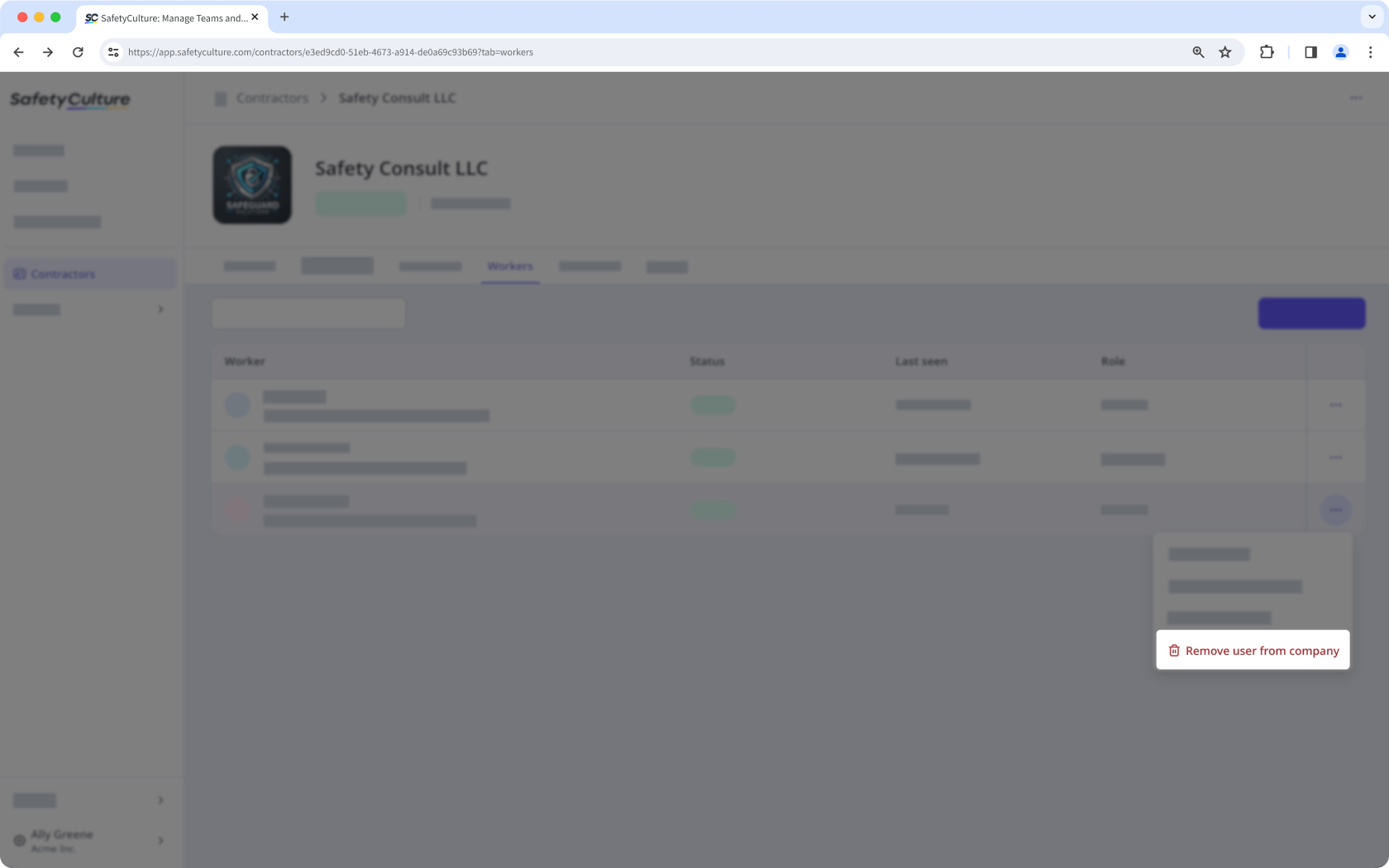
Cliquez sur à droite de la ligne de l'utilisateur et sélectionnez Supprimer un utilisateur d'une société.