What happens when you delete a file from an action?
When you delete a file from an action, it's permanently removed from the action and can't be recovered. The action's activity timeline records who deleted it and when, so there's still a traceable history of what changed. This keeps action records accurate so your team can assign, follow up on, and complete actions with confidence.
Lo que necesitarás
Si tiene Permiso para "Anular permisos: gestionar todos los datos", también puede eliminar archivos subidos en acciones por otros usuarios de la organización.
La eliminación es irreversible y no podemos restaurar elementos eliminados permanentemente. Siempre se requiere confirmación antes de cualquier eliminación, así que asegúrese de no eliminar accidentalmente el elemento equivocado.
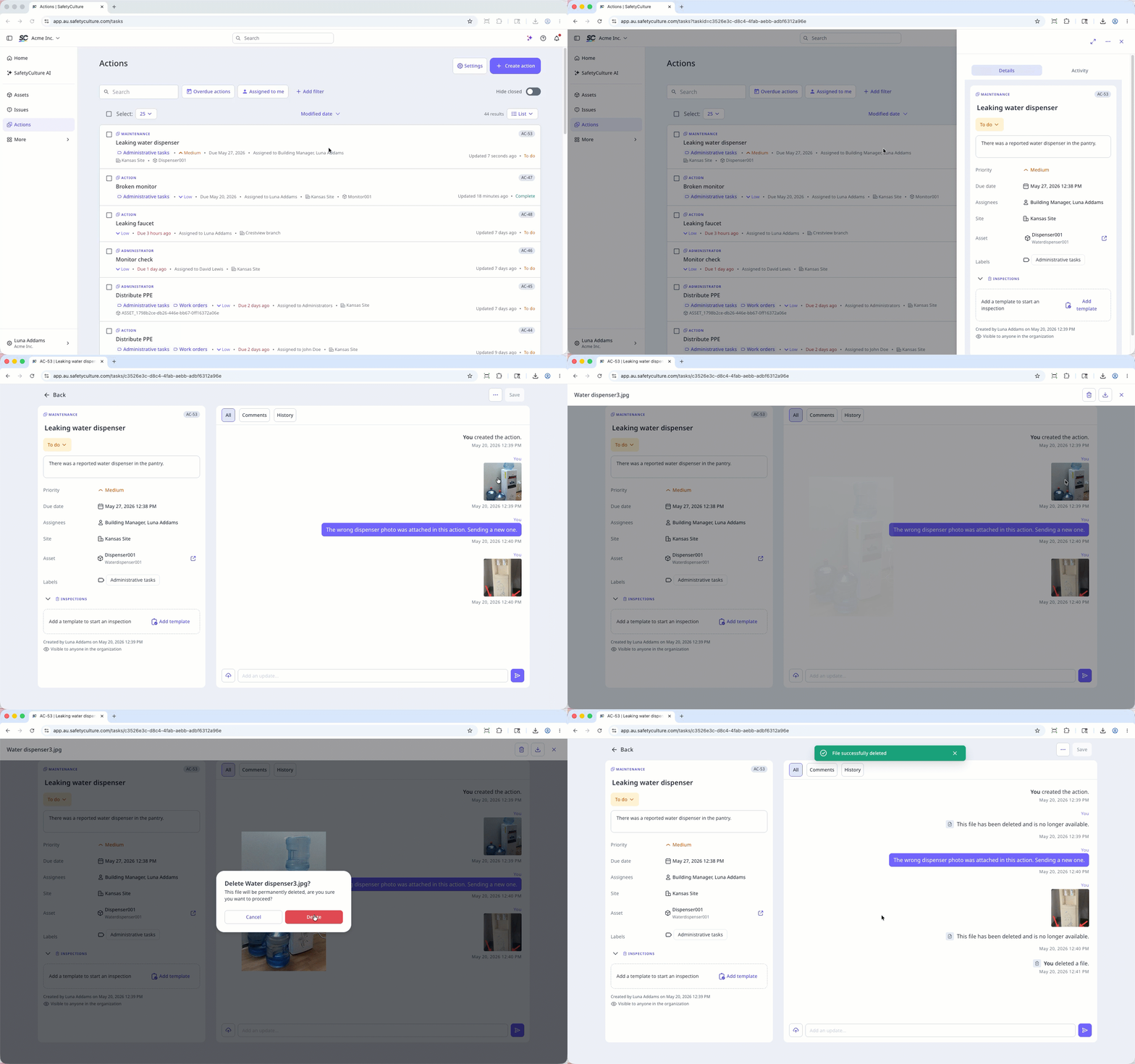
Delete a file in an action
Select Acciones in the sidebar or select it in Más.
Select between Lista, Calendario, or Panel on the upper-right of the page to view the actions.
Select an action.
Click Actividad on the upper-right of the page.
Click the file to preview.
Click on the upper-right of the media preview.
In the pop-up window, click Eliminar.