
Why create navigation layouts?
Navigation layouts allow administrators to create tailored navigation experiences and apply them to permission sets, ensuring each role in your organization easily sees the features most relevant to them. This is especially useful for organizations where different roles have varying workflows, helping users stay focused, work more efficiently, and spend less time looking for what they need.
For example, managers and field workers have different responsibilities, so rather than navigating through the same set of features, administrators can create layouts tailored to each role, giving every team a streamlined experience built around the way they work.

The default layout applies to users with permission sets that have no assigned layout.
What you'll need
Create a layout
Click your organization name on the lower-left corner of the page and select Organization settings.
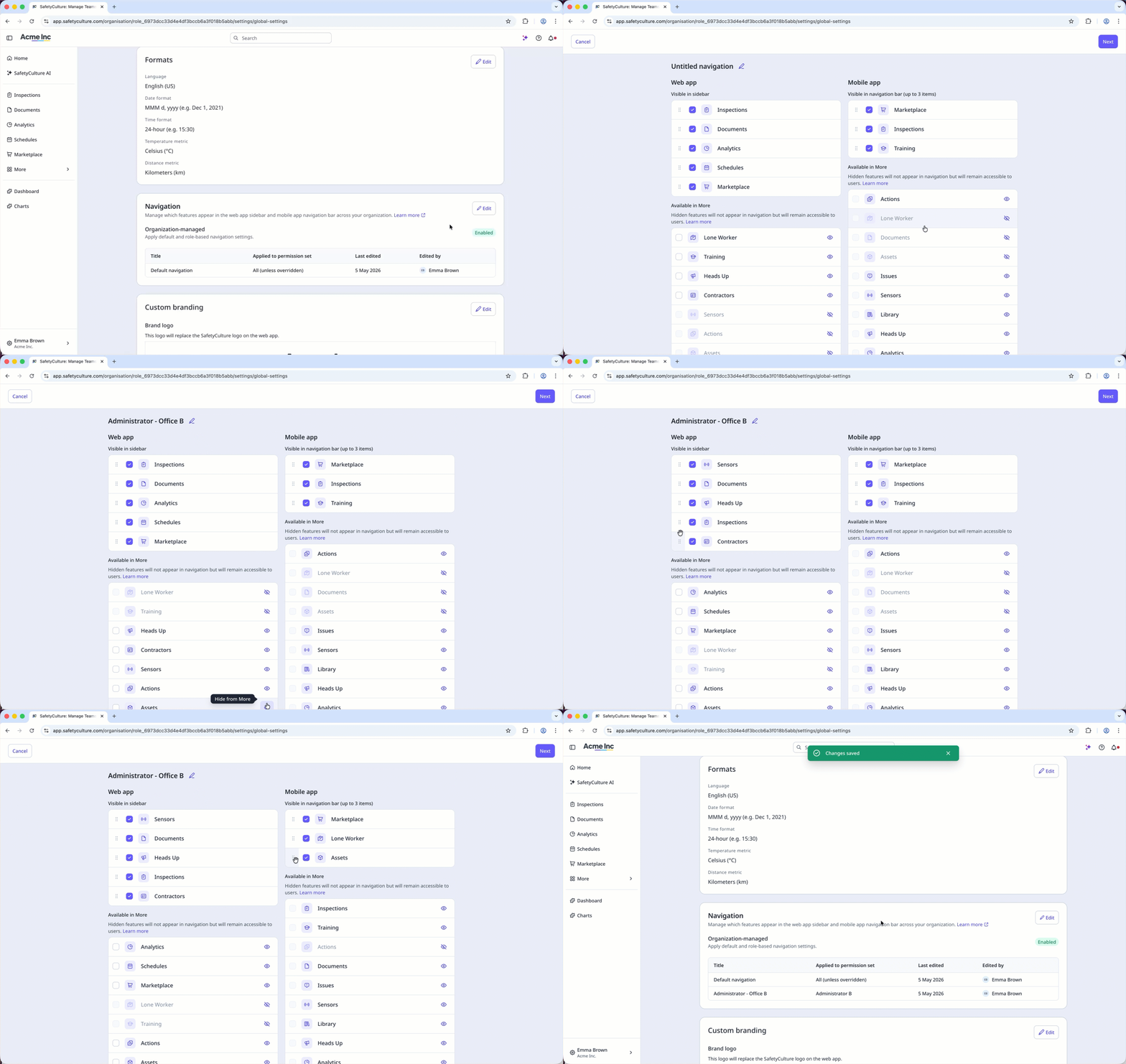
Scroll to the "Navigation" section, and click Edit.
Click Create new layout on the lower-left of the list.
In the pop-up window, click the dropdown menu, and select a permission set.
Click or to hide or show the features from More.
Click Create.
Click on the right-hand side of the current navigation title to edit it.
Check the features you want to display on the web app’s sidebar and the mobile app’s navigation bar, and uncheck those you’d like to keep under More.
You can also click and hold
 on the left-hand side of the features to sort them.
Click Next on the upper-right corner of the page.
Click Save changes on the lower-left of the “Navigation” section.
In the pop-up window, click Save and apply.
You can only create one layout for each permission set.
Duplicate a layout
Click your organization name on the lower-left corner of the page and select Organization settings.
Scroll to the "Navigation" section, and click Edit.
Click Edit on the upper-right of the "Navigation" section.
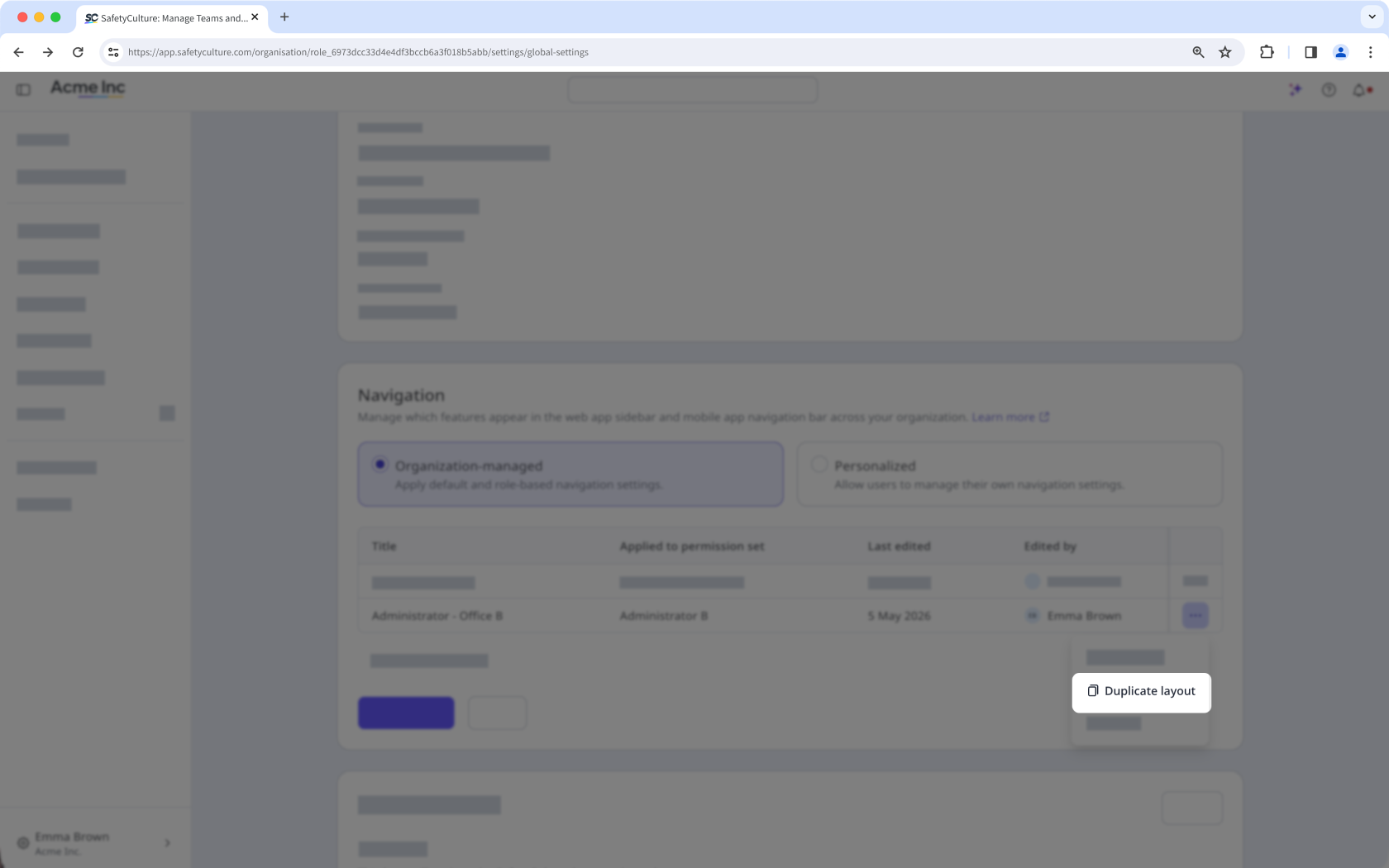
Click on the right-hand side of the layout, and select Duplicate layout.
In the pop-up window, click the dropdown menu, and select a permission set.
Click Apply.
Click Save changes on the lower-left of the “Navigation” section.
In the pop-up window, click Save and apply.
Delete a layout
Click your organization name on the lower-left corner of the page and select Organization settings.
Scroll to the "Navigation" section, and click Edit.
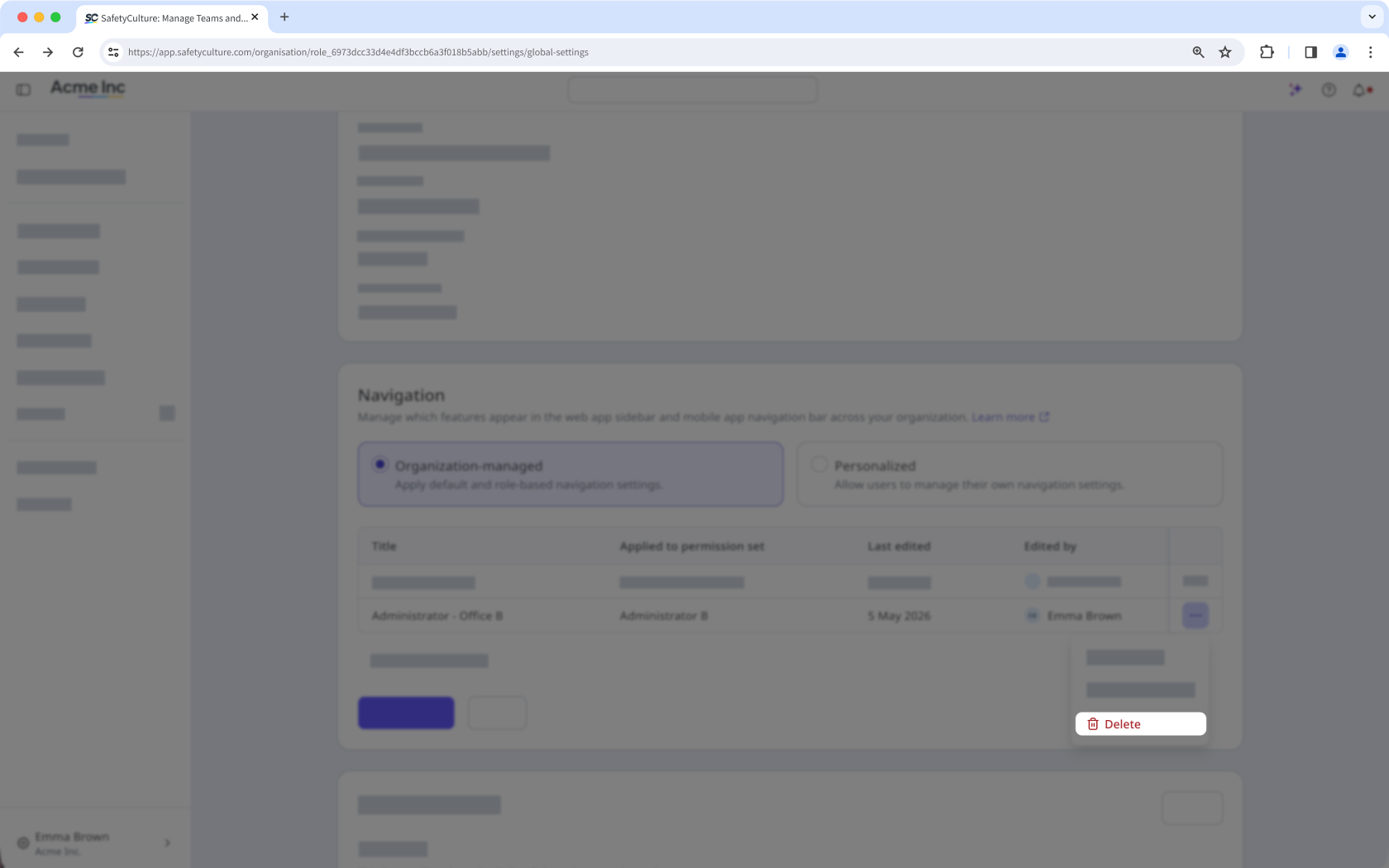
Click on the right-hand side of the layout, and select Delete.
Click Save changes on the lower-left of the “Navigation” section.
In the pop-up window, click Save and apply.
The default navigation cannot be deleted.
Deleting is irreversible, and we cannot restore permanently deleted items. Confirmation is always required before any deletion, so be sure you're not accidentally deleting the wrong item.


