
Why add files to Heads Ups?
Adding or linking files gives your team the context they need to understand and act on your message. Include references, visuals, and supporting documents directly in the Heads Up so important information stays organized and easy to access in one place. You can also require assignees to sign linked files before acknowledging the Heads Up to help confirm they’ve reviewed the content. Signatures create a clear record who reviewed each file, helping your team maintain accurate records and support compliance requirements.
What you'll need
Turn on file sharing on mobile for your organization to allow users to share files in Documents, Assets, and Heads Up.
Share a Heads Up file
Open the mobile app.
Tap Heads Up in the navigation bar or select it from More.
Tap the Heads Up.
Select the file and tap at the upper-right of your screen.
Select Share in the pop-up options.
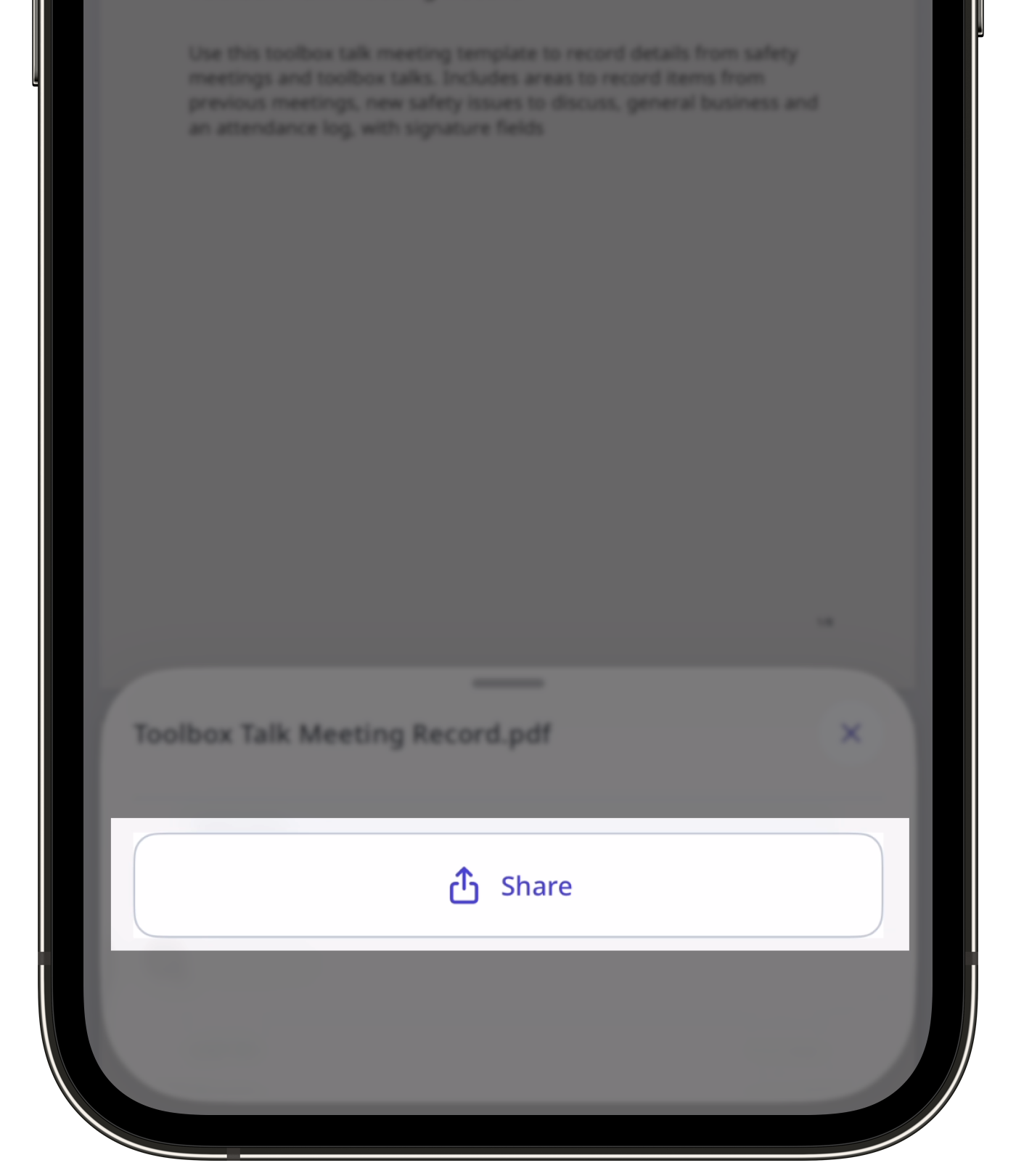
In the share menu, select how you want to share the file and proceed accordingly.


