
- Using SafetyCulture
- AI in SafetyCulture
- Manage custom contexts
Manage custom contexts
Learn how to add, edit, and delete custom contexts via the web app to keep your AI Assistant’s responses accurate and relevant to your organization.This feature is currently in Early Access. If you're interested, please contact your customer success manager to check if your organization is eligible.
What are custom contexts?
Custom contexts are pieces of information, such as instructions, definitions, or keywords, that you provide to the AI Assistant to make its responses more accurate and relevant to your organization. They guide the AI beyond its general knowledge so it reflects how your teams work and communicate.
For example, you can include organization-specific acronyms or terms that refer to SafetyCulture features so the AI can respond in ways that fit your workflows and help your team make faster, more informed decisions efficiently.
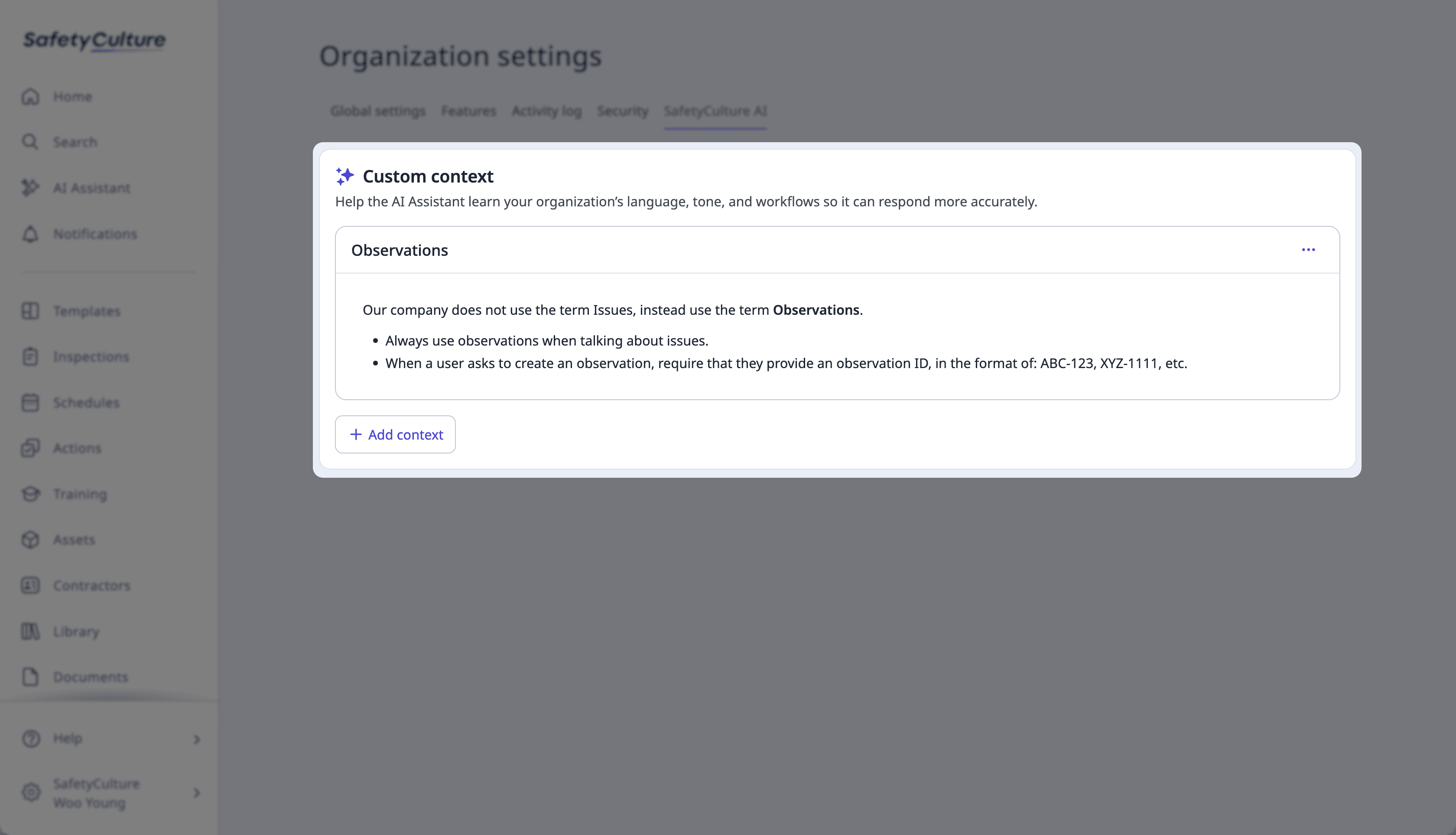
Custom contexts apply to your entire organization.
Add a custom context
Click your organization name on the lower-left corner of the page and select Organization settings.
Select SafetyCulture AI at the top of the page.
Click
 Add context.
Enter the custom context details:
Context name: Enter the context's name.
Details: Enter detailed information or instructions that the AI Assistant should follow.
Click Save.
Edit a custom context
Click your organization name on the lower-left corner of the page and select Organization settings.
Select SafetyCulture AI at the top of the page.
Click
 on the context's upper-left and select
  Edit.
Edit.
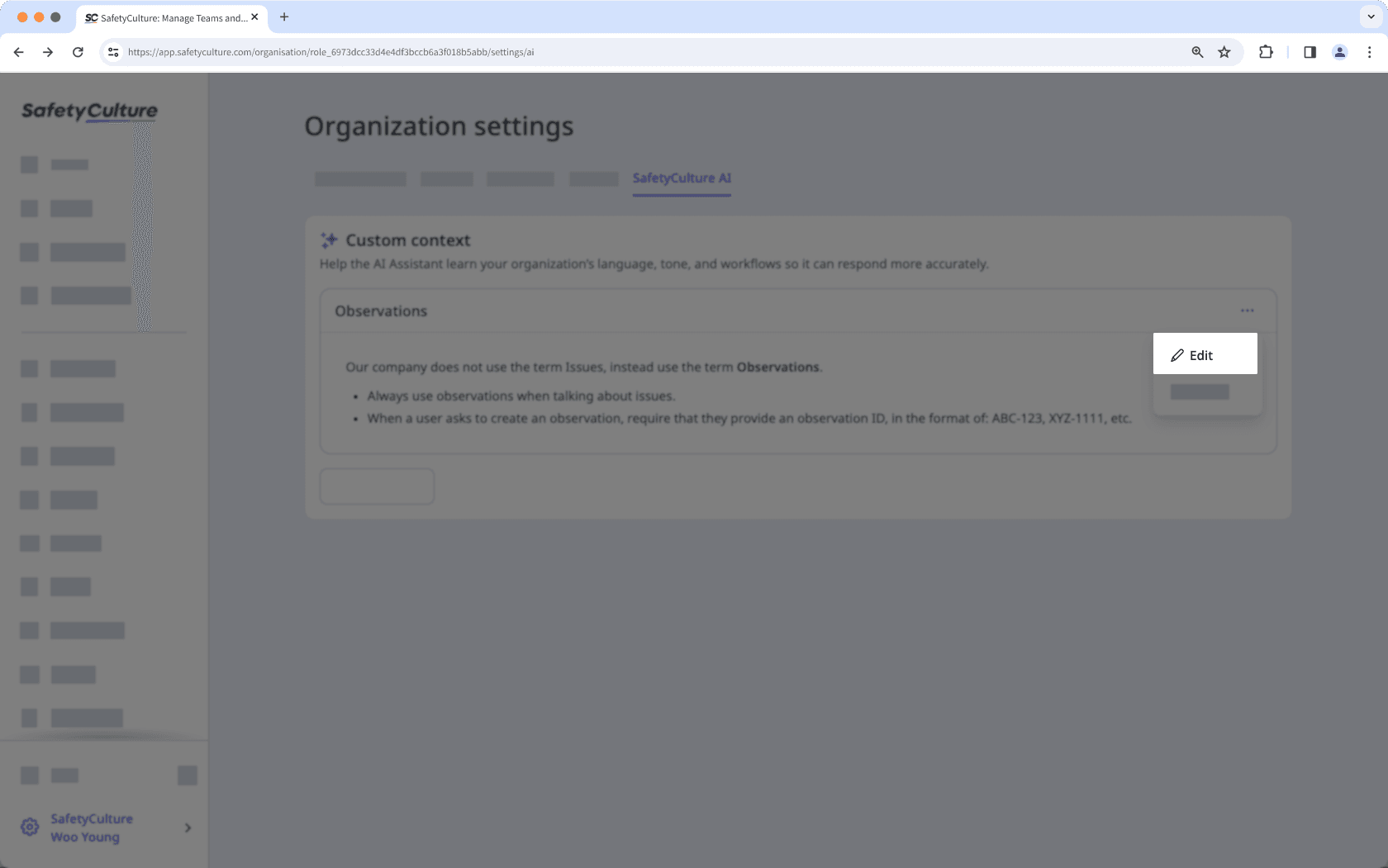
Edit the context name and details accordingly.
Click Save.
Deleting a custom context is irreversible. Once you delete a custom context, it can no longer be restored.
Delete a custom context
Click your organization name on the lower-left corner of the page and select Organization settings.
Select SafetyCulture AI at the top of the page.
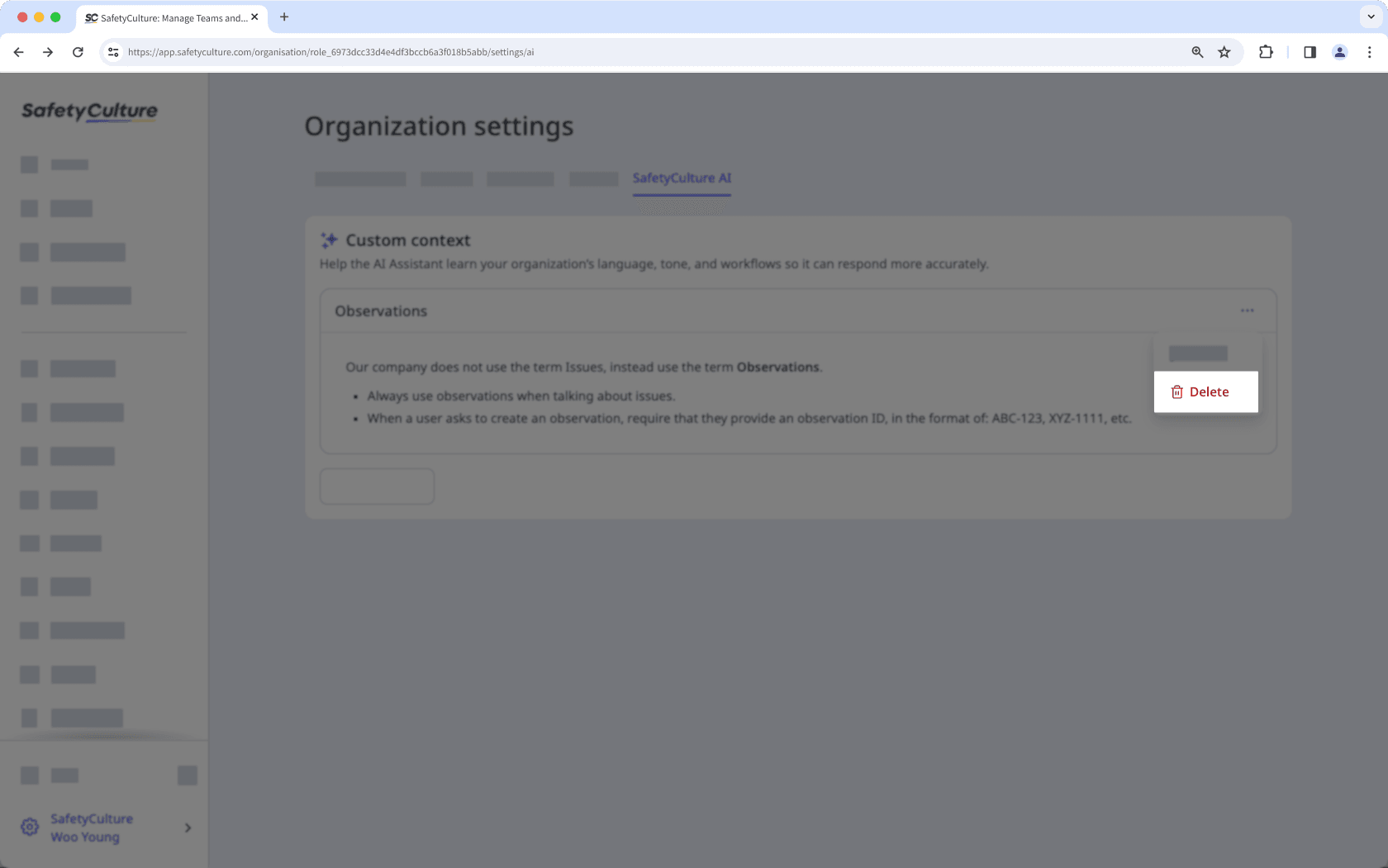
Click
on the context's upper-left and select  Delete.
Was this page helpful?
Thank you for letting us know.