
What is an inspection completion screen?
The inspection completion screen appears after users complete an inspection and determines their next steps. When it's on, users can immediately view or export the inspection report, helping them share results quickly or review findings before continuing their work. When it’s off, users return to the page where they started the inspection, which supports high-volume workflows where reporting happens later or in bulk and helps teams move through inspections more efficiently. For example, field teams completing multiple inspections in a row may turn the completion screen off to speed up their workflow, while teams who need to review findings on-site may keep it on to export the report immediately.
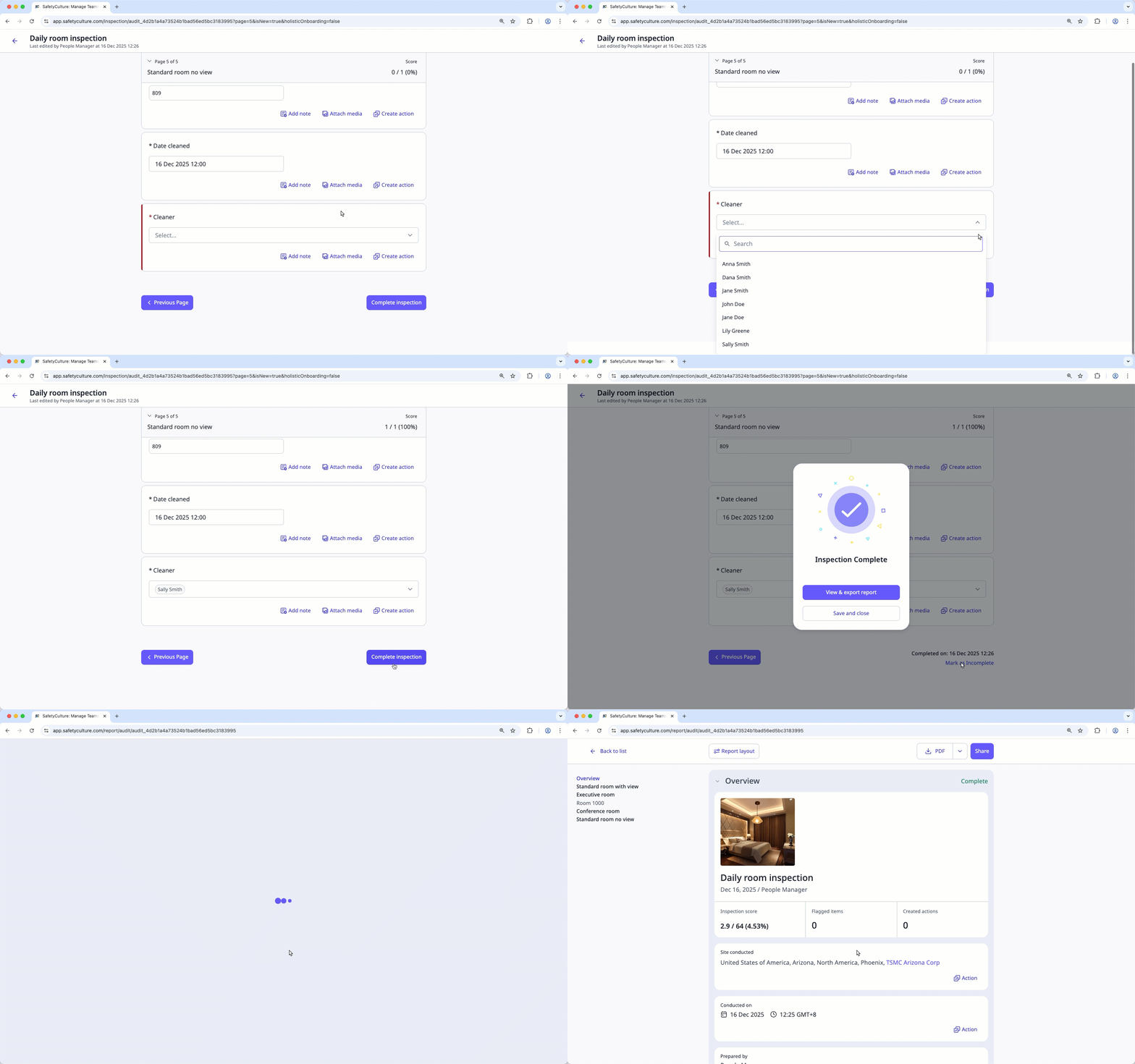
The inspection completion screen is turned on for all templates by default.
What you'll need
Turn inspection completion screen on or off
Select Templates in the sidebar or select it in More.
Click a template and select Edit template in the side panel.
Click on the upper right of the page.
In the side panel, turn Inspection completion screen on or off.
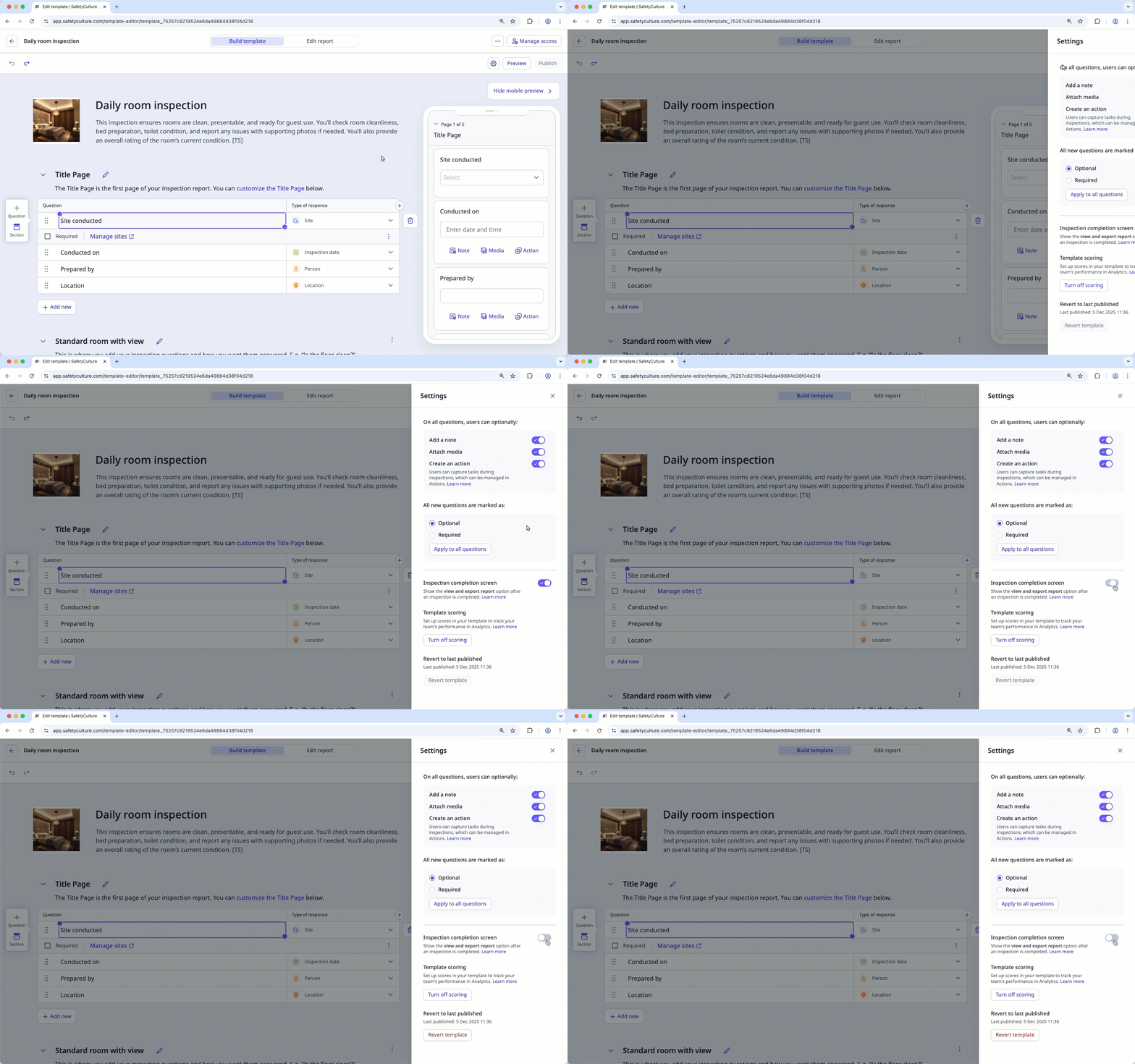
Click on the upper-right corner of the side panel.
Click Publish on the upper-right of the page to publish the template. If you're not ready to publish the template, you can go back to the template list and publish the changes when you're ready.
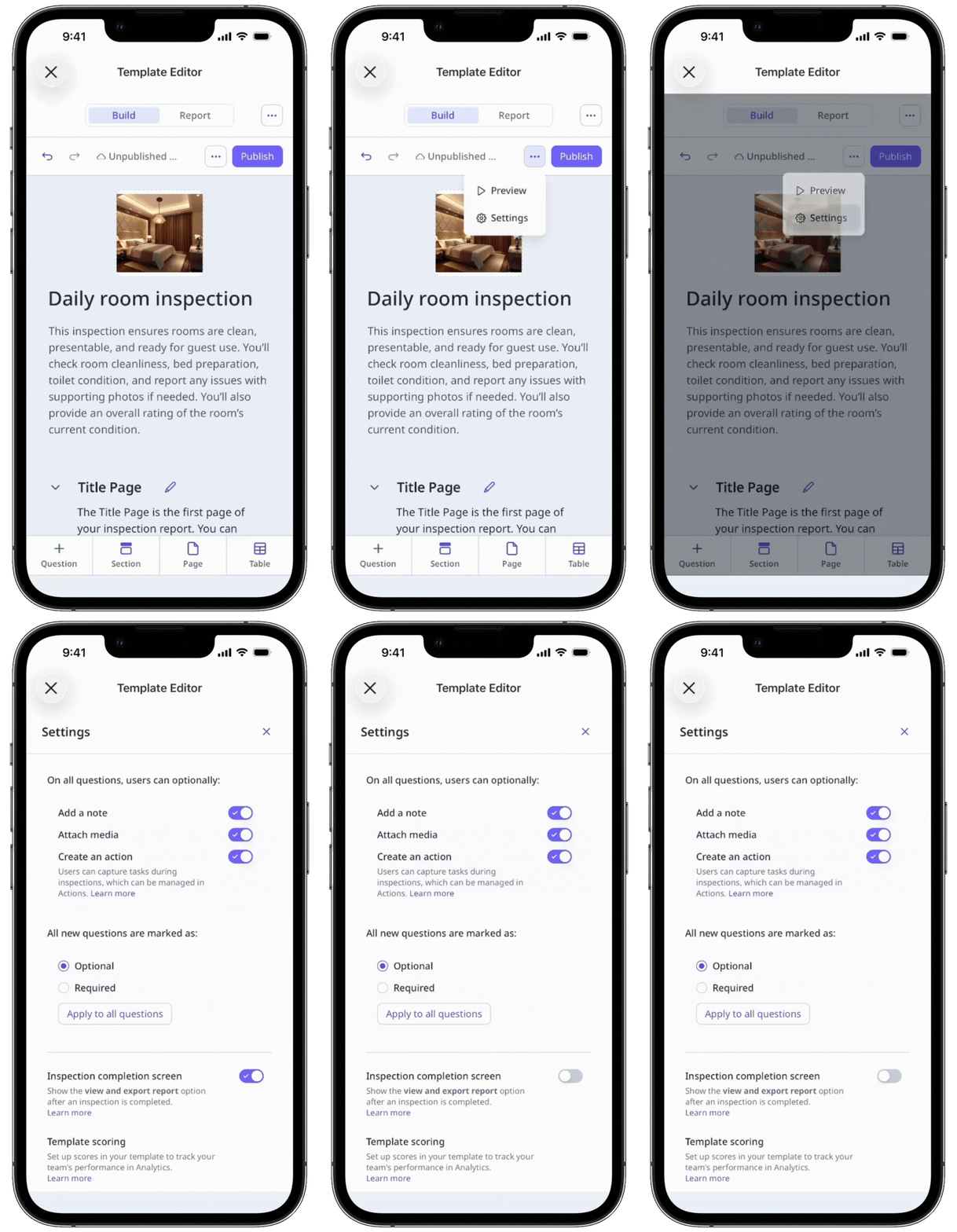
Published changes made to templates only apply to new inspections moving forward.


