What are the differences between service user and user API tokens?
Service user and user API tokens offer flexible ways to connect external tools to SafetyCulture.
Service user API tokens are best suited for long-term or shared integrations where access should stay the same regardless of user changes. You can set their permissions, which makes them ideal for stable, system-level connections.
User API tokens are suitable for one-off tasks, personal workflows, or scenarios where access needs to reflect a specific user's permissions or group and site memberships.
Choosing the correct token type ensures your integration runs smoothly while matching your organization's security and access needs.
Functionality | Service user API token | User API token |
|---|---|---|
Ownership | Created for a service user (system-based or integration-focused) | Created by an individual user |
Login | Cannot be used to log in | Can be used to log in |
Permissions | Assigned for each service user | Inherits the user’s permission set |
Group and site access control | Not supported | Inherits access from the user |
Integrations | Designed for long-term or shared integrations | Suited for short-term or personal use |
Token stability | Not affected by user changes | Will expire if user is deactivated or exits the organization |
Activity logs | Shows the service user name | Shows the individual user’s name |
Visibility | Not shown in the user list | Visible in user settings |
Billing | Does not count toward seat billing | Counts toward assigned user seat |
Each user can create up to 10 active user API tokens. Whereas, each organization can have up to 20 active service user tokens.
If you belong to multiple organizations, you need to create separate API tokens for your integrations. This applies to both service user and user API tokens.
What data can API requests access with API tokens?
API tokens authorize API requests to act on behalf of a specific subject in SafetyCulture. That subject is either:
The user who created a user API token, or
The service user who owns a service user API token.
For every request, the SafetyCulture API checks the subject’s permissions and access.
If you want an integration to mirror exactly what you see in SafetyCulture, use your own user API token. If you want a different view (for example, broader access managed by an admin), consider using a service user API token.
Permissions
Permissions control what actions API requests can perform.
User API tokens use the permission set of the user who created the token. If that user cannot perform a task in SafetyCulture, API requests that use their token cannot perform it either.
Service user API tokens use the permission set you assign to the service user. If the service user does not have permission to perform a task, API calls made with their token cannot do so.
Access
Access controls which items API requests can return or work with.
API requests that use an API token can only return templates, inspections, assets, and other items that the subject (user or service user) can access in SafetyCulture.
For user API tokens, this access typically comes from the user’s groups, sites, and any sharing or access rules you set on content.
For service user API tokens, this access comes from the access and sharing you configure for the service user and your content (for example, templates or inspections that you explicitly share with that service user or include in rules that cover it).
For content that another organization shares with yours, the template or inspection must be shared in a way that includes the subject (user or service user).
What you'll need
If you're using a service user API token for SCIM provisioning, the service user must have both "Platform management: Users" permission and "Platform management: Groups" permission.
Create a service user API token
Click your organization name on the lower-left corner of the page and select Integrations.
Select API tokens from the tab at the top of the page.
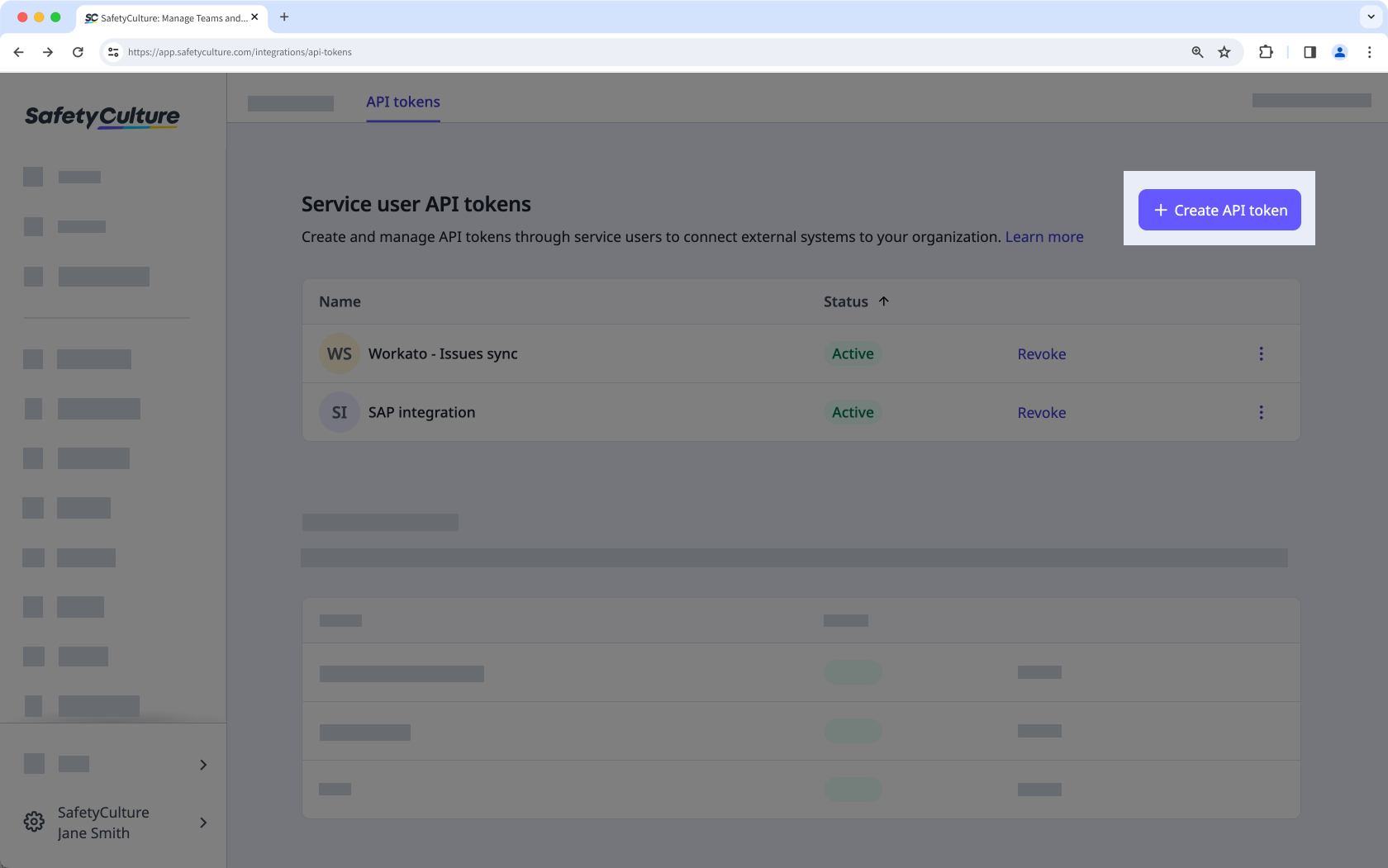
Click Create API token on the upper-right of the page.
Complete the following details:
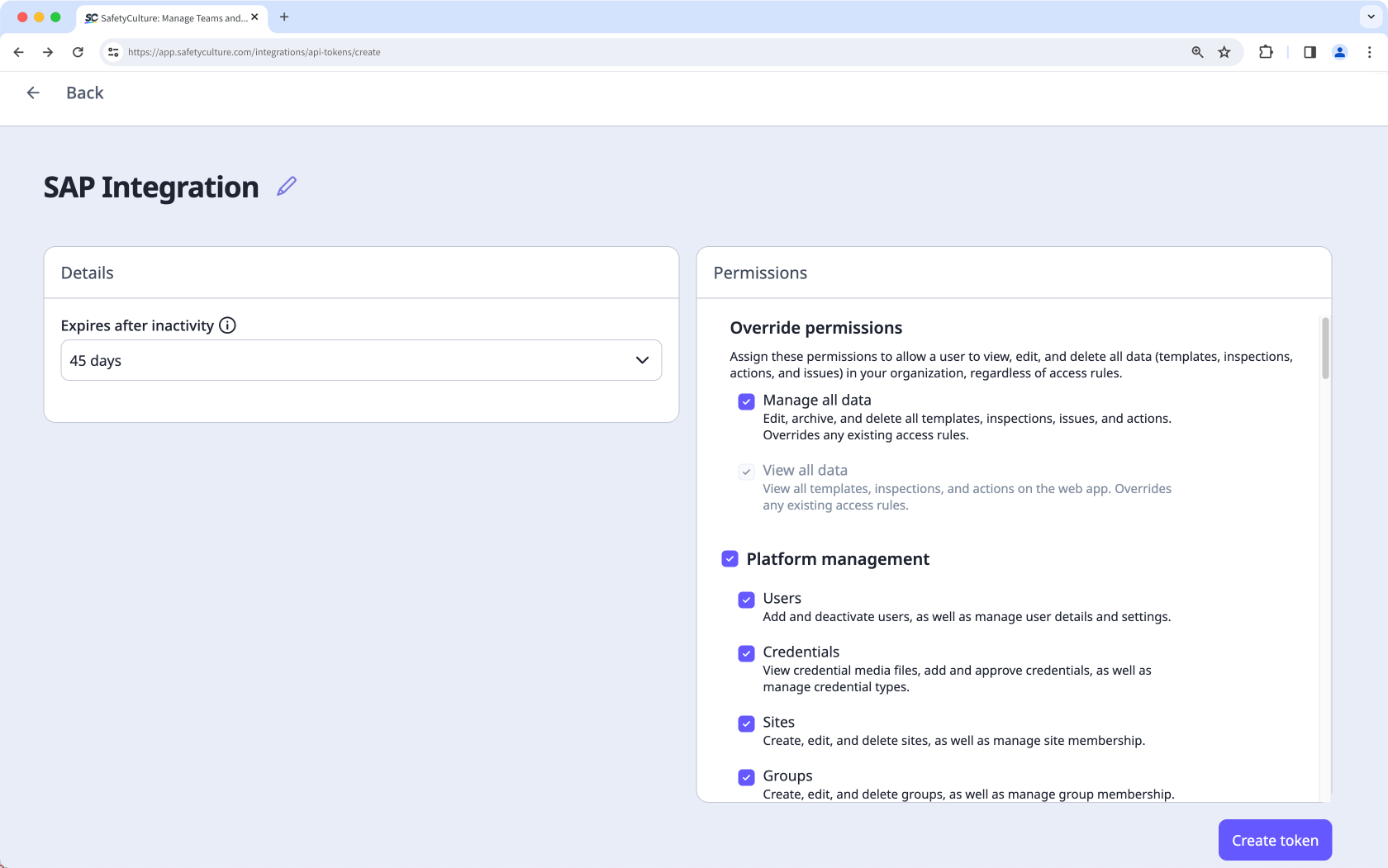
Enter a name for the service user API token to describe its purpose.
Choose how long the token remains active before it expires due to inactivity. You can select 31, 45 (default), 60, or 180 days.
Select the permission sets for the service user. All permissions are selected by default.
Click Create token on the lower-right of the page.
In the pop-up window, click the service user API token to copy it. Save the token securely before closing the window.
Edit a service user API token
Click your organization name on the lower-left corner of the page and select Integrations.
Select API tokens from the tab at the top of the page.
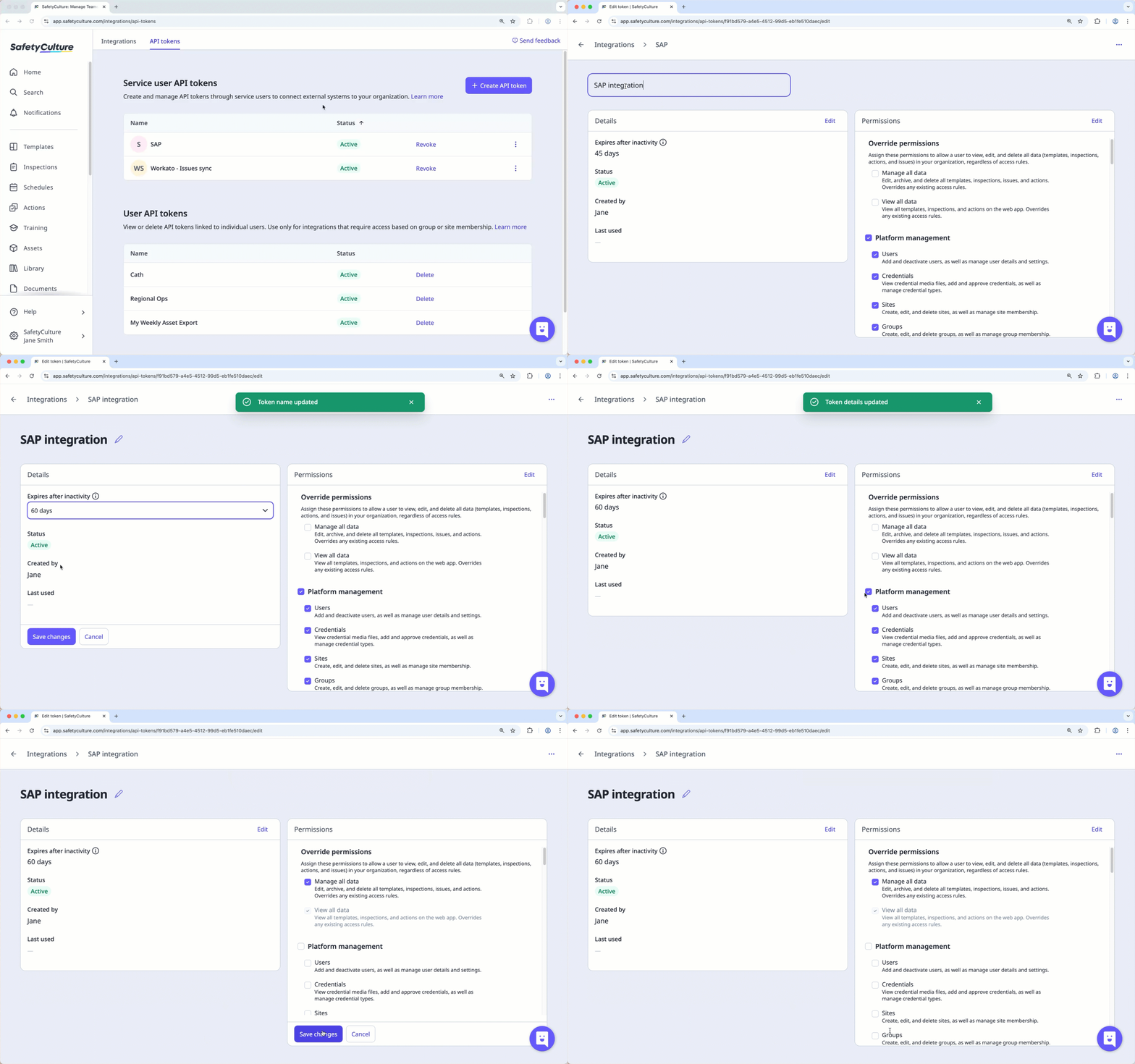
Click the active service user API token you want to edit.
Click on the upper-left of the page to change the token name.
On the left-hand side of the page, click Edit to change how long the token remains active before it expires due to inactivity. You can select 31, 45 (default), 60, or 180 days.
On the right-hand side of the page, click Edit to update the service user's permission sets.
Click Save changes.
View service user API tokens list
Click your organization name on the lower-left corner of the page and select Integrations.
Select API tokens from the tab at the top of the page.
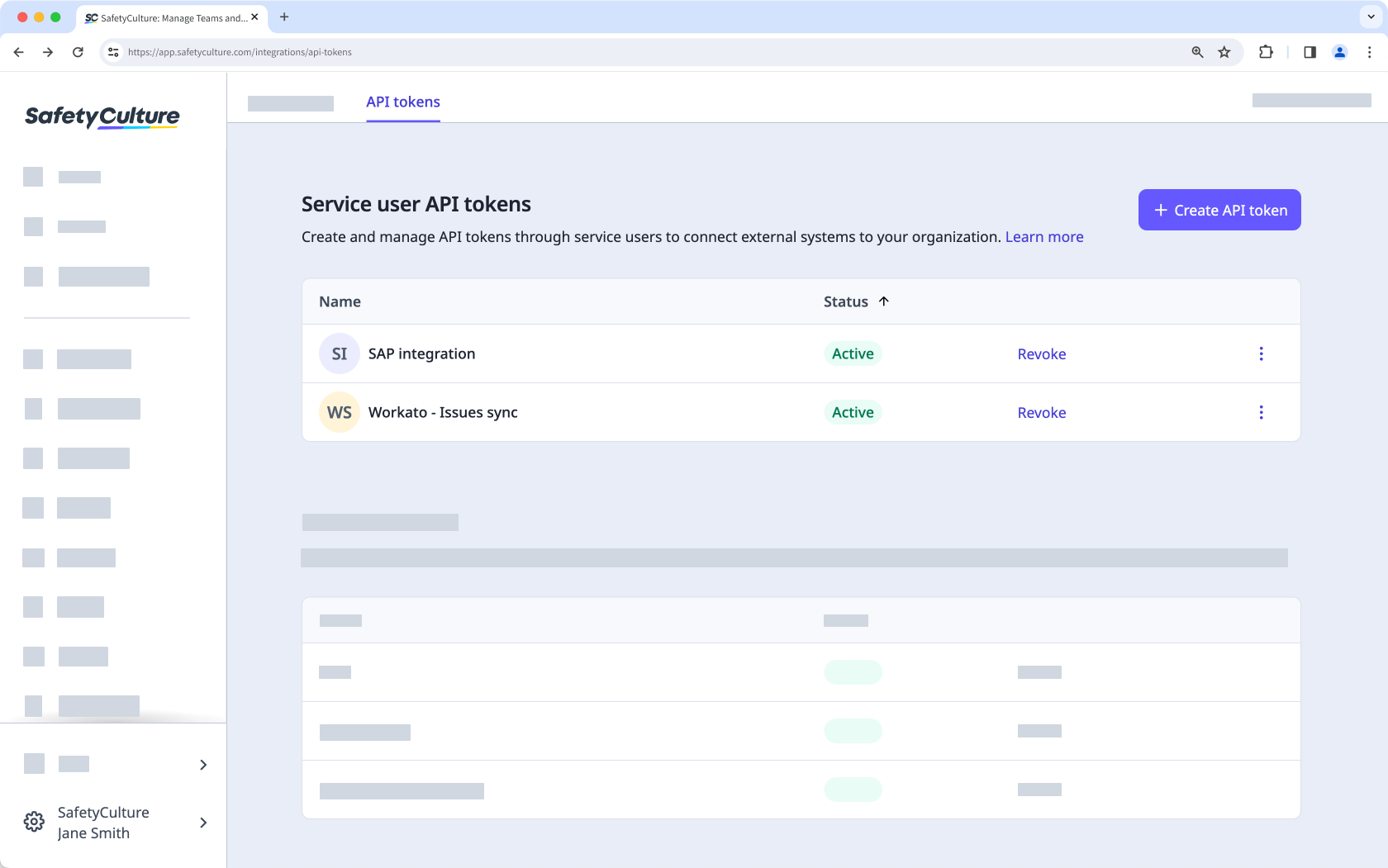
Under Service user API tokens, view the list of tokens.
Revoke a service user API token
Click your organization name on the lower-left corner of the page and select Integrations.
Select API tokens from the tab at the top of the page.
Under Service user API tokens, click Revoke next to the token.
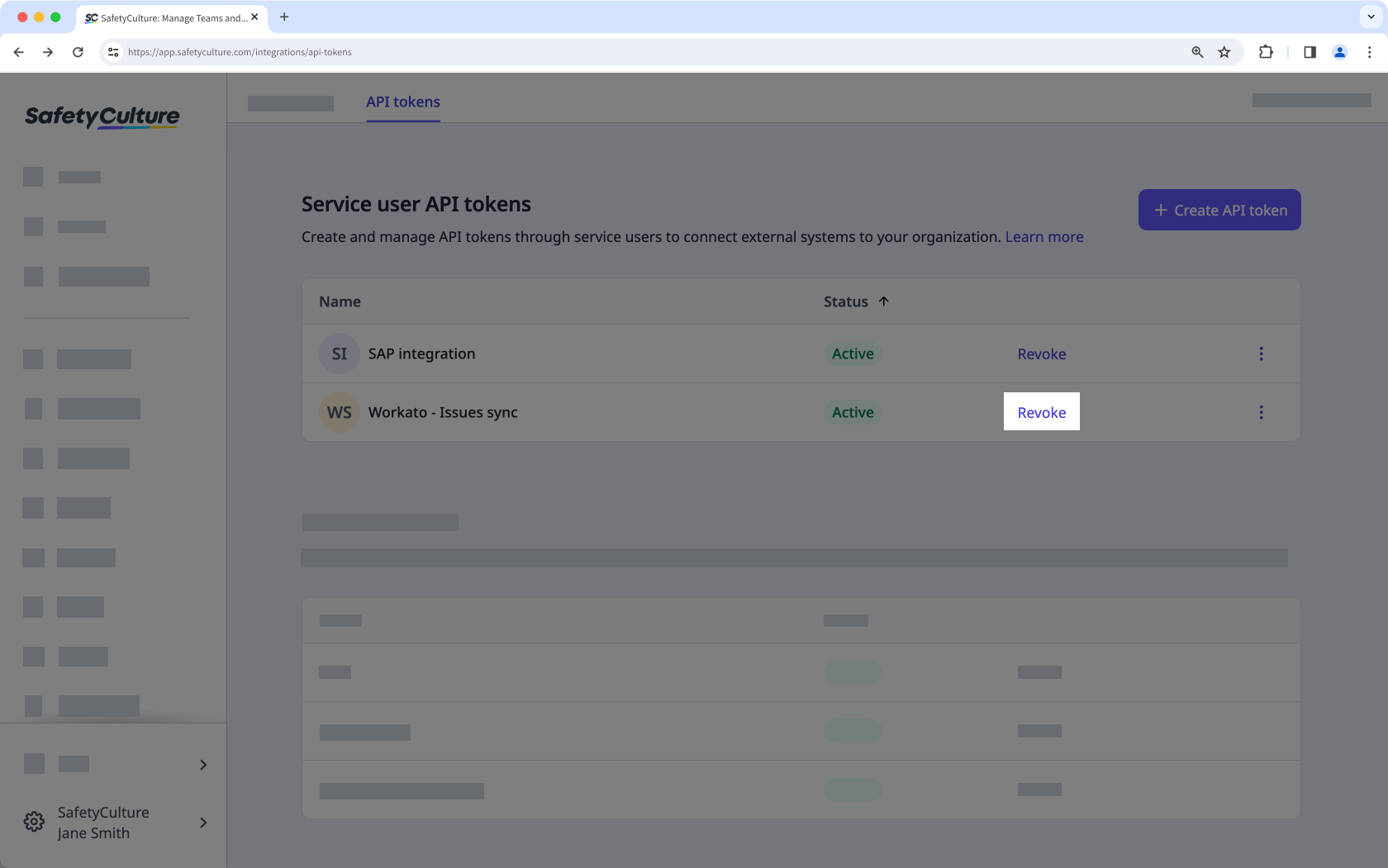
In the pop-up window, click Revoke.
Regenerate a revoked service user token
Click your organization name on the lower-left corner of the page and select Integrations.
Select API tokens from the tab at the top of the page.
Under Service user API tokens, click Regenerate next to the revoked token.
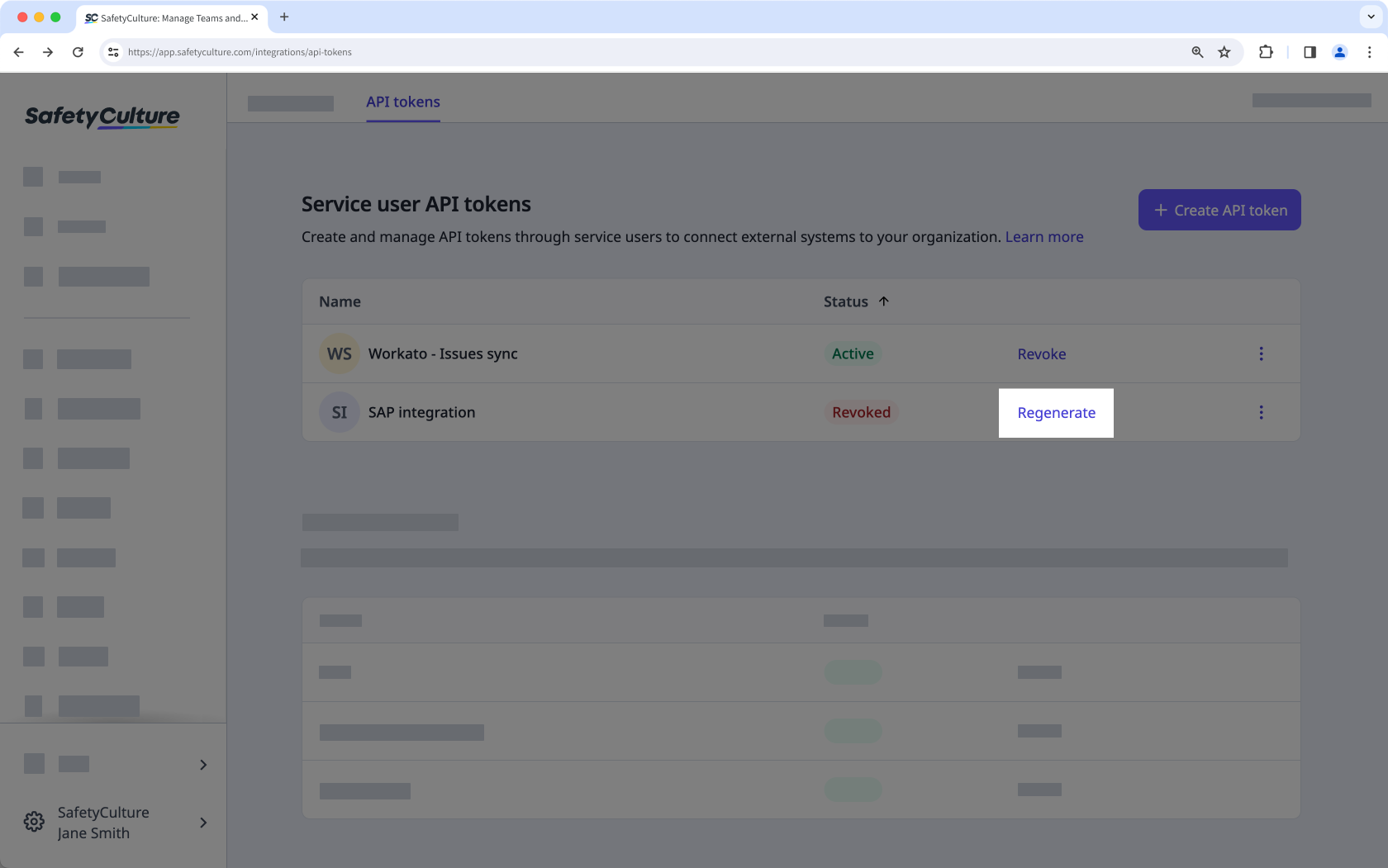
In the pop-up window, click Confirm.
Click the service user API token to copy it. Save the token securely before closing the window.
Delete a revoked service user token
Click your organization name on the lower-left corner of the page and select Integrations.
Select API tokens from the tab at the top of the page.
Click next to the revoked service API token.
Select Delete.
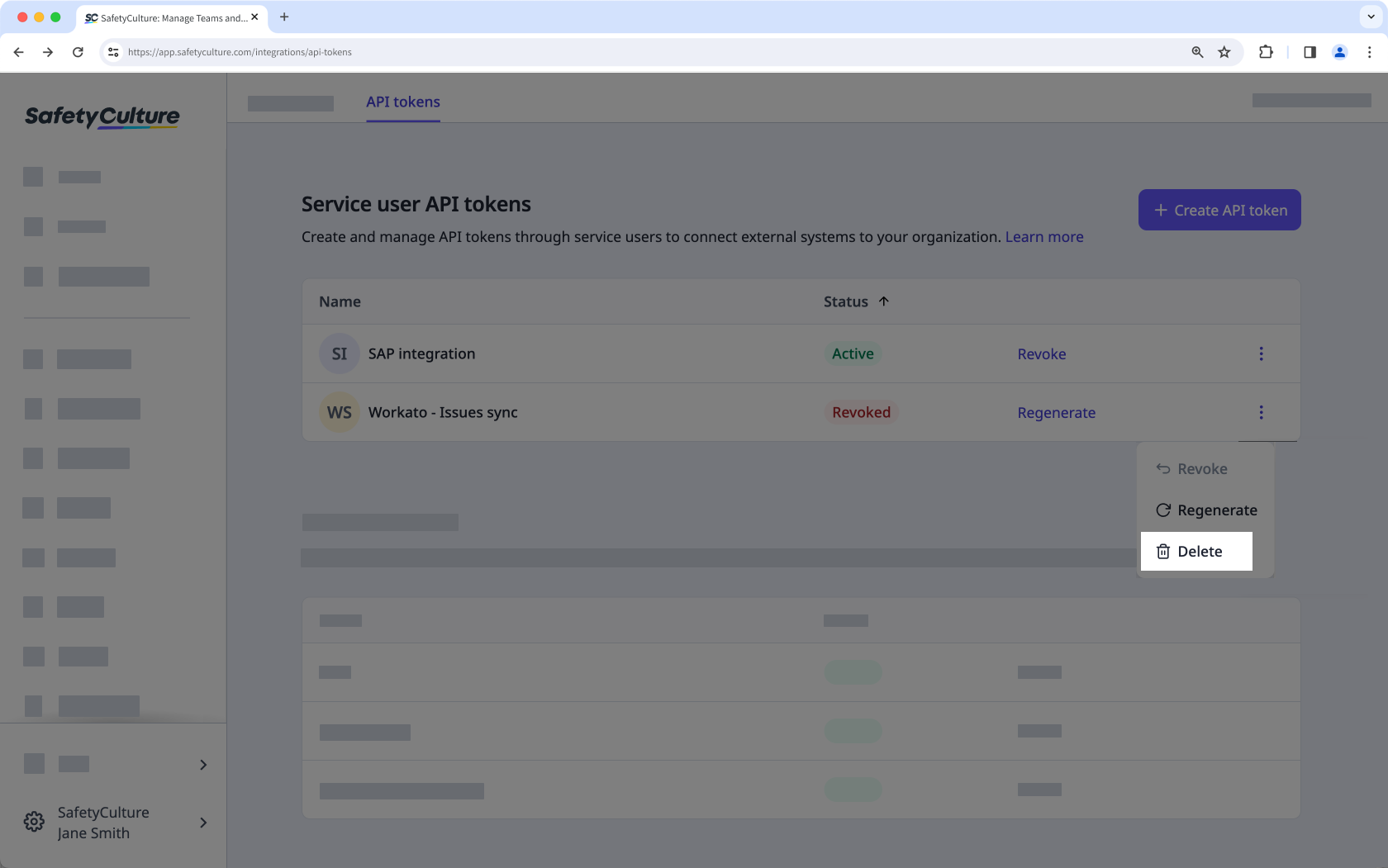
In the pop-up window, click Delete.