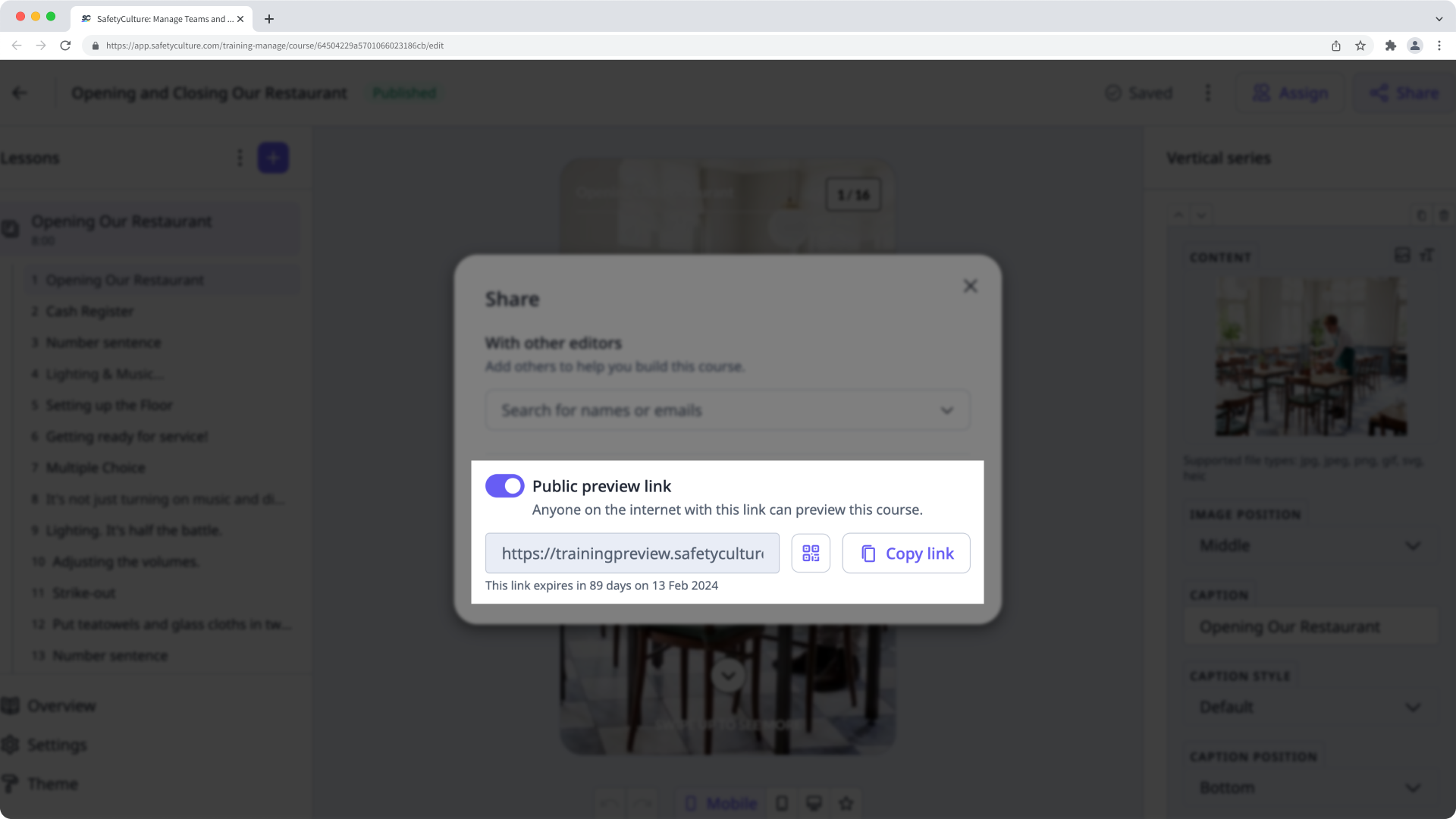
What are course public preview links?
Course public preview links are URLs that you can create for each course. These are public links that you can share with others either by generating a QR code or copying the link, allowing them to preview the course on a web browser.
What you'll need
Manage course public preview link settings
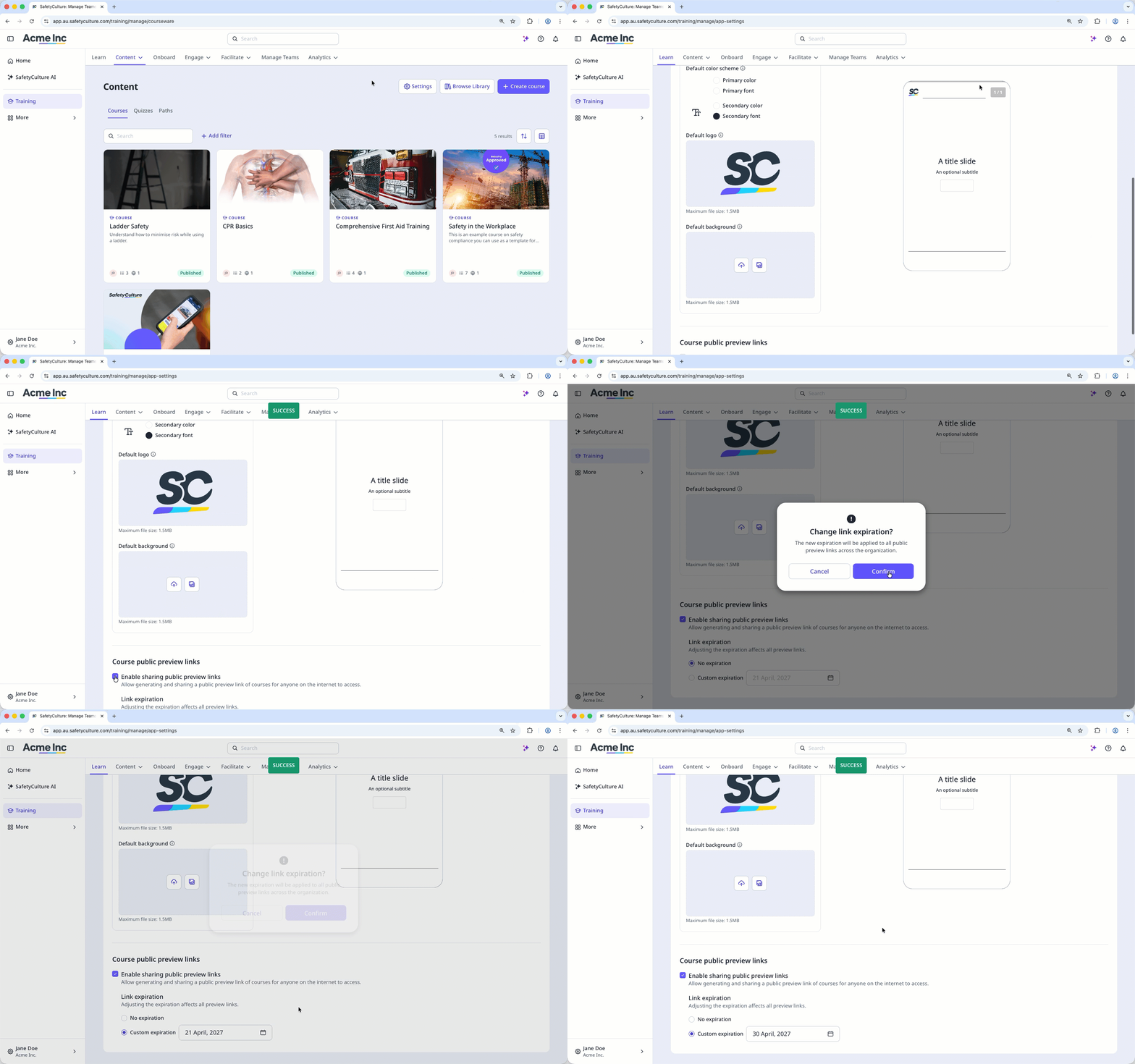
Select Training in the sidebar or select it in More.
Click Settings on the upper-right corner of the page.
Select Content at the top of the page.
Scroll down to “Course public preview links” section and manage the following advanced settings:
Enable sharing public preview links: Check this box to allow anyone to generate and share public preview links for courses. If you uncheck this box, previously generated preview links will no longer work.
Link expiration: Set no expiration date or specify an expiration date for all public preview links across your organization.