Diese Funktion befindet sich derzeit im frühen Zugriffs-Modus. Wenn Sie daran interessiert sind, kontaktieren Sie bitte unser Kundensupport-Team oder Ihren Kundenerfolgsmanager, und fragen Sie, ob Ihre Organisation daran teilnehmen kann.
Welche Rollen gibt es in SafetyCulture?
Rollen legen fest, welche Aktionen Benutzer in SafetyCulture ausführen können. In den meisten Organisationen benötigen Teammitglieder je nach ihren Aufgaben unterschiedliche Zugriffsebenen. So sollte beispielsweise ein Standortleiter nicht über dieselben Berechtigungen verfügen wie ein globaler Administrator, und ein Mitarbeiter an vorderster Front sollte ebenfalls nicht denselben Zugriff haben wie diese beiden. Mithilfe von Rollen können Unternehmen die Berechtigungen jedes Nutzers an dessen tatsächliche Tätigkeit anpassen. Es gibt zwei Arten von Rollen:
Globale Rollen gelten für Ihr gesamtes Unternehmen.
Gruppen- und Standortrollen gelten nur innerhalb der Standprte oder der Gruppen, denen ein Benutzer zugewiesen ist.
Durch die Zuweisung dieser Rollen können Unternehmen die Benutzerverwaltung an Standortleiter oder Regionalleiter übertragen, ohne ihnen vollständige Administratorrechte zu gewähren. So bleibt die Kontrolle bei den Verantwortlichen für die einzelnen Gruppen oder Standorte, während sich die Administratoren auf die gesamte Organisation konzentrieren können.
Für bestehende Benutzer heißt die Registerkarte „Berechtigungen“ nun „Rollen“, und die Berechtigungsets werden nun als globale Rollen bezeichnet, die genau auf dieselbe Weise funktionieren.
Was Sie brauchen
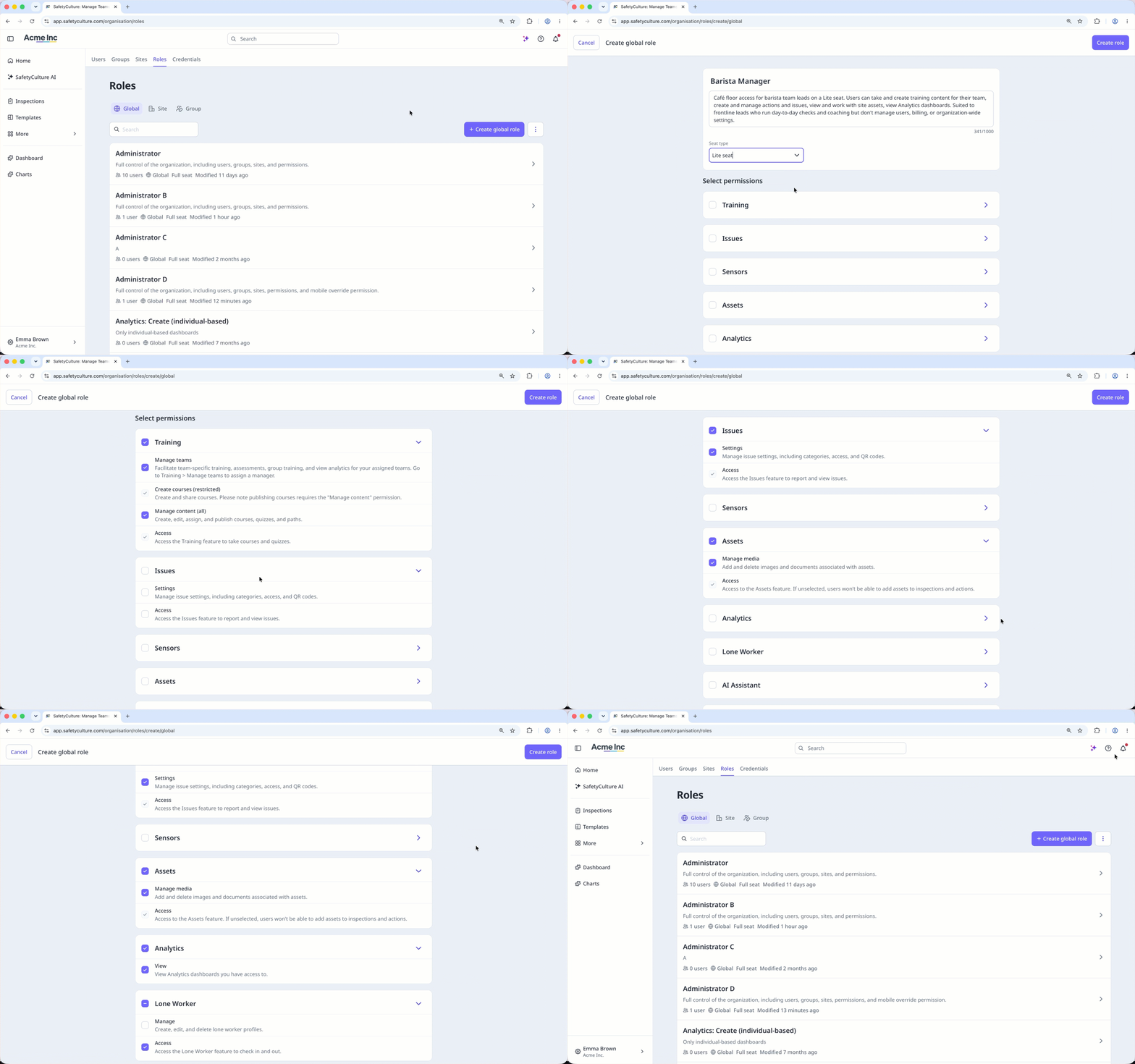
Eine globale Rolle anlegen
Klicken Sie auf den Namen Ihrer Organisation in der unteren linken Ecke der Seite und wählen Sie Rollen aus.
Klicken Sie oben rechts in der Liste der globalen Rollen auf Globale Rolle anlegen.
Konfigurieren Sie die folgenden Angaben entsprechend:
Name (erforderlich): Geben Sie den Namen der Rolle ein.
Beschreibung (erforderlich): Geben Sie die Rollenbeschreibung ein.
Lizenztyp: Klicken Sie auf das Dropdown-Menü und wählen Sie den Lizenztyp (opens in new tab) aus.
Berechtigungen auswählen: Wählen Sie die Berechtigungen aus, die Sie der Rolle zuweisen möchten.
Klicken Sie oben rechts auf der Seite auf Rolle erstellen.
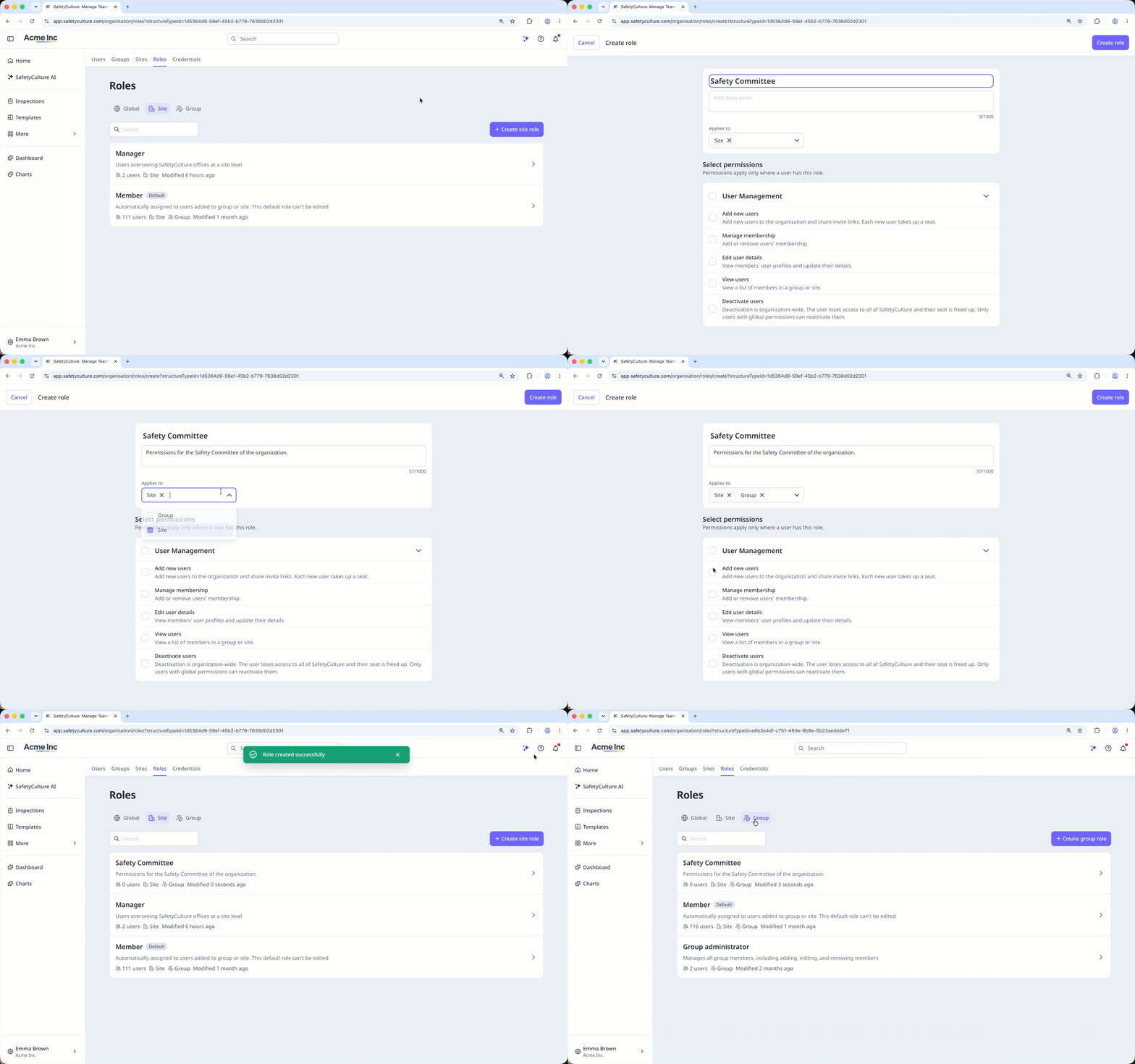
Eine Gruppen- oder Standortrolle erstellen
Klicken Sie auf den Namen Ihrer Organisation in der unteren linken Ecke der Seite und wählen Sie Rollen aus.
Klicken Sie oben auf der Seite auf
 Standort oder Gruppe.
Klicken Sie oben rechts in der Rollenliste auf Create site role oder Gruppenrolle erstellen.
Passen Sie die Angaben entsprechend an.
Name (erforderlich): Geben Sie den Namen der Rolle ein.
Beschreibung (erforderlich): Geben Sie die Rollenbeschreibung ein.
Gilt für: Klicken Sie auf das Dropdown-Menü und wählen Sie aus, ob die Rolle für Websites, Gruppen oder beides gelten soll.
Berechtigungen auswählen: Wählen Sie die Berechtigungen aus, die Sie der Rolle zuweisen möchten.
Klicken Sie oben rechts auf der Seite auf Rolle erstellen.
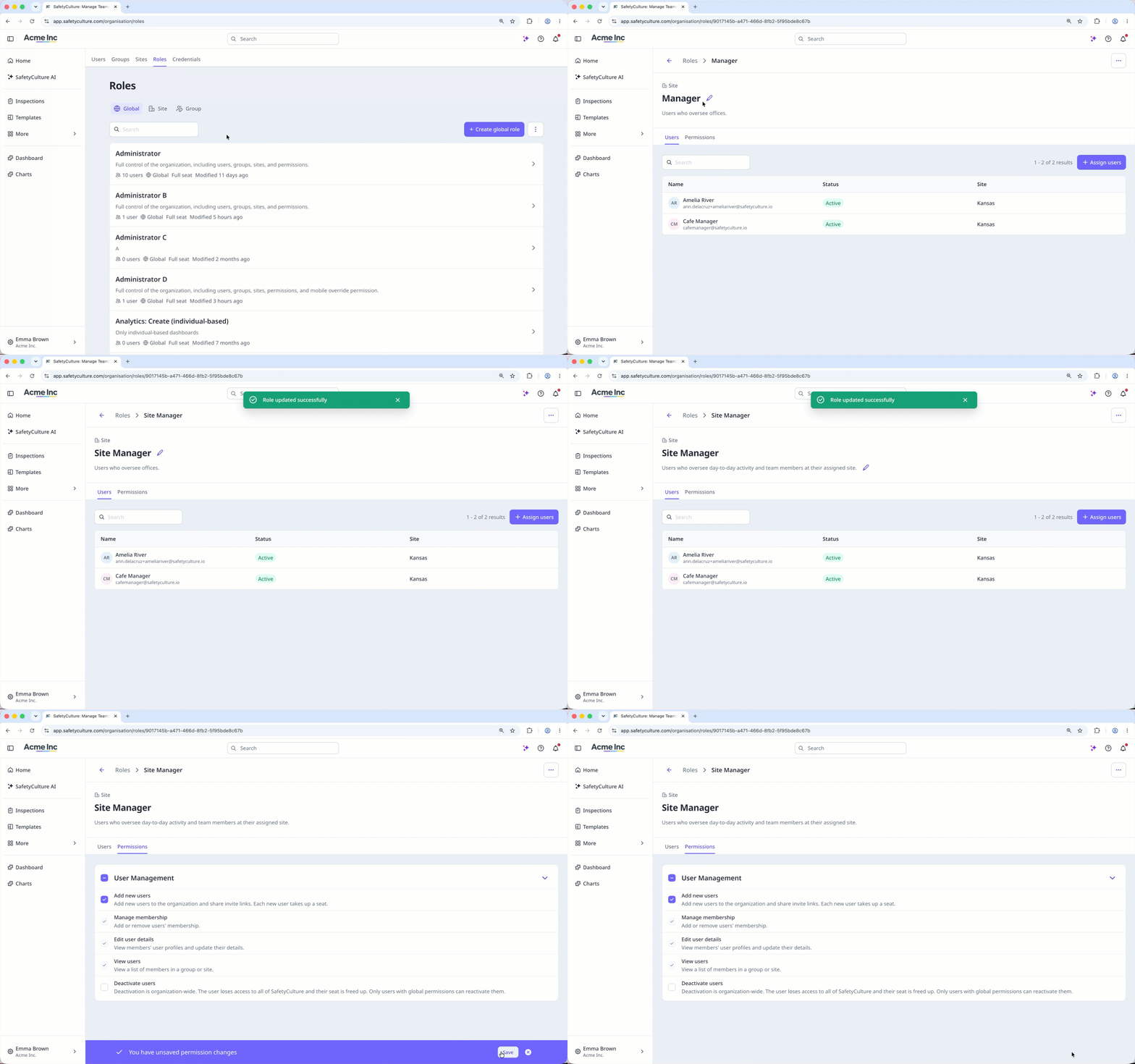
Eine Rolle bearbeiten
Klicken Sie auf den Namen Ihrer Organisation in der unteren linken Ecke der Seite und wählen Sie Rollen aus.
Klicken Sie oben auf der Seite auf Global,
Standort oder Gruppe.Klicken Sie auf die Rolle.
Bearbeiten Sie die Rollendetails entsprechend:
Name: Klicken Sie auf den aktuellen Titel oben links auf der Seite und geben Sie den neuen Titel ein. Drücken Sie anschließend Enter auf Ihrer Tastatur.
Beschreibung: Klicken Sie auf die aktuelle Beschreibung oben links auf der Seite und passen Sie sie entsprechend an. Drücken Sie anschließend Enter auf Ihrer Tastatur.
Berechtigungen: Klicken Sie oben auf der Seite auf Berechtigungen und aktivieren oder deaktivieren Sie die Berechtigungen. Klicken Sie anschließend unten rechts auf der Seite auf Speichern.
Eine Rolle löschen
Das Löschen ist nicht rückgängig zu machen, und wir können dauerhaft gelöschte Objekte nicht wiederherstellen. Vor dem Löschen ist immer eine Bestätigung erforderlich, um sicherzustellen, dass Sie nicht versehentlich das falsche Objekt löschen.
Klicken Sie auf den Namen Ihrer Organisation in der unteren linken Ecke der Seite und wählen Sie Rollen aus.
Klicken Sie oben auf der Seite auf Global,
Standort oder Gruppe.Klicken Sie auf die Rolle.
Klicken Sie oben rechts auf der Seite auf und wählen Sie Rolle löschen aus.
Klicken Sie in dem Popup-Fenster auf Löschen.
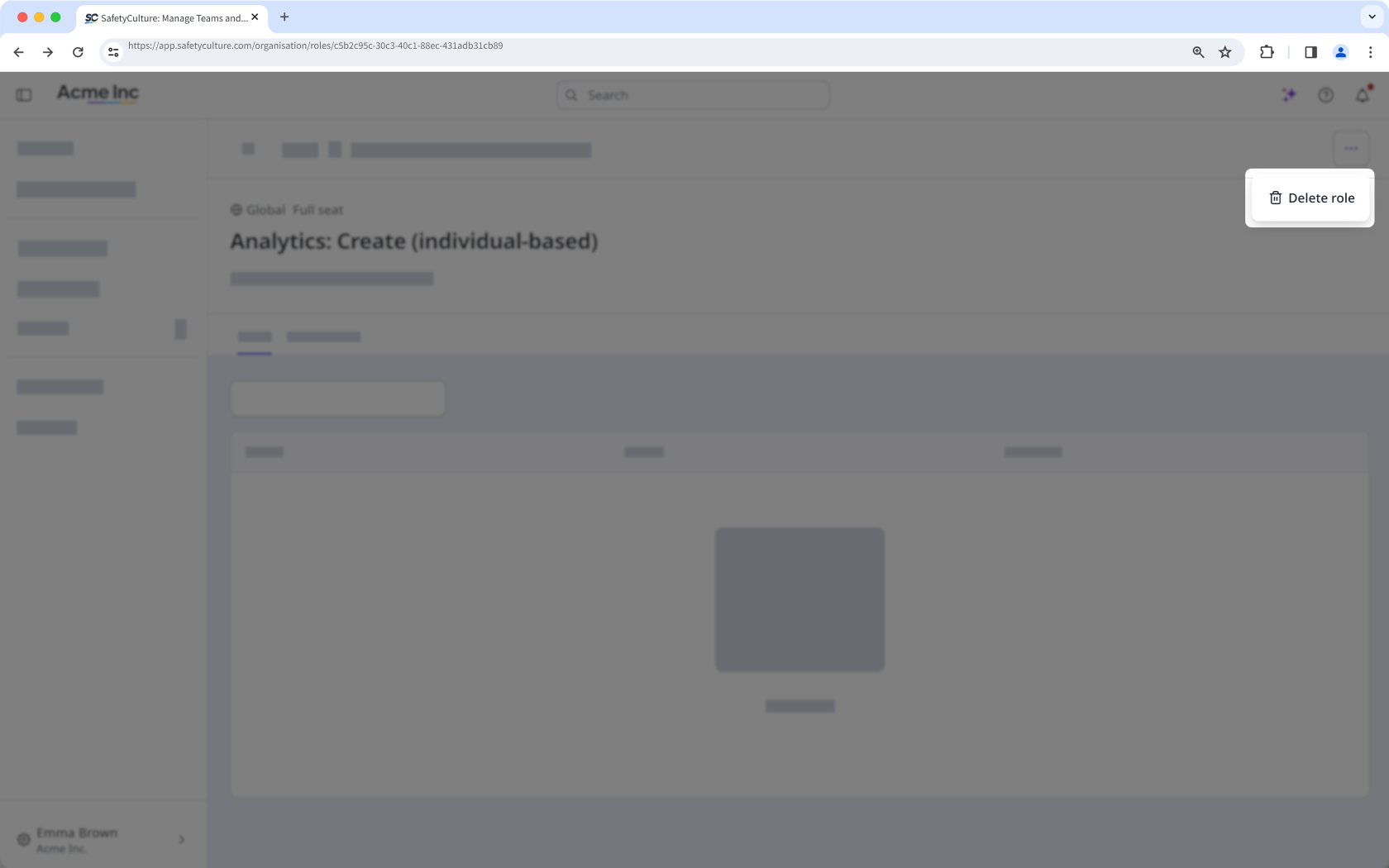
Eine Rolle kann nicht gelöscht werden, solange ihr noch Benutzer zugewiesen sind.
Einschränkungen
Gruppen- und Standortrollen beziehen sich ausschließlich auf die Benutzerverwaltung. Sie können einer rollengebundenen Rolle keine weiteren Berechtigungen (wie den Zugriff auf Vorlagen oder Inspektionen) hinzufügen. Verwenden Sie für alle Aufgaben, die über die Benutzerverwaltung hinausgehen, eine globale Rolle.
Gruppen- und Standortrollen können nur Benutzern mit einer Vollversion zugewiesen werden. Lite- und Gastlizenzen werden nicht unterstützt.
Die standardmäßige globale Rolle „Administrator“ kann nicht gelöscht werden.
Die Standardrolle „Mitglied“ für Gruppen und Standorte kann nicht bearbeitet oder gelöscht werden.