This feature is currently in Early Access. If you're interested, please contact our customer support team or your customer success manager to check if your organization is eligible.
What are roles in SafetyCulture?
Roles define what users can do in SafetyCulture. In most organizations, team members need different levels of access depending on their responsibilities. For example, a site supervisor shouldn't have the same controls as a global admin, and a frontline worker shouldn't have the same access as either. Roles let organizations match each user's permissions to their actual job. There are two types of roles:
Global roles apply across your entire organization.
Group and site roles apply only within the sites or groups a user is assigned to.
Assigning these roles allows organizations to hand user management to site supervisors or regional managers without giving them full admin access. It keeps control close to the people who run each group or site, while admins stay focused on the wider organization.
For existing users, the Permissions tab is now called Roles, and permission sets are now called global roles that work exactly the same way.
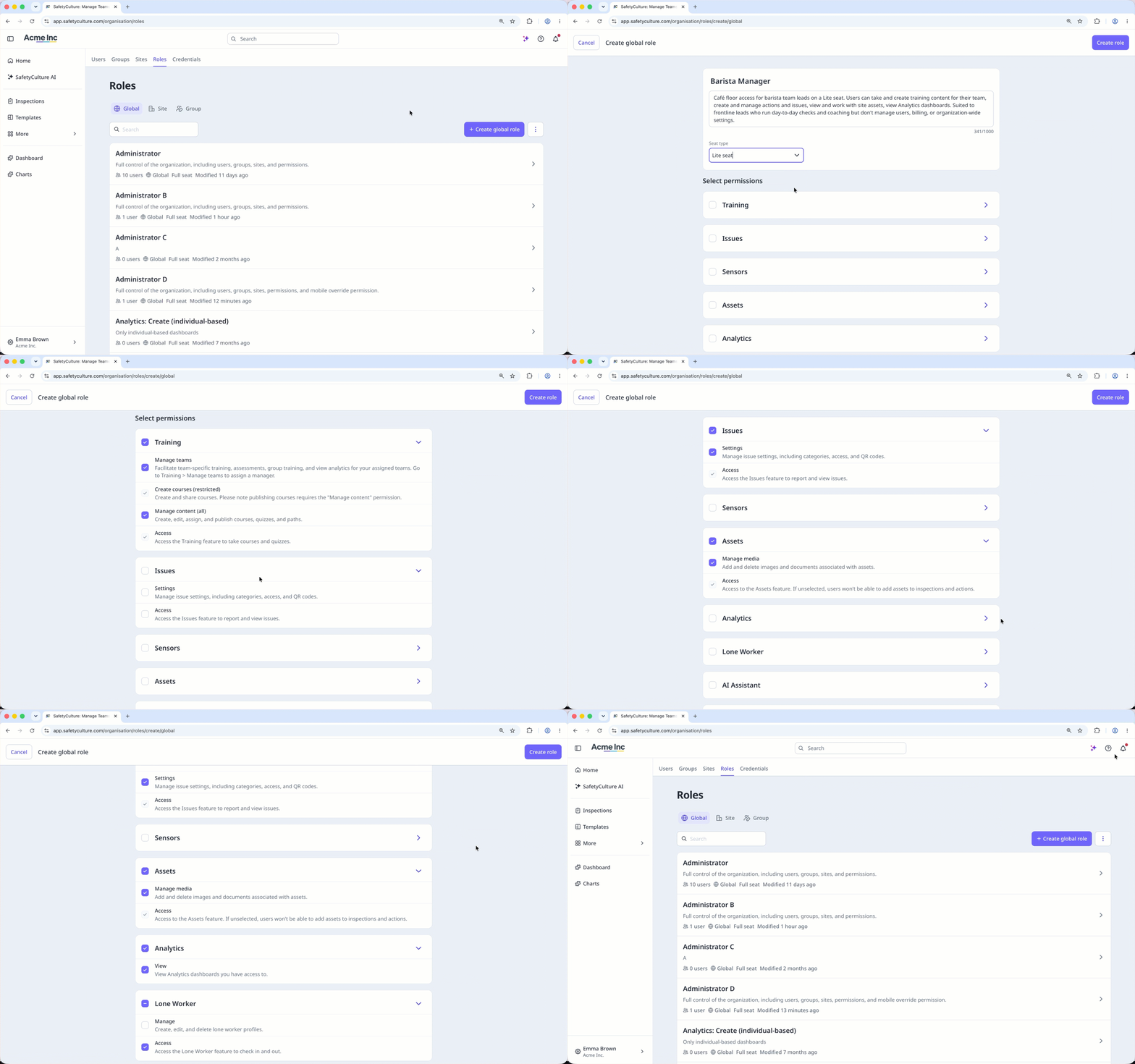
Create a global role
Click your organization name on the lower-left corner of the page and select Roles.
Click Create global role at the upper-right corner of the global role list.
Configure the following details accordingly:
Name: Enter the role name.
Description: Enter the role description.
Seat type: Click the dropdown and select the seat type.
Select permissions: Select the permissions you want to assign to the role.
Click Create role at the upper-right of the page.
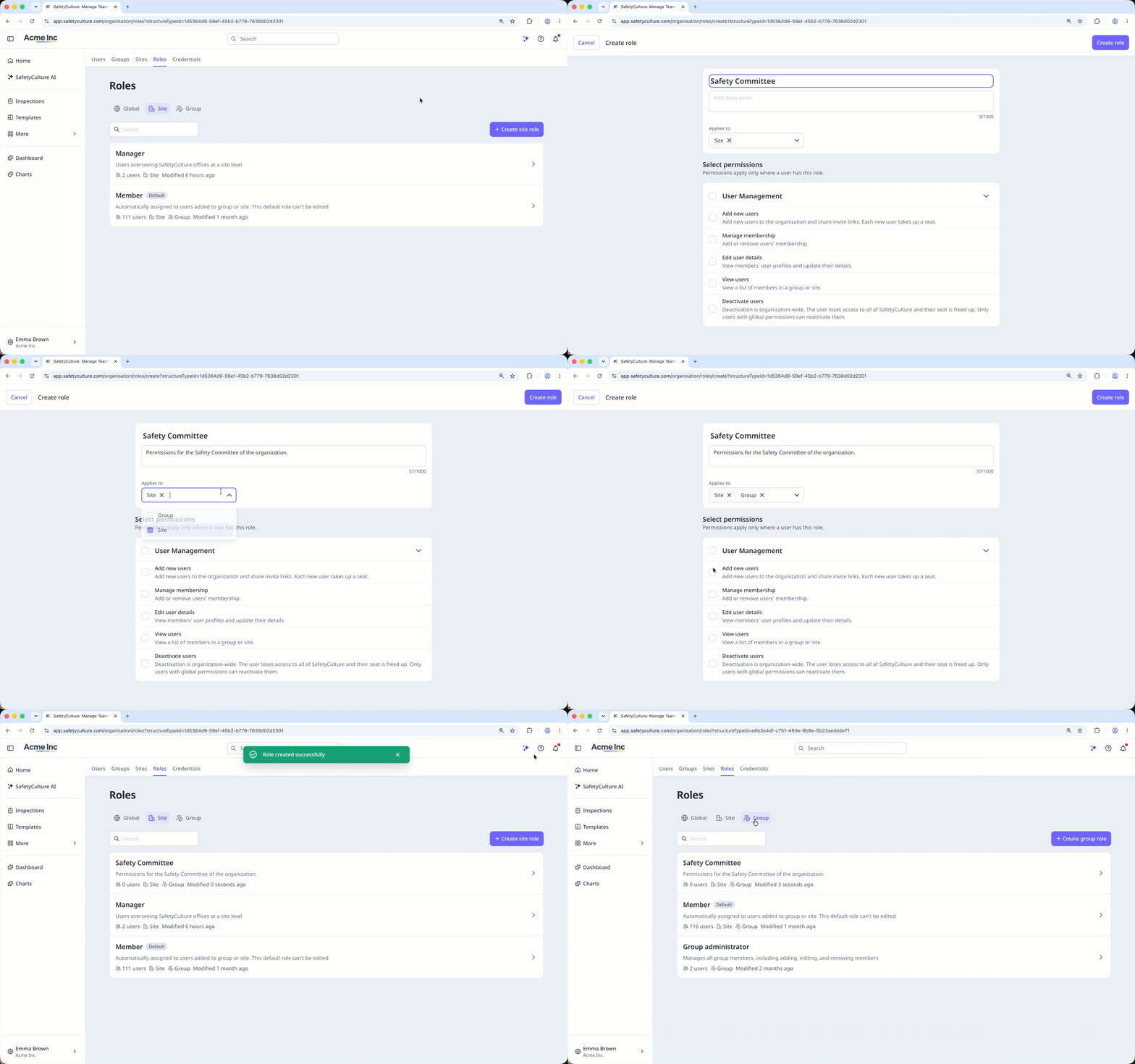
Create a group or site role
Click your organization name on the lower-left corner of the page and select Roles.
Click Site or Group at the top of the page.
Click Create site role or Create group role at the upper-right corner of the role list.
Configure the details accordingly:
Name: Enter the role name.
Description: Enter the role description.
Applies to: Click the dropdown and select whether the role will apply to sites, groups, or both.
Select permissions: Select the permissions you want to assign to the role.
Click Create role at the upper-right of the page.
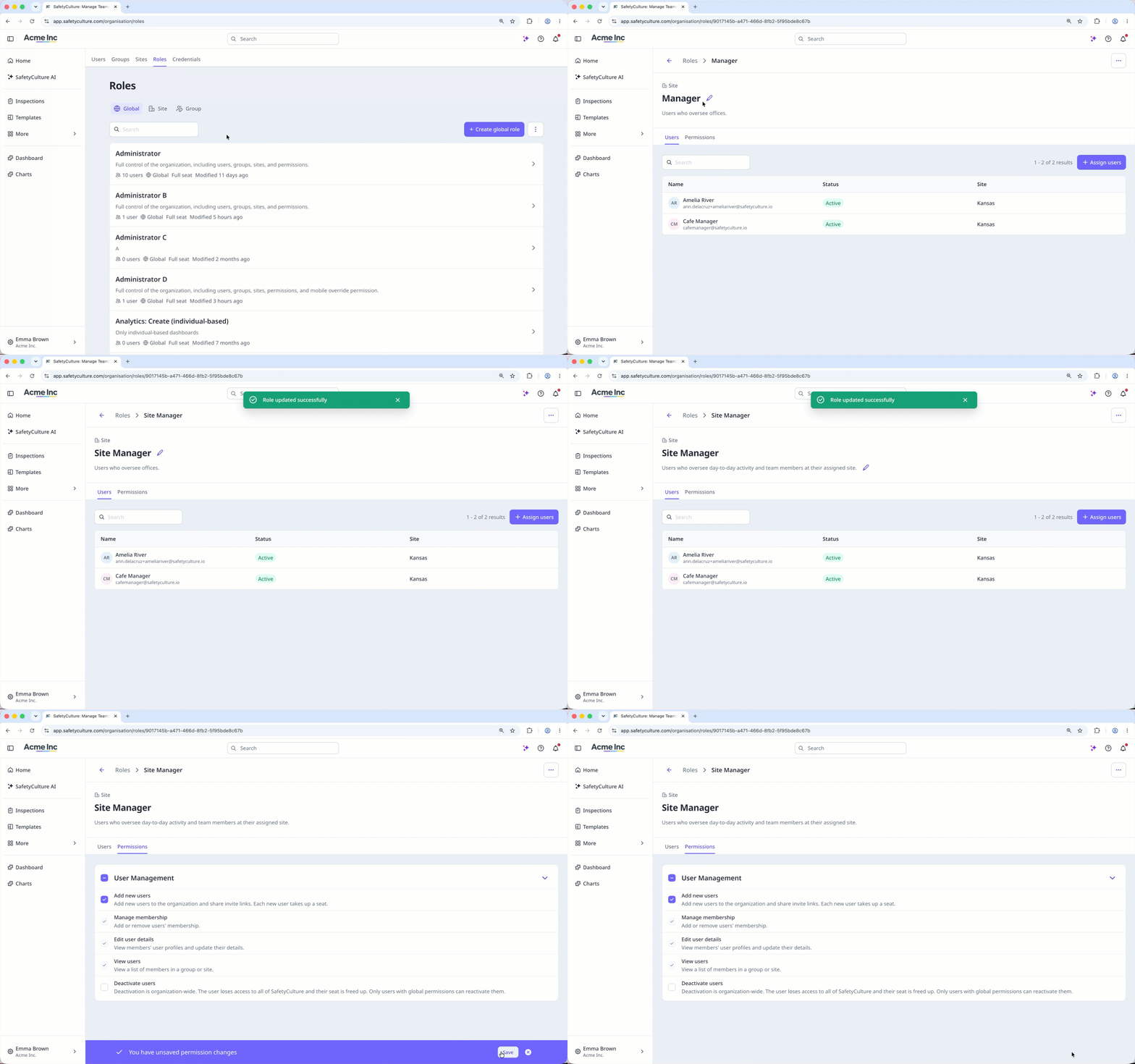
Edit a role
Click your organization name on the lower-left corner of the page and select Roles.
Click Global, Site, or Group at the top of the page.
Click the role.
Edit the role details accordingly:
Name: Hover over the role name and click . Enter the new name, then press Enter.
Description: Hover over the role description and click . Enter the new name, then press Enter.
Permissions: Click Permissions at the top of the page, then check or uncheck the permissions. Then, click Save on the lower-right of the page.
Delete a role
Deleting is irreversible, and we cannot restore permanently deleted items. Confirmation is always required before any deletion, so be sure you're not accidentally deleting the wrong item.
Click your organization name on the lower-left corner of the page and select Roles.
Click Global, Site or Group at the top of the page.
Click the role.
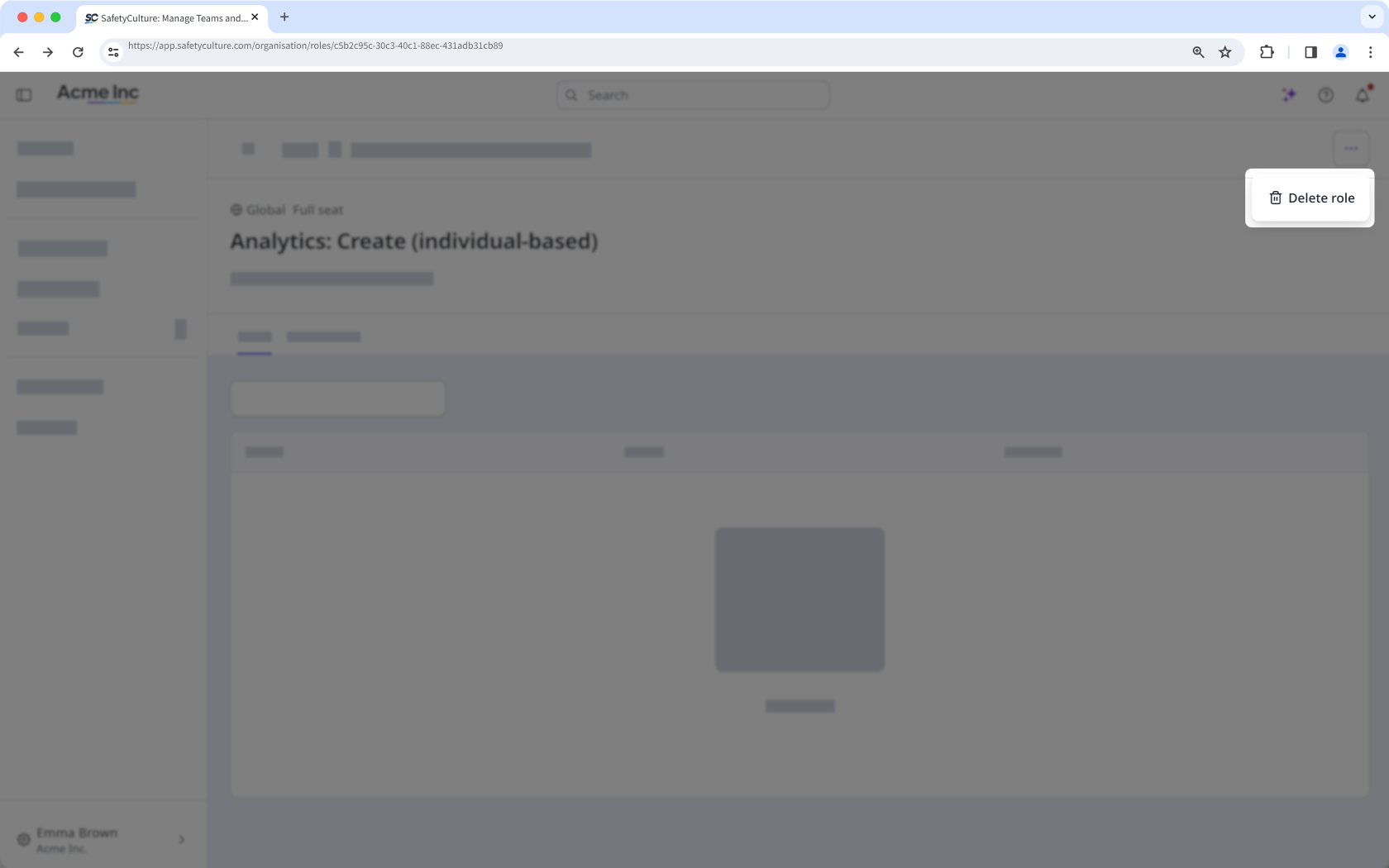
Click on the upper-right of the page, and select Delete role.
In the pop-up window, click Delete.
A role can't be deleted while users are still assigned to it.
Limitations
Group and site roles cover user management only. You can't add other permissions such as template or inspection access to a group or site role. T o add other permissions, use a global role.
Group and site roles can only be assigned to users on a full seat. Users in lite and guest seats aren't supported.
You can't delete the default Administrator global role.
You can't edit or delete the default Member role for groups and sites.