
What is preventative asset maintenance?
Preventative asset maintenance keeps vehicles, equipment, and machinery running smoothly through regular, scheduled servicing. This proactive approach extends your assets' lifespan and ensures they perform consistently to support your daily operations. It also allows you to identify and address maintenance needs early, such as replacing worn brake pads, topping up fluids, or changing filters before they affect performance. Overall, preventative maintenance creates lasting value that allows you to protect your investment, control expenses, and improve operations across your organization.
SafetyCulture simplifies this process by organizing maintenance into programs and plans that schedule work based on asset usage or time intervals. With clear visibility and automated notifications, your team can manage maintenance tasks confidently and on time.
You can't change a maintenance plan type. To use a different plan type, create a new time-based or usage-based plan.
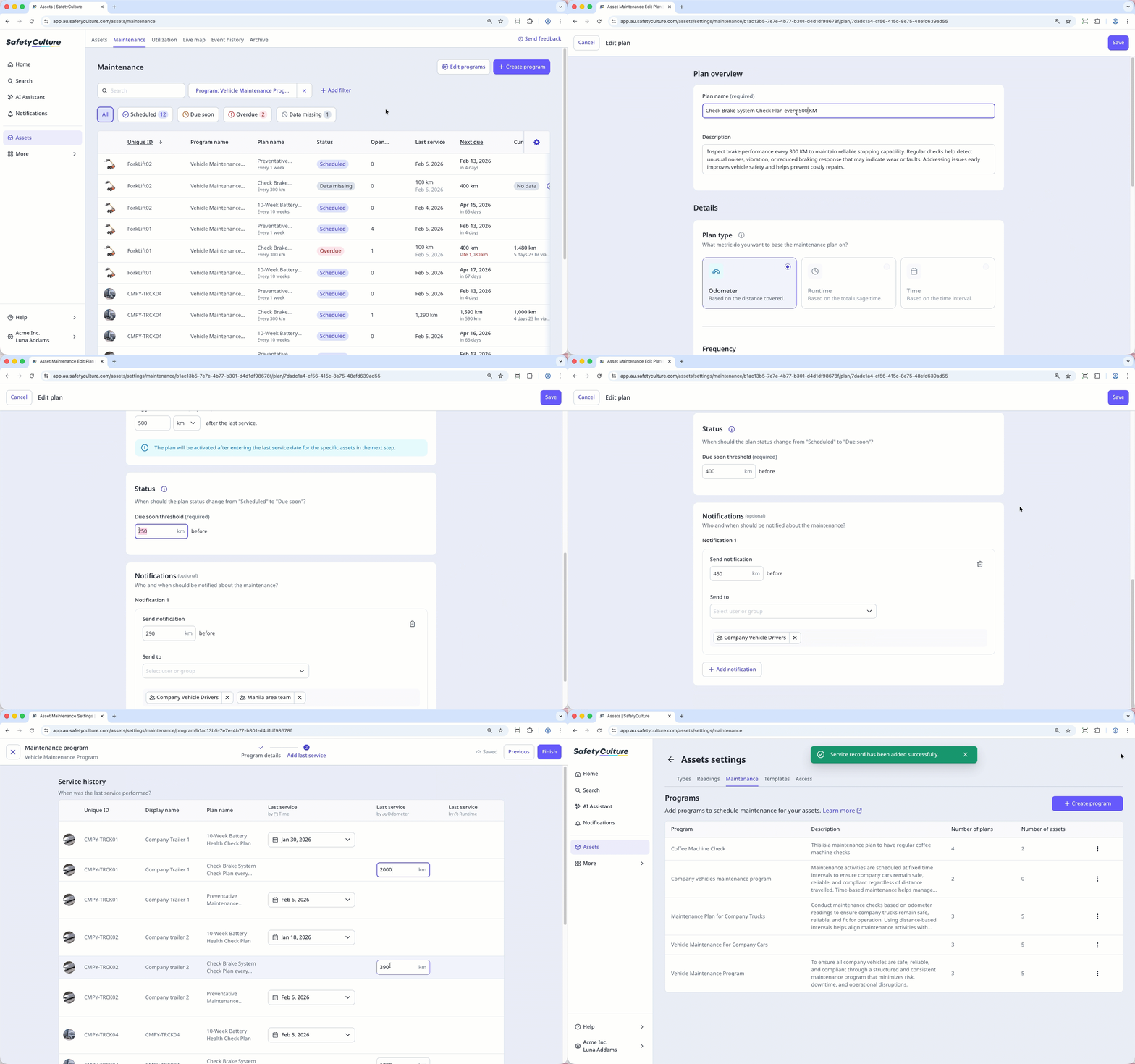
Edit a maintenance plan from a program
Select Assets in the sidebar or select it in More.
Click Maintenance at the top of the page.
On upper-right of the page, click Edit programs.
Select the program you want to edit.
On the right-hand side, click and select Edit.
In the "Plans" section, click on the plan's right-hand side and select Edit plan.
In the "Plan overview" section, edit the plan name and description accordingly.
In the "Details" section, you can modify the following:
For time-based plans, you can edit maintenance frequency, adjust the status threshold, and update when notifications are sent in days or weeks.
For usage-based plans, you can edit the maintenance frequency value, adjust the status threshold, and update notifications based on the asset’s total usage or distance covered.
Click Save on the upper-right of the page.
In the pop-up window, click Save changes.
Click Next on the upper-right of the page.
In
 Add last service, enter the most recent service reading or service date for each asset in the program to establish the maintenance baseline.
Click Finish on the upper-right corner of the page.
Edit a maintenance plan from an asset
Select Assets in the sidebar or select it in More.
Click Maintenance at the top of the page.
Select the asset with the plan that you want to edit.
In the side panel, click and select Edit plan.
In the "Plan overview" section, edit the plan name and description accordingly.
In the "Details" section, you can modify the following:
For time-based plans, you can edit maintenance frequency, adjust the status threshold, and update when notifications are sent in days or weeks.
For usage-based plans, you can edit the maintenance frequency value, adjust the status threshold, and update notifications based on the asset’s total usage or distance covered.
Click Save on the upper-right of the page.
In the pop-up window, click Save changes.
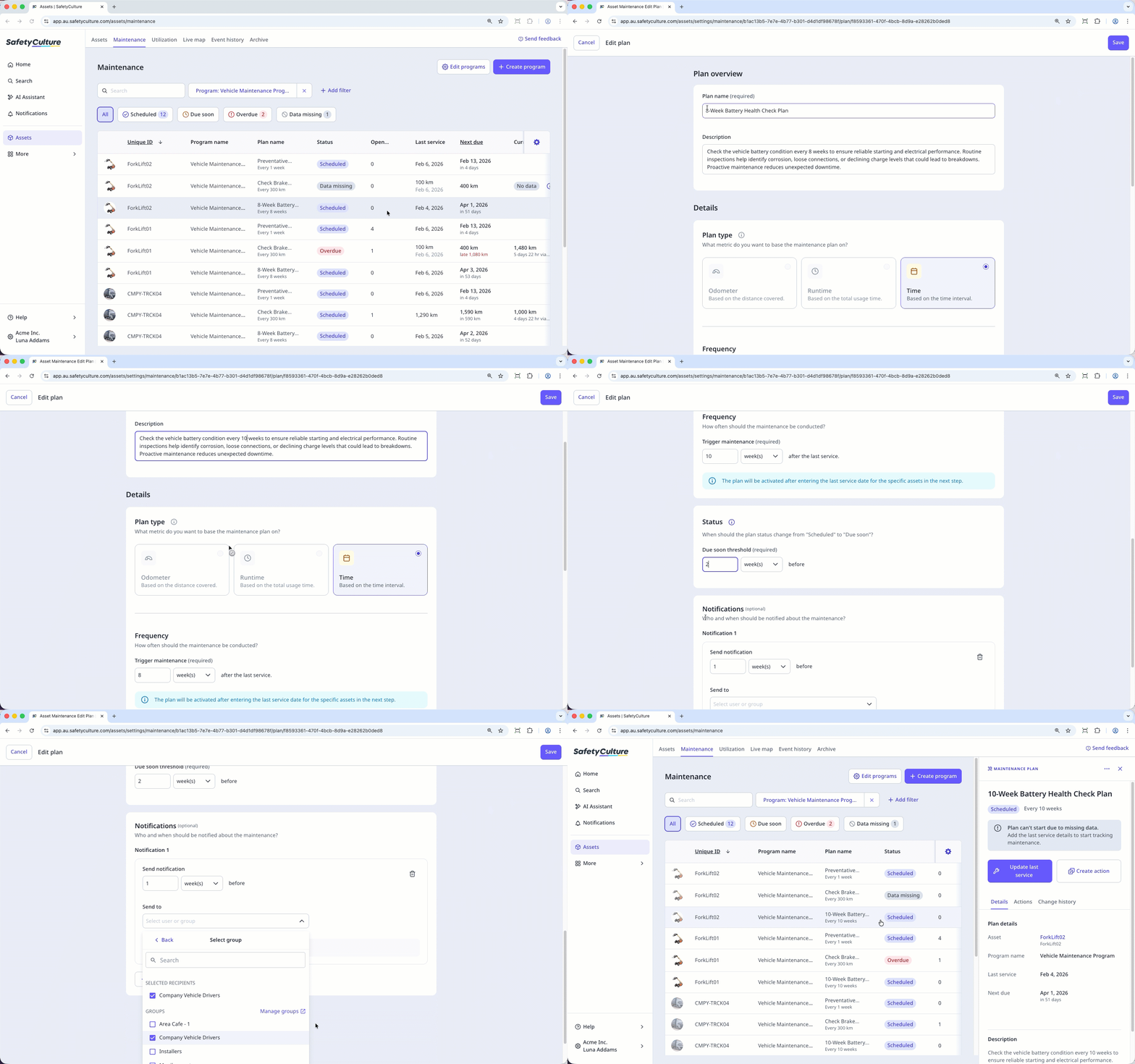
The updated plan details will take effect after you enter the last service details and date for the selected assets on the plan.


