
Why export data from chart drill-downs?
Exporting data from chart drill-downs gives you greater visibility into the inspections behind your trends. Whether you're looking to look into specific responses, review actions raised, or share detailed issue findings with your team, having access to granular data makes it easier to take informed action and drive improvements where they matter most.
Bulk exporting drill-down data is separate from downloading chart data in Analytics.
What you'll need
The data you can view and export in chart drill-downs is the same as what you have access to in SafetyCulture. Learn how to give yourself a ccess to the relevant data or assign yourself "Override permissions: View all data" permission for visibility across all data in your organization.
Available export formats
Depending on the data type, the following export formats are supported:
Inspections | Actions | Issues | Scheduled | Credentials |
|---|---|---|---|---|
Word Excel CSV CSV with media List as table (CSV) | CSV Excel | List as CSV | List as CSV | CSV Excel |
Bulk export limitations
The following limitations apply when bulk exporting data from drill-downs:
Inspections
PDF, Word, Excel, and CSV with media: Maximum of 100 inspections at a time.
CSV: Maximum of 1,000 inspections at a time.
If your inspections exceed the maximum limit, only the 100 or 1,000 most recently conducted inspections will be exported.
Issues and Schedules
You can only export a list of issues and schedules from Analytics chart drill-downs.
Credentials
CSV and Excel: Maximum of 100 credentials at a time.
If you want to download issues as CSV with their corresponding data, you can do so via the Issues tab.
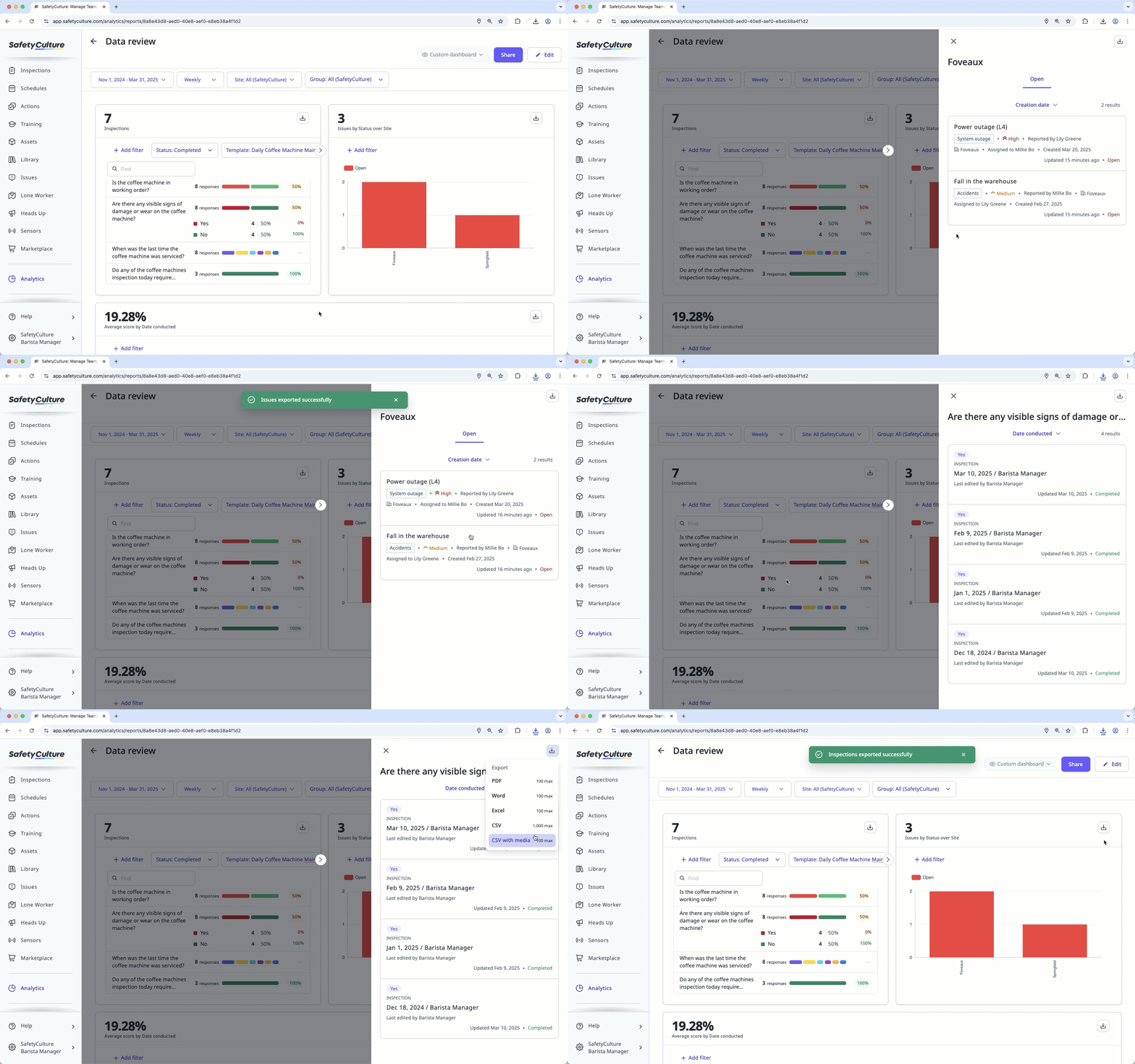
Bulk export data from a chart drill-down
Select Analytics in the sidebar or select it in More.
Click on the slice, bar, data point, or row that you want to export data for.
Click on the upper-right of the side panel and choose a format.
If you're exporting from a chart that has more than one metric or attribute, you can also export data from the current tab or all tabs in the side panel, depending on the data type:
Inspections: Export data from the current tab or export all tabs as a list.
Actions, Issues, and Schedules: Export data from all tabs.


