What you'll need
Downloading chart data is separate from bulk exporting drill-down data in Analytics.
Chart download options
Chart image
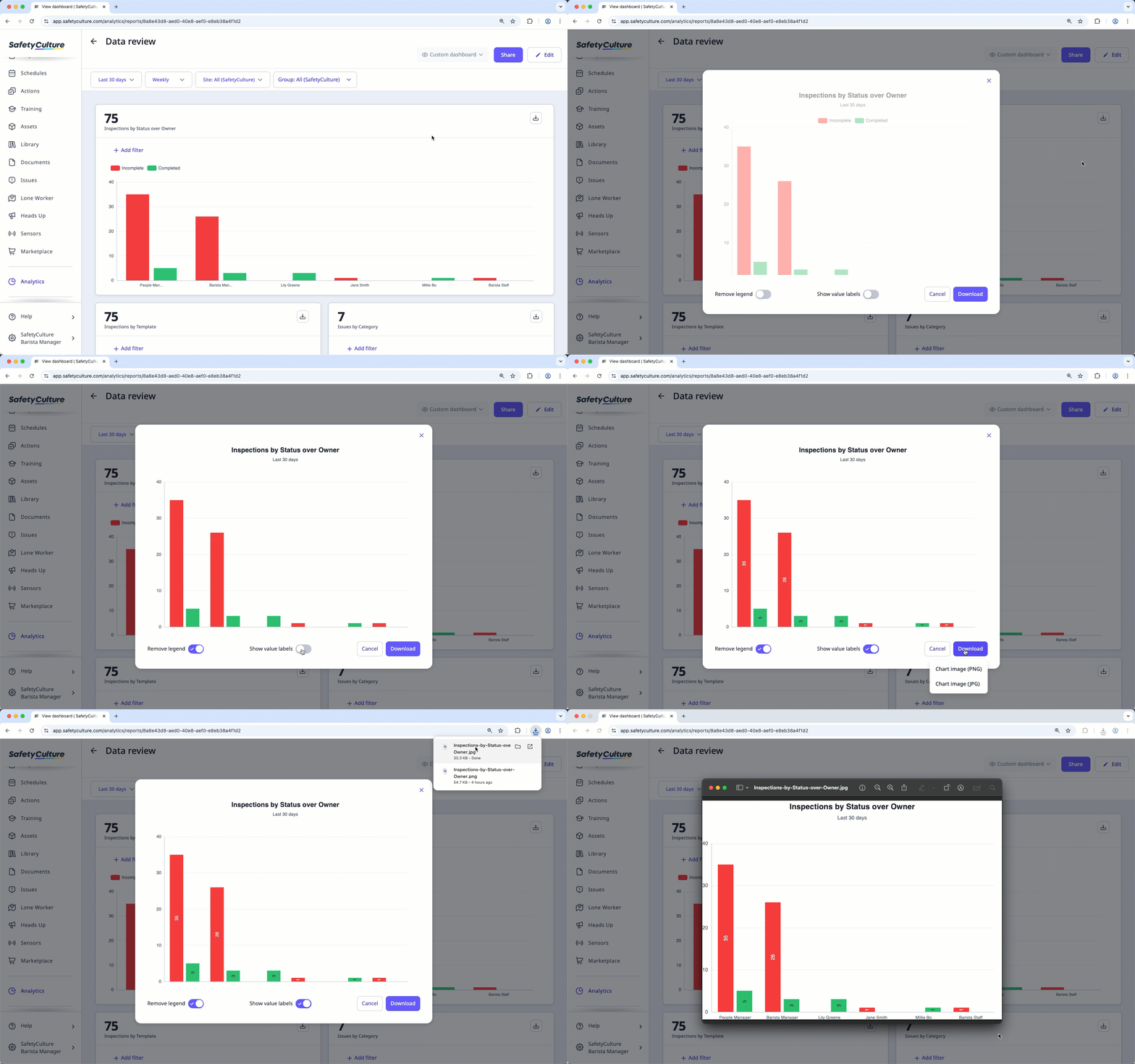
You can download an Analytics chart as an image in PNG or JPG format. To make the data more relevant to you, you can opt to display or hide labels and values, depending on the chart type you're downloading.
Downloading Analytics charts as an image is not available to "Table" charts.
Chart data
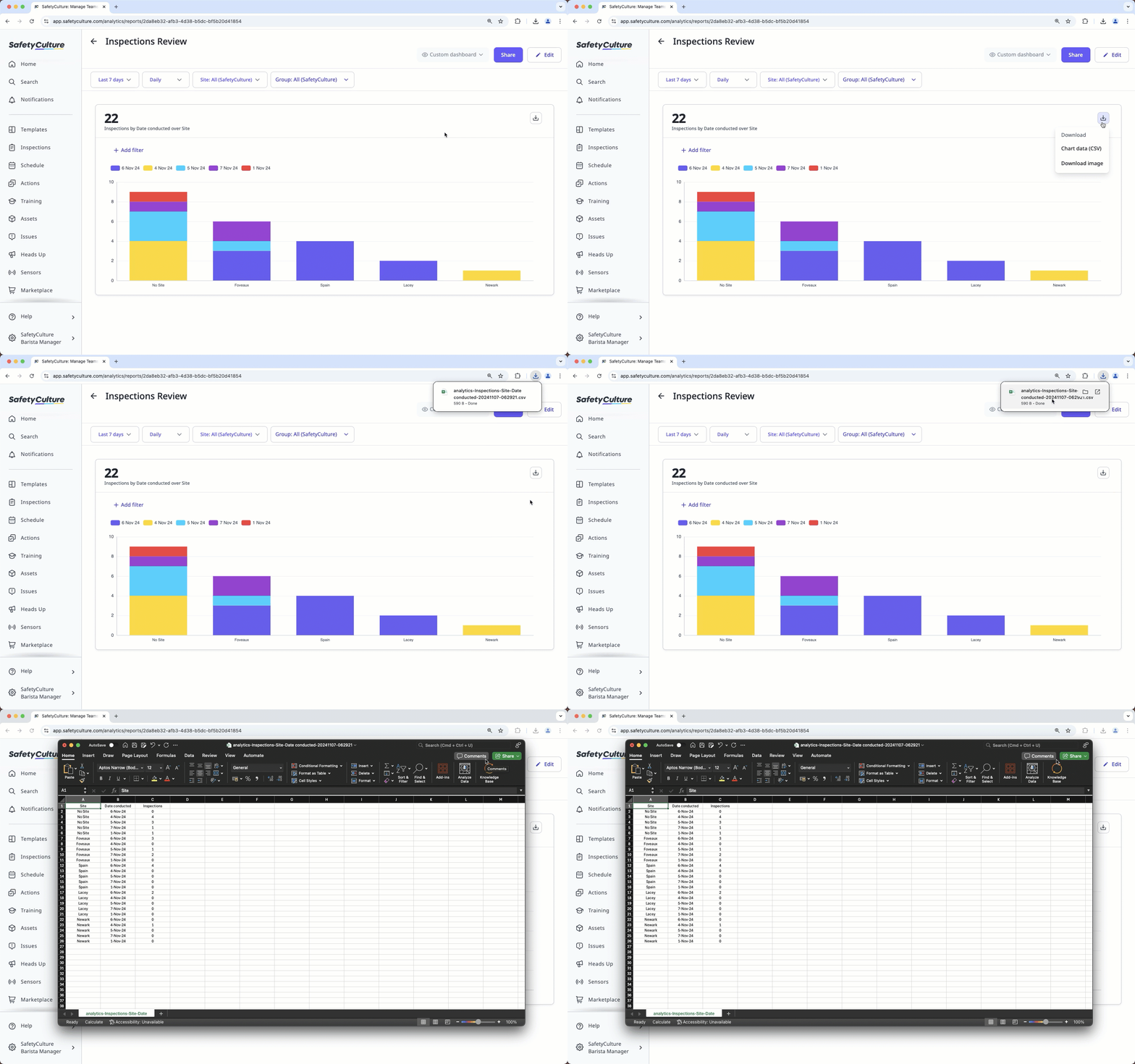
You can download an Analytics chart's data as CSV. This is best suited for "Table" charts, as you can add metrics and attributes you want to see as columns for download.
Download a chart as CSV
Select Analytics in the sidebar or select it in More.
Click the dashboard.
On the chart's upper-right, click and select Chart data (CSV).
Download a chart as an image
Select Analytics in the sidebar or select it in More.
Click the dashboard.
On the chart's upper-right, click and select Download image.
In the pop-up window, click Download on the lower-right.
Depending on your chart type, you can turn the following settings on or off:
Remove legend: Display or hide the chart labels.
Show value labels: Display or hide the values of the chart segments.
Select Chart image (PNG) or Chart image (JPG) depending on the file type that's relevant to you.