How do tables in inspections work?
Tables in inspections are designed to help teams efficiently collect, display, and manage large volumes of repetitive data in a tabular format. Whether you're recording consistent sets of information across multiple items or meeting strict reporting requirements from third-party clients, tables offer a structured way to capture what matters. The clear, structured format makes it easier to reference previously entered responses, spot patterns and trends, and ensure your data is both complete and easy to interpret.
What you'll need
Supported response types
The following response types are supported in tables:
Text
Number (with units)
Multiple choice (custom response sets and Global Response Sets), including multiple selection
Date and time
Add a table
Select Templates in the sidebar or select it in More.
Click a template and select Edit template in the side panel.
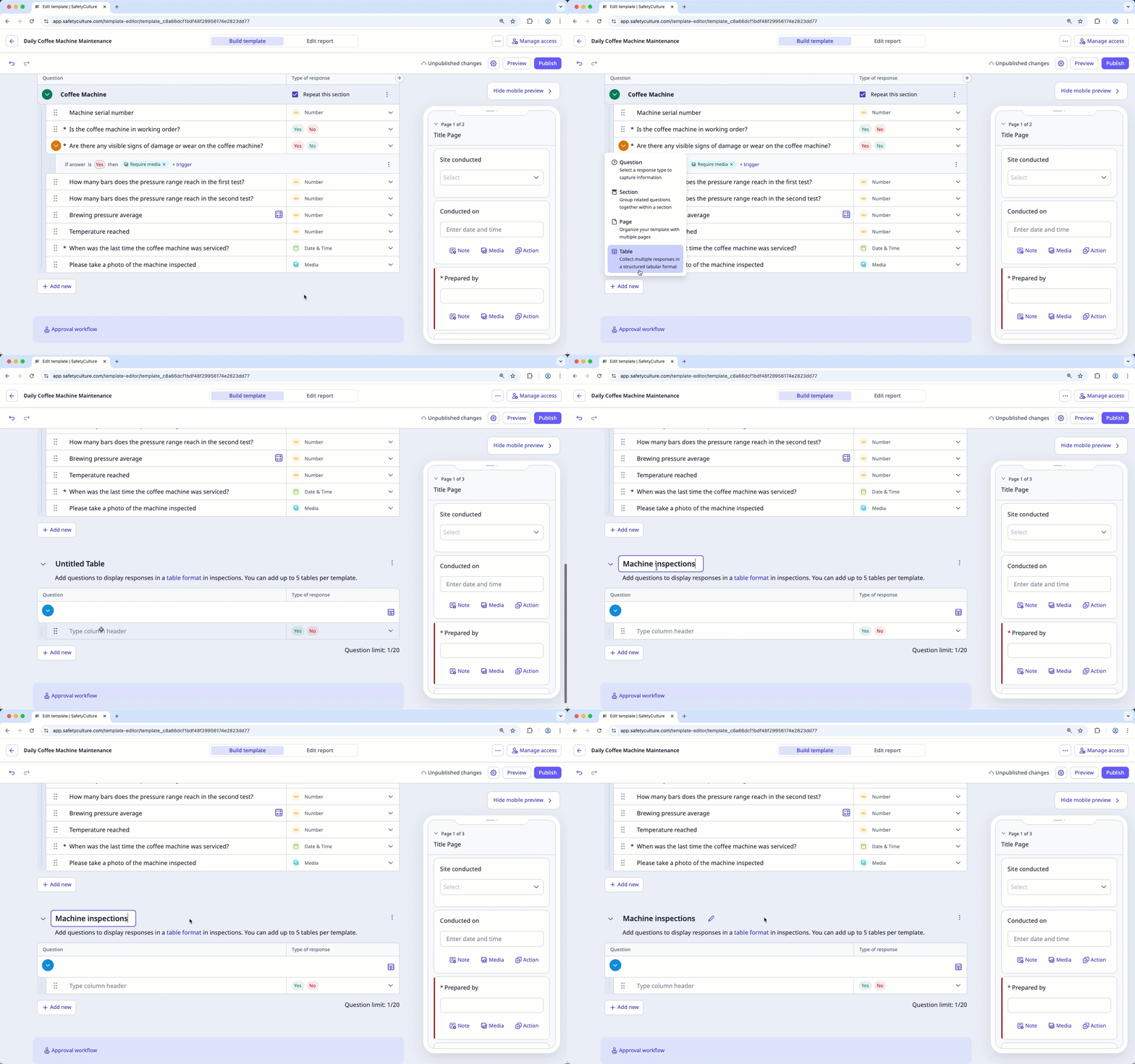
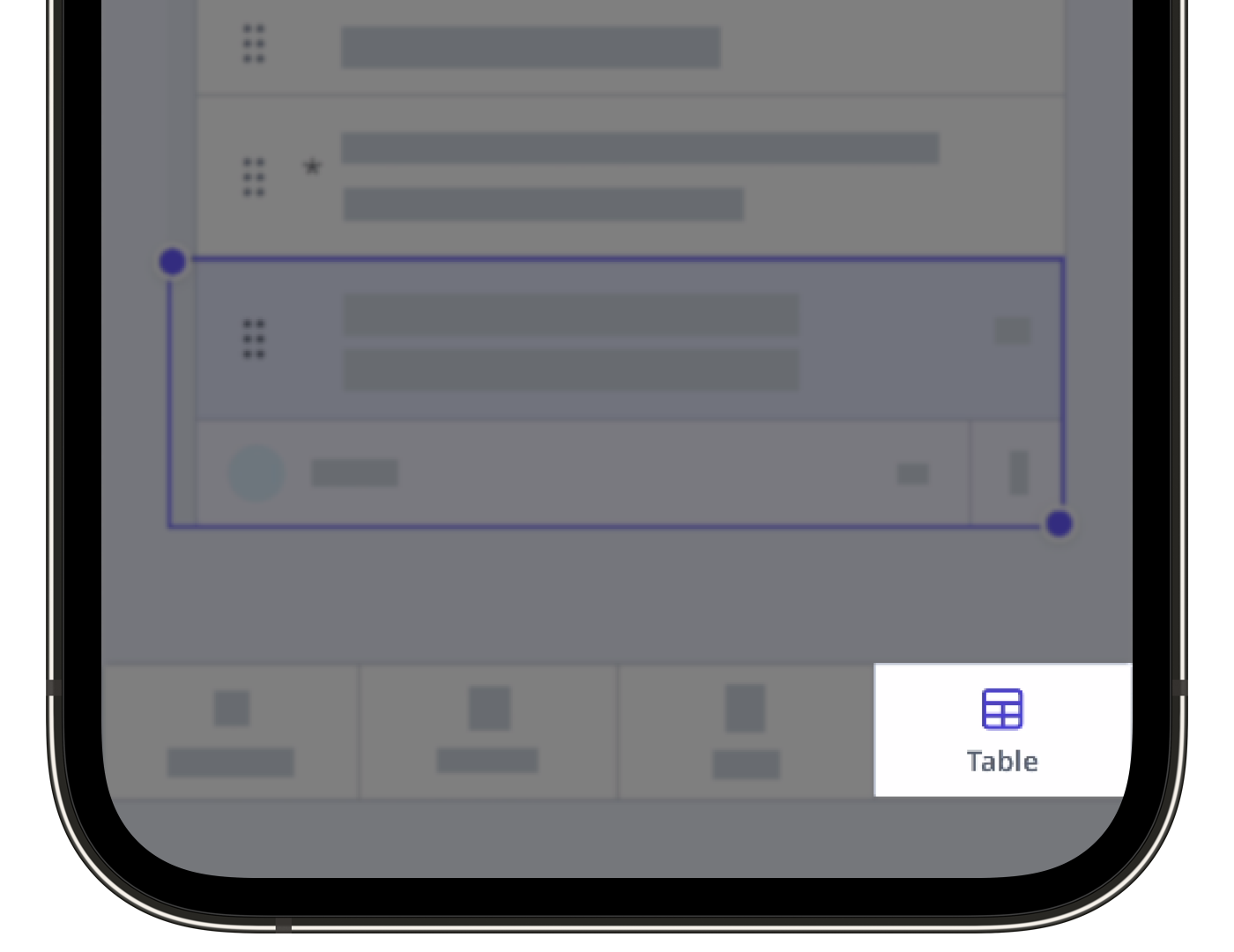
Click Add new at the bottom of a page and select Table. Each table will be added as a separate page in the template.
Click on the existing table name and rename it accordingly. Then, press the enter or return key on your keyboard or click anywhere in the Template Editor.
If the table page isn't in the correct order, you can rearrange pages at any time.
Start typing to label the question and click on the right-hand side to select its type of response. Each question in the table is a column header.
Click Question on the left-hand side to add more columns to the table.
Click Publish on the upper-right of the page to publish the template. If you're not ready to publish the template, you can go back to the templates list and come back when you're ready.
Deleting a table page will also delete the questions in it.
Delete a table
Select Templates in the sidebar or select it in More.
Click a template and select Edit template in the side panel.
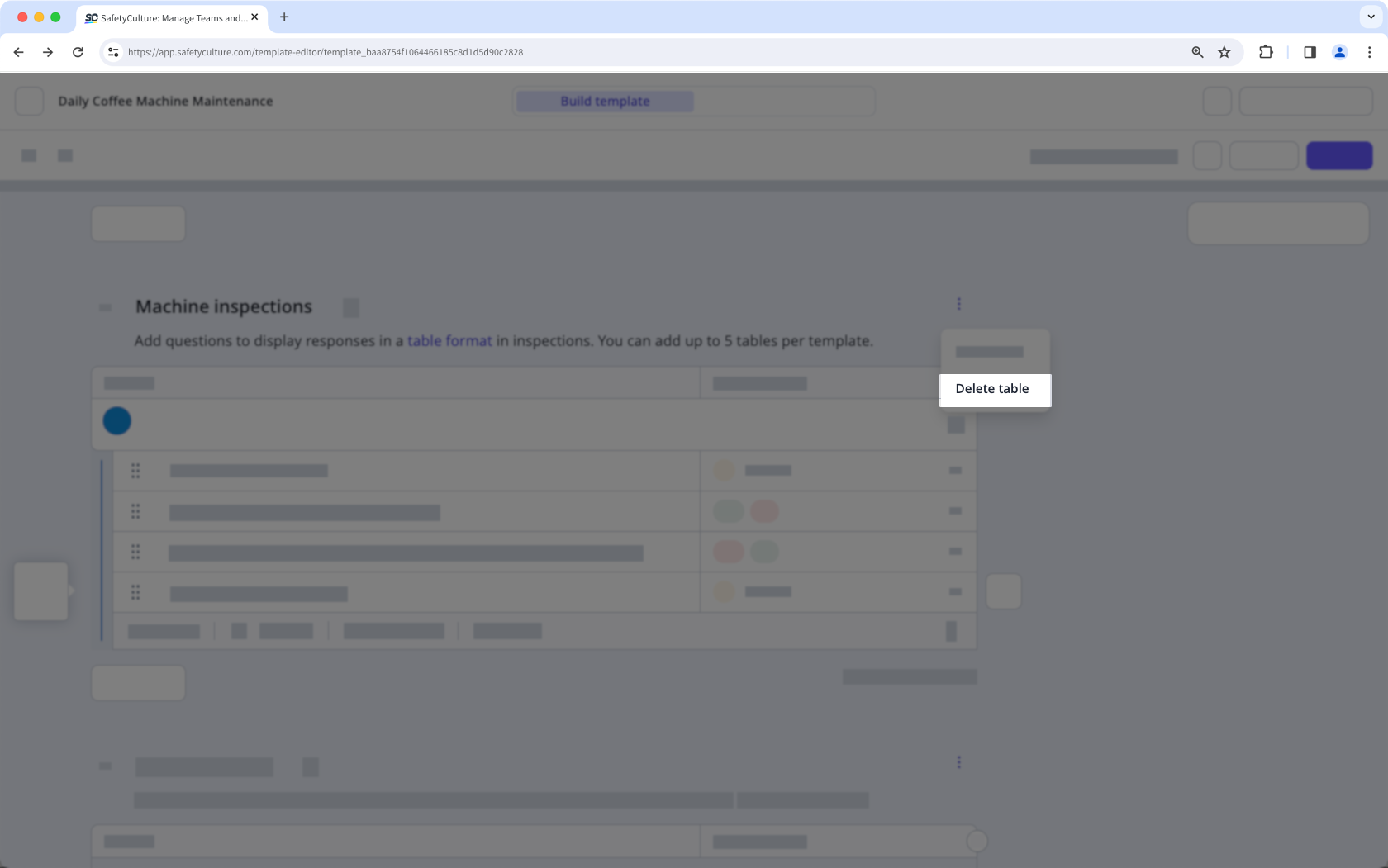
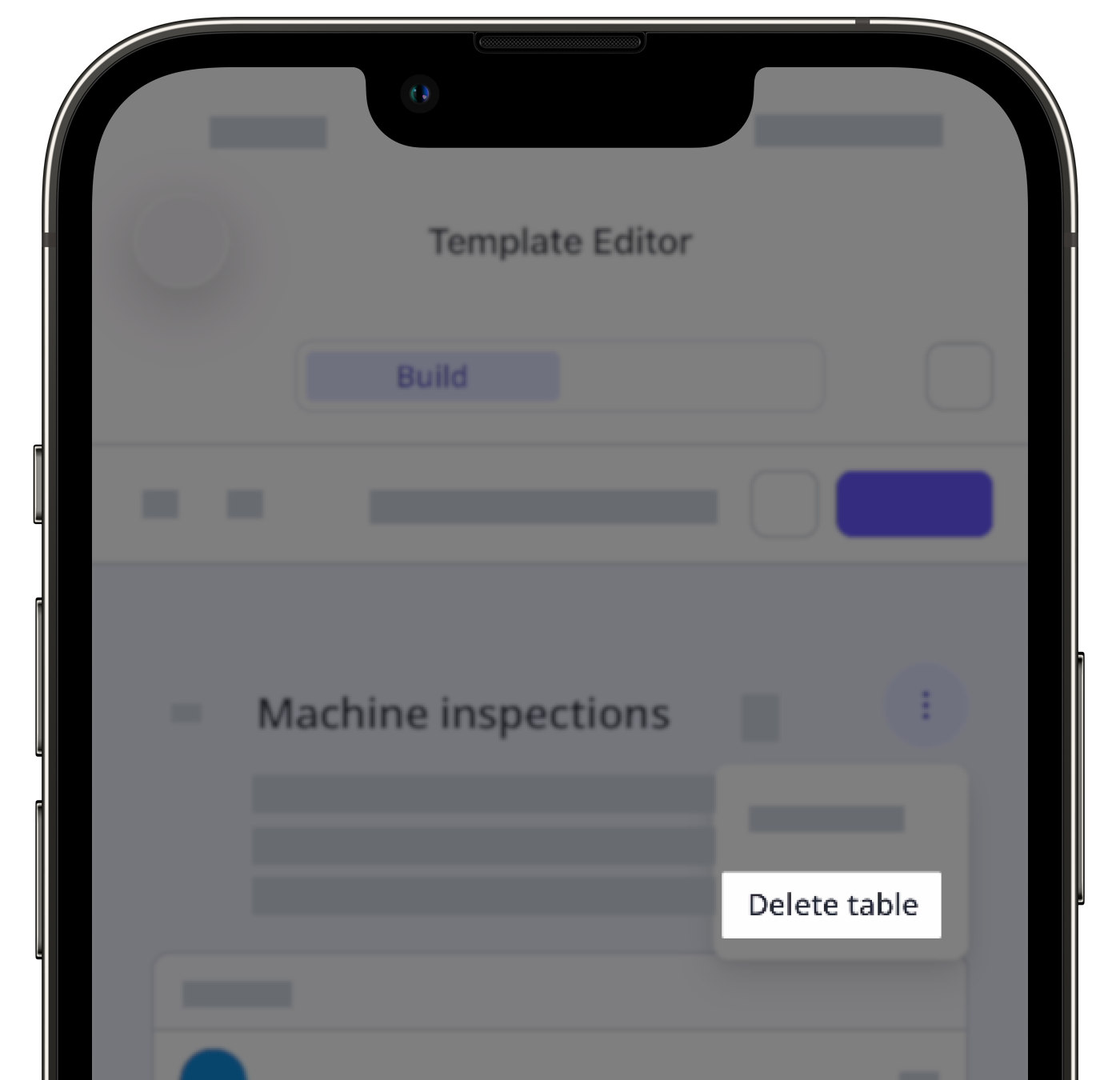
Click on the upper-right corner of the table, above the "Type of response" column.
Select Delete table.
Click Publish on the upper-right of the page to publish the template. If you're not ready to publish the template, you can go back to the templates list and come back when you're ready.
You can export inspection reports with tables in both PDF and Word files, giving you more flexibility in how you use and share them.
What else can I do with tables?
Tables can do more than organize information. You can make specific responses required, add scoring to multiple-choice responses, calculate values automatically within table rows, flag responses so they're easier to spot in reports and Analytics, and trigger notifications when certain responses are selected.
Limitations
A template can have up to 5 tables.
Each table can have up to 20 question columns, and users can add up to 100 rows of responses.
You can only add logic fields to notify team members.
You can't link responses to or from tables.
Copying and pasting questions in tables is currently unsupported.