
Manage template and inspection access rules
Learn about access rules, the different template and inspection access levels, and how to create, edit, and remove them via the web app and mobile app to control who can view and manage templates and inspections.What are access rules?
Access rules give you control over who can use a template to conduct inspections and who can view the inspection results. This helps teams focus on relevant tasks, protects sensitive information, and supports compliance by ensuring only the right people can access certain data.
What you'll need
Template and inspection access levels
Access rules allow you to determine who gets given inspection results automatically. If required, you can still give individual inspection access to groups and users.
We recommend that you read our guide on the four key questions to consider when it comes to template and inspection access.
Template
Conduct: Allows users to use the template to conduct new inspections.
Conduct, edit: Allows users to use the template to conduct new inspections, edit its content, and manage access rules.
Conduct, edit, delete: Allows users to use the template to conduct new inspections, edit its content and access rules, as well as archive and delete it. This access level can only be given by users who already have it.
Inspection
View: Allows users to view (read-only) the inspection report.
View, edit: Allows users to view the inspection report, edit its content, and manage access.
View, edit, delete: Allows users to view the inspection report, edit its content and manage access, as well as archive and delete it. This access level can only be given by users who already have it.
You can also create advanced access rules to give template and inspection access based on site membership.
Create an access rule
Select
 Templates in the sidebar or select it in
  More.
More.Click the template and select Manage access in the side panel.
Click
 New access rule.
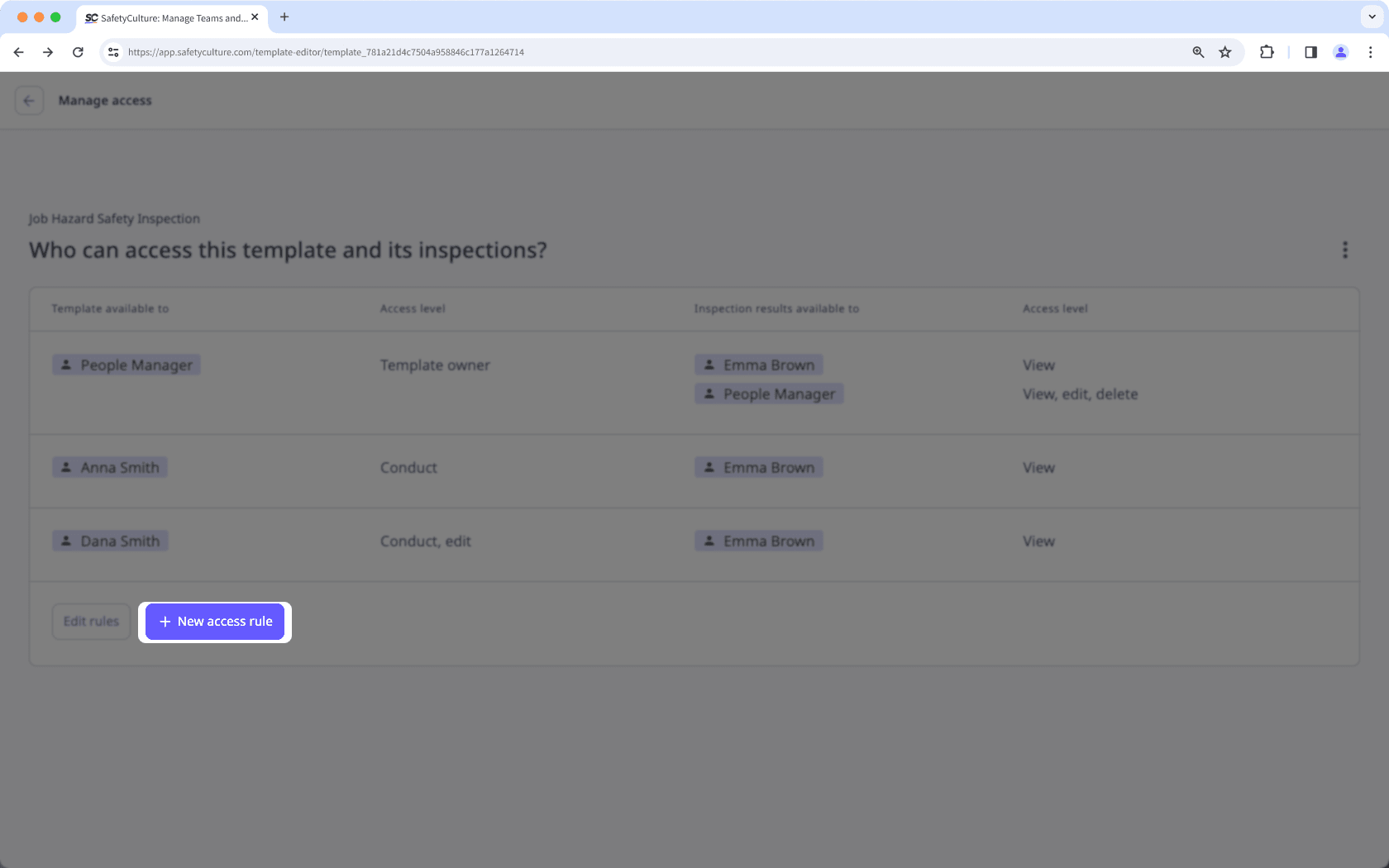
In the side panel, click
 under "Template is available to" to select the groups or users you want to give template access to, and click Done.
Select the template Access level you want to give.
Click
under "Inspection results will be available to" to select the groups or users who should have access to the inspections conducted by the groups or users above, and click Done.Select the inspection Access level you want to give.
Click Done.
Click Save and apply.
In the pop-up window, select No, apply to future only to apply the new access rules to future inspections, or Yes, apply to all to apply to existing inspections as well.
Open the mobile app.
Tap
 Inspections in the navigation bar or select it from More.
Select Templates tab at the top of your screen.
Tap the template.
Tap
 Edit template from the list of options or tap
  and select Edit template.
In the template editor, tap
 above Publish and select
  Manage access.
Tap
New access rule.
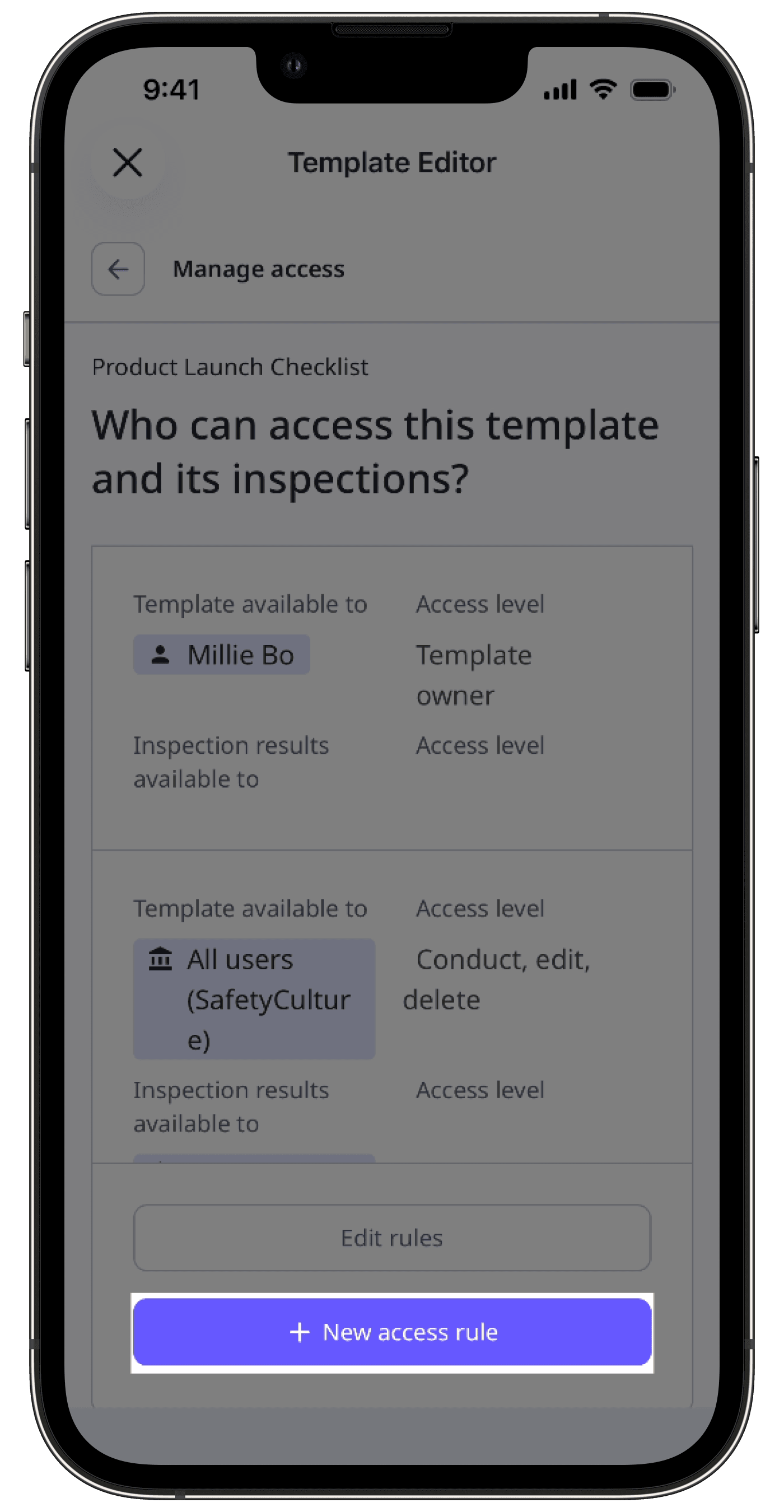
Tap
under "Template is available to" to select the groups or users you want to give template access to, and tap Done.Select the template Access level you want to give.
Tap
under "Inspection results will be available to" to select the groups or users who should have access to the inspections conducted by the groups or users above, and tap Done.Select the inspection Access level you want to give.
Tap Done.
Tap Save and apply.
In the pop-up options, tap No, apply to future only to apply the new access rules to future inspections, or Yes, apply to all to apply to existing inspections as well.
For the best experience, we recommend editing access rules via the web app.
Edit an access rule
Select
Templates in the sidebar or select it in More.Click the template and select Manage access in the side panel.
Click Edit rules.
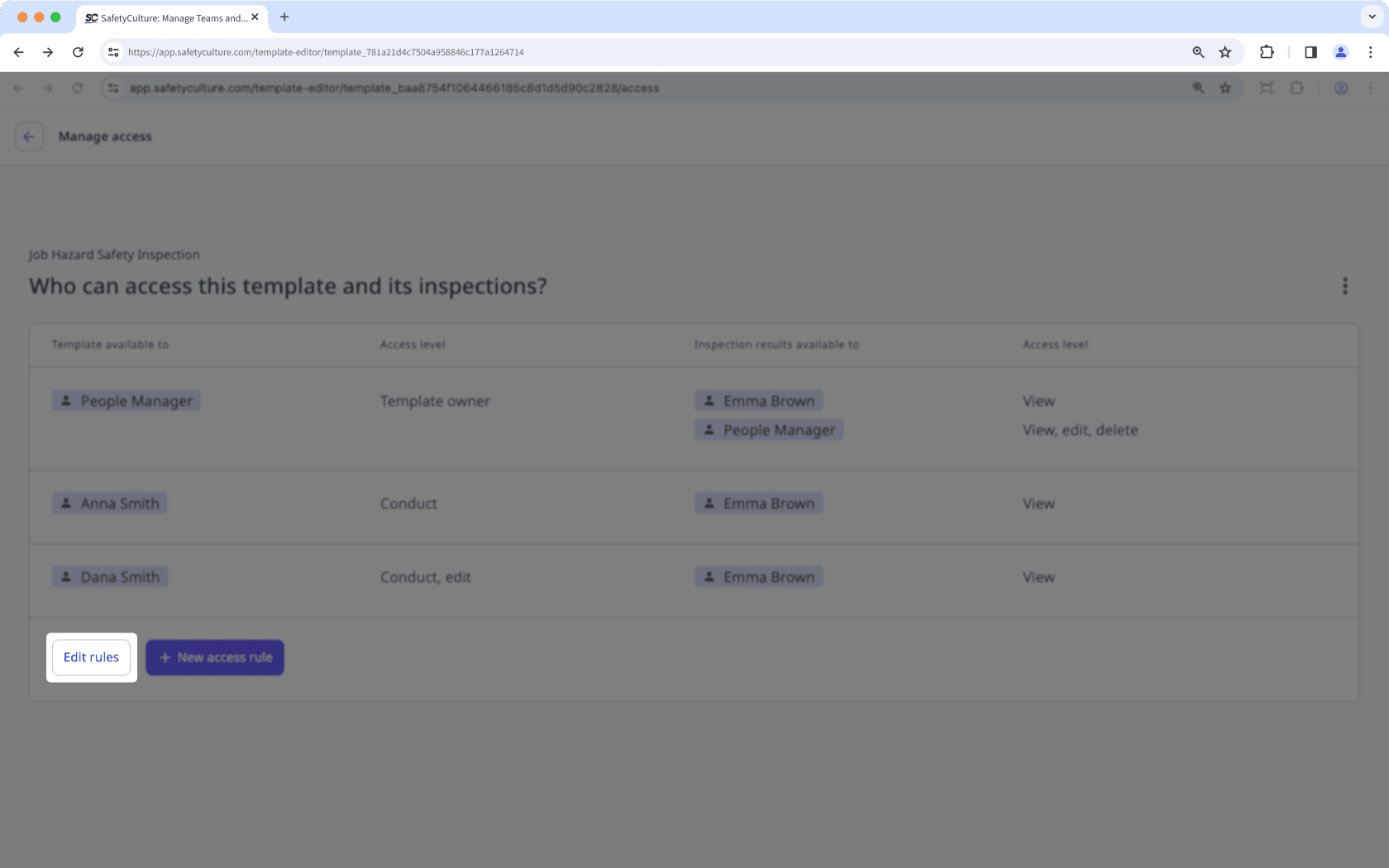
You can edit the following fields for each access rule:
Access level (template): Click and update the access level a group, user, or site has to the template.
Inspection results available to: Click
Add / edit access to add or remove groups, users, or site-based access rules in the rule panel.Access level (inspection results): Click and update the access level of the relevant group, user, site, or combination of a group and site, to inspections.
Click Save and apply.
In the pop-up window, select No, apply to future only to apply the updated access settings to future inspections or Yes, apply to all to apply to existing inspections as well.
Open the mobile app.
Tap
Inspections in the navigation bar or select it from More.Select Templates tab at the top of your screen.
Tap the template.
Tap
Edit template from the list of options or tap and select Edit template.In the template editor, tap
above Publish and select Manage access.Tap Edit rules at the bottom of your screen.
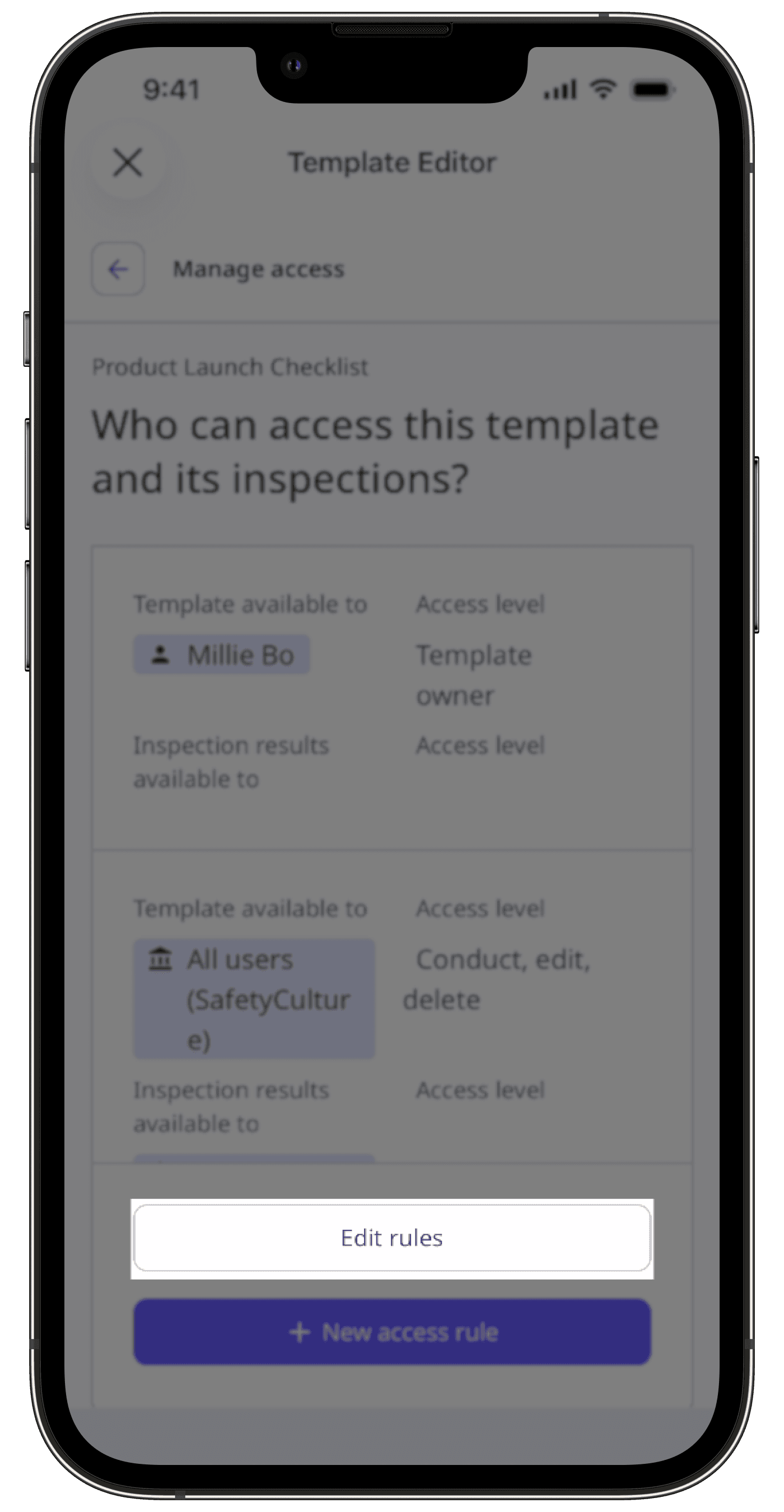
You can edit the following fields for each access rule:
Access level (template): Tap
and select the access level a group, user, or site has to the template.Inspection results available to: Tap
Add / edit access and tap under "Inspection results will be available to" select the groups or users who should have access to the inspections, and tap Done.Access level (inspection results): Tap
and select the access level a group, user, or site has to the inspection.
Tap Save and apply.
In the pop-up window, select Yes, apply to all to apply the updated access settings to future and existing inspections or No, apply to future only to apply to future inspections only.
Remove an access rule
Select
Templates in the sidebar or select it in More.Click the template and select Manage access in the side panel.
Click Edit rules on the lower-left of the page.
Click
 on the right-hand side of the access rule you want to remove.
Click Save and apply.
In the pop-up window, select one of the following options:
No, apply to future only to apply the updated access settings to future inspections only.
Yes, apply to all to apply the updated access settings to both existing and future inspections.
Open the mobile app.
Tap
Inspections in the navigation bar or select it from More.Select Templates tab at the top of your screen.
Tap the template.
Tap
and select Manage access.Select the user or group.
Tap
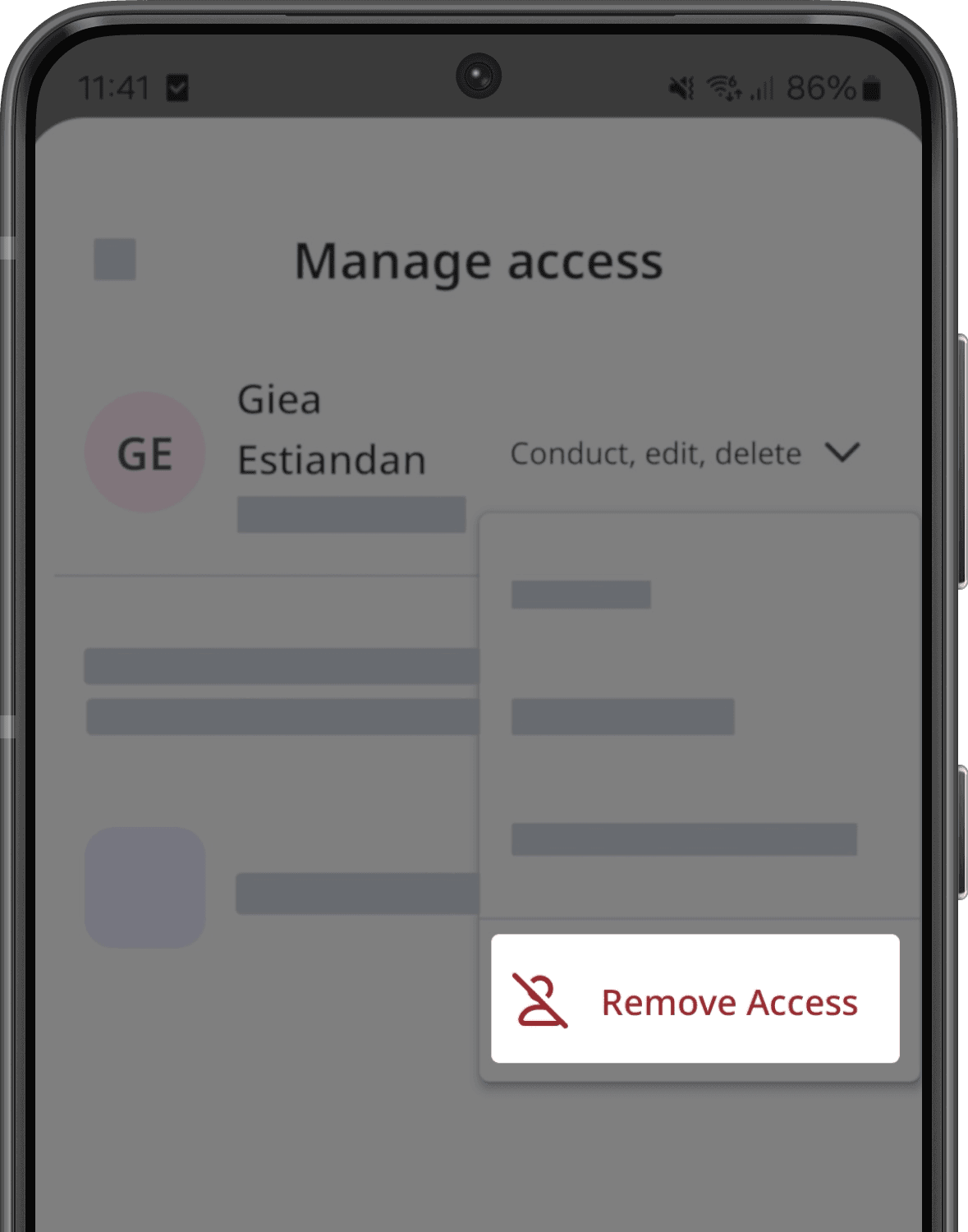
next to the user or group and select  Remove Access.
Open the mobile app.
Tap
Inspections in the navigation bar or select it from More.Select the Templates tab at the top of your screen.
Tap the template and select
 Manage access from the pop-up options.
Select the group or user.
Under the "Template available to" section, tap the group or user and select Remove access.
The Yes, apply to all option overrides an existing inspection's access based on the updated access rules. This works similarly to retroactively providing access to inspections.
Was this page helpful?
Thank you for letting us know.