What are options for user fields?
Options are values you can select in single select and multi select user fields. They define what admins and users can choose when filling in a field. Only single select and multi select data types support options. Other data types, such as text, date, and user, accept free-form or fixed input and do not have options. For example, an "Employee type" field might include options like "Full-time", "Part-time", and "Contractor." Defining options in advance keeps user data consistent and makes it easier to filter and report across your team.
Add options
Click your organization name on the lower-left corner of the page and select Users.
Click on the upper-right corner of the page and select Manage user fields.
Create a new field or click on the right-hand side of an existing single select or multi select field, then select Edit.
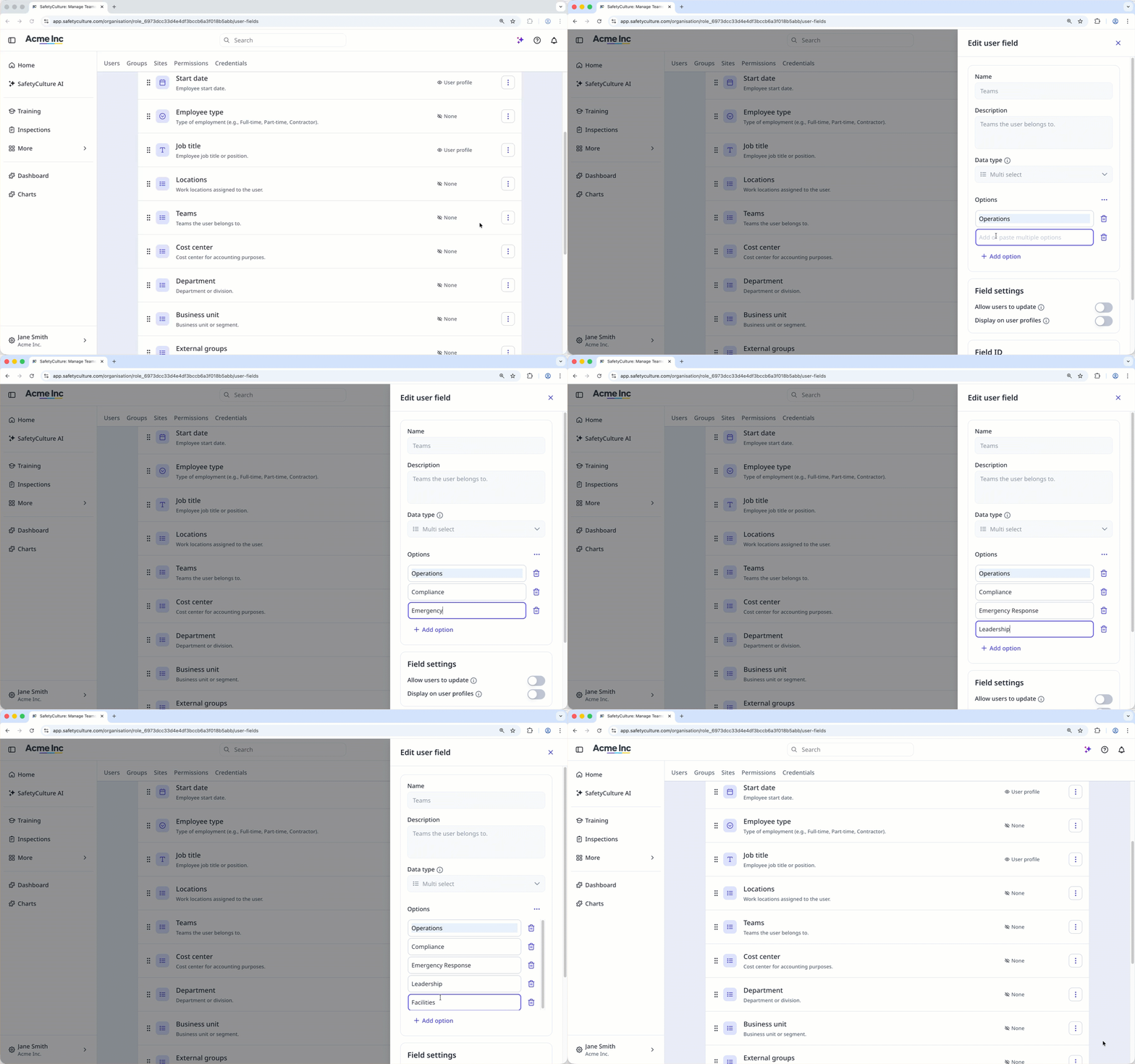
In the side panel, click Add option and enter a value. Repeat for each option you want to add.
Click Create if you're creating a new field, or Save if you're editing an existing one.
Bulk add options via CSV
Click your organization name on the lower-left corner of the page and select Users.
Click on the upper-right corner of the page and select Manage user fields.
Create a new field or click on the right-hand side of an existing single select or multi select field, then select Edit.
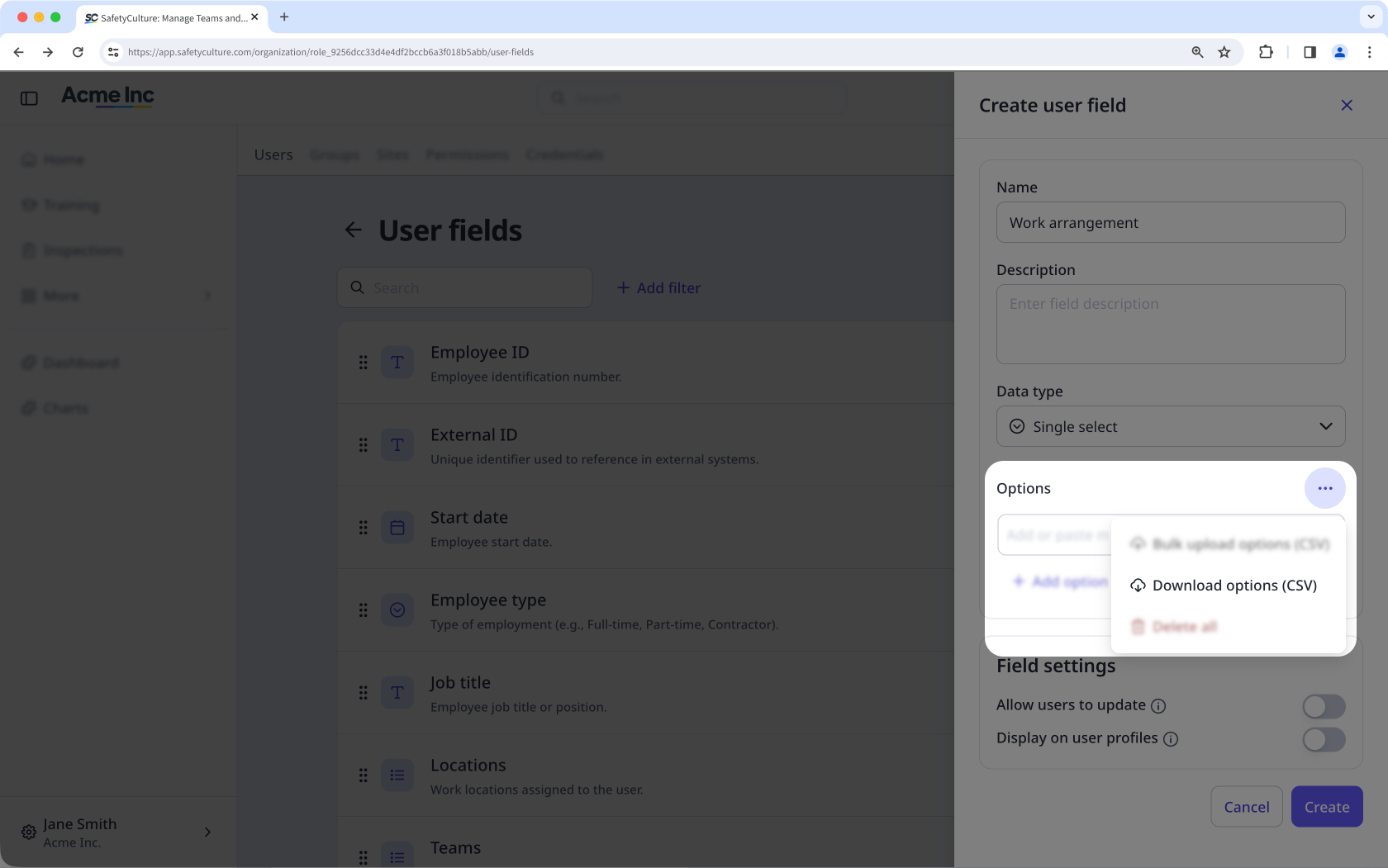
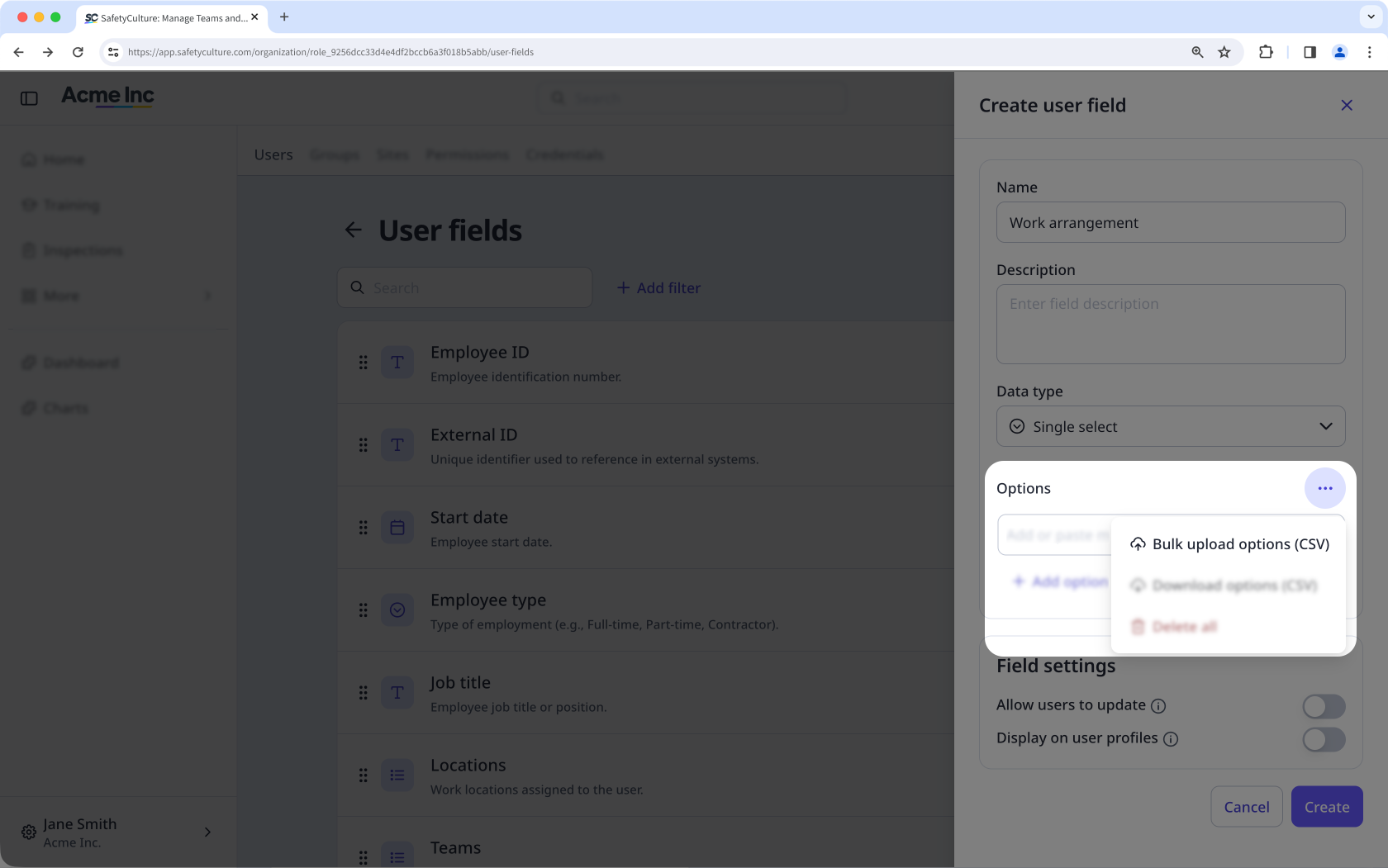
In the side panel, click on the right-hand side of the Options field, then select Bulk upload options (CSV).
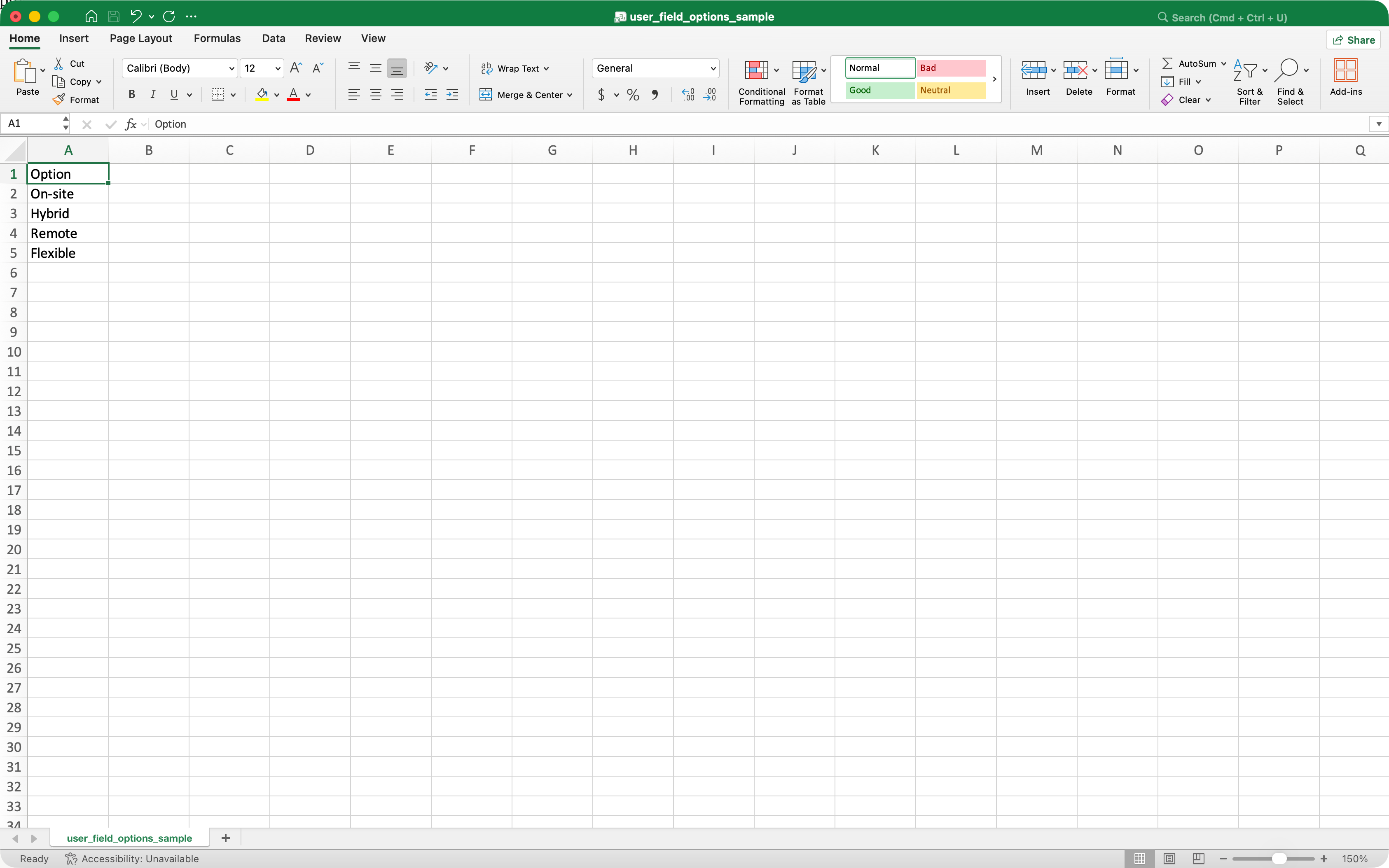
In the pop-up window, click Download sample CSV, then add each option as a new row under the "Options" column.
Drag and drop your CSV file into the upload box or click browse to select the file from your computer.
Click Upload.
Click Create if you're creating a new field, or Save if you're editing an existing one.
You can also add options in bulk by copying questions from an external document and pasting them when adding new options.
Deleting options from single and multi select user fields converts any groups with membership rules into normal groups, even if the deleted options aren't used in those membership rules.
Delete options
Click your organization name on the lower-left corner of the page and select Users.
Click on the upper-right corner of the page and select Manage user fields.
Click on the right-hand side of the user field and select Edit.
In the side panel, find the option you want to remove.
To delete an option, click on the right-hand side of the option, then click Delete to confirm.
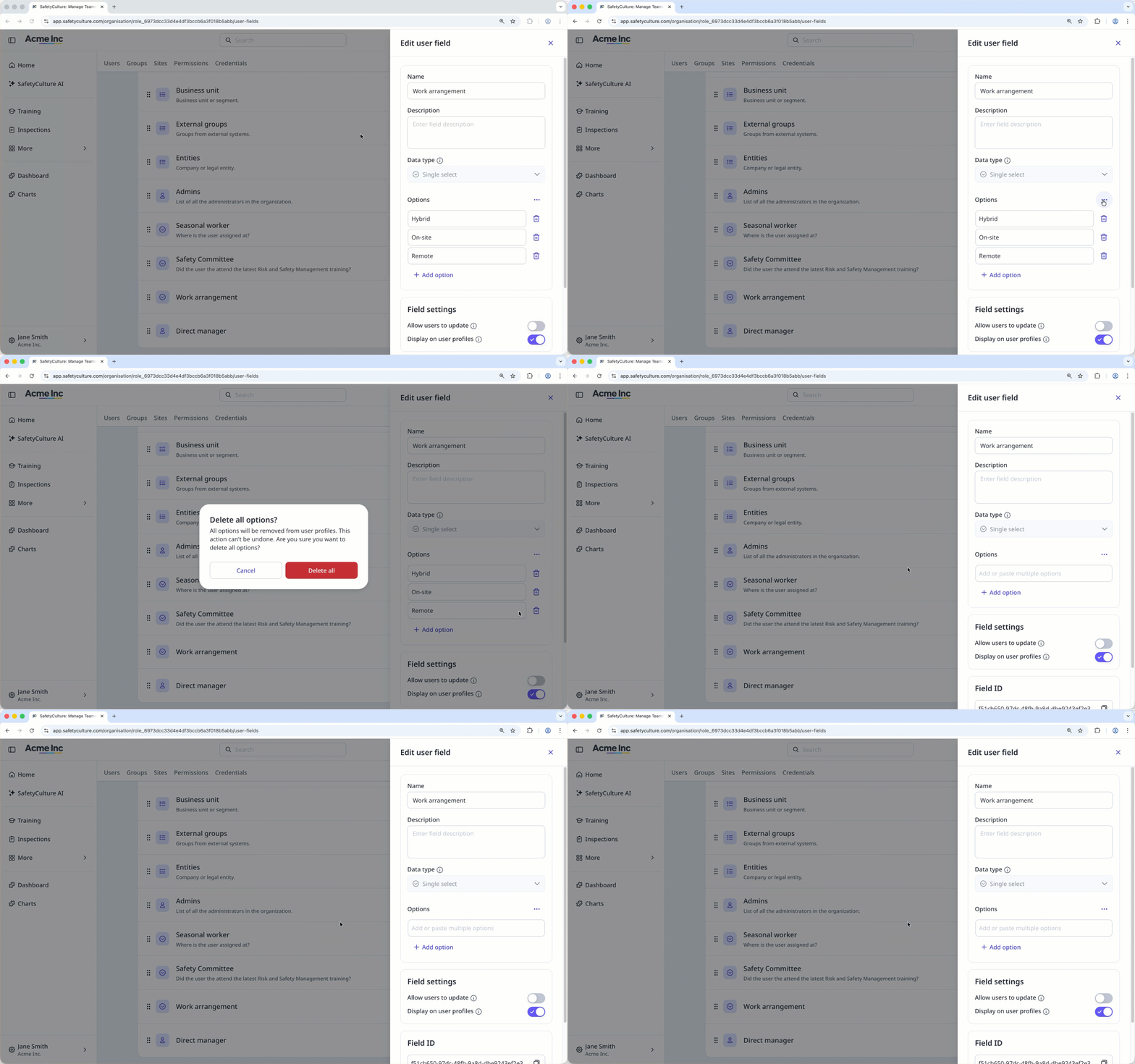
To delete all options, click on the right-hand side of the Options field, select Delete all, then click Delete all to confirm.
Click Save.
Deleting is irreversible, and we cannot restore permanently deleted items. Confirmation is always required before any deletion, so be sure you're not accidentally deleting the wrong item.
Download options as CSV
Click your organization name on the lower-left corner of the page and select Users.
Click on the upper-right corner of the page and select Manage user fields.
Click on the right-hand side of an existing single select or multi select user field, then select Edit.
In the side panel, click on the right-hand side of the Options field, then click Download options (CSV).