Course briefcase is no longer available to new users or to existing users who don’t have previously stored documents on both the web app and mobile app. Existing users who already use course briefcase will continue to have access to the feature.
You can link files to courses instead by adding them as a slide to allow users to view additional training files directly within a course.
What are course briefcases?
Course briefcases let you upload supporting files such as images, videos, and documents alongside a course to provide additional context for training. This is useful when you have reference materials that help users understand or apply what they’re learning, but don’t need to sit directly within a lesson. You can also set prerequisites so files stay locked until specific lessons are completed. This keeps courses focused and easy to follow while making sure users have access to the supporting information they need to complete their training.
What you'll need
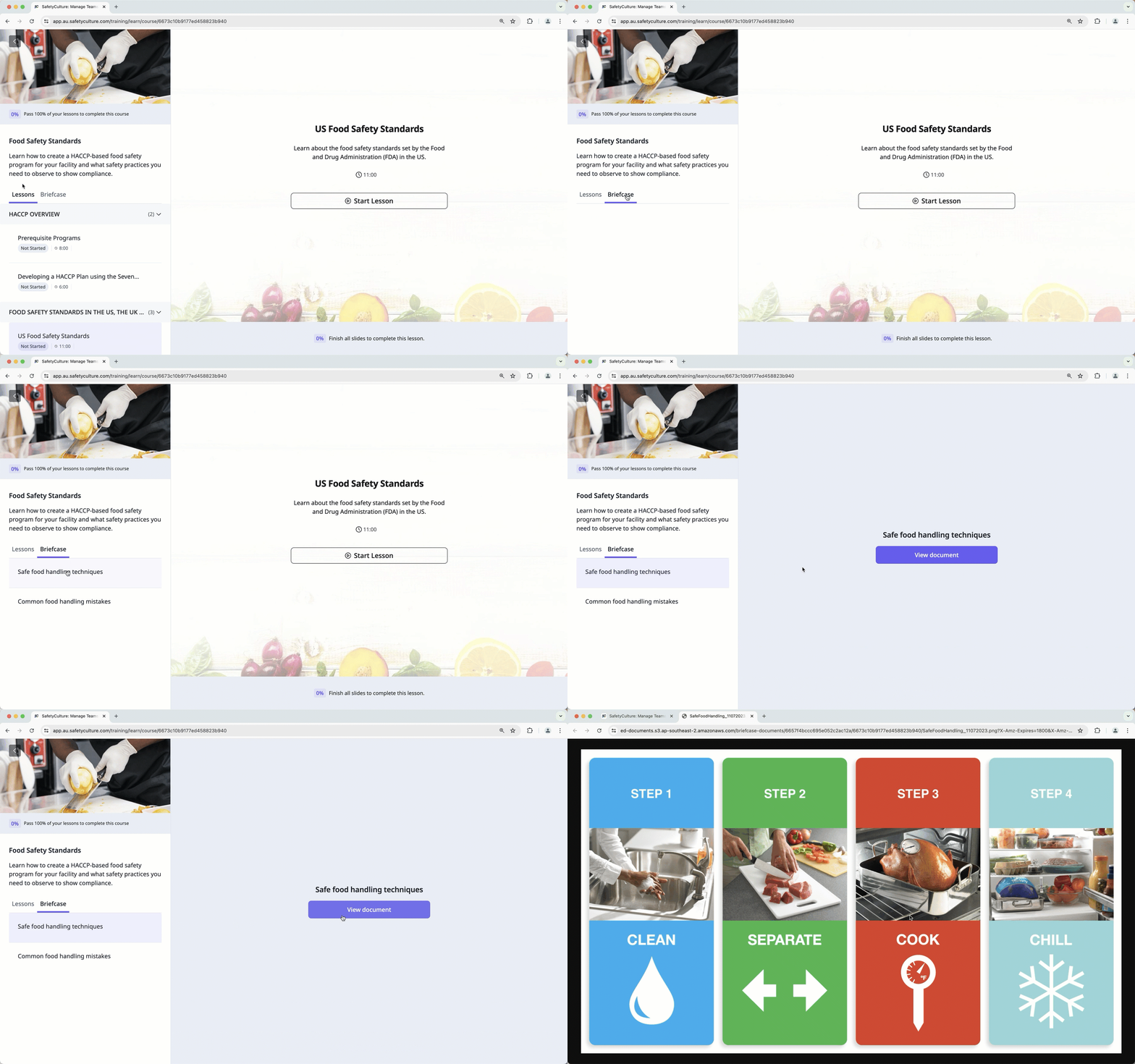
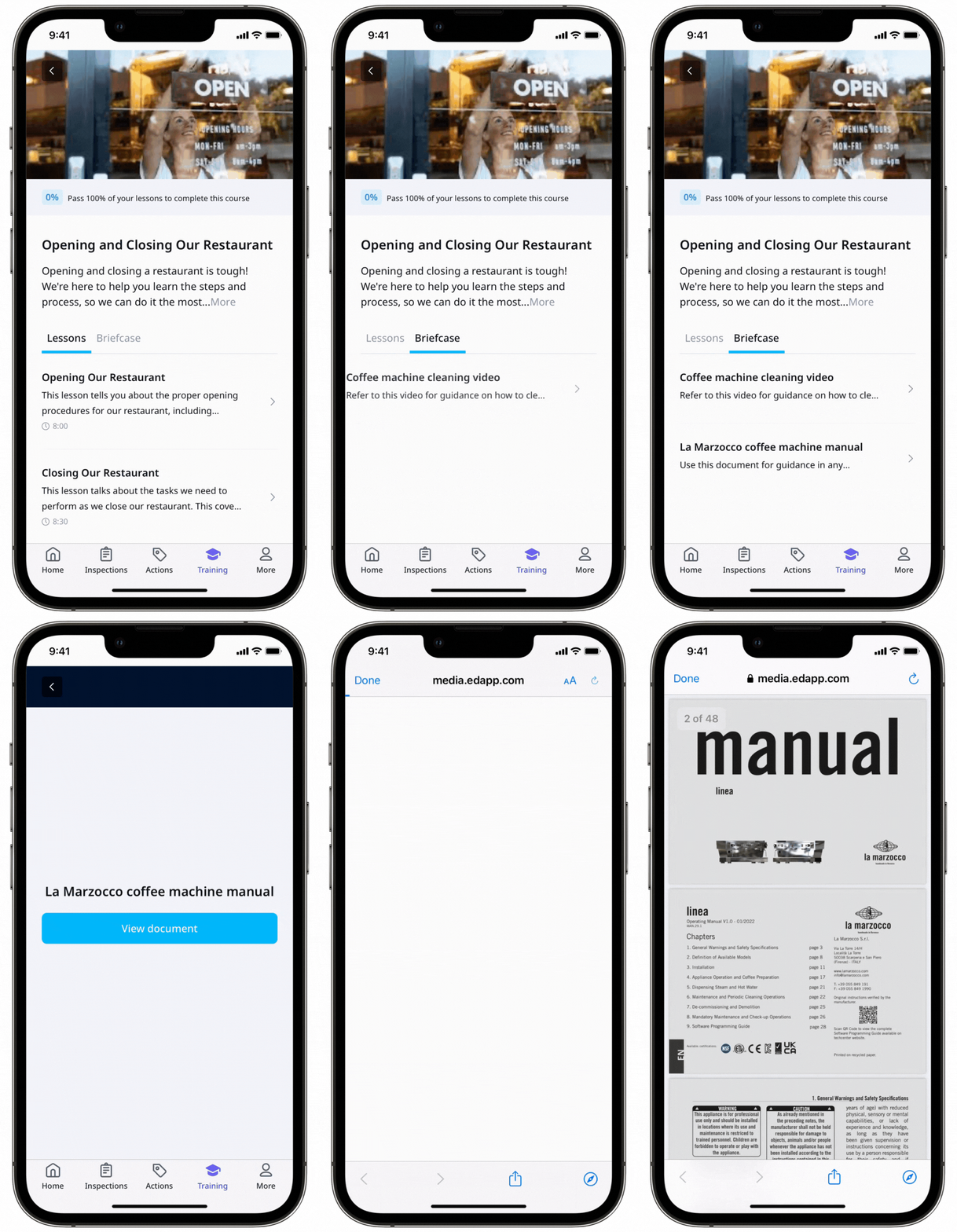
View a course briefcase
Select Training in the sidebar or select it in More.
If you're on the "Content" page, click Learn at the top of the page.
Click the assigned courses you want to take.
Click Briefcase on the left-hand side panel.
Select the document you want to view and click View document.