
How do lesson narrations work?
Adding narration to lessons allows users with an auditory learning style to maintain attention and retention. It also provides a more engaging training experience for users with different learning preferences. In SafetyCulture Training, your team can add narration to lessons in two ways:
AI-narration: For teams on the Premium and Enterprise Plans (opens in new tab), you can convert your lesson content into narrated audio using text-to-speech technology. Depending on the course language, you can choose from different voices and accents for a more engaging experience. This allows you to create a consistent narration without needing to record it manually.
Manual narration: Available on any SafetyCulture Plan (opens in new tab), this option allows you to upload your own MP3 files up to 40MB to use as narration in your lessons. This way, you can personalize your lesson using custom audio that matches your team's needs.
Narration can only be added to the following lesson slide templates: title slides, text slides, and image slides.
What you'll need
Add narration to a lesson with AI
Select Training in the sidebar or select it in More.
If you're on the "Learn" page, click Content at the top of the page and select Courses.
Create a new course or click View or Edit on an existing one.
If you're editing an existing course and it's published, click Edit on the upper-right of the page.
Create a new lesson or click an existing one. If you need some help to get started, you can create a lesson or lesson slide using AI.
Create a new slide or click an existing one.
In the right-hand side panel, scroll to the "Narration" section and click Narrate with AI.
If available, select your preferred voice and accent from the dropdown list.
Click Apply on the lower-right corner of the page.
Once narration is applied, you can configure the following settings for the slide:
Wait for narration: Check to lock the slide until the narration is complete.
Auto-progress on completion: Check to automatically move to the next slide when the narration ends.
To add narration to all supported slides within the course, click Bulk narrate with AI. In the pop-up window, check or uncheck the box to turn on or off narration overwrite and click Apply.
If narration overwrite is turned on, any existing narration in the lesson will be replaced. If available, your selected voice and accent will also be applied to all supported slides.
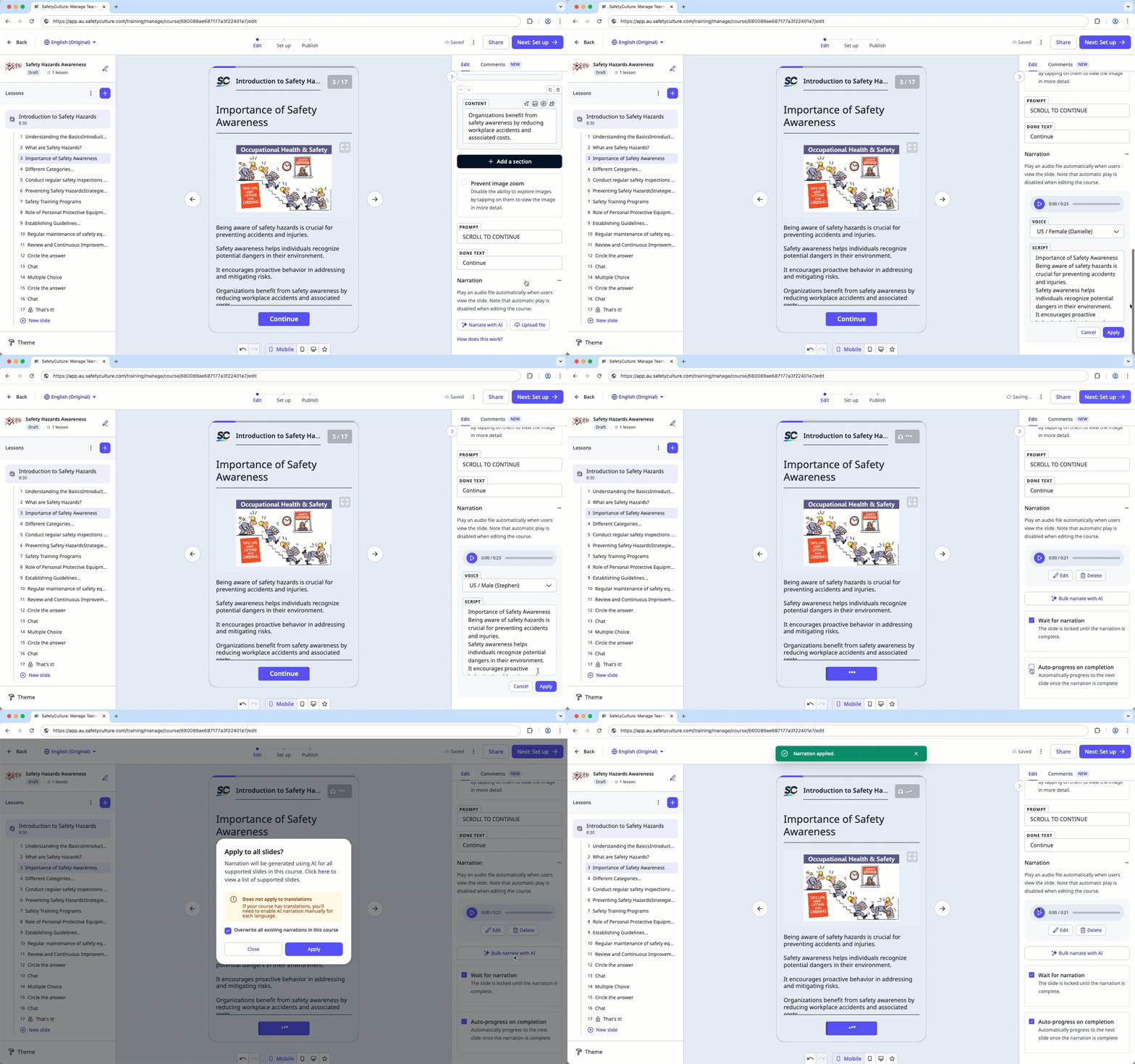
If you're adding narration with AI, we recommend reviewing the playback to ensure it sounds natural and accurately reflects your lesson content. You can make edits to the narration and the script as needed.
Add narration to a lesson manually
Select Training in the sidebar or select it in More.
If you're on the "Learn" page, click Content at the top of the page and select Courses.
Create a new course or click View or Edit on an existing one.
If you're editing an existing course and it's published, click Edit on the upper-right of the page.
Create a new lesson or click an existing one. If you need some help to get started, you can create a lesson or lesson slide using AI.
Create a new slide or click an existing one.
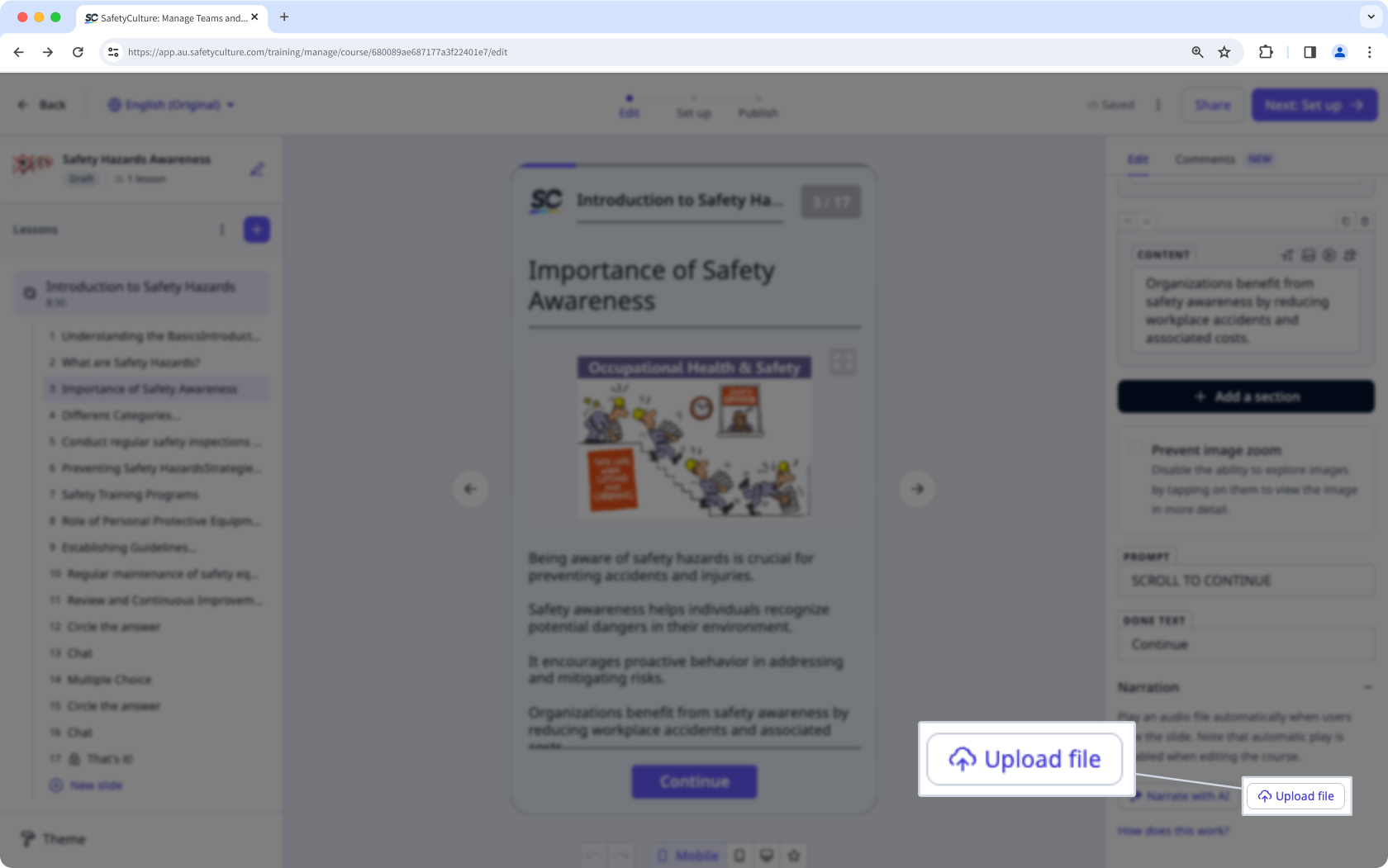
In the right-hand side panel, scroll to the "Narration" section, click Upload file to add an MP3 file directly from your device.
Once the file is uploaded, you can configure the following settings for the slide:
Wait for narration: Check to lock the slide until the narration is complete.
Auto-progress on completion: Check to automatically move to the next slide when the narration ends.
If your course is currently a draft, remember to publish it to make your changes available to your team.
Supported languages
Arabic |
Belgian Dutch |
Catalan |
Czech |
Chinese (Cantonese) |
Chinese (Mandarin) |
Danish |
Dutch |
English |
Finnish |
French |
German |
Hindi |
Italian |
Japanese |
Korean |
Norwegian |
Polish |
Portuguese |
Spanish |
Swedish |
Turkish |


