What does it mean to lock template collections?
Locking a template collection restricts external organizations you've shared your template with from editing templates within the collection. Locking collections helps when you want to share templates with organizations you collaborate with frequently while ensuring consistent data capture by eliminating the risk of unintentional template edits.
What you'll need
Locking or unlocking template collections doesn't retrospectively apply editing restriction changes to imported templates.
Lock a template collection
Select Templates in the sidebar or select it in More.
Select Shared Library at the top of the page.
On this page, select Collections.
Click on the right-hand side of the collection and select
 Unlock collection.
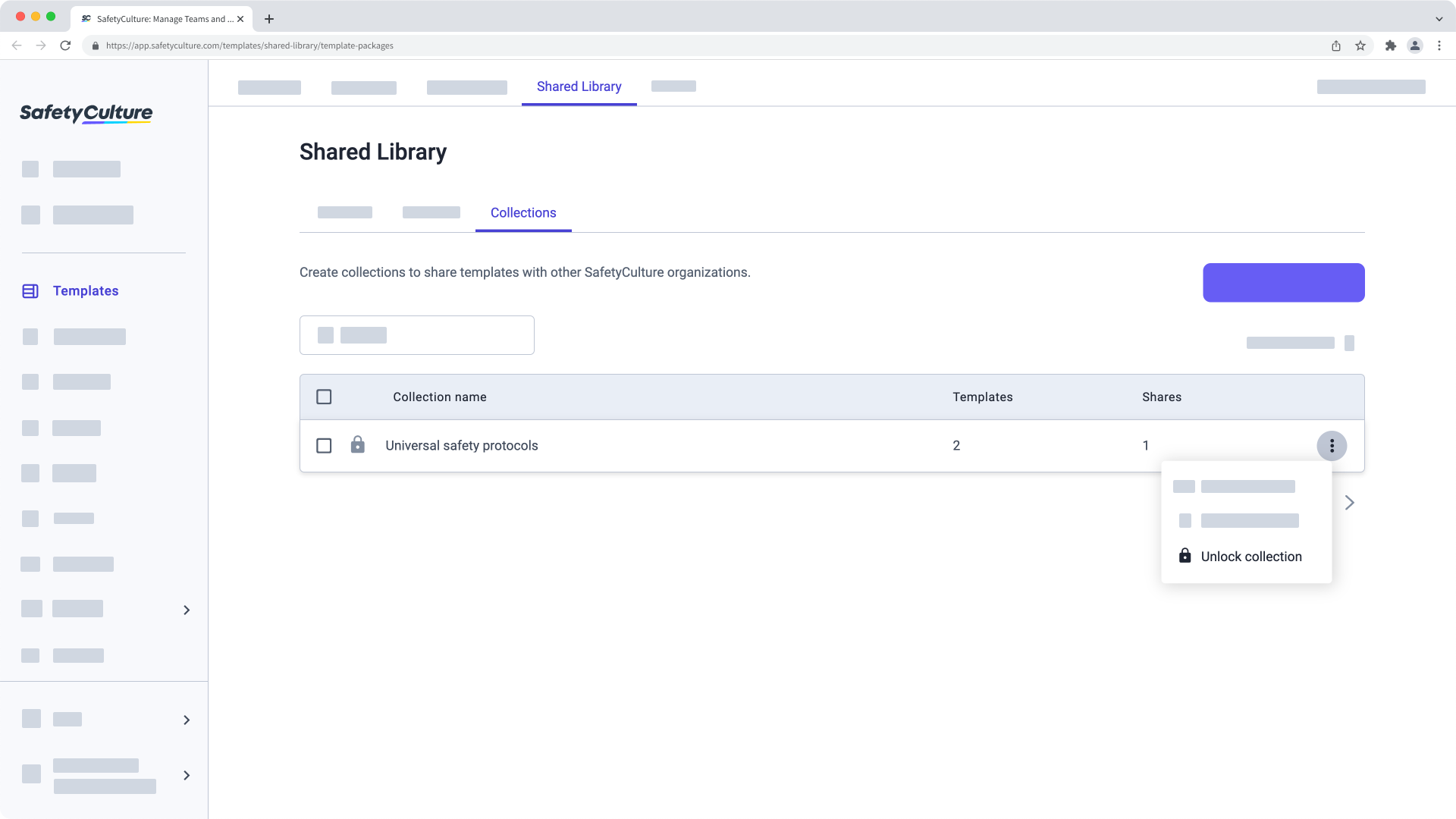
Unlock a template collection
Select Templates in the sidebar or select it in More.
Select Shared Library at the top of the page.
On this page, select Collections.
Click on the right-hand side of the collection and select
Unlock collection.