
Why add a cover page to your inspection report?
Adding cover pages as part of your inspection report layouts elevates their level of personalization, allowing stakeholders to easily link your findings with your organization. They're also a helpful way to provide your audience with more details about yourself as a company and your objectives.
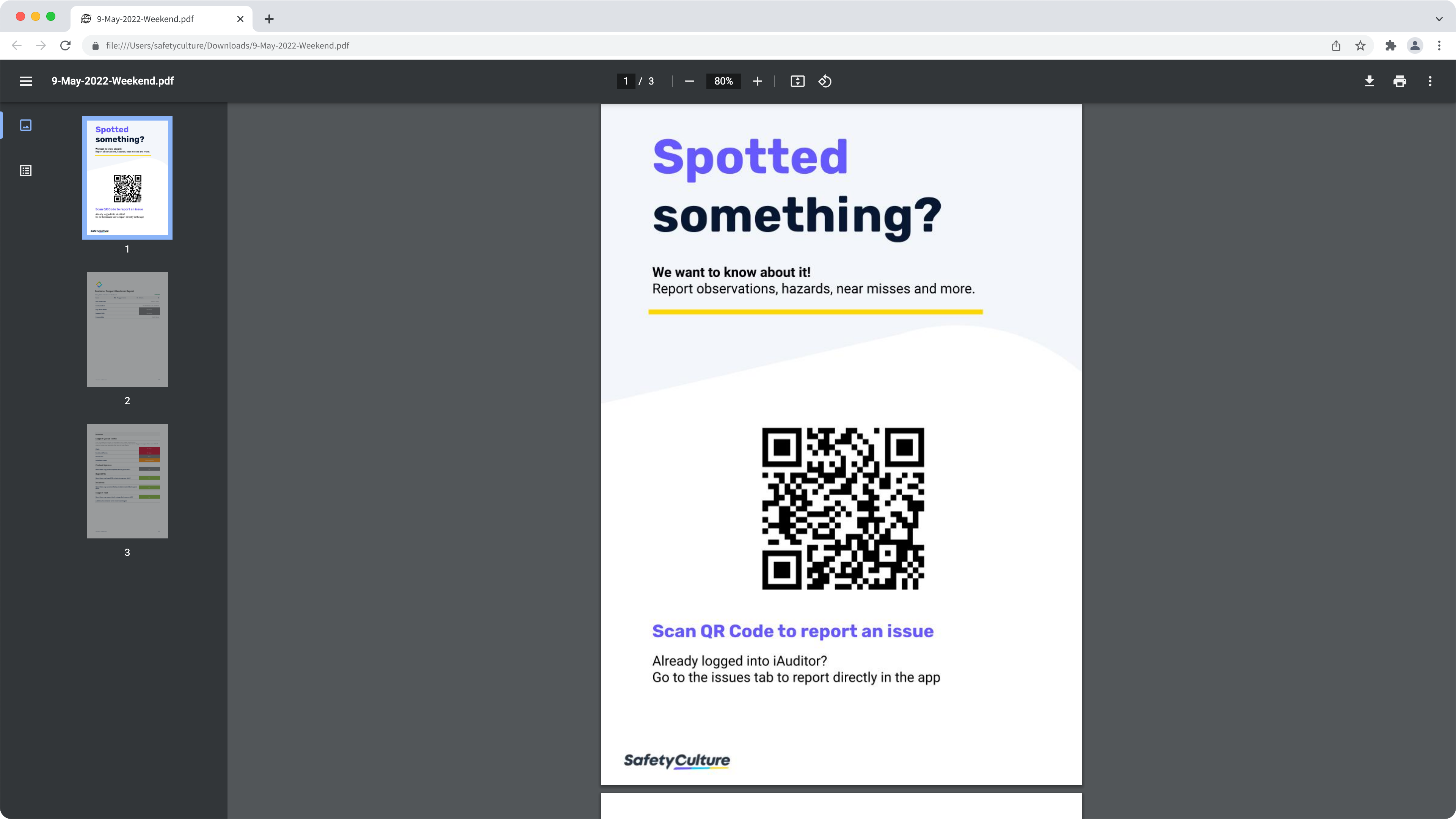
Create a cover page
To make your inspection report cover pages look more professional and personalized for your business, as in the examples below, you can create your cover pages with any content or document editing software, such as Canva (opens in new tab) and Microsoft Word (opens in new tab).
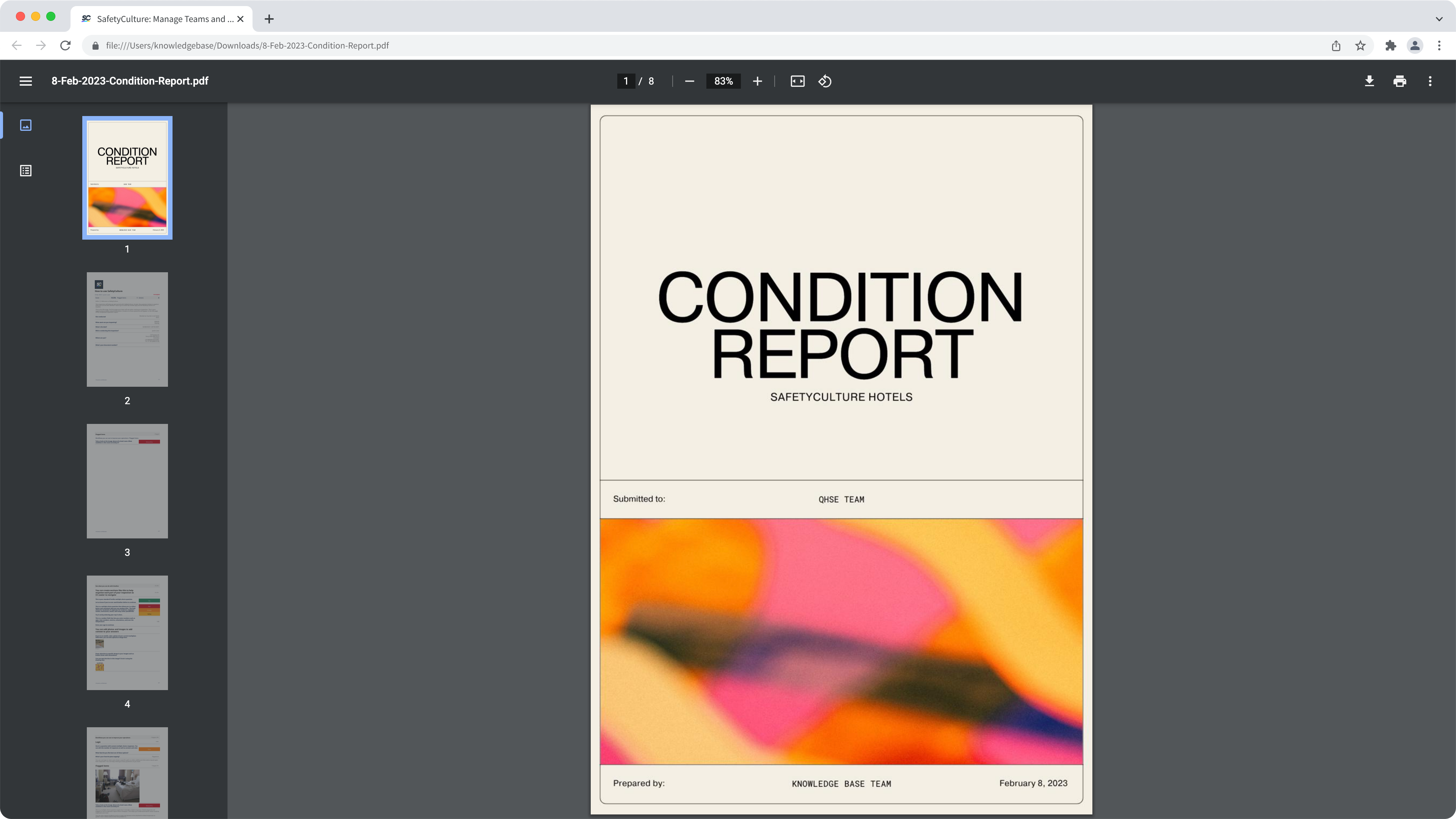
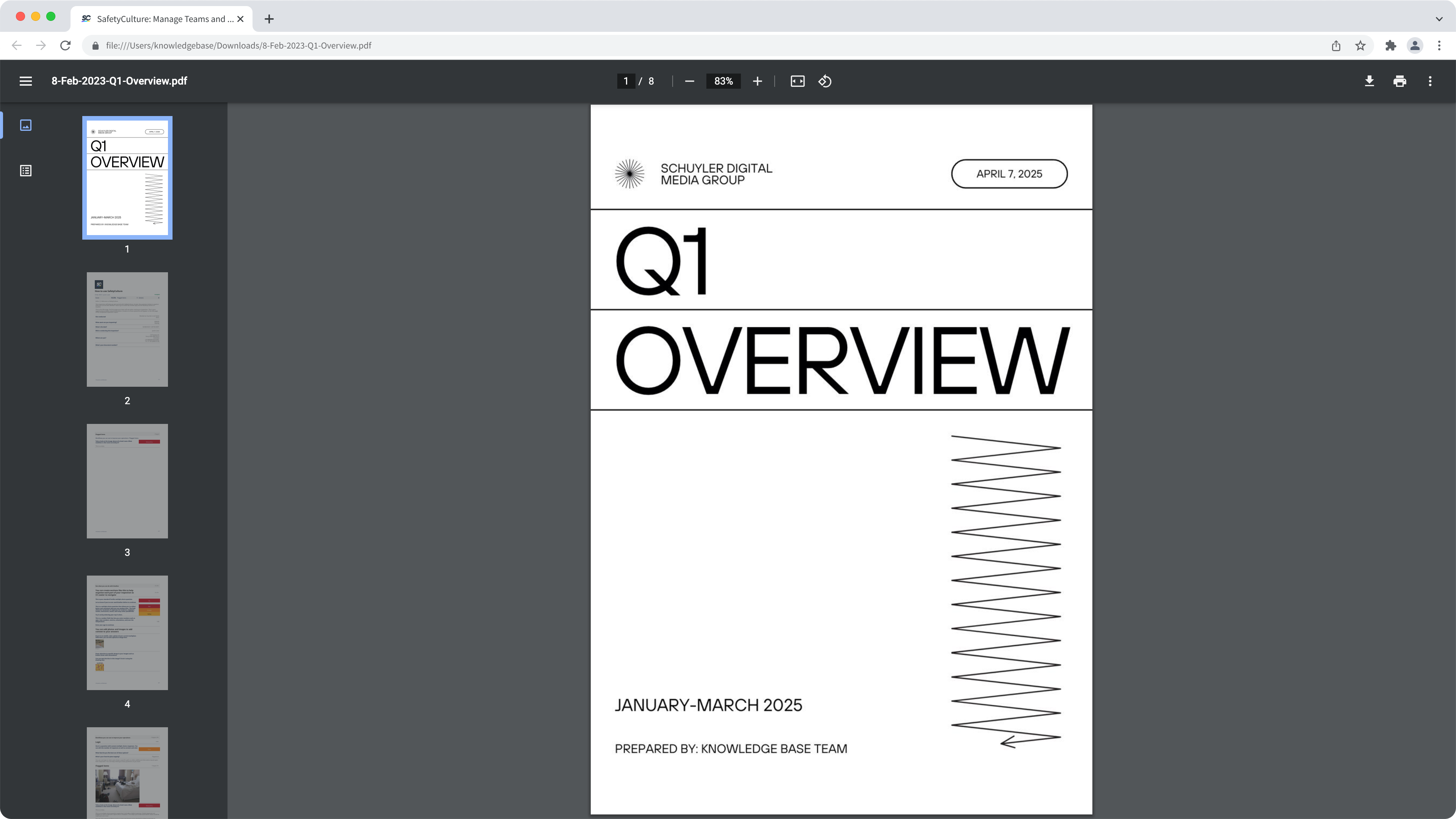
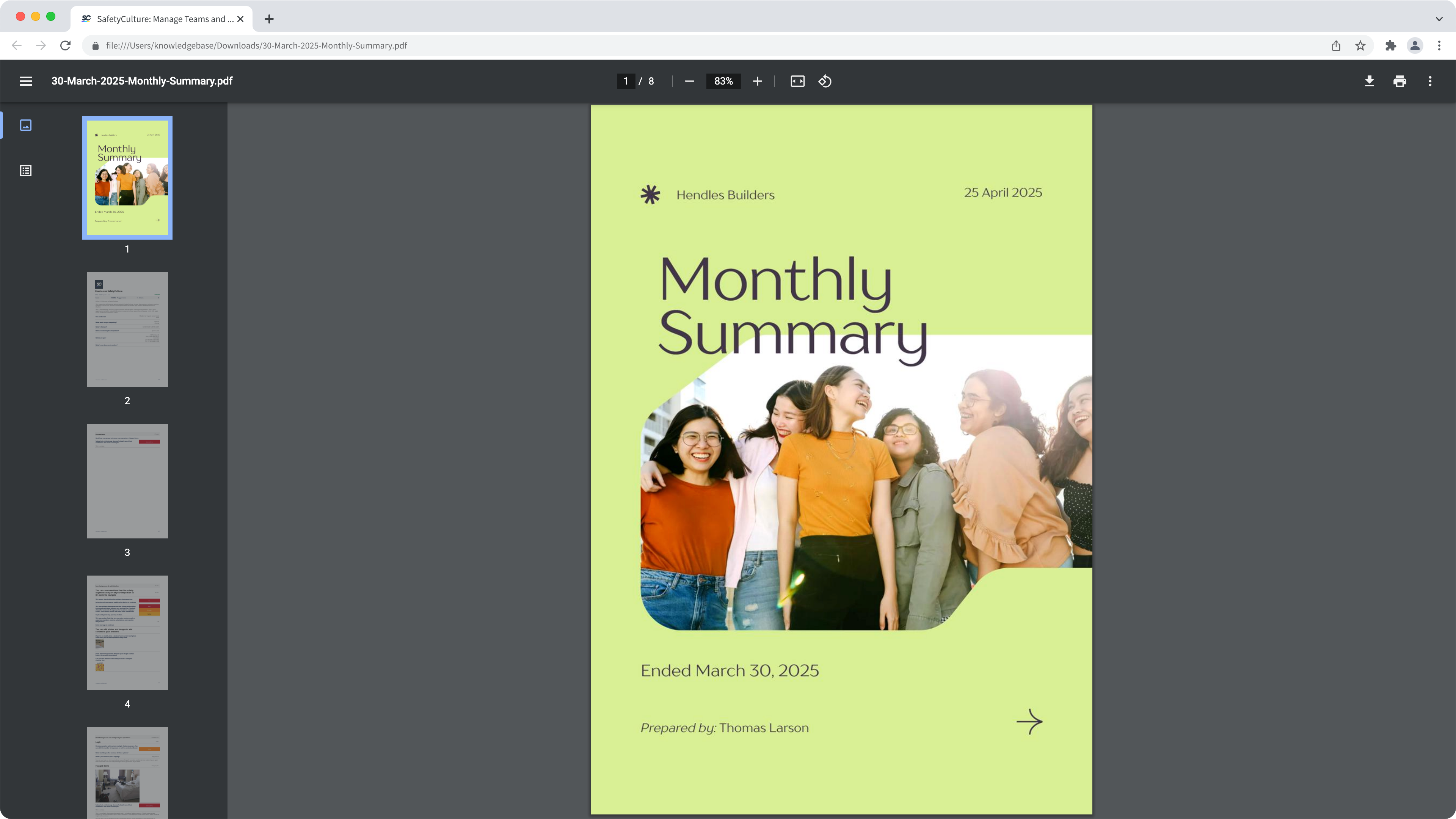
When adding a cover page to your inspection report, we recommend using image files that are A4-sized (3508 x 2480px) for the best results. Please note that only JPG, JPEG, PNG, BMP, or WEBP files up to 5MB in size are supported.
What you'll need
Add or update a cover page
Select Templates in the sidebar or select it in More.
Click the template you want to customize reports for and select Edit report in the side panel.
In the side panel, click browse or drag and drop your image file into the "Cover Page" section. Alternatively, click Upload a different cover page to edit an existing one.
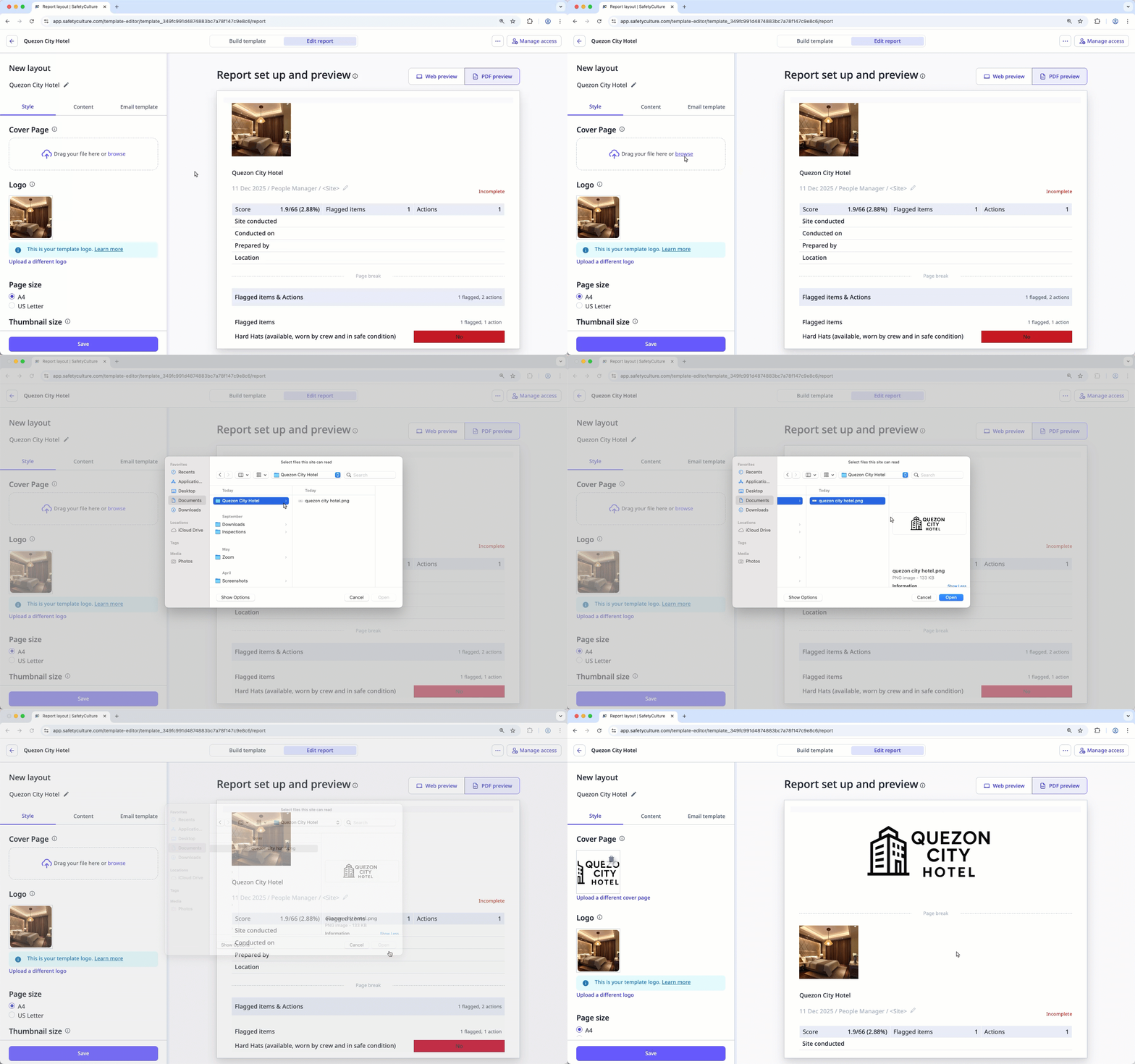
Click Save. If the layout is for all templates, click Save and apply to all templates.
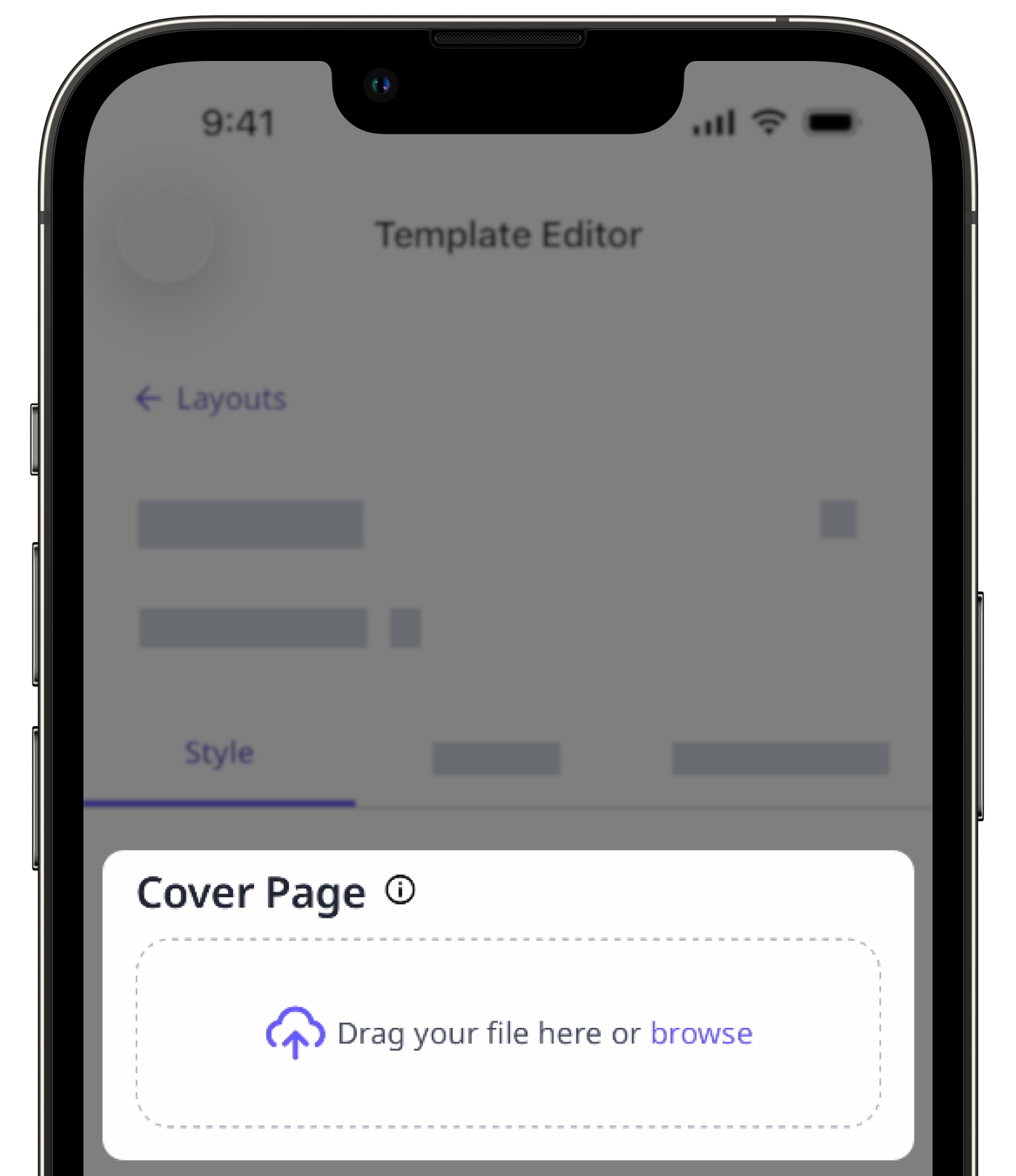
Cover pages can't be generated offline on the mobile app when viewing or exporting an inspection report.


