- Integrations
- Direct integrations
- Automatically export inspection reports to SharePoint
Automatically export inspection reports to SharePoint
Learn how to automatically export inspection reports to SharePoint.This article includes procedures for a tool that is outside of SafetyCulture. Third-party tools can change without notice, so steps or screenshots may differ. If anything looks inaccurate or out of date, use the page helpfulness feedback at the bottom of this article to let us know.
How does exporting inspection reports to SharePoint work?
When you connect SafetyCulture to SharePoint, the integration automatically exports completed inspection reports from SafetyCulture to a SharePoint document library. This helps your team keep reports in a single, structured location and use SharePoint features like permissions, search, and sharing.
The integration exports inspection reports based on the inspections that the account installing the integration can access. If you are an administrator, you can give yourself inspection access for the templates you need or assign yourself the "Override permissions: View all data" permission so you can export reports for all inspections in your organization.
By default, exported reports follow the folder structure in your SharePoint site "SafetyCulture / [site name] / [template title] / [yyyy-mm]", where:
SafetyCulture is the fixed root folder, so you can always see where the files came from.
[site name] is the SafetyCulture site the inspection belongs to.
[template title] is the title of the template used for the inspection.
[yyyy-mm] matches the month the inspection was completed, using a year-month format like
2025-07.
SharePoint also has limits for file and folder path length:
Individual file and folder names usually need to stay under 255 characters.
The full path (including all folders and the file name) usually needs to stay under 400 characters.
To avoid export failures, keep inspection titles, template titles, and site names concise and avoid deep folder structures.
You may need to turn on third-party cookies for your browser to support this integration.
To avoid export failures, keep inspection titles, template titles, and site names concise and avoid deep folder structures.
Automatically export inspection reports to SharePoint
Click your organization name on the lower-left corner of the page and select Integrations.
Search for "SharePoint" and select the integration.
Click Install at the center of the page.
In the pop-up window, click Install.
Enter your SharePoint's "Subdomain" and "Site name". If you want to export inspection reports to your subdomain's root folders, you can leave the "Site name" field empty.
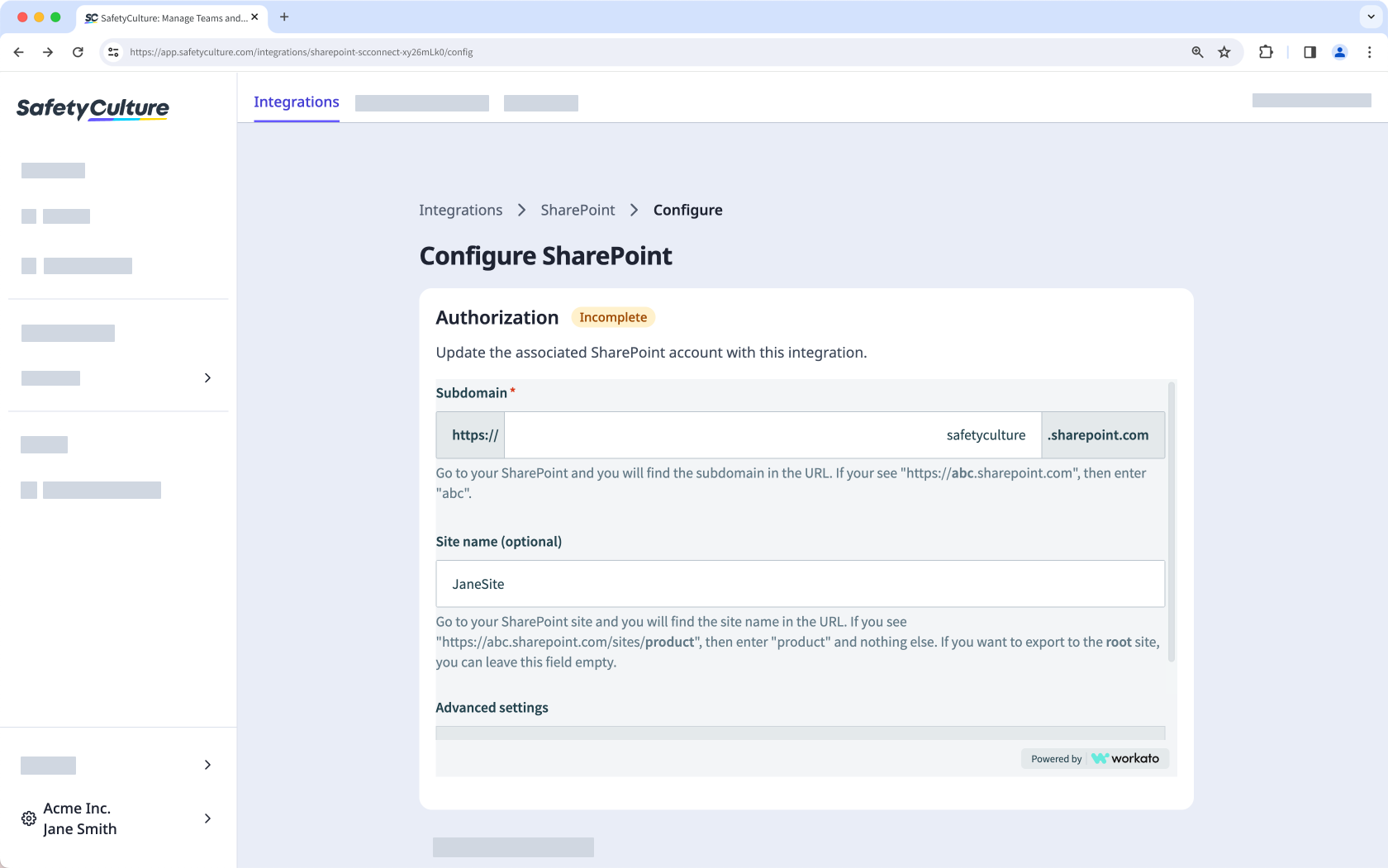
Click Connect.
Follow the prompts in SharePoint to accept the permissions request or request approval from your SharePoint admins.
Click the dropdown menu under "Folder location". You may need to close the "SharePoint integration authorization" pop-up window first.
Select where in SharePoint you want to export your inspection reports and click Save and apply.
Click Done.
Now that the integration is installed and set up, completed inspections will be automatically exported to your selected folder location in SharePoint.
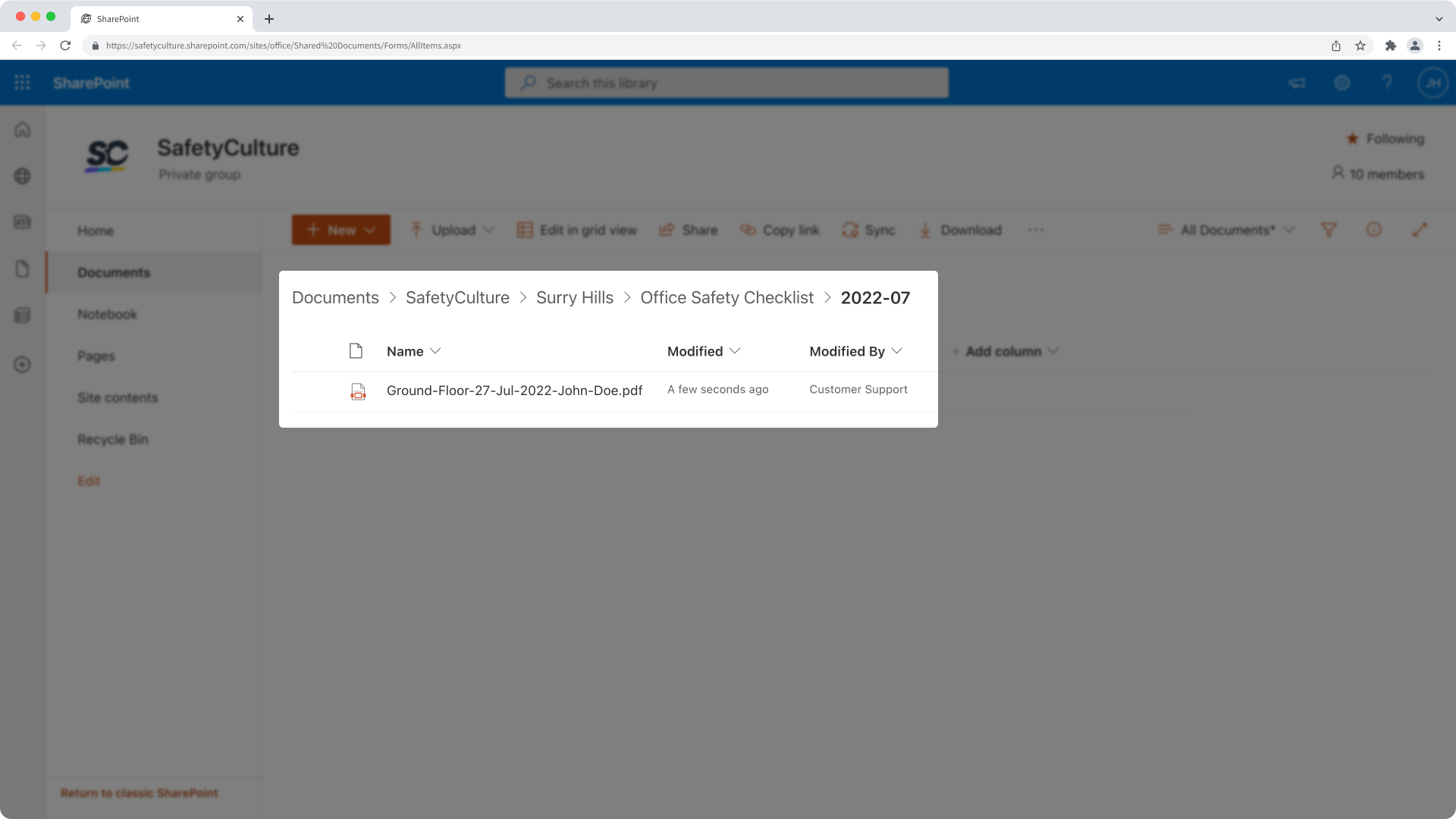
Depending on your organization's SharePoint settings, a SharePoint admin may need to approve the integration as an app request after step 6.

Frequently asked questions
Depending on your organization's SharePoint settings, you should be able to request approval during installation via a form. Your SharePoint admins should then receive an email of your request and approve the installation.

Once the installation is approved by your SharePoint admin, you'll need to return to the integration page in SafetyCulture and complete the setup.
If you don't see a form to request approval for the integration, you'll need to contact your IT team for assistance. They can then enable the consent workflow in Microsoft Azure for you to request approval during installation or install the integration for you in SafetyCulture.
No, it's not possible to change the folder structure using this direct integration. However, our SafetyCulture Integration Builder can give you the flexibility to customize integrations in whatever way that works for you.
Yes, you can. When you're installing the SharePoint integration, make sure to leave the "Site name" field empty to be able to select from your root folders.

If an inspection doesn't have a title, it'll be exported and named using its audit_id. We recommend that you set up an inspection title format for each template, so that inspections can be named following a convention.
If an inspection doesn't have a site selected, it'll be exported to a folder called "No Site".
You can change where to export your inspection reports anytime by editing your integration connection.
Go to the integration.
In the pop-up window, click Edit.

Click the dropdown menu under "Folder location".
Select the new location where you want to export your inspection reports and click Save and apply.
Click Done.
Now that you've updated the integration, newly completed inspections will be automatically exported to the new folder location.
Yes, you can. Follow the instructions in this article and when you reach the step to enter your SharePoint details, click Show under "Advanced settings" and enter your app's "Client ID" and "Client secret". Then, continue following the instructions to set up the integration with your Microsoft Azure Active Directory app.

If you don't have your "Client ID" and "Client secret" yet, please follow the instructions to create the app in your Microsoft Azure for the details.
Yes. If an exported inspection report's file and folder path exceeds 400 characters, the inspection will not be automatically exported to SharePoint via the integration.

The integration may have been turned off due to an authentication error. Either because the external account used for the integration no longer has access to the system or its permissions to make changes have been removed.
When this happens, an email would be sent to users with the "Platform management: Organization" permission to inform them about the error. To fix the problem, we recommend that you uninstall the integration and follow the instructions to install it again.
If you get a connection error while installing the integration, it's likely because your browser is blocking third-party cookies on SafetyCulture websites. To fix this, we recommend that you turn on third-party cookies in your browser settings and try installing the integration again.

Was this page helpful?
Thank you for letting us know.