Why scan text in inspections?
Conducting inspections often involves entering details like serial numbers or system readings, but typing them out takes time and can lead to mistakes. By scanning text with your device’s camera, you can capture information instantly and accurately, reducing manual effort and improving data quality.
What you'll need
Supported response types
The following response types support text scanning in inspections:
Person (title page) - Accepts alphanumeric input.
Document number (title page) - Accepts alphanumeric input.
Text (title page and other pages) - Accepts alphanumeric input.
Number (title page and other pages) - Accepts numeric input only.
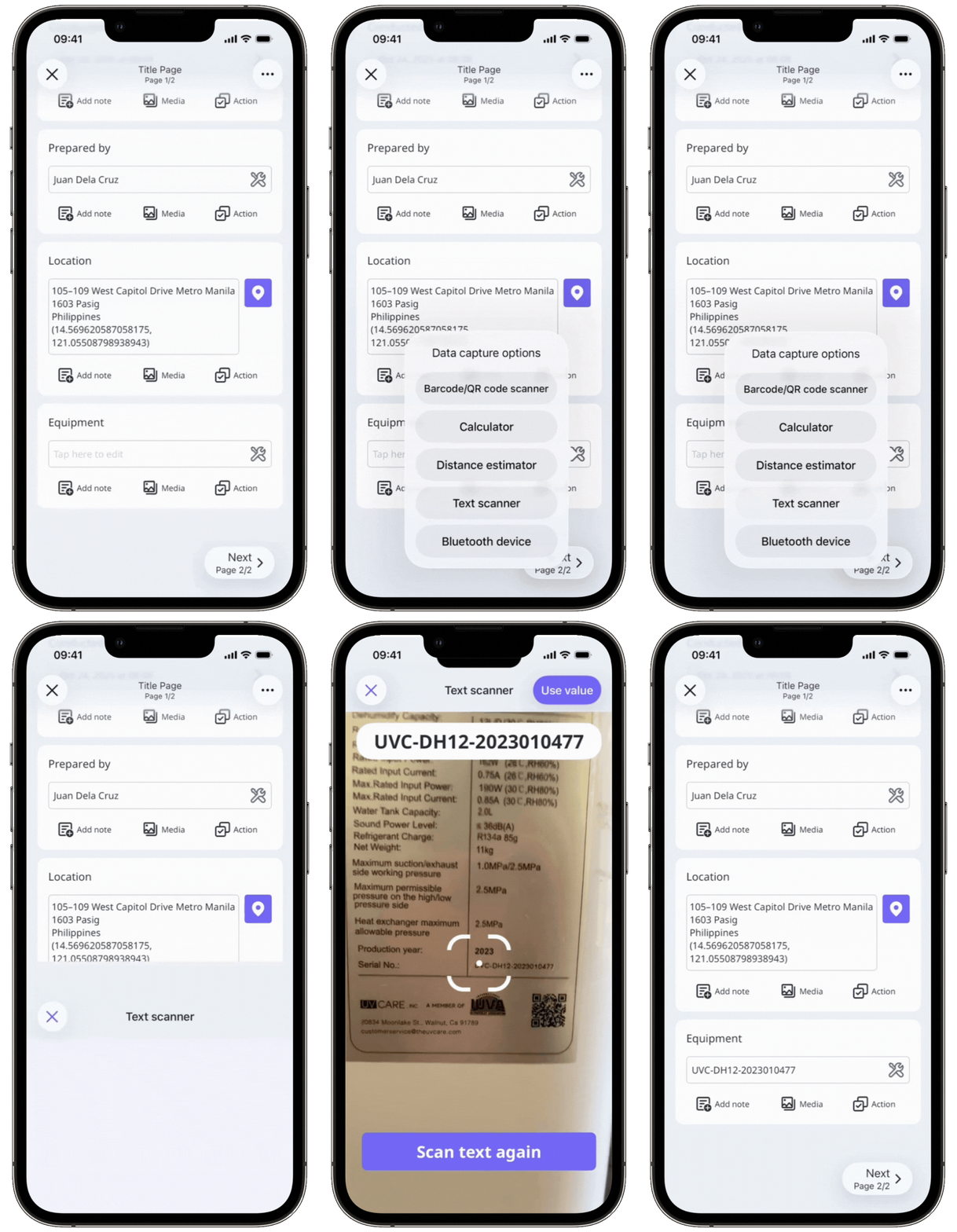
Scan text in an inspection
Open the mobile app.
Tap Inspections in the navigation bar or select it from More.
Progress through the inspection accordingly.
Tap on the right-hand side of the supported question.
Select Text scanner from the pop-up options.
Focus your camera on the text you want to scan and tap Scan text.
The scanned text should appear at the top of your screen. If the text isn't quite right, tap Scan text again.
Tap Use value at the upper-right of your screen.