Why use a calculator in inspections?
Inspections often involve capturing numerical data, from equipment readings to measurement checks. The built-in calculator allows you perform quick calculations directly within your inspection, instead of switching apps or relying on manual math. You can even pull in existing number responses from the same page to save time and reduce errors. This helps keep inspections efficient, accurate, and focused, so your team can complete tasks on-site without interruptions.
What you'll need
Supported response types
The following response types support the calculator in inspections:
Person (title page) - Accepts alphanumeric input.
Document number (title page) - Accepts alphanumeric input.
Text (title page and other pages) - Accepts alphanumeric input.
Number (title page and other pages) - Accepts numeric input only.
Using the calculator in an inspection
Open the mobile app.
Tap Inspections in the navigation bar or select it from More.
Progress through the inspection accordingly.
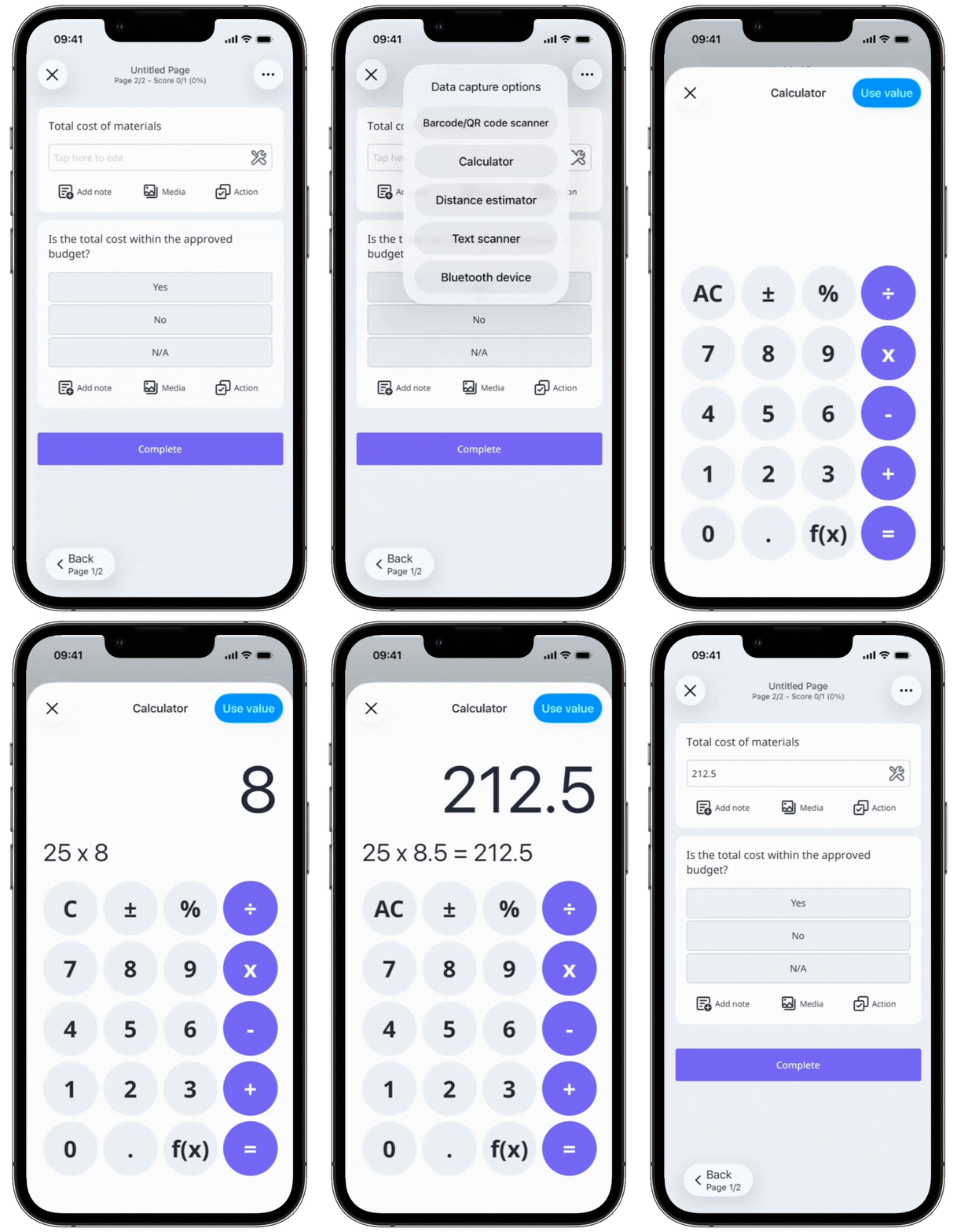
Tap on the right-side of the supported question.
Select Calculator from the pop-up options.
Perform your calculations accordingly. If there's an existing number response on the same inspection page that you want to use in a calculation, tap f(x) and select that response.
Tap Use value or at the upper-right of your screen.