
Why estimate distance in inspections?
Estimating distances within an inspection allows to teams quickly confirm spacing, clearances, and site conditions without the need for extra equipment. By capturing accurate and reliable measurements, it reduces manual work, minimizes errors, and helps teams complete inspections more efficiently.
What you'll need
The distance estimator feature is currently only available on the SafetyCulture mobile app for iOS devices that support augmented reality (AR).
Supported response types
The following response types support the distance estimator in inspections:
Person (title page) - Accepts alphanumeric input.
Document number (title page) - Accepts alphanumeric input.
Text (title page and other pages) - Accepts alphanumeric input.
Number (title page and other pages) - Accepts numeric input only.
Estimate distance in an inspection
Open the mobile app.
Tap Inspections in the navigation bar or select it from More.
Progress through the inspection accordingly.
Tap on the right-hand side of the supported question.
Select Distance estimator from the pop-up options.
Tap at the bottom of your screen to start estimating.
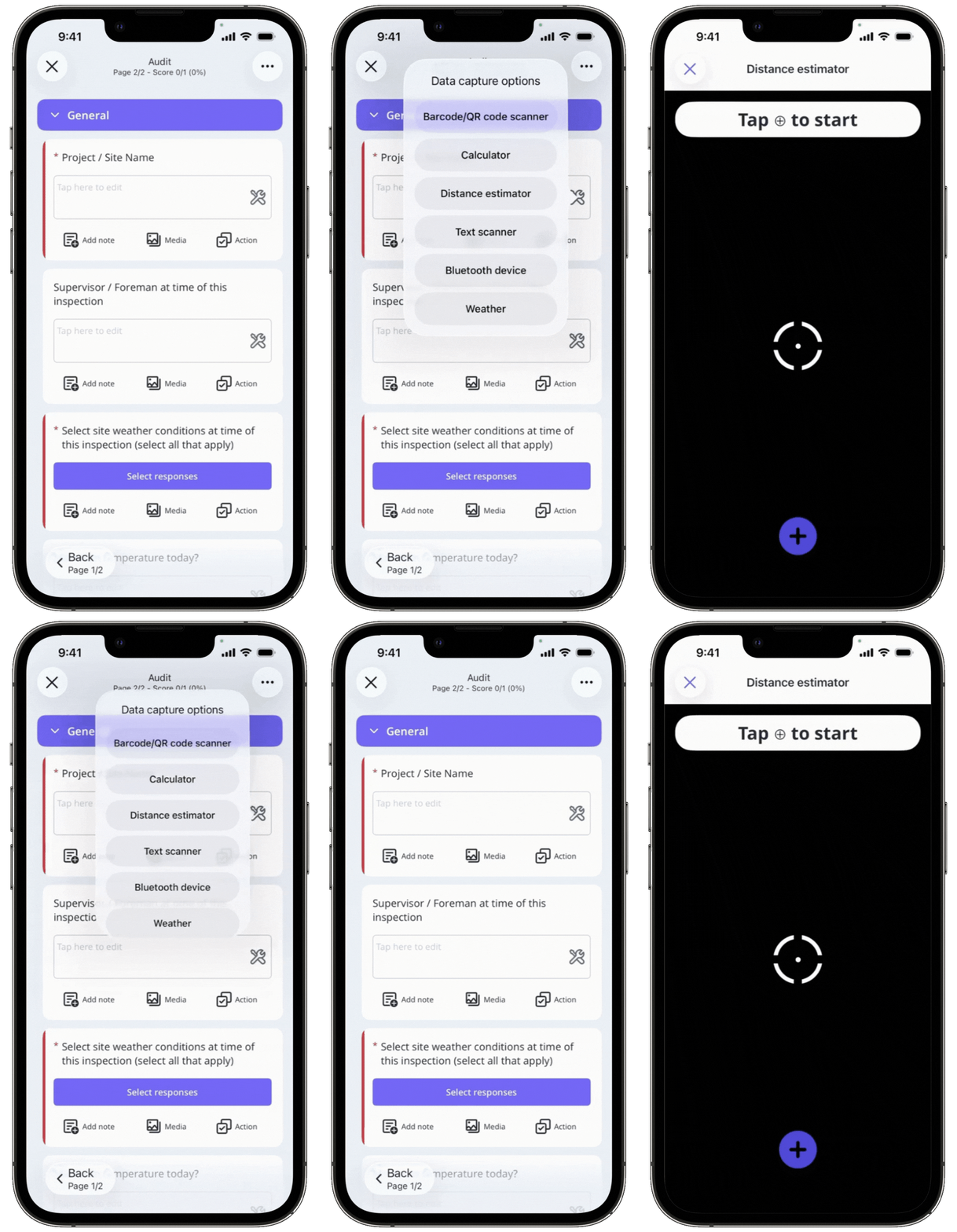
Slowly move your device and tap once more to finish estimating.
The estimated distance should appear at the top of your screen. If the estimated value isn't quite right, repeat from step 7 to start again.
Tap Use value at the upper-right of your screen.


