
Why change my account's date and time formats?
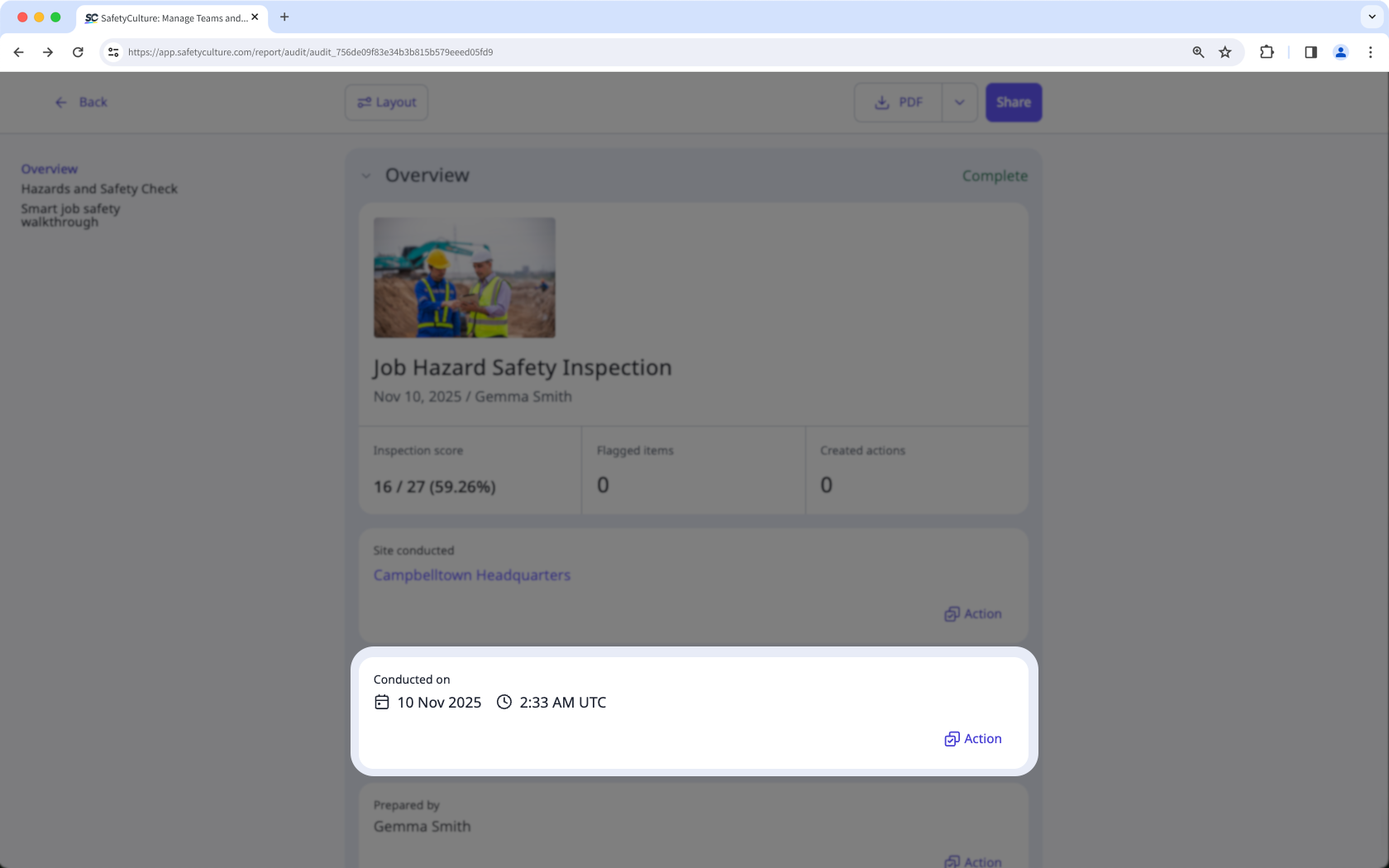
Changing your date and time format lets you control how timestamps appear across your SafetyCulture account. This helps you read information in a way that matches your local standards. It’s useful whenever timing needs to be clear, such as reviewing actions to close, investigations, or inspection histories.
For example, you can set a format you’re familiar with to make timestamps easier to read and less likely to cause confusion. This keeps your data clear, consistent, and easier to interpret.
What you'll need
If you have "Platform management: Organization" permission, you can also change the date and time format settings for your organization.
Date and time format options
Date format | Example |
|---|---|
dd/MM/yyyy | 03/21/2022 |
MM/dd/yyyy | 21/03/2022 |
dd.MM.yyyy | 03.21.2022 |
yyyy-MM-dd | 2022-03-21 |
d MMM yyyy | 21 Mar 2022 |
MMM d, yyyy | Mar 21, 2022 |
Time format | Example |
|---|---|
12hr time | 3:30 PM |
24hr time | 15:30 |
Change your account's date and time format
Click your organization's name in the lower-left corner of the page and select My profile.
Click Settings on the upper-right of the page.
Click Edit in the "Details" section.
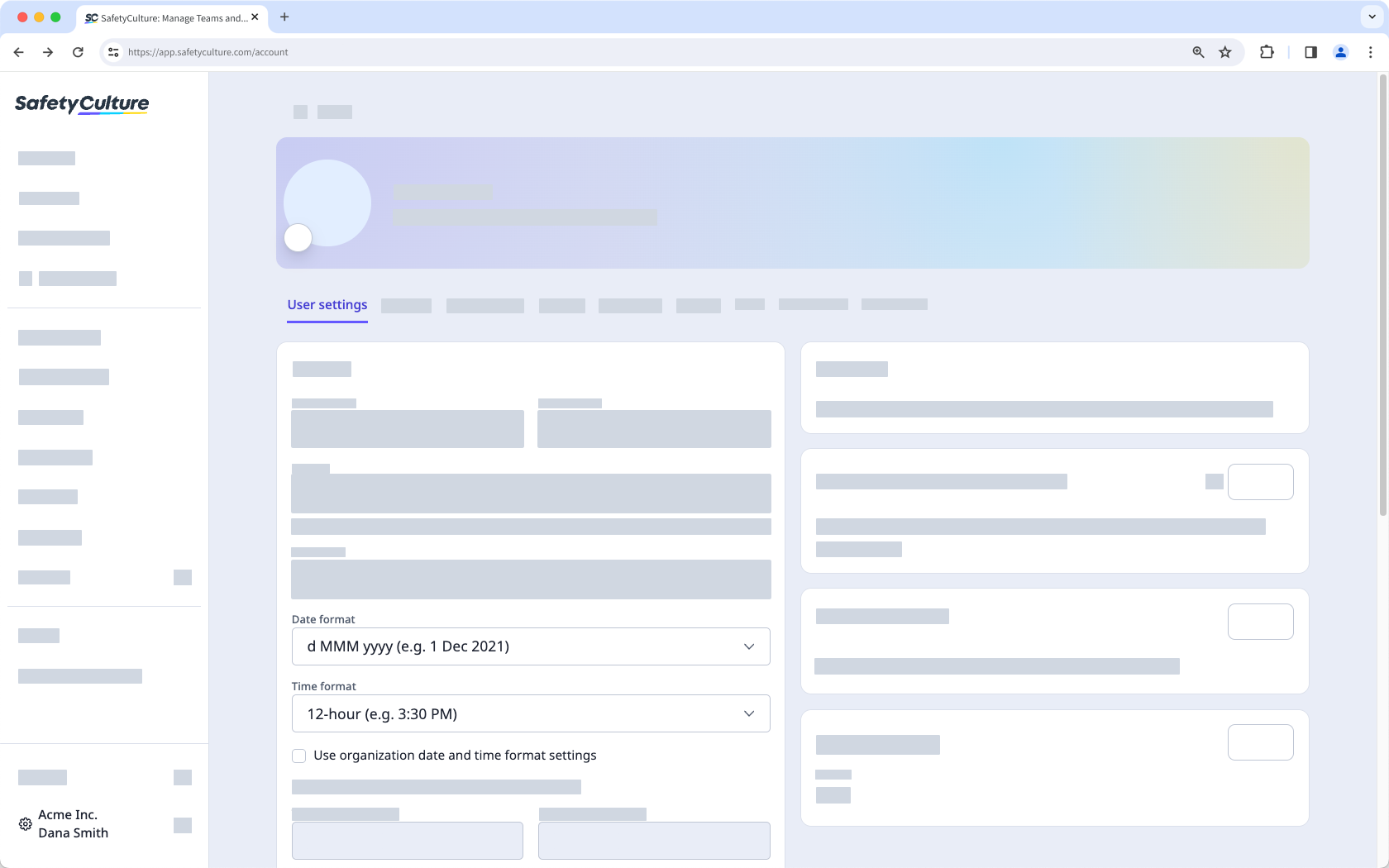
By default, the "Date format" and "Time format" settings follow your organization's preference. You can uncheck the box and select the date and time format that only applies to your account on the web app.
Click Save changes.


