
What you'll need
You can duplicate or copy an existing inspection as the basis for a new inspection.
Duplicating a template will not copy its access levels. The duplicate uses your organization's default template access.
Duplicate a template
Select Templates in the sidebar or select it in More.
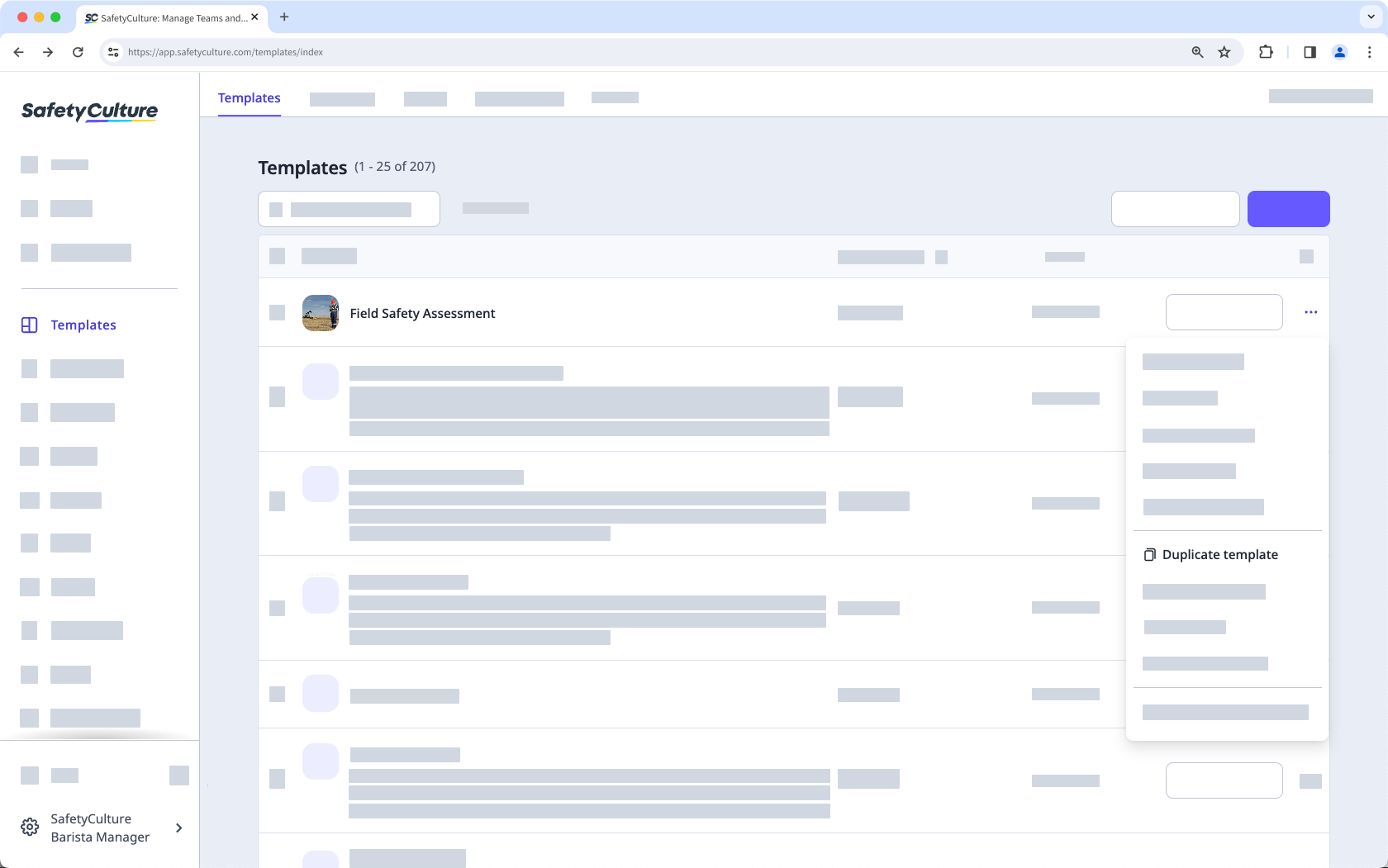
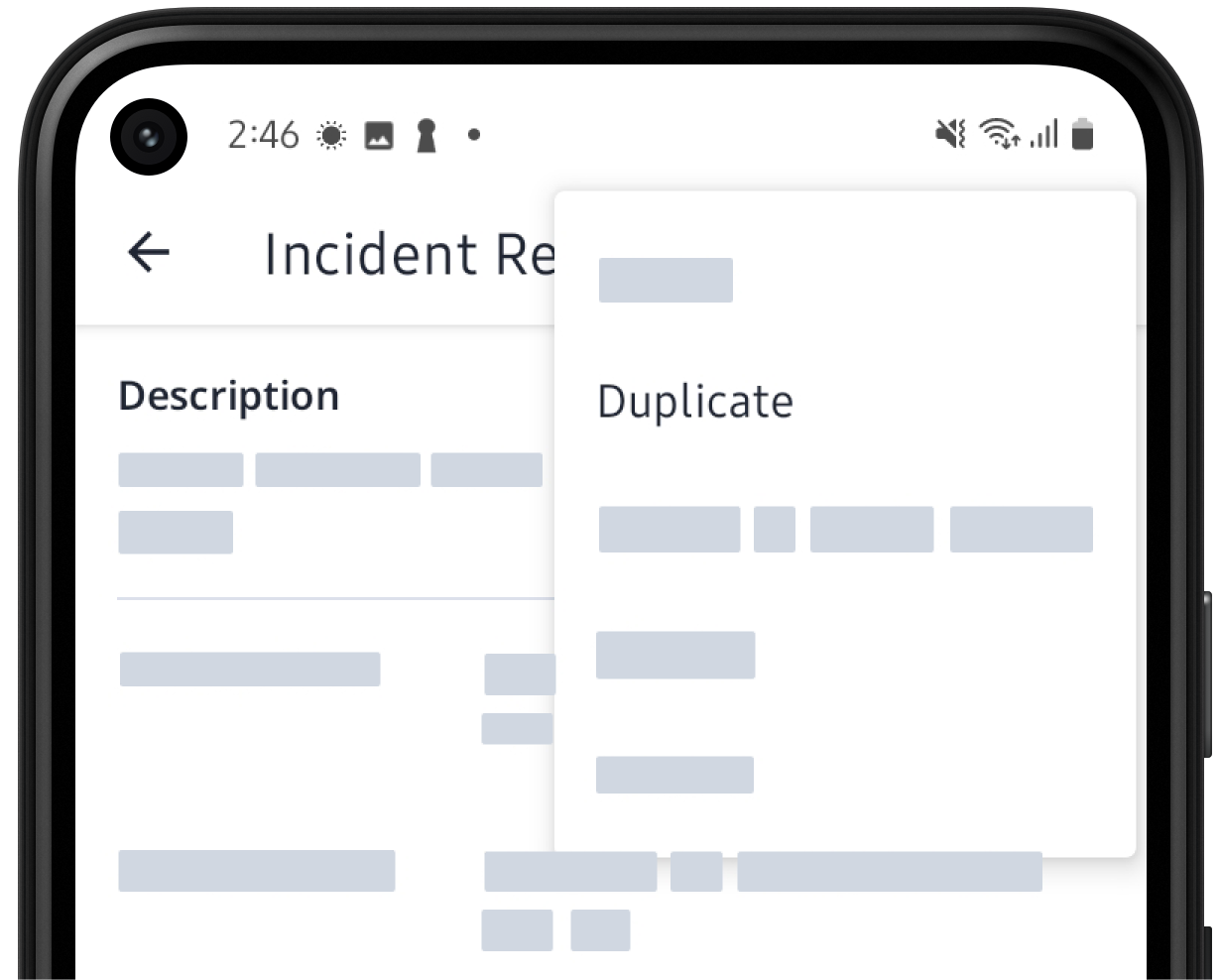
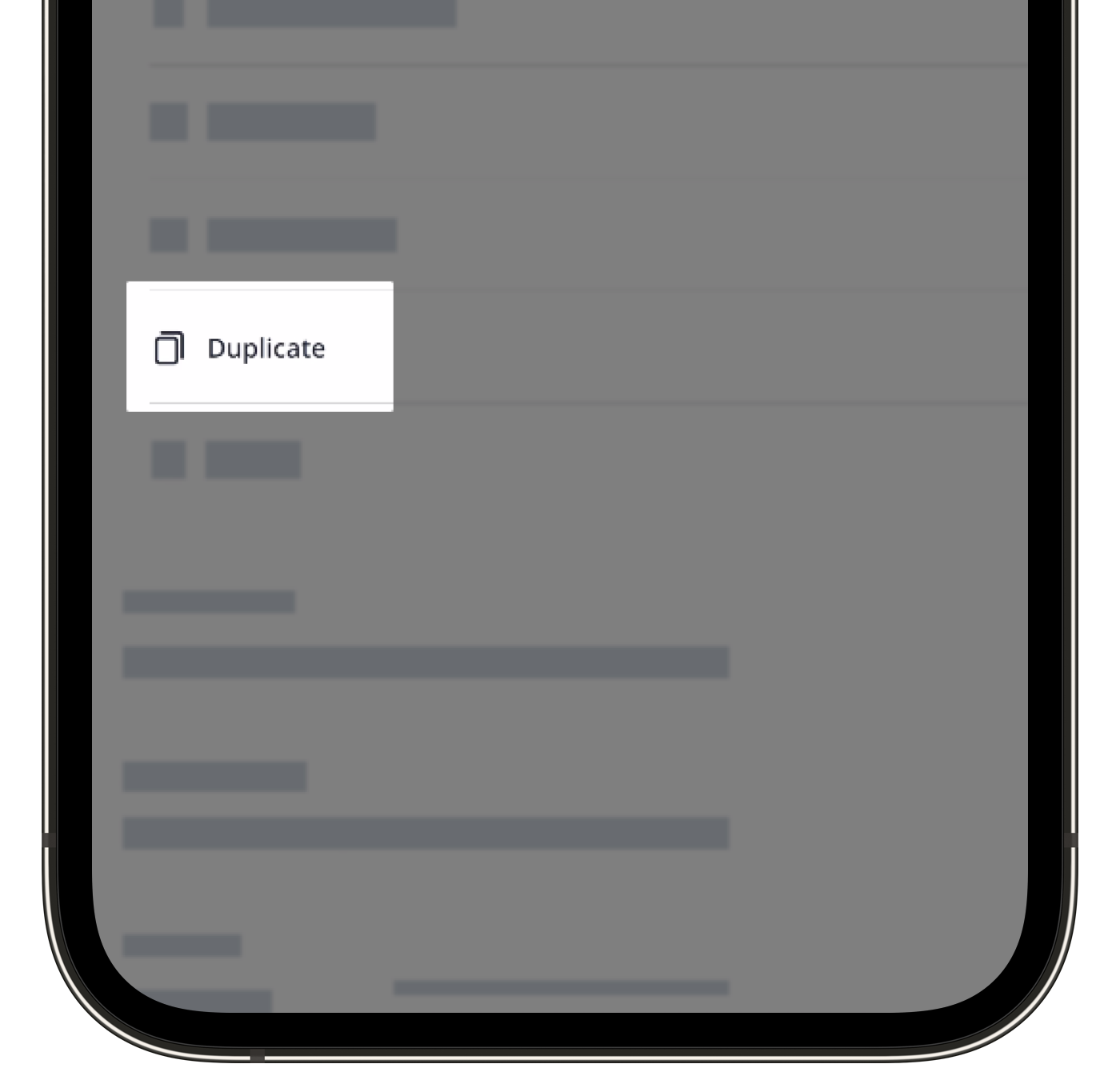
Click located on the right-hand side of the template you want to duplicate.
Select Duplicate template.
You can find the duplicated templates at the top of your template list.
When you duplicate a template inside a folder, the duplicate will appear in the template list, but you can move it into the folder if needed.
If a duplicated template has a document number response, it will start a new document number sequence.
Duplicate multiple templates
Select Templates in the sidebar or select it in More.
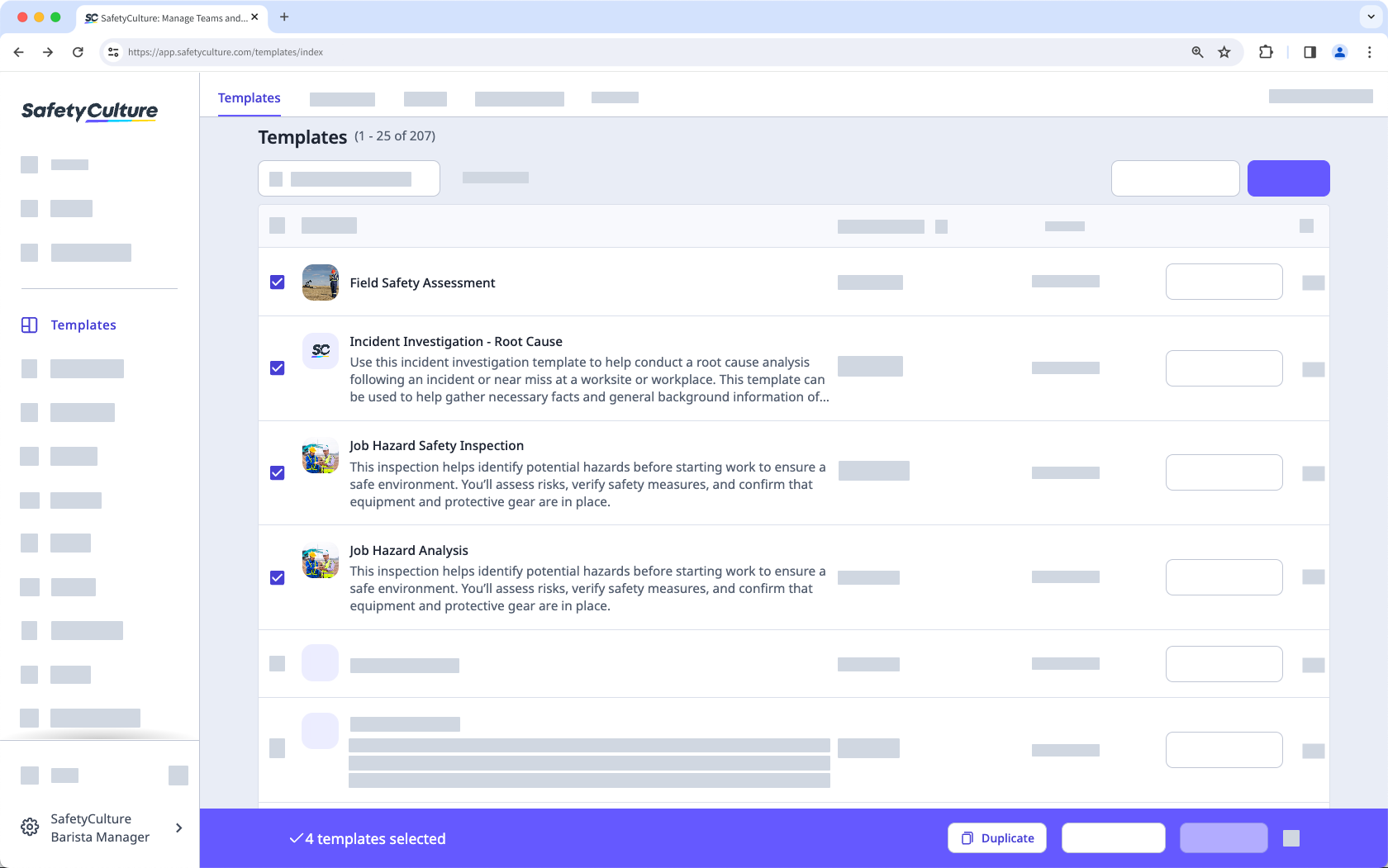
Using the checkboxes on the left-hand side, select the templates you want to duplicate.
Click Duplicate on the bottom of the page.
You can find the duplicated template at the top of your template list.


