
Why bulk export inspections?
Bulk exporting inspections allows you to download multiple inspection reports at once in a single export file. It’s helpful when you need to share large sets of inspection data, move records into another system, or keep organized backups. You can simply select the inspections you want and export them together from the web app, allowing you to streamline your workflow, reduce manual downloads, and make it easier to manage high volumes of inspection data.
What you'll need
Bulk export limits
The following limits apply when bulk exporting inspections:
PDF and Word: Maximum of 100 inspections at a time.
Excel and CSV (new): Maximum of 10,000 inspections at a time.
CSV with media: Maximum of 25 at a time.
If your inspection export exceeds the limits or you need specific formats, such as CSV with media or JSON, use the SafetyCulture Exporter for a more scalable solution.
Bulk export inspections
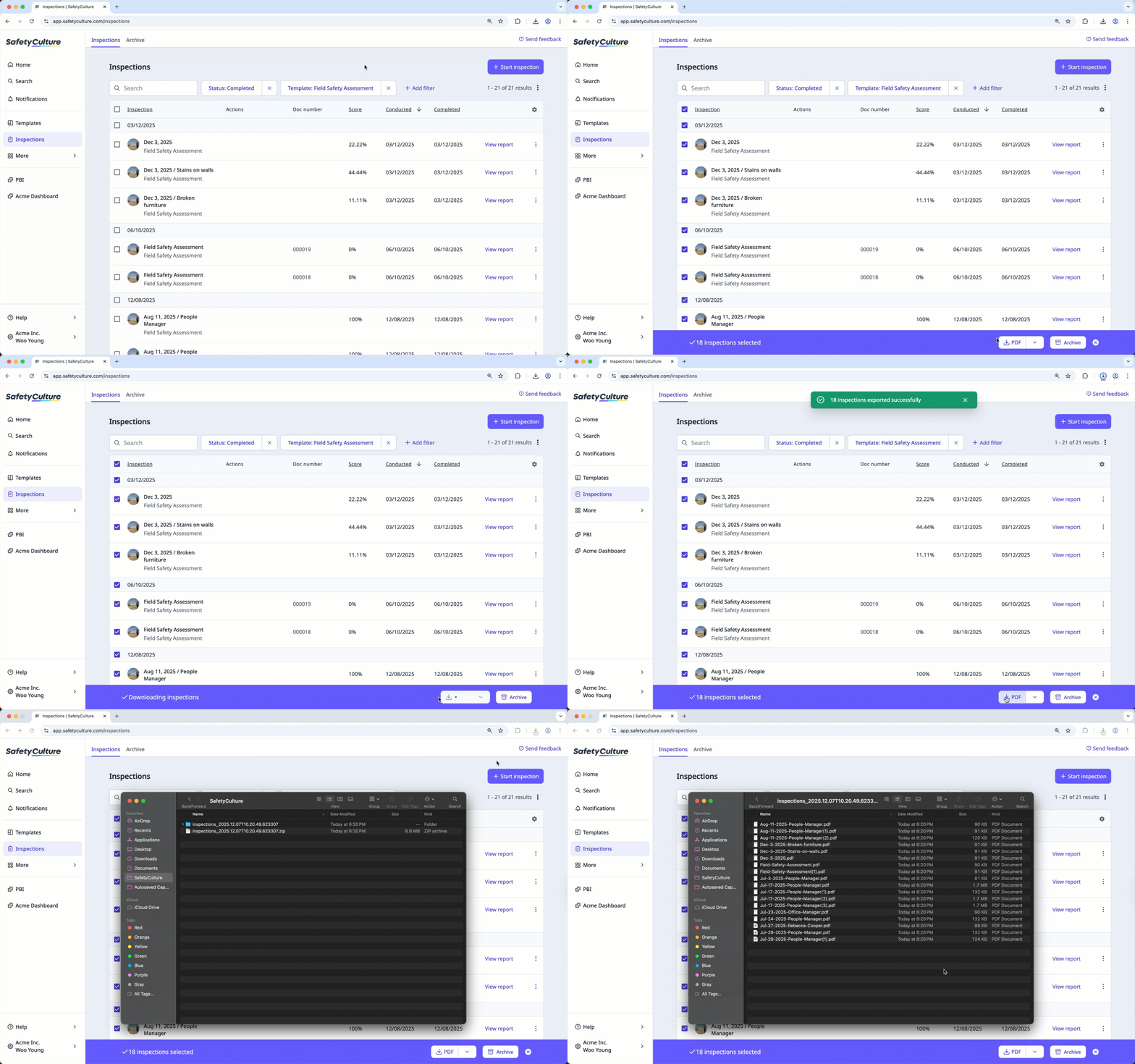
Select Inspections in the sidebar or select it in More.
Select the inspections you want to bulk export by checking each inspection's box on the left-hand side of the page. You can narrow down the inspections using the search box on the upper-left of the page or by clicking Add filter and selecting a filter option.
Click PDF to bulk export your inspections as PDF files. To bulk export inspections using another file format, click and select an option.
If you're bulk exporting inspections as Excel or CSV, you have the option to:
Export all data: Include data from all questions in each inspection, including unpopulated fields such as notes and timestamps.
You can also include data from all logic questions in each inspection, including questions that are unanswered or skipped due to logic.
Remove empty columns: Columns that don’t have any data such as unpopulated notes and timestamps will be removed from the Excel export.
You can select across multiple pages when you bulk export inspections on the Inspections page. However, the "Select all" option is only available for the following filters:
Search field
Template
Conducted date


