
What is the SafetyCulture Exporter?
The SafetyCulture Exporter makes it easier to work with your data outside the platform. Available at no extra cost for customers on the Premium and Enterprise Plans (opens in new tab), it allows you to export SafetyCulture records such as inspections, templates, schedules, and actions into multiple formats. These exports work seamlessly with business intelligence tools, data warehouses, and reliable record-keeping systems to support compliance and reporting needs.
The command-line interface (CLI) version of the SafetyCulture Exporter offers advanced configuration options, including proxy network settings. This version requires basic command-line knowledge, while the SafetyCulture Exporter provides a simpler interface without proxy configuration options.
What you'll need
1. Download the SafetyCulture Exporter
Click your organization name on the lower-left corner of the page and select Integrations.
Scroll to the "All Partners" section.
Select "SafetyCulture Exporter."
Download the Exporter for your operating system.
Move the SafetyCulture Exporter to your preferred location on your computer.
Proceed to configure the SafetyCulture Exporter.
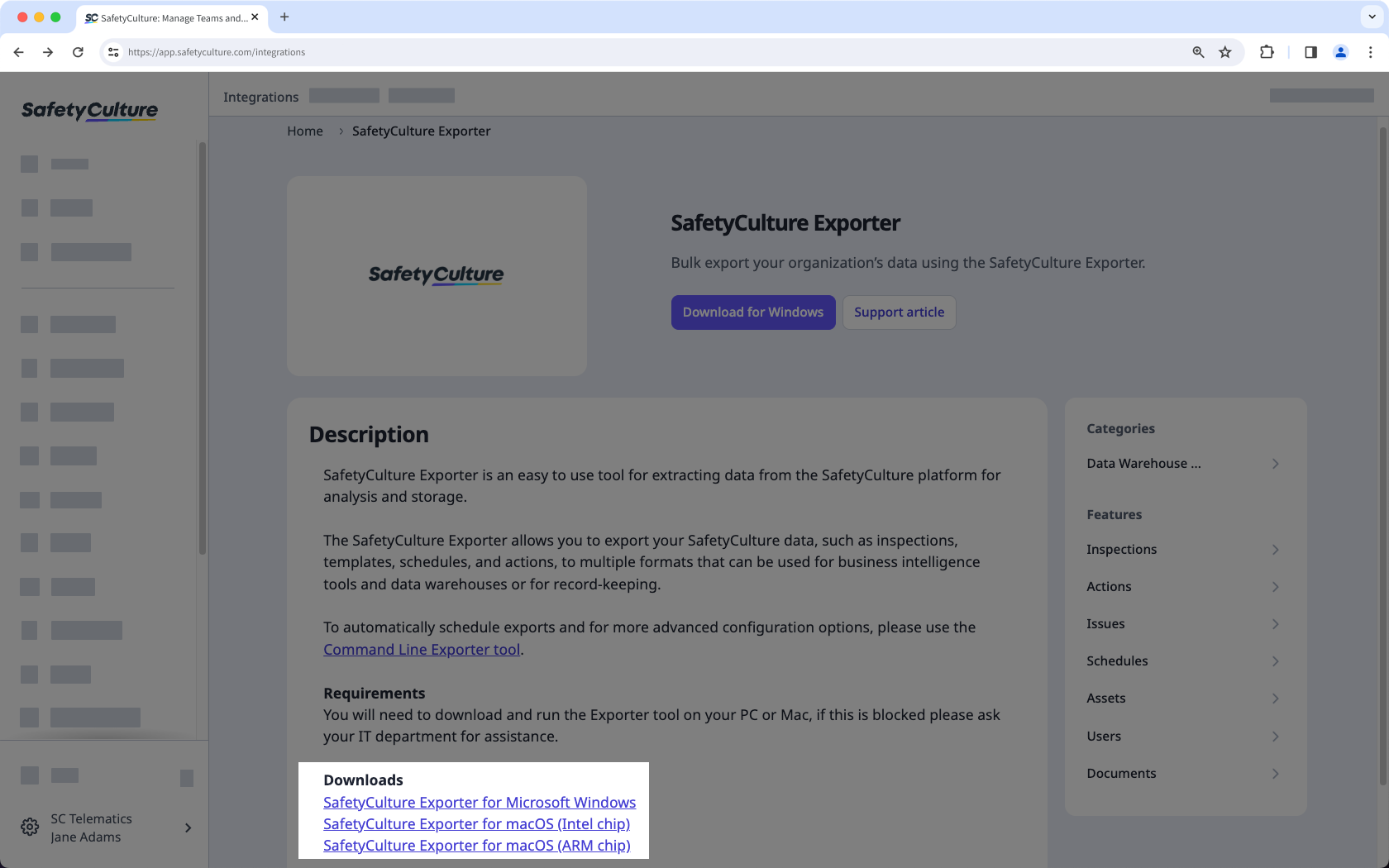
2. Configure the SafetyCulture Exporter
Open the SafetyCulture Exporter.
Enter your API token in the field and click Verify.

Configure the following fields:
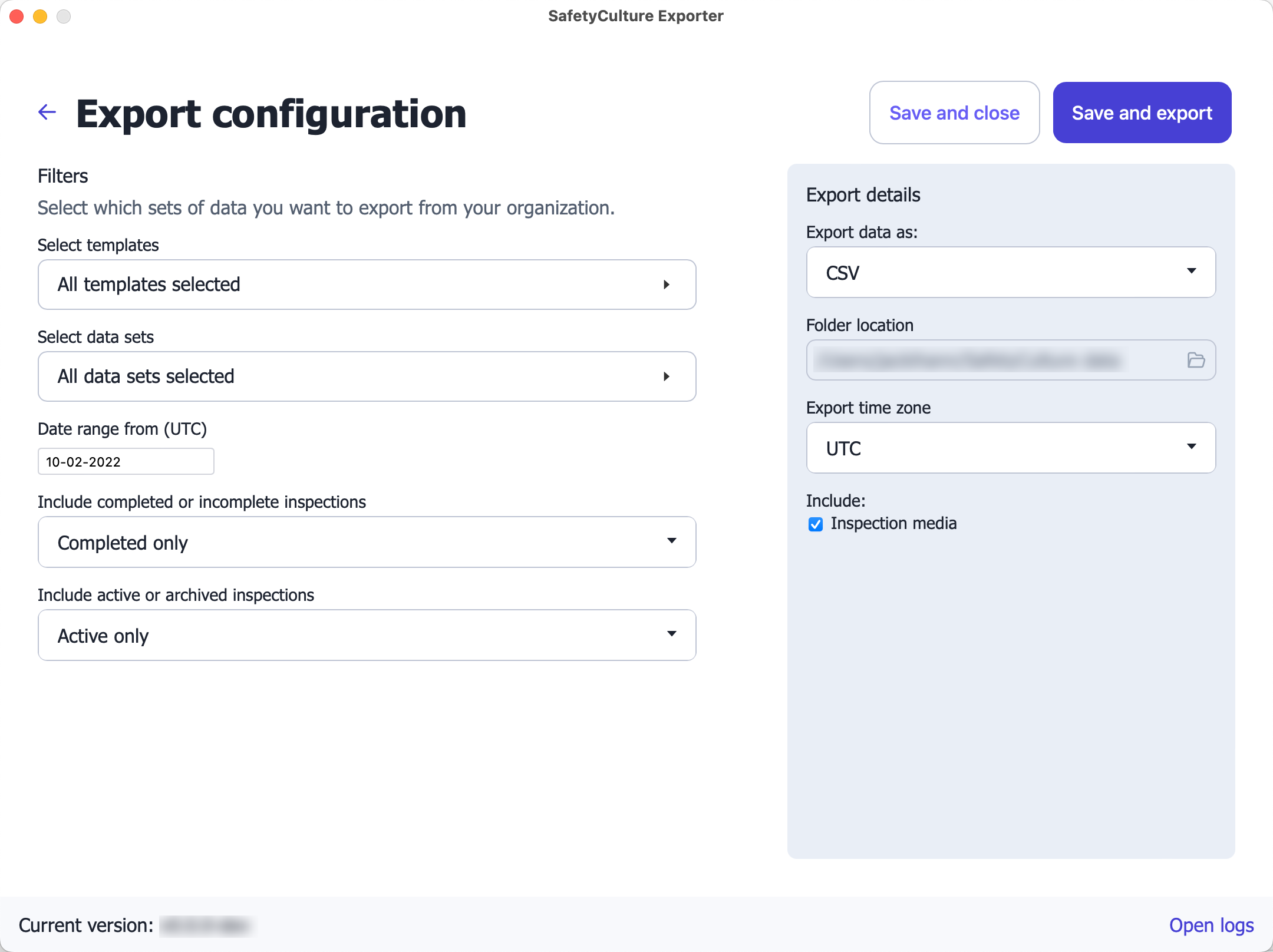
Select templates: Filter the data you want to export by templates. By default, all templates are selected.
Select data sets: Select the data sets you want to export. By default, all data sets are selected.
Date range from (UTC): Filter the data you want to export by the date they're modified from in Coordinated Universal Time (UTC). By default, the date is set to one year before your current date.
Include completed or incomplete inspections: Filter the inspection data you want to export by whether they're completed or not. By default, only completed inspections are exported.
Include active or archived inspections: Filter the inspection data you want to export by whether they're active or archived. By default, only active inspections are exported.
Export data as: Select the format you want to export your data as (CSV, databases, or inspection reports).
Report format: Select the format you want to export your inspection reports as (PDF, Word, or both).
Folder location: Select where you want to export your data. This only applies to CSV, inspection media, and inspection reports.
Database details (database only): Enter the details of your database.
Include: Select whether you want to include inspection media with your CSV or database exports.
Proceed to run the SafetyCulture Exporter.
Please note that each filter only applies to certain data sets. For example, "Date range from (UTC)" only applies to data sets where date modified is relevant.
3. Run the SafetyCulture Exporter
Once you've configured the SafetyCulture Exporter, click Save and export.
The progress for exporting each data set should be outlined. If this is your first time exporting, this may take some time. You can click Cancel export at any time to change your configuration.
Once the export is complete, click Open export folder to view your CSV data and inspection reports. Otherwise, view your database for the exported data sets.


