Why use temperature response questions?
Temperature response questions are a great way to note down and measure the temperatures of assets. When the temperature readings fall below or exceed your preset ranges, you can add logic fields to trigger follow-up questions, require actions, require evidence, and send notifications depending on users' answers.
Format options
Thresholds
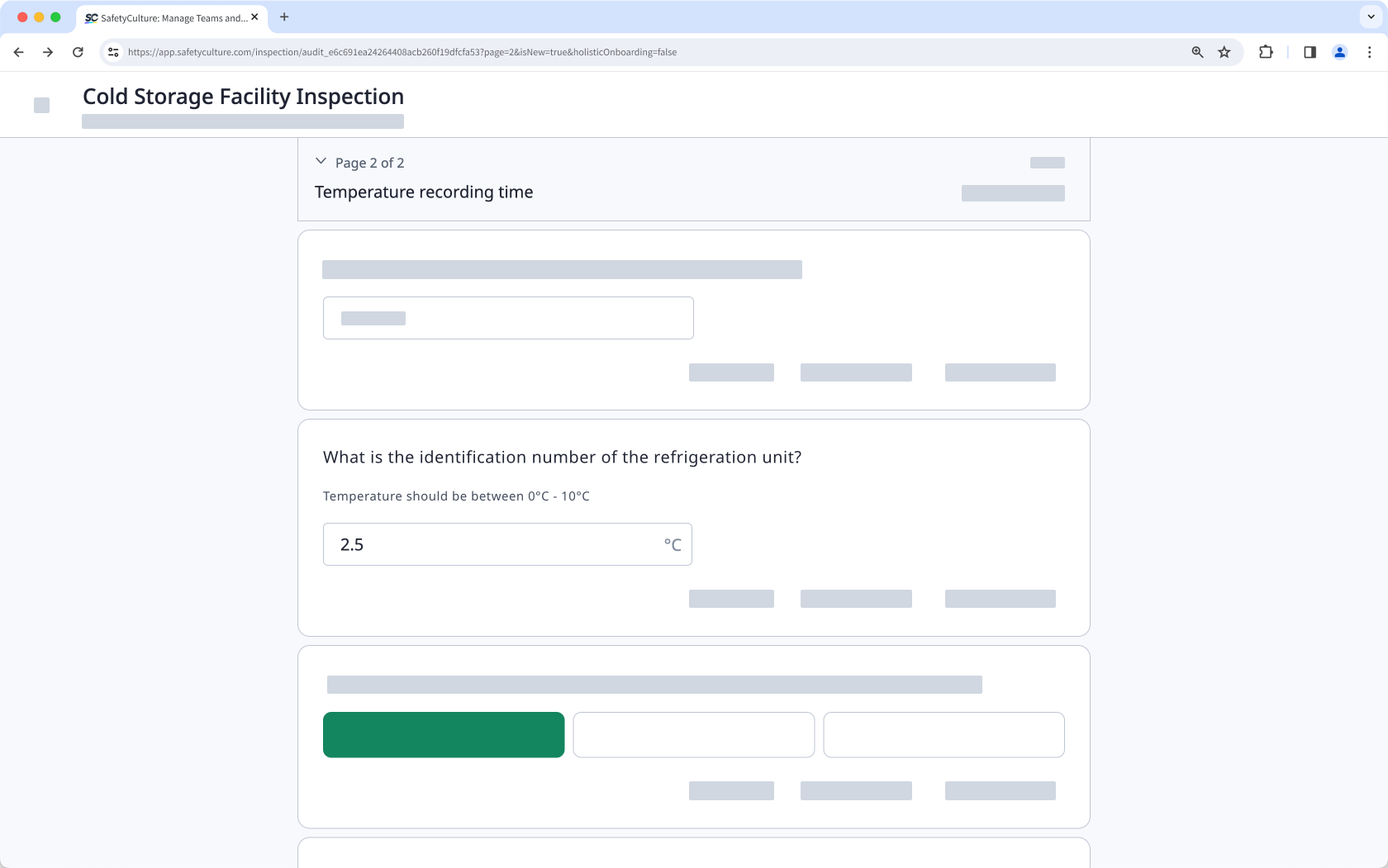
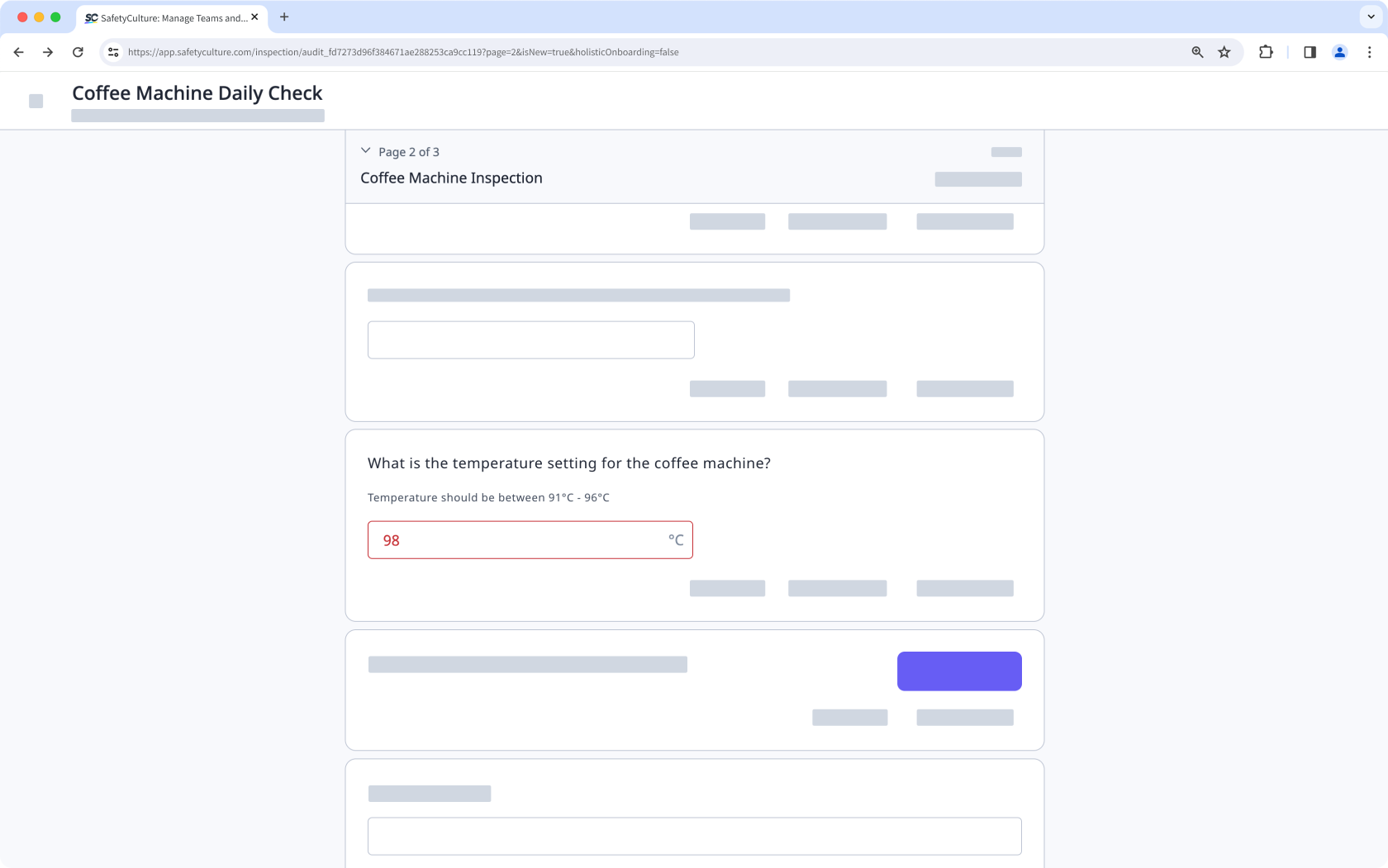
Temperature responses outside of the threshold will be highlighted in red, but they won't be considered flagged items. You can select any of the following options:
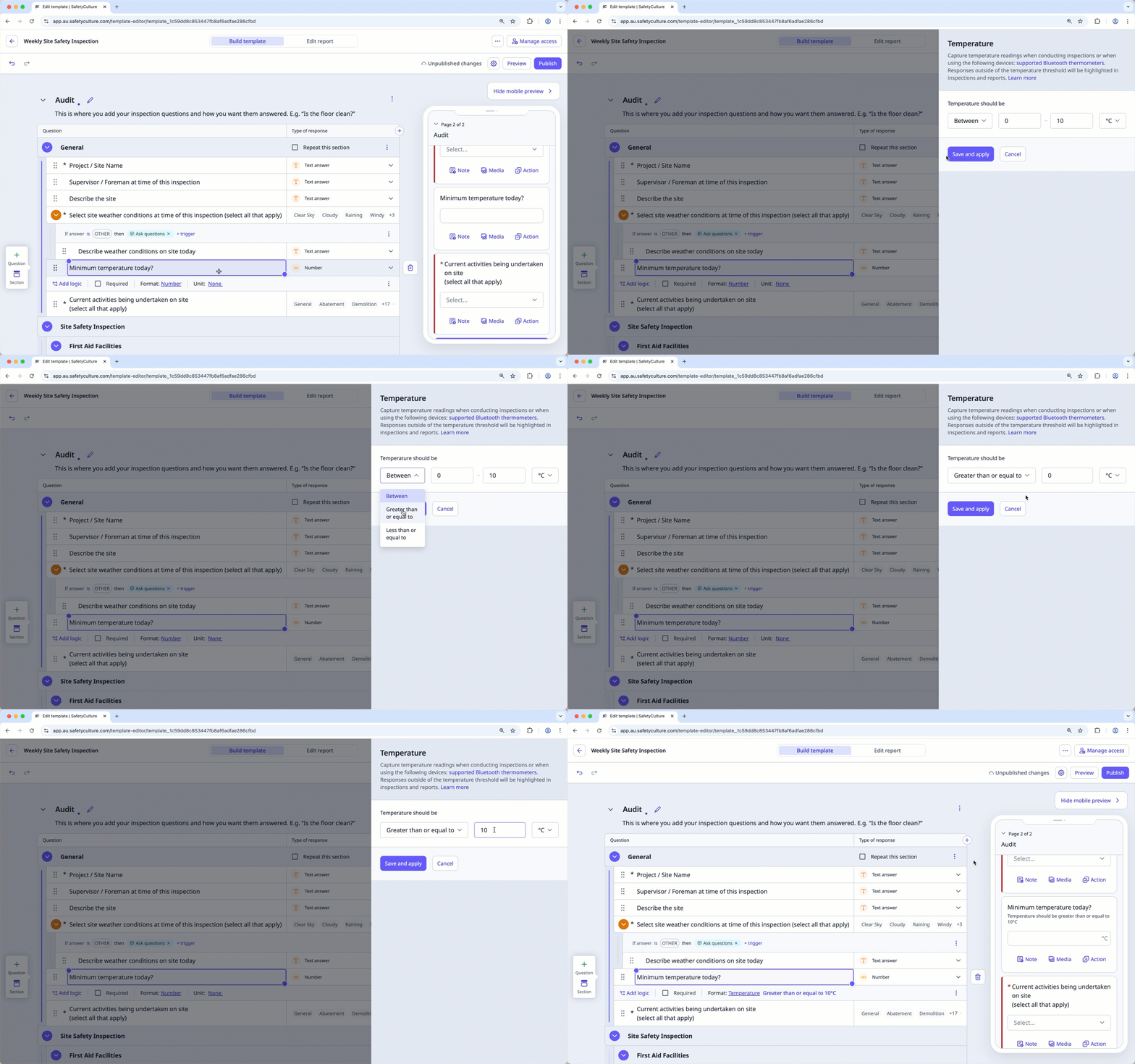
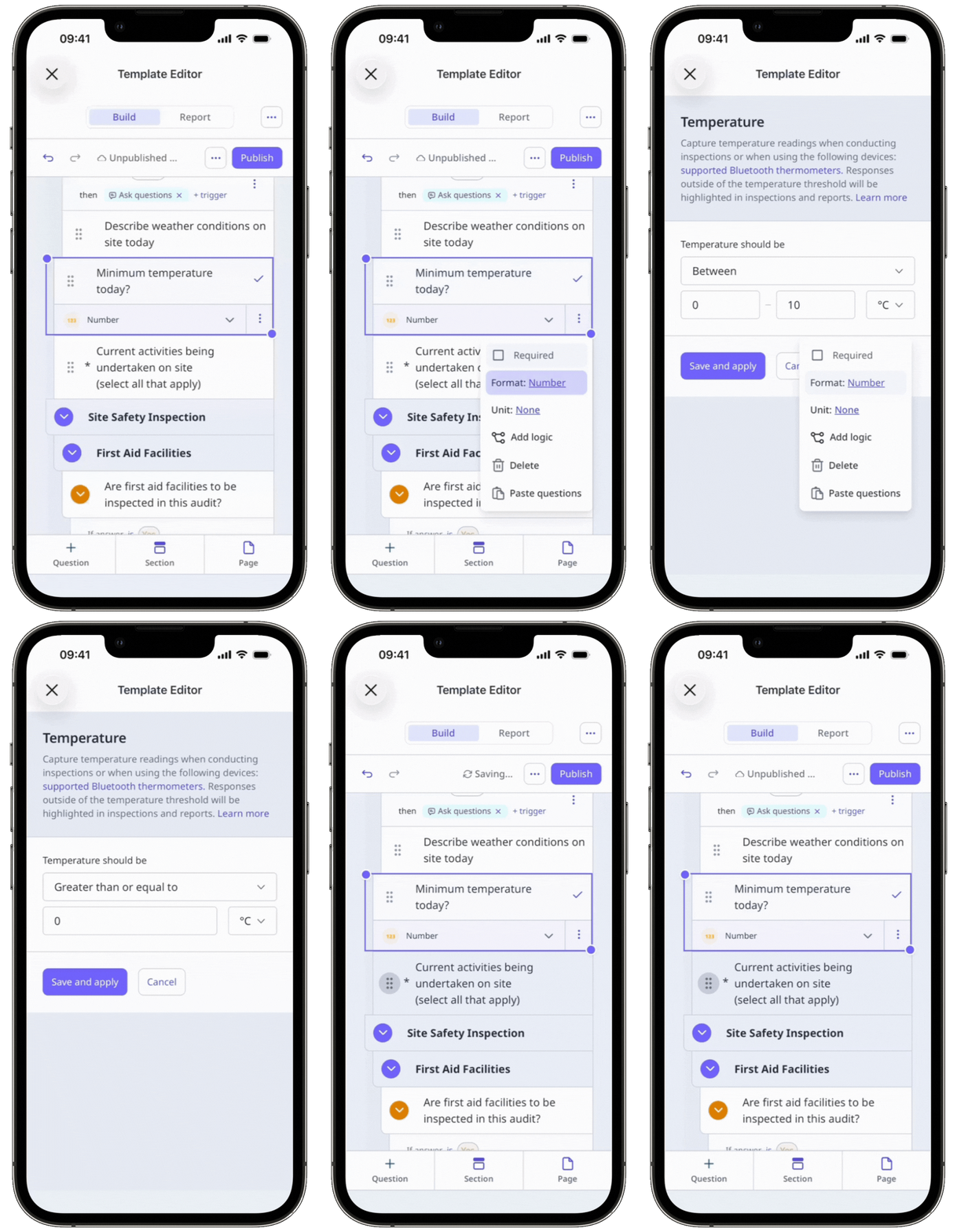
Between: Temperature value should be between a certain range, with the first number of the range being a lower temperature value (colder) and the second number being a higher temperature value (hotter).
Greater than or equal to: Temperature value should be greater than or equal to a certain threshold.
Less than or equal to: Temperature value should be less than or equal to a certain threshold.
Temperature scale
You can select either Celsius or Fahrenheit. The default option is °C.
°C: Sets the temperature scale to read as Celsius.
°F: Sets the temperature scale to read as Fahrenheit.
While there's no limit to the number of decimal digits you can enter as a response, please note that only the first four digits will be included in PDF and Word reports.
What you'll need
We offer sensor solutions to help you monitor conditions in real-time and get the right people alerted automatically. Take a look at how others are getting value from SafetyCulture monitoring and how you can get on board!
Published changes made to templates only apply to new inspections moving forward.
Create a temperature response question
Select Templates in the sidebar or select it in More.
Click the template and select Edit template in the side panel.
Add a new question or select an existing one.
Click under the "Type of response" column on the right-hand side and select Number.
Click Number below the question label and select Temperature.
In the side panel, set the temperature threshold and scale accordingly.
Click Save and apply.
Click Publish on the upper-right of the page to publish the template. If you're not ready to publish the template, you can go back to the templates list and come back when you're ready.