SafetyCulture
  1. Home
  2. Using SafetyCulture
  3. Inspections
  4. Automatically save photos taken in the SafetyCulture mobile app

Inspections

Last updated: March 25, 2024

Automatically save photos taken in the SafetyCulture mobile app

Learn how to automatically save the photos you take in the mobile app as a way to backup your media on your device.

Save photos to your mobile device

  1. Open the mobile app.

  2. Tap your user profile icon at the upper-right corner of your screen.

  3. In the pop-up menu, select Settings .

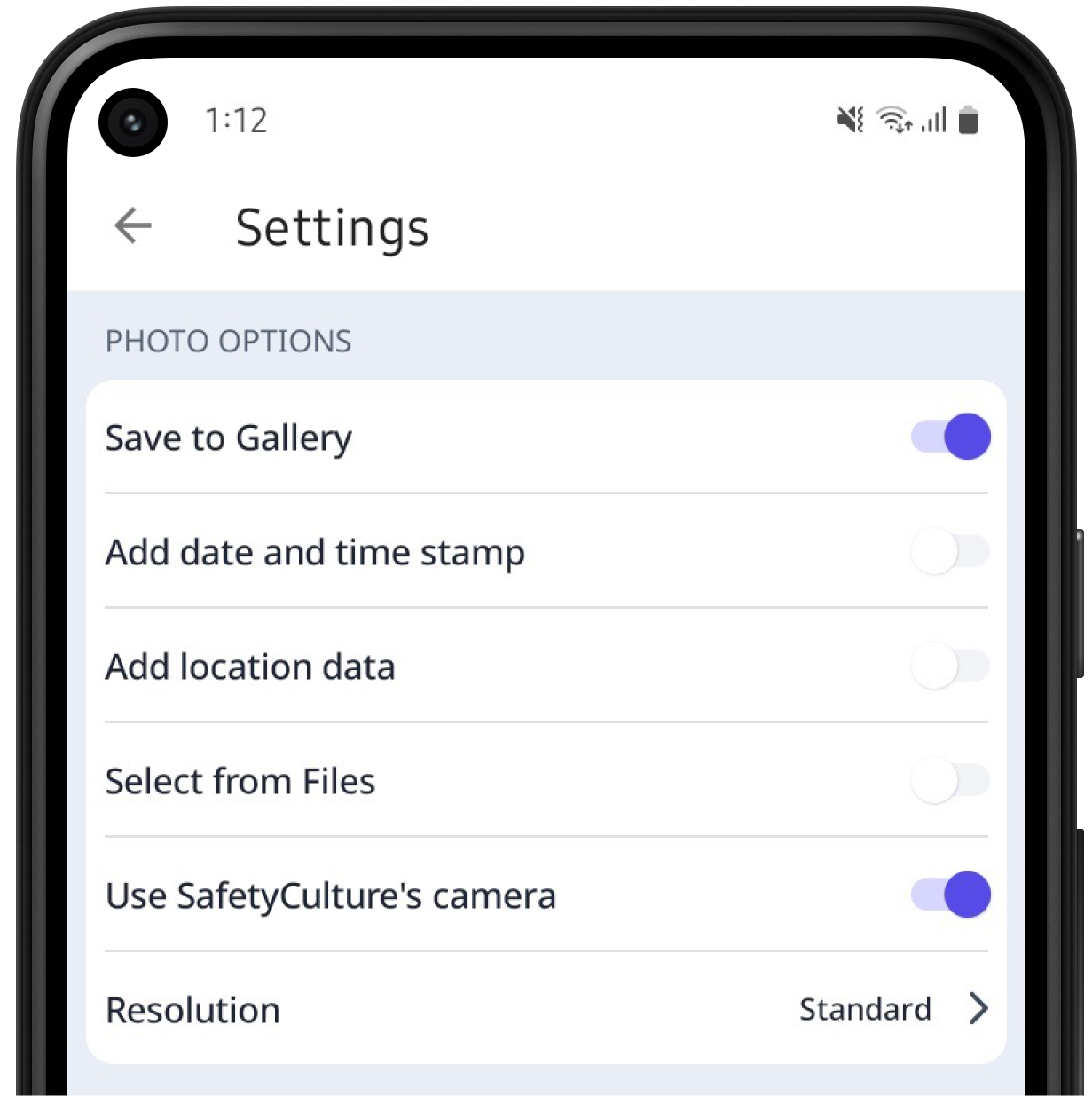
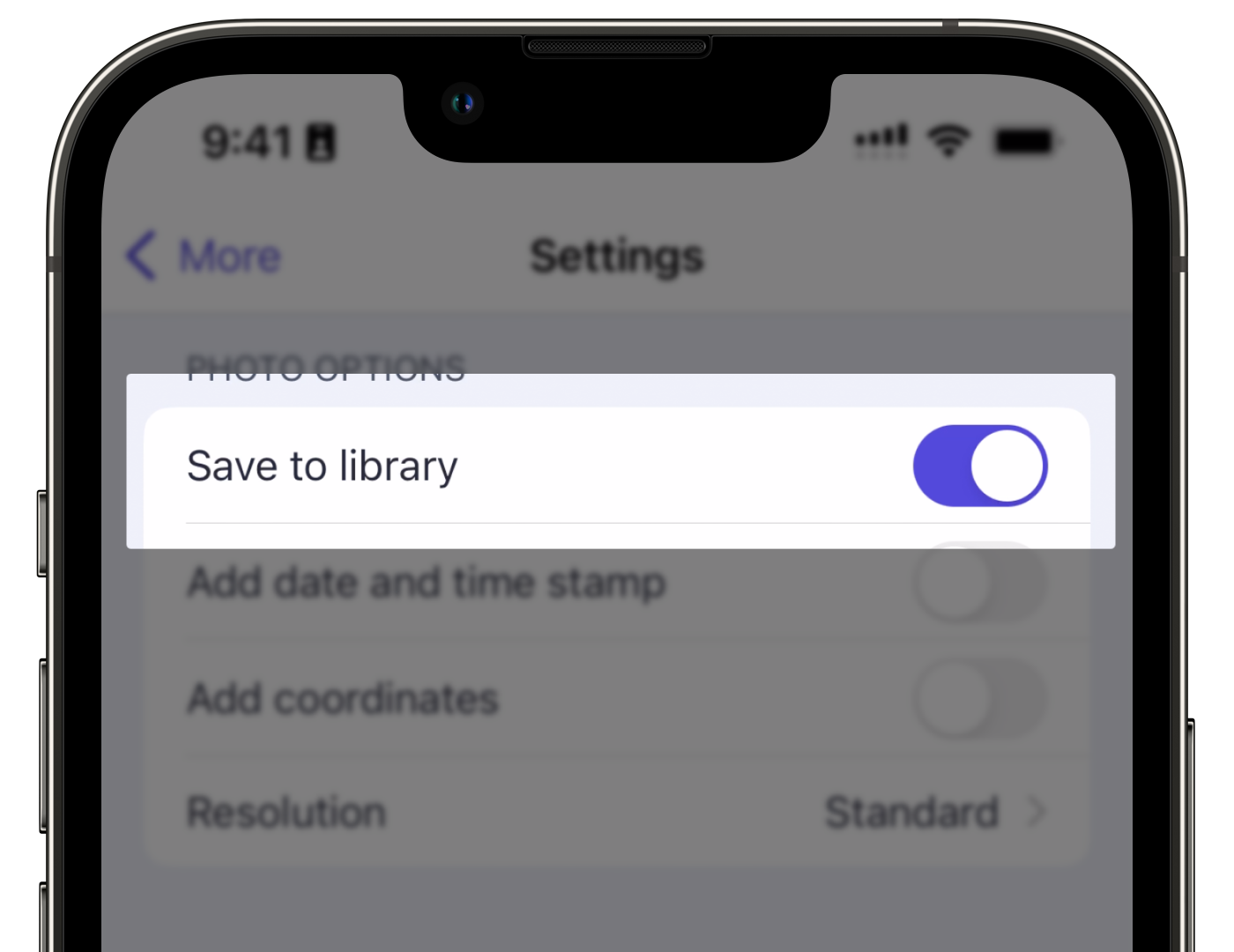
  4. Under the “PHOTO OPTIONS” section, turn Save to Gallery on.Save inspection photos to your Android mobile dev

Saving photos taken in the SafetyCulture mobile app can take up storage space on your device over time. We recommend periodically removing old photos to optimize your device storage.

Was this page helpful?

SafetyCulture
App Store
Google Play