
Why convert existing forms?
Converting existing forms or checklists and adding them to SafetyCulture improves data accessibility and storage. This helps you collect and analyze your data and streamline your organization's workflows. You can cut down on paper and storage costs and significantly reduce your team's turnaround time.
We understand that the template might not always be exactly what you're after. We encourage you to edit your template further and add your own finishing touches to create the best version of your forms for your team.
If you already have a Word file, you can convert it to an Excel, an image, or a PDF, or upload your document for our customer enablement team to convert for you.
Make sure to stay on the page while the template is converting to prevent errors during the process.
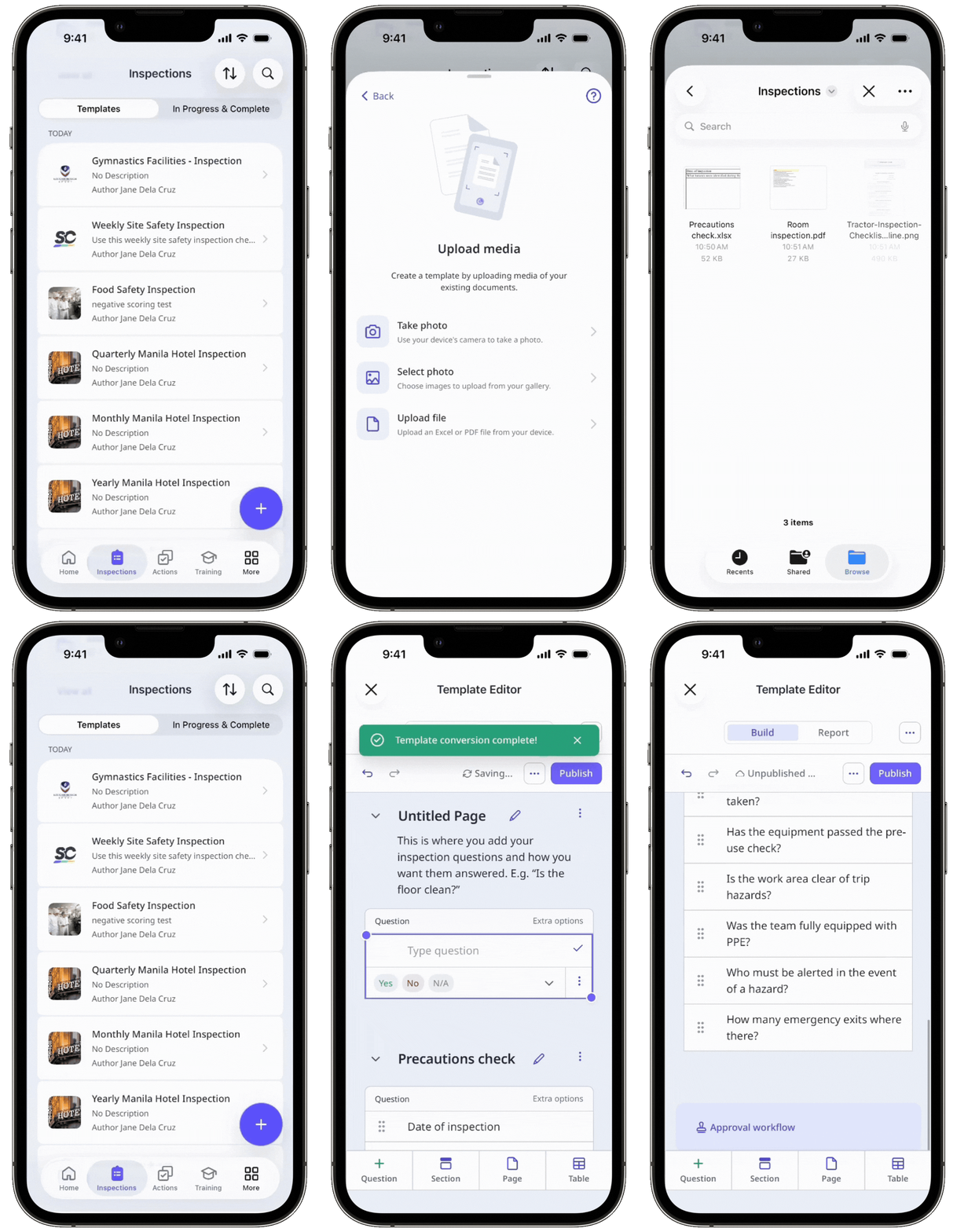
Convert an Excel into a template
Open the mobile app.
Tap Inspections in the navigation bar or select it from More.
Select Templates tab at the top of your screen.
Tap at the lower-right corner of your screen.
From the pop-up menu, tap Upload media.
In the upload media screen, tap Upload file.
Select an Excel file to start the conversion process.
Edit your template as needed.
Tap Publish on the upper-right of the page to publish the template. If you're not ready to publish the template, you can go back to the templates list and come back when you're ready.
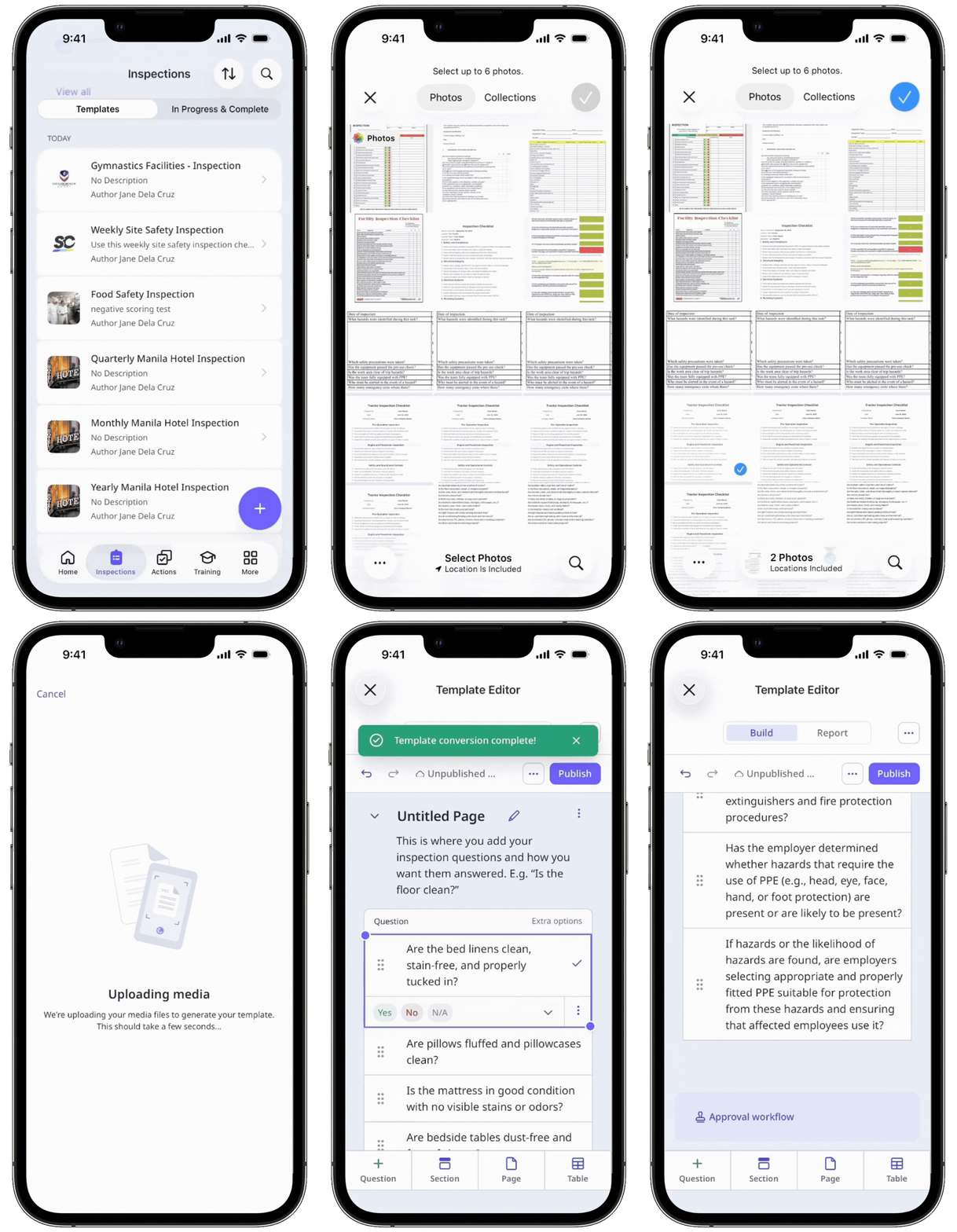
Convert an image into a template
Open the mobile app.
Tap Inspections in the navigation bar or select it from More.
Select Templates tab at the top of your screen.
Tap at the lower-right corner of your screen.
From the pop-up menu, tap Upload media.
In the upload media screen, select one of the following options:
Take photo: Use your device's camera to take a photo of your existing form.
Select photo: Choose images of your existing form to upload from your gallery.
Edit your template as needed.
Tap Publish on the upper-right of the page to publish the template. If you're not ready to publish the template, you can go back to the templates list and come back when you're ready.
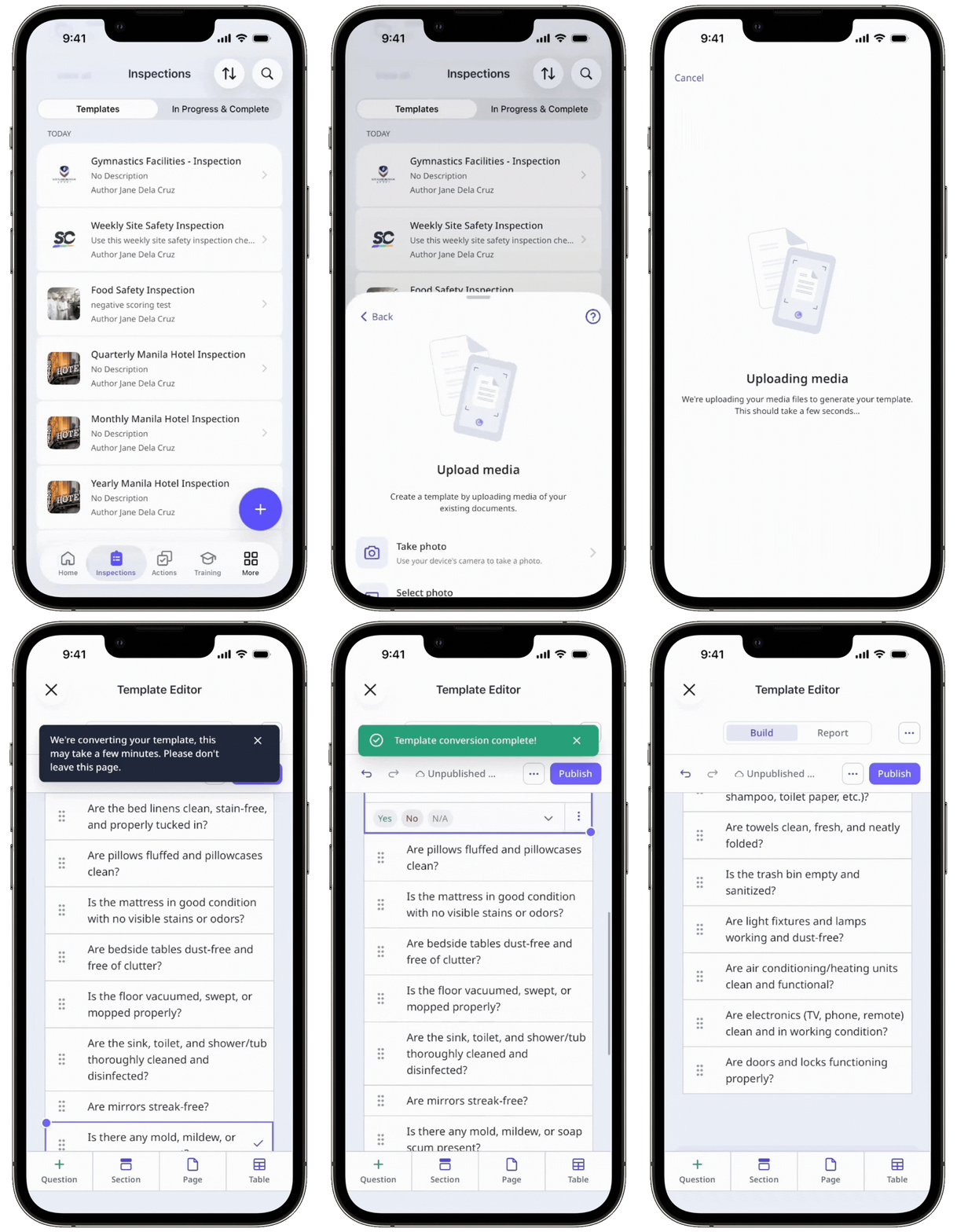
Convert a PDF into a template
Open the mobile app.
Tap Inspections in the navigation bar or select it from More.
Select Templates tab at the top of your screen.
Tap at the lower-right corner of your screen.
From the pop-up menu, tap Upload media.
In the upload media screen, tap Upload file.
Select a PDF file to start the conversion process.
Edit your template as needed.
Tap Publish on the upper-right of the page to publish the template. If you're not ready to publish the template, you can go back to the templates list and come back when you're ready.
Limitations
Images and graphs in an Excel file won't be converted.
Logic, nested items in repeat sections, and approvals won't be converted.
When converting an Excel file into a template, only basic response types are supported. The following response types aren't currently supported:
Site
Person
Asset
Company
Global response sets
Media
Slider
Annotation


