Cette fonctionnalité est actuellement en Aperçu. Alors que nous continuons à développer cette fonctionnalité, ses caractéristiques et sa disponibilité peuvent changer avant sa sortie complète.
Que sont les Agents dans SafetyCulture ?
Les Agents de SafetyCulture effectuent les vérifications et les analyses à votre place. Considérez un agent comme un membre de l'équipe dédié à une seule tâche : vous définissez ce qu'il doit rechercher, et il s'exécute chaque fois que vous en avez besoin. L'agent parcourt les données de votre organisation et met en évidence ce qui est important, ainsi que les prochaines étapes suggérées.
Par exemple, au lieu de vérifier manuellement des centaines de rapports d'inspection pour trouver les trois qui nécessitent une action, un agent les scanne et vous indique exactement ce qui doit être corrigé.
Get started with Agents
Check your permissions
To create and run agents, you need Autorisation « Assistant IA : accès ». If Agents doesn't appear in your menu, contact your admin to confirm you have the right permission assigned.
Agents can only work with data you already have access to in SafetyCulture. If the agent can't find something you're expecting, you can also check with your admin to confirm you have the right permissions and access assigned.
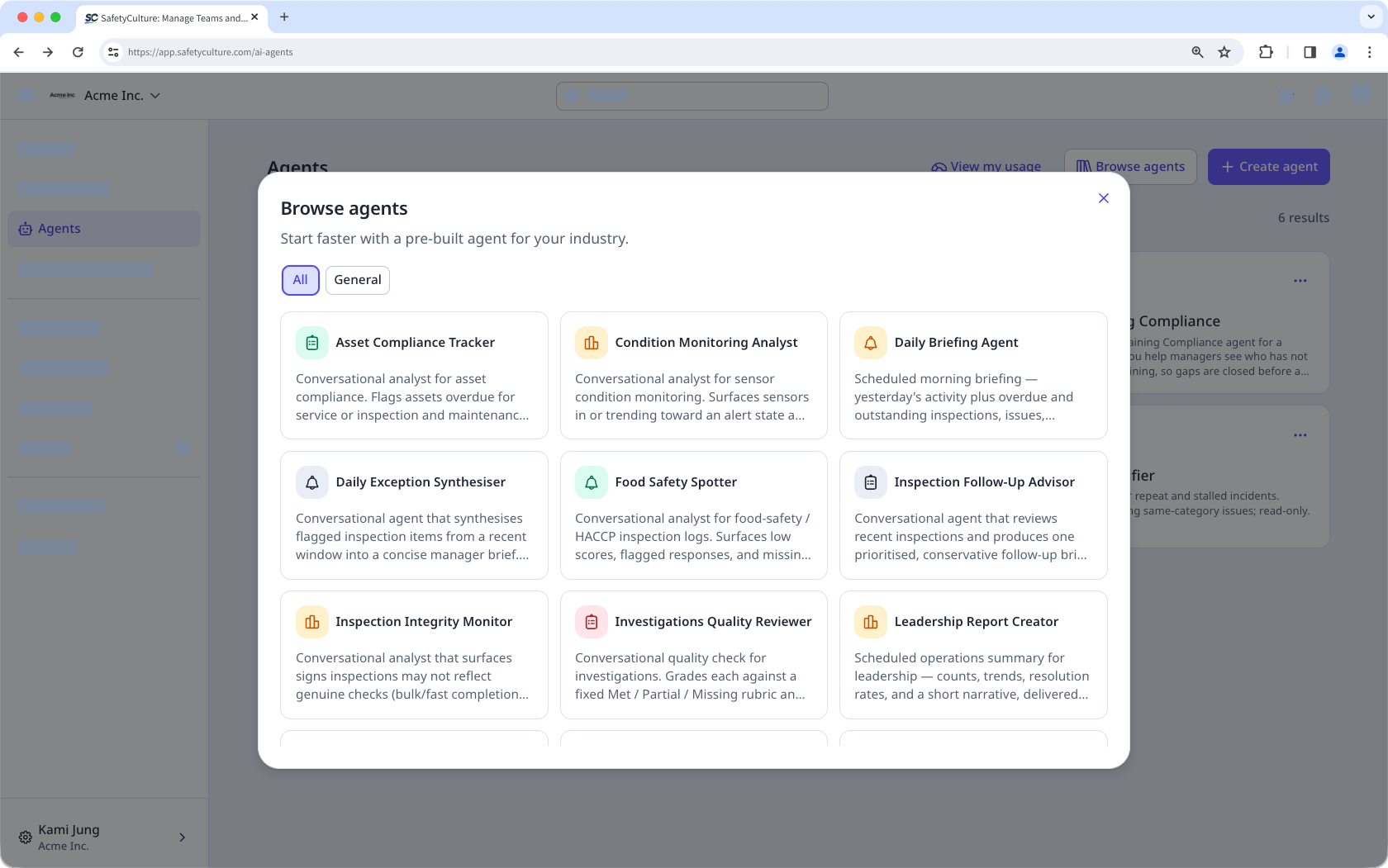
Browse the pre-built agent library
Before you create an agent, browse through the pre-built agent library to check if there's one that already fits what you need. The agents in the library are ready-to-use and are configured to be conversational with view-only access by default, which means they can't create or edit data on your behalf unless you update the agent configuration.
Create an agent
You can create an agent using AI by entering your instructions in the prompt field instead of selecting from the library. For best results, your prompt should cover:
Task: What you want the agent to do.
How: The steps or approach it should follow to complete the task.
Output: What the result should look like, such as how it should format and deliver its findings.
Guardrails: What the agent shouldn't do.
After the agent is created for you, you can keep using the AI Assistant to guide you through any changes you want to make or manually configure the agent.
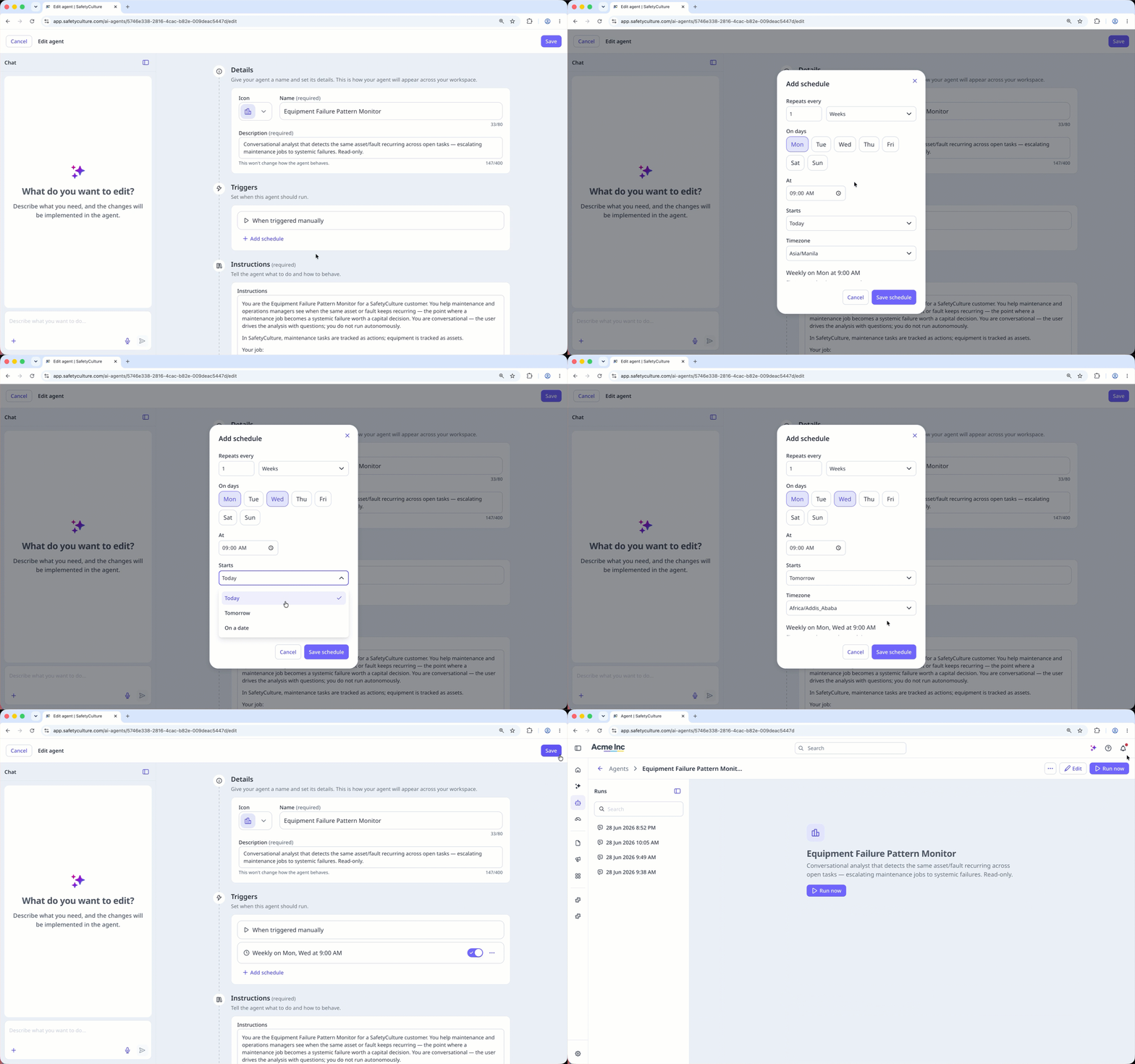
Schedule agent runs
If you have autorisation « Gestion de la plateforme : organisation », you can schedule agents to run automatically at set times instead of running each one manually every time. This keeps recurring checks and analysis on track without you having to remember to trigger them, so you can spend your time reviewing findings instead of running the agent yourself.
You can also configure the agent to notify you every time a scheduled run succeeds or fails, so you know when there's something to review without checking in. Each scheduled run still saves as a run you can revisit later, just like a manual one.
Run an agent
When you're ready, run an agent so that it can read your data, reason through it, and build its output. When it's done, you'll see what was flagged, where it happened, and what needs follow-up.
From there, you can ask a follow-up question in the chat, drill into a specific site or report, or ask the agent to generate a downloadable report.
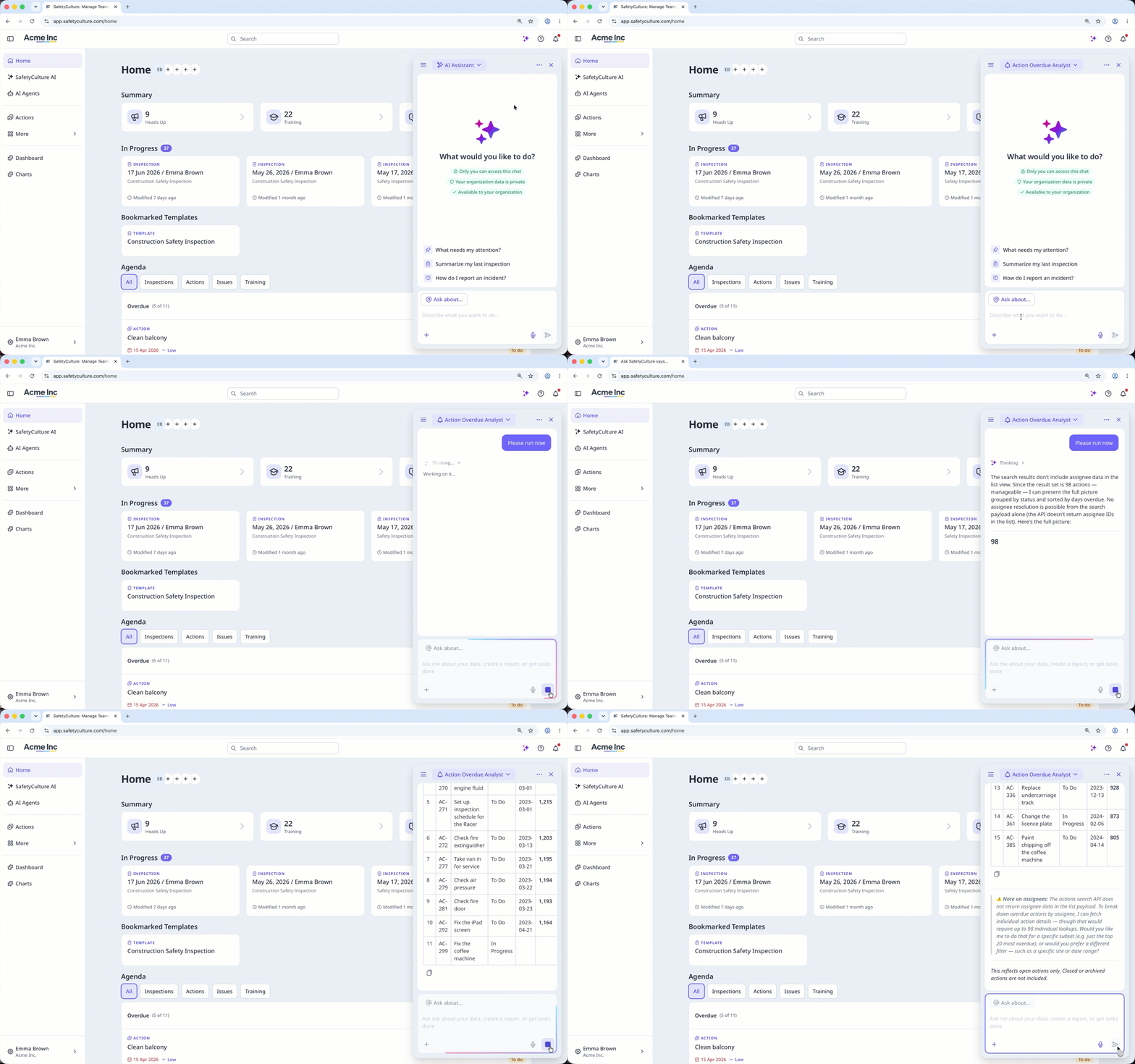
You can also run an agent without leaving what you're working on. You can click the dropdown at the top of the AI Assistant, then select your agent from the list.
View the agent's run history
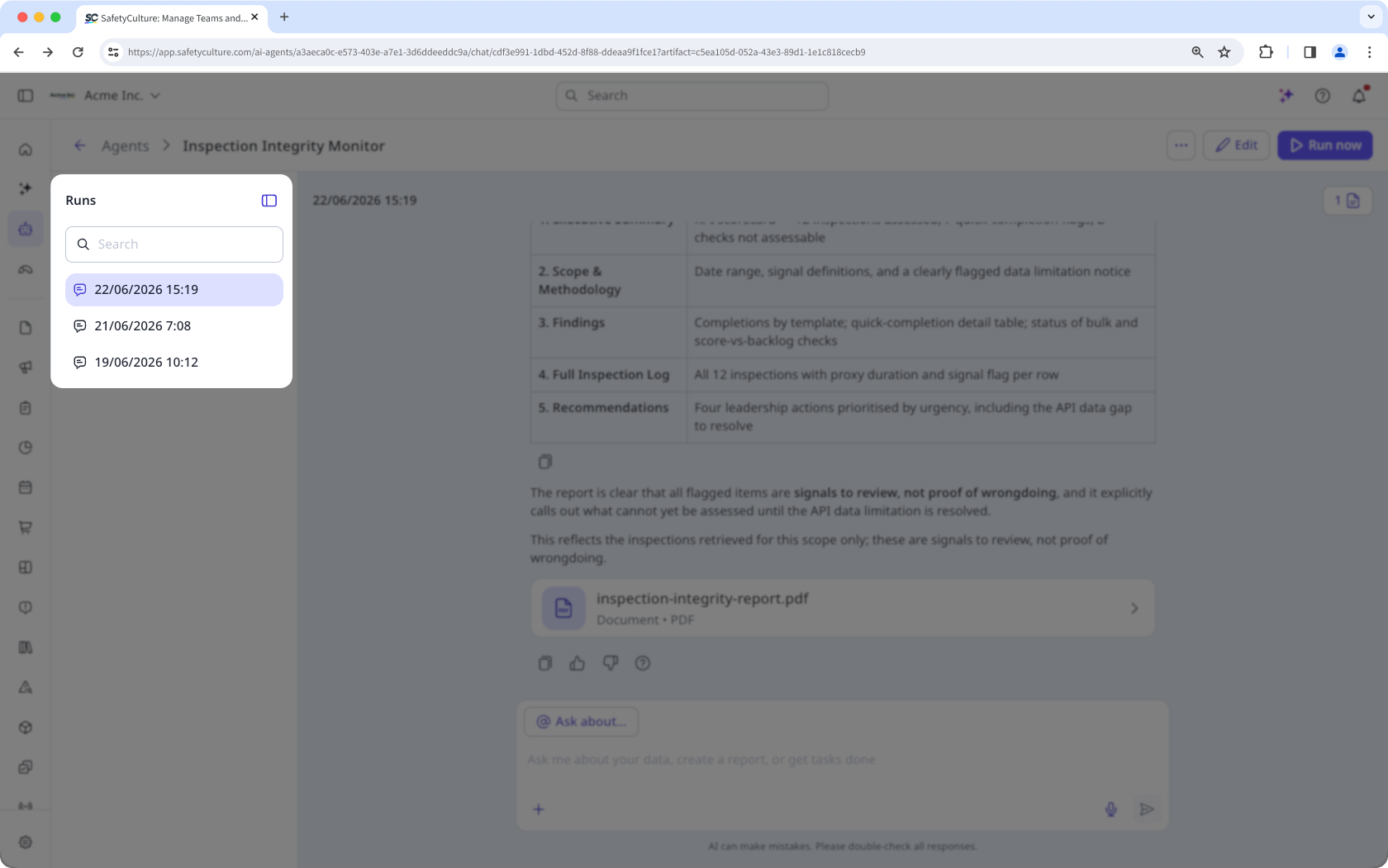
Each time you run an agent, its output is saved as a run. Open the agent, then select any run from the side panel to revisit its full output.
At the end of each run, the agent summarizes what it found and any recommended next steps. From there, you can continue the conversation, request a downloadable report, or explore specific findings in more detail.