¿Cuál es la diferencia entre el rol de facilitador de EdApp y el rol de gerente de equipo de SafetyCulture?
Función | Facilitador de EdApp | Gerente del equipo de Formación de SafetyCulture |
|---|---|---|
Cómo se configura | Al usuario se le asigna el rol de facilitador para grupos de usuarios específicos | Al usuario se le otorga Permiso para "Formación: gestionar equipos" y se le asigna a grupos o sitios específicos |
Facilitar la formación en grupo | Sí | Sí |
Realizar evaluaciones prácticas | Sí | Sí |
Ver estadísticas de formación | No. Lo gestiona un rol independiente de «Gestor de estadísticas» | Sí |
Alcance de los datos | Solo grupos de usuarios asignados | Grupos y sitios asignados |
Lo que necesitarás
Antes de asignar a un usuario como gestor del equipo, asegúrese de que ese usuario tenga asignado un conjunto de permisos que tenga Permiso para "Formación: gestionar equipos".
Asignar un gestor de equipo
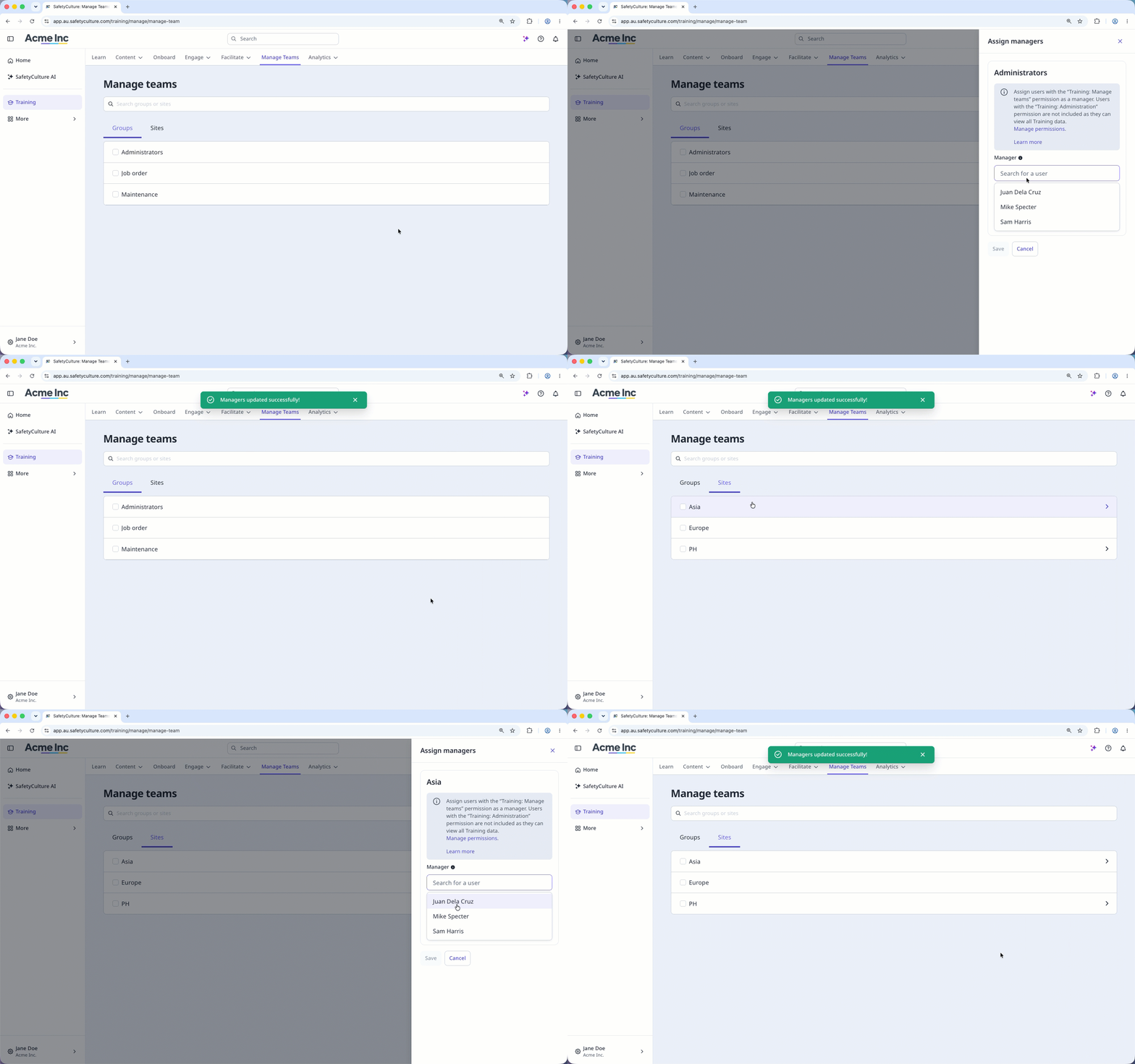
Select Formación in the sidebar or select it in Más.
Select Gestionar equipos at the top of the page.
Click the group or site name.
In the side panel, search for the user in the "Manager" field and select them.
Click Guardar.
Asignar en masa a los gestores de equipos
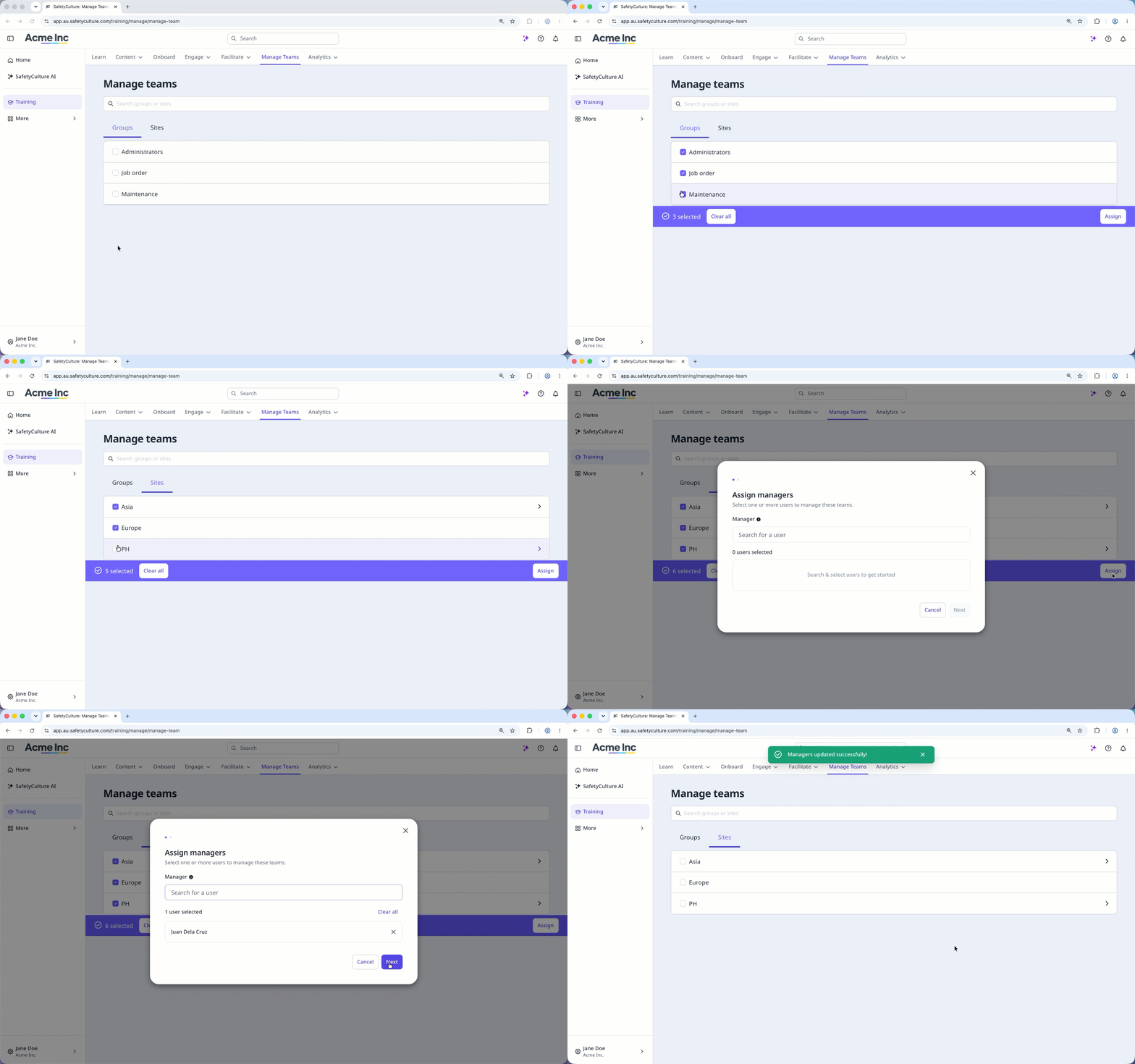
Select Formación in the sidebar or select it in Más.
Select Gestionar equipos at the top of the page.
Check the boxes of the groups and sites you want to assign team managers to. Your selections will be kept as you switch between the "Groups" and "Sites" tabs.
Click Asignar on the lower-right corner of the page.
In the pop-up window, search for the user in the "Manager" field and select them.
Click Siguiente.
Click Asignar gestores.
Desasignar un gestor de equipo
Seleccione Formación en la barra lateral o selecciónelo en Más.
Seleccione Gestionar equipos en la parte superior de la página.
Haga clic en el nombre del sitio o grupo.
En el panel lateral, haga clic en en el lado derecho del usuario o haga clic en Borrar todo.
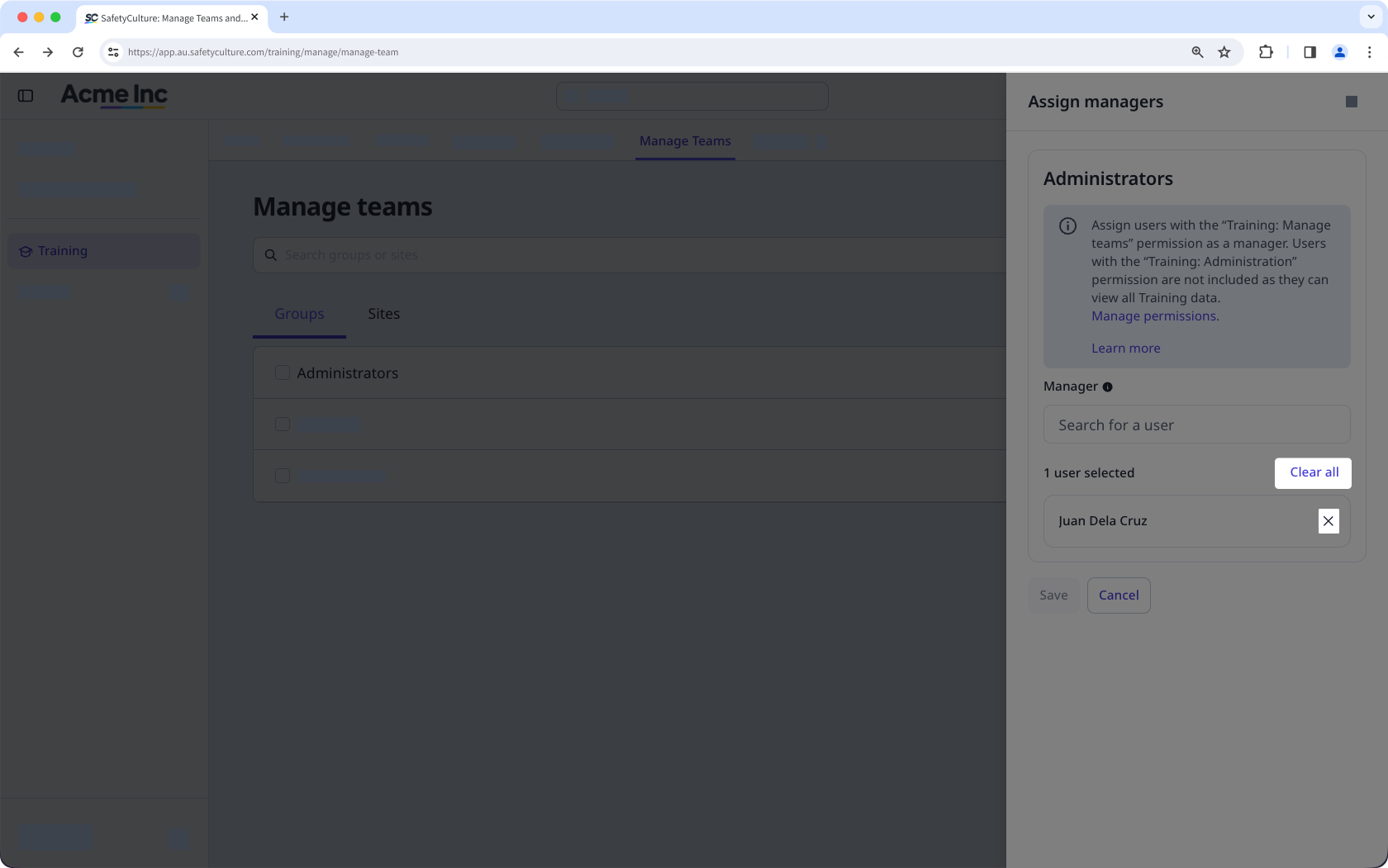
Haga clic en Guardar.