Why migrate your custom user fields?
SafetyCulture introduced 12 pre-defined system user fields available in every organization. These include External ID, Employee ID, Start date, Employee type, Job title, Locations, Teams, Cost center, Department, Business unit, External groups, and Entities.
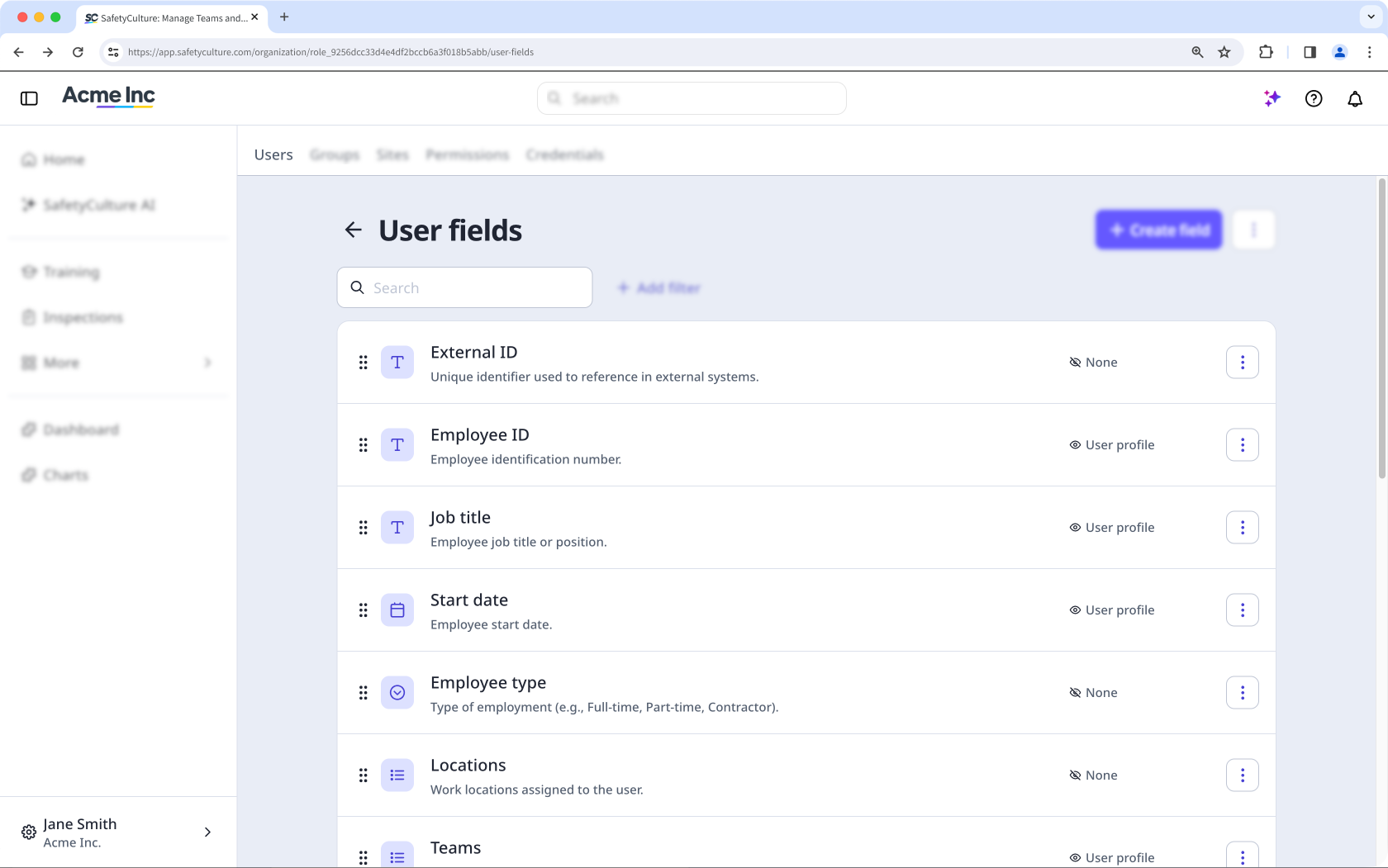
If your organization already had custom user fields with the same names, those fields now conflict. Custom fields cannot share a name with a system field. Until these are resolved, you may encounter errors when adding users in bulk or managing user data.
You have two options to ensure you capture and store your team's information:
Rename your existing custom field and archive the unused system field: Choose this option if you would like to continue using your custom field because it has a different data type from your system field. For example, your "Department" custom field is a Text data type, and you prefer a Multi select data type that gives your team options to select when filling out their data. Your existing data is preserved, and no data migration is required.
Migrate to the system field: Choose this option if you want to replace your existing custom field with the equivalent system field going forward. This is beneficial if you want to use the new Multi select data type or use the new native HR integrations (opens in new tab). Migration involves reimporting your user data, setting up your dynamic rules, and then archiving your custom fields.
If your integration references user fields by name, such as in a CSV automation, API call, or third-party connector, renaming or archiving a custom field may cause data to stop syncing or populate the wrong field.
After completing either option, check that any hardcoded field names in your integration match the current field name or are updated to reference the correct system field. Contact your integration provider or review your connector configuration if you are unsure how fields are referenced.
Lo que necesitarás
Antes de comenzar, identifique qué campos personalizados de su organización entran en conflicto con un campo del sistema, compruebe si hay reglas de afiliación a grupos o sitios configuradas, y seleccione la opción que planea seguir.