Esta función se encuentra actualmente en Acceso temprano. Si le interesa, contacte con nuestro equipo de soporte técnico o con su gerente de éxito del cliente para verificar si su organización es elegible.
¿Qué son los roles en SafetyCulture?
Los roles definen lo que los usuarios pueden hacer en SafetyCulture. En la mayoría de las organizaciones, los miembros del equipo necesitan distintos niveles de acceso en función de sus responsabilidades. Por ejemplo, un supervisor de sitio no debería tener los mismos controles que un administrador global, y un trabajador de primera línea tampoco debería tener el mismo acceso que ninguno de ellos. Los roles permiten a las organizaciones adaptar los permisos de cada usuario a su puesto de trabajo real. Hay dos tipos de roles:
Los roles globales se aplican a toda su organización.
Los roles de grupo y de sitio solo se aplican dentro de los sitios o los grupos a los que esté asignado un usuario.
Asignar estos roles permite a las organizaciones confiar la gestión de usuarios a los supervisores de sitios o a los gerentes regionales sin concederles acceso administrativo completo. De este modo, el control se mantiene cerca de las personas que dirigen cada grupo o sitio, mientras que los administradores pueden centrarse en la organización en su conjunto.
Para los usuarios existentes, la pestaña Permisos ahora se llama Roles, y los conjuntos de permisos ahora se llaman roles globales y funcionan exactamente de la misma forma.
Lo que necesitarás
Crear un rol global
Haga clic en el nombre de su organización en la esquina inferior izquierda de la página y seleccione Roles.
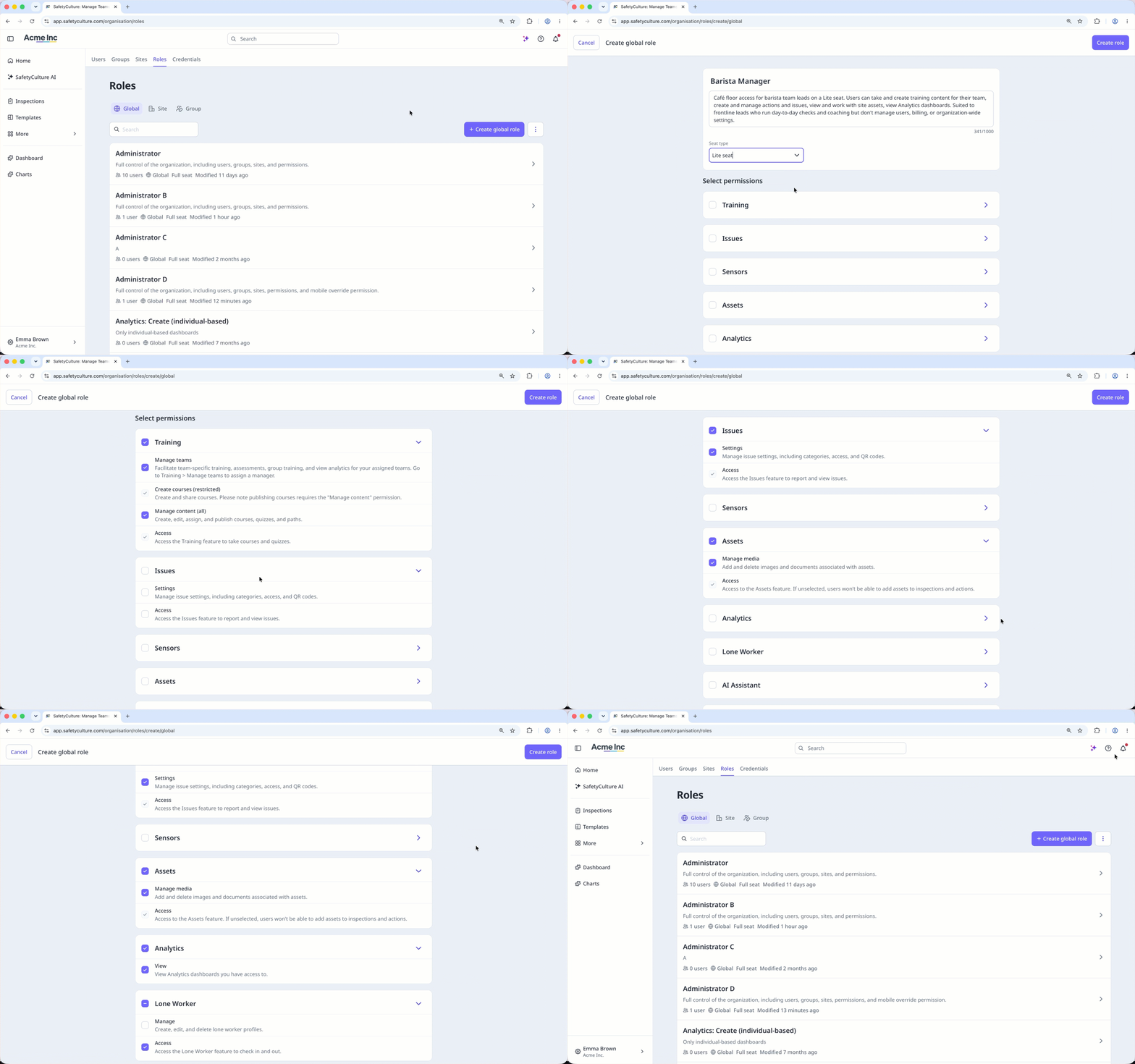
Haga clic en Crear un rol global en la esquina superior derecha de la lista de roles globales.
Configure los siguientes datos según corresponda:
Nombre (obligatorio): Introduzca el nombre del rol.
Descripción (obligatoria): Introduzca la descripción del rol.
Tipo de licencia: Haga clic en el desplegable y seleccione el tipo de licencia (opens in new tab).
Seleccionar permisos: Seleccione los permisos que desea asignar al rol.
Haga clic en Crear rol en la parte superior derecha de la página.
Crear un rol de grupo o de sitio
Haga clic en el nombre de su organización en la esquina inferior izquierda de la página y seleccione Roles.
Haga clic en
 Sitio o Grupo en la parte superior de la página.
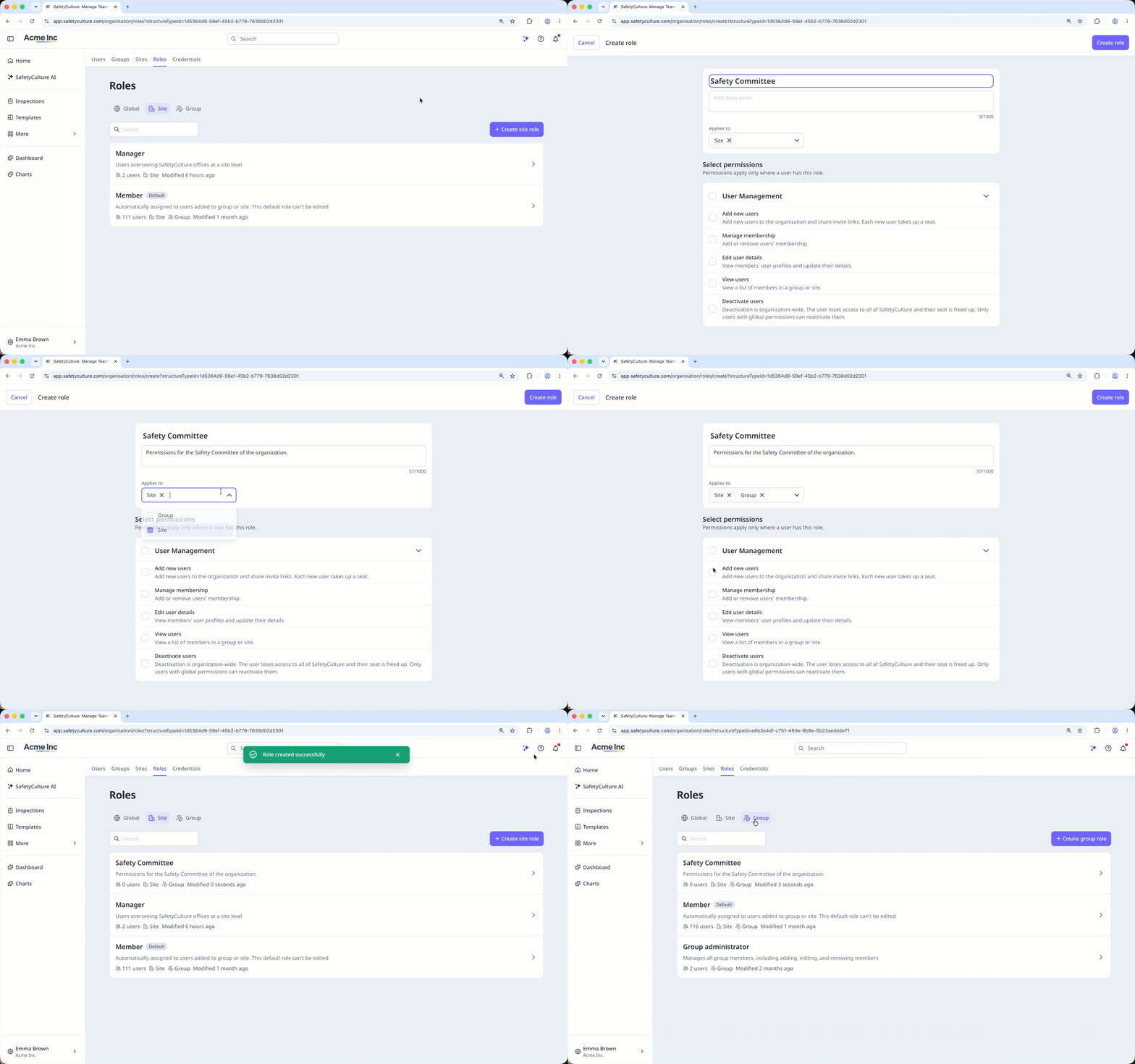
Haga clic en Create site role o en Crear rol de grupo en la esquina superior derecha de la lista de roles.
Configure los datos según corresponda.
Nombre (obligatorio): Introduzca el nombre del rol.
Descripción (obligatoria): Introduzca la descripción del rol.
Aplicable a: Haga clic en el menú desplegable y seleccione si el rol se aplicará a sitios, a grupos o a ambos.
Seleccionar permisos: Seleccione los permisos que desea asignar al rol.
Haga clic en Crear rol en la parte superior derecha de la página.
Editar un rol
Haga clic en el nombre de su organización en la esquina inferior izquierda de la página y seleccione Roles.
Haga clic en Global,
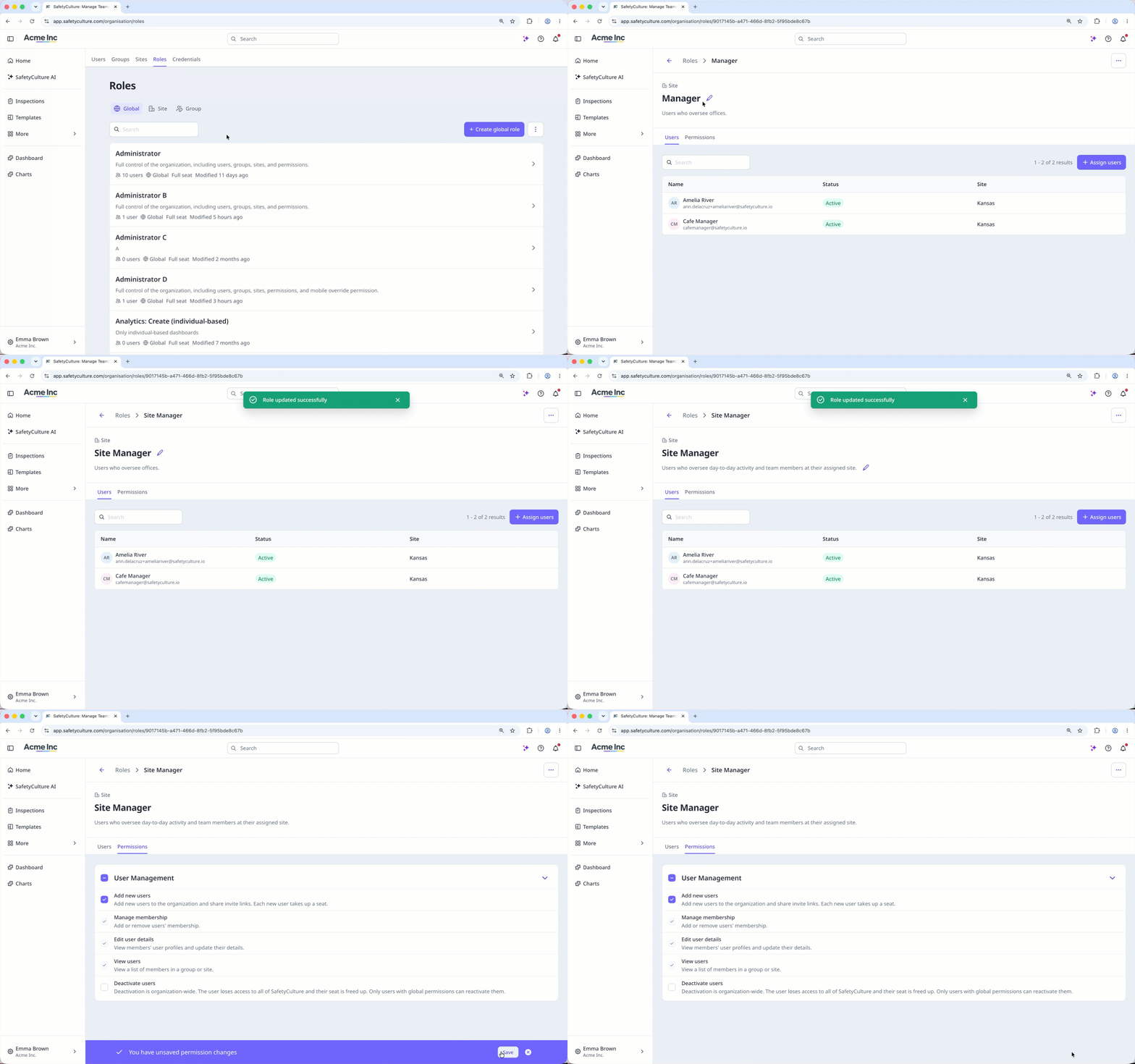
Sitio o Grupo en la parte superior de la página.Haga clic en el rol.
Edite los detalles del rol según corresponda:
Nombre: Haga clic en el título actual, situado en la esquina superior izquierda de la página, e introduzca el nuevo título. A continuación, pulse Intro en el teclado.
Descripción: Haga clic en la descripción actual que aparece en la esquina superior izquierda de la página y actualícela como corresponda. A continuación, pulse Intro en el teclado.
Permisos: Haga clic en Permisos en la parte superior de la página y, a continuación, marque o desmarque los permisos. Después, haga clic en Guardar en la esquina inferior derecha de la página.
Eliminar un rol
La eliminación es irreversible y no podemos restaurar elementos eliminados permanentemente. Siempre se requiere confirmación antes de cualquier eliminación, así que asegúrese de no eliminar accidentalmente el elemento equivocado.
Haga clic en el nombre de su organización en la esquina inferior izquierda de la página y seleccione Roles.
Haga clic en Global,
Sitio o Grupo en la parte superior de la página.Haga clic en el rol.
Haga clic en en la parte superior derecha de la página y seleccione Eliminar rol.
En la ventana emergente, haga clic en Eliminar.
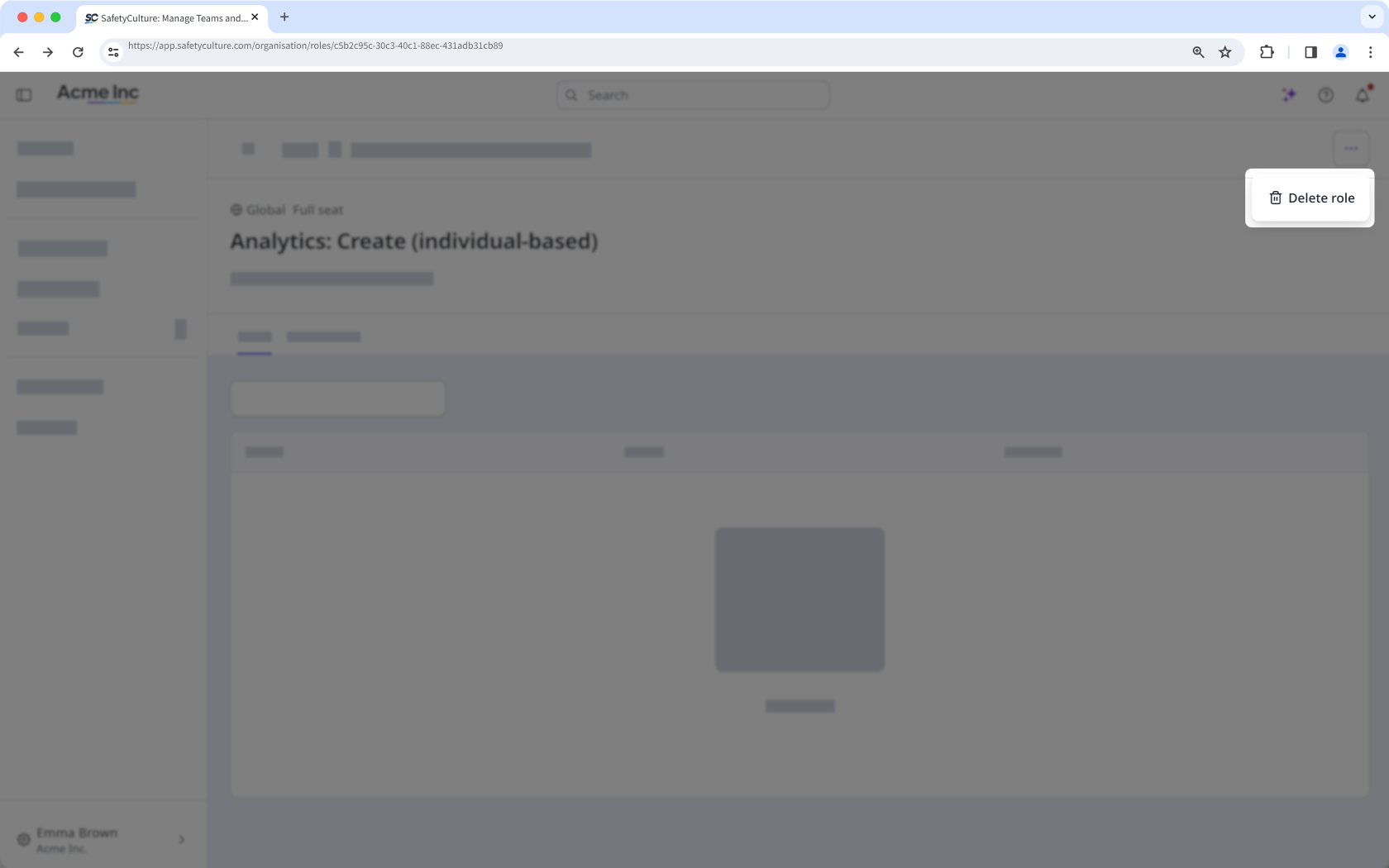
No se puede eliminar un rol mientras haya usuarios asignados a él.
Limitaciones
Los roles de grupo y de sitio solo abarcan la gestión de usuarios. No es posible añadir otros permisos (como el acceso a plantillas o a inspecciones) a un rol de ámbito limitado. Utilice un rol global para cualquier tarea que vaya más allá de la gestión de usuarios.
Los roles de grupo y de sitio solo se pueden asignar a usuarios con Licencias Completas. No admiten Licencias Lite ni de invitado.
No se puede eliminar el rol global predeterminado «Administrador».
No se puede editar ni eliminar el rol predeterminado «Miembro» de los grupos y sitios.