
Share Heads Up files
Learn how to share files and linked files in Heads Up via the mobile app to streamline access and keep everyone aligned.Why add files to Heads Ups?
Adding or linking files helps provide useful context that makes your Heads Ups clearer and more actionable. This allows you to include references or visuals that make your message easier to understand. With everything in one place, your team can easily access, follow, and act on important updates.
What you'll need
Turn on file sharing on mobile for your organization to allow users to share files in Documents, Assets, and Heads Up.
Share a Heads Up file
Open the mobile app.
Tap
 Heads Up in the navigation bar or select it from
  More.
More.Tap the Heads Up.
Select the file and tap
 at the upper-right of your screen.
Select
 Share in the pop-up options.
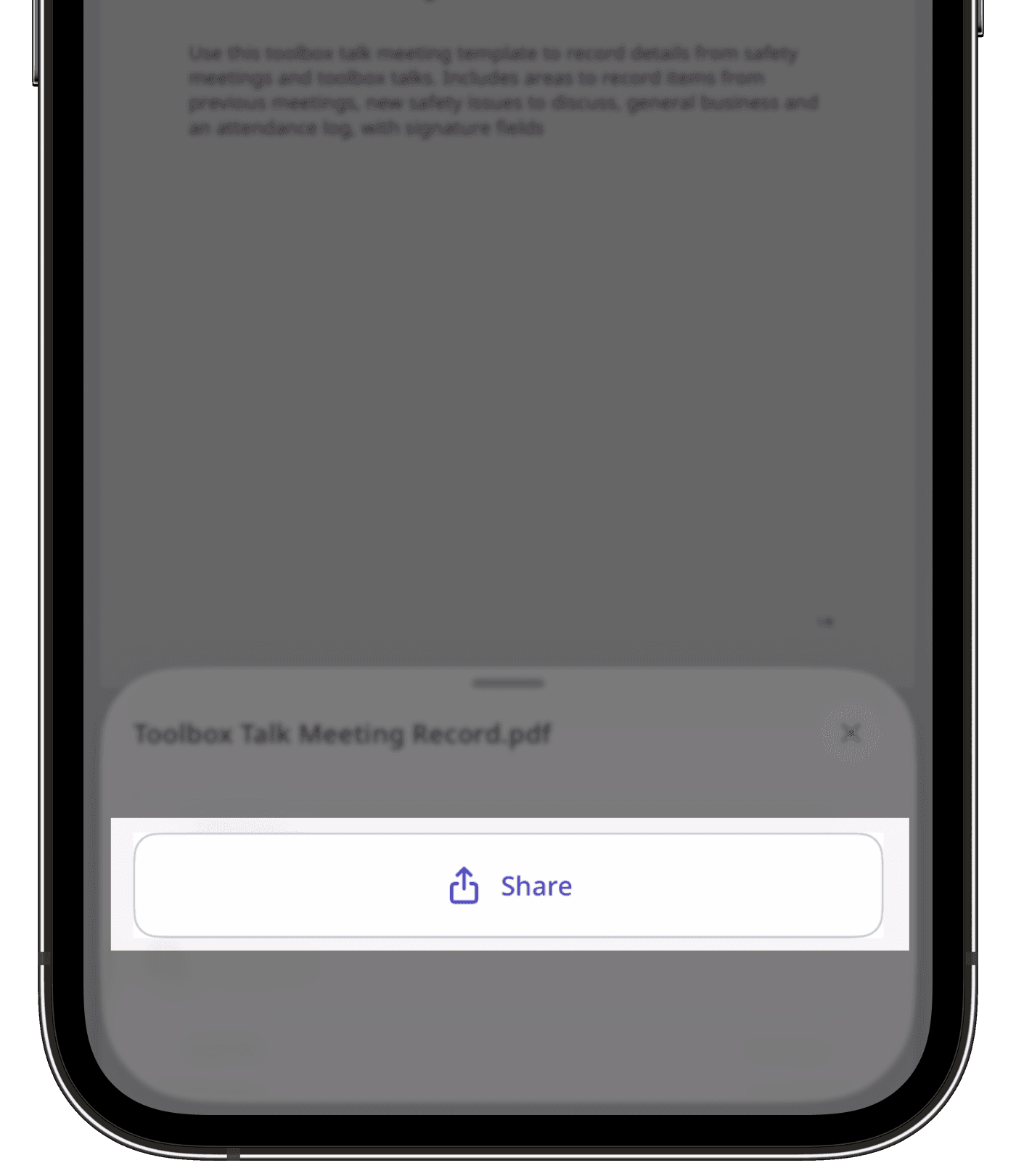
In the share menu, select how you want to share the file and proceed accordingly.
Need more help?
Was this page helpful?
Thank you for letting us know.