
What are Quizzes in SafetyCulture?
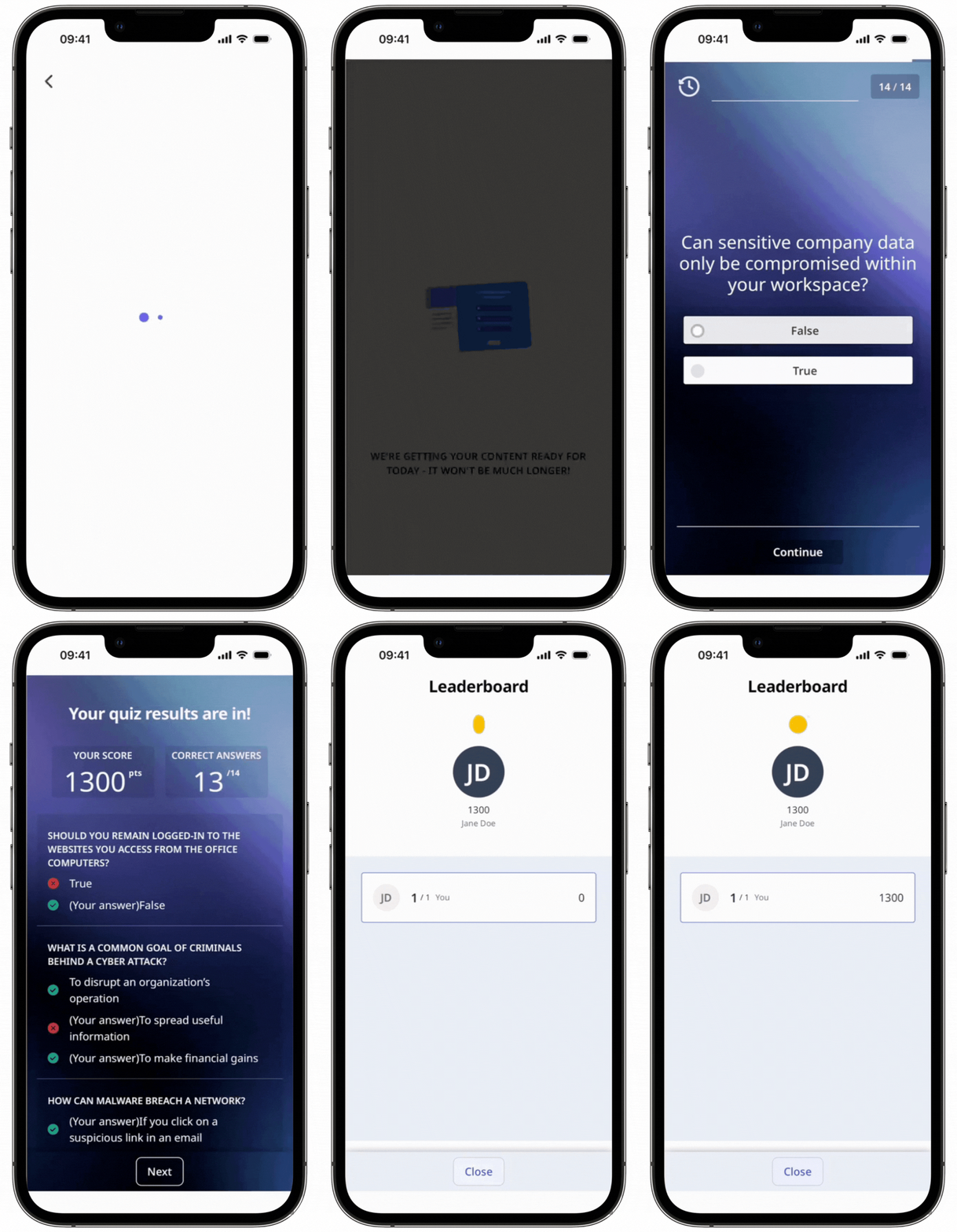
Quizzes are an efficient way to re-engage team members who may have forgotten key learnings from training courses by delivering tests at regular intervals. They help check understanding and keep important knowledge fresh.
Unlike lesson quizzes, which are created directly within a course and contribute to course completion, Quizzes are standalone assessments that you can create using a pre-formatted Excel template. Once your Quiz is scheduled, you’ll be able to view analytics and gain insight into individual and group performance.
What you'll need
Assign a Quiz
Select Training in the sidebar or select it in More.
If you're on the "Learn" page, click Content at the top of the page and select Quizzes.
Click on the right-hand side of the Quiz and select Edit.
In the "Quiz Summary" section, click Assign.
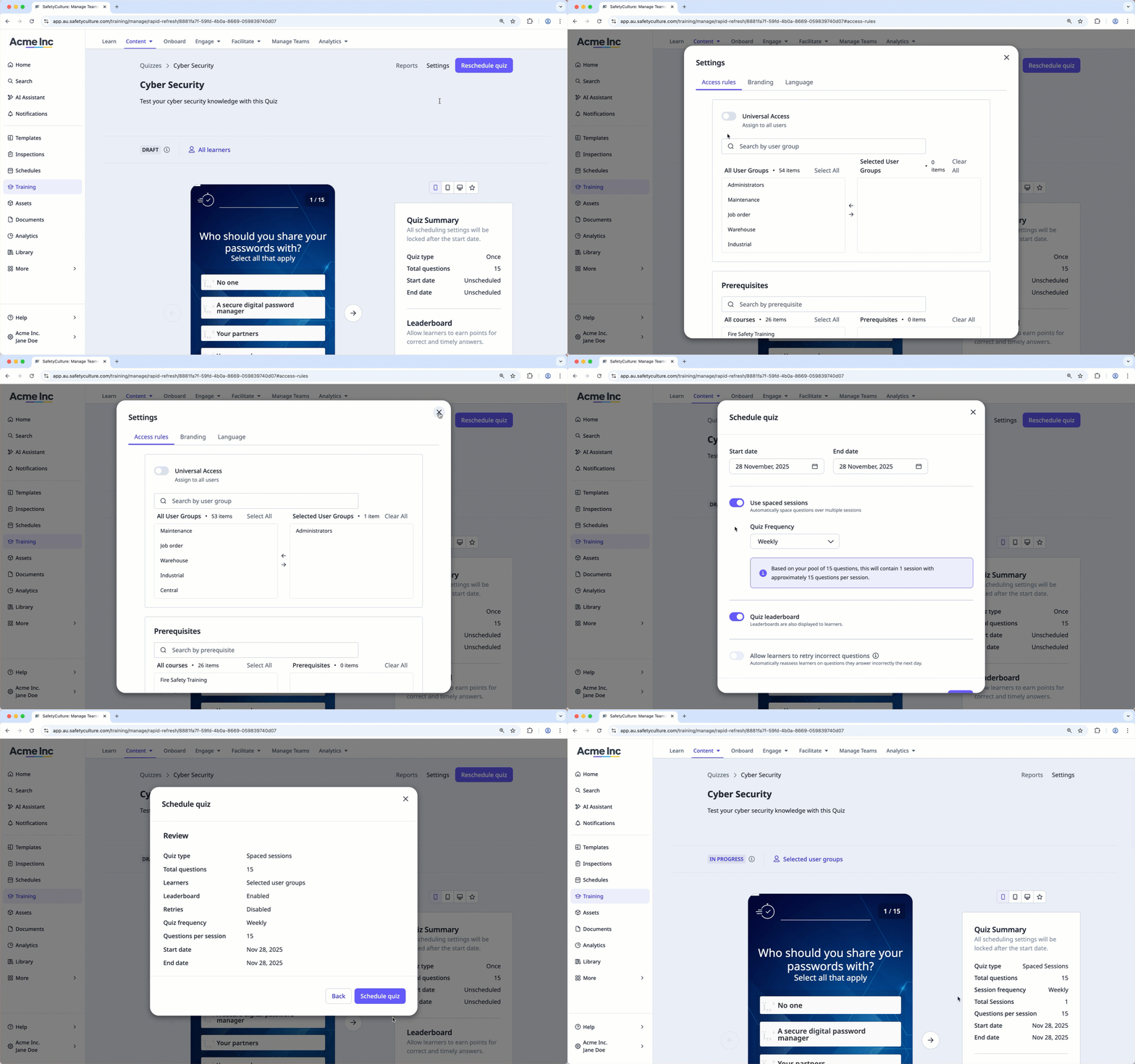
In the pop-up window, select who you want to assign the quiz to:
All users: Turn Universal Access on to assign the Quiz to all users in your organization.
Only selected: Turn Universal Access off to assign the Quiz to selected groups (opens in new tab), or sites (opens in new tab).
Click on the upper-right of the pop-up window.
If the Quiz is in draft, click Schedule quiz on the upper-right of the page and configure your Quiz schedule and settings accordingly.
Users receive the following notifications for each Quiz:
Quiz assigned: Sent when a Quiz is assigned.
Quiz reminder: Sent if the Quiz is still incomplete after the scheduled end date.


