What does it mean to manage navigation for your organization?
Managing navigation allows you to organize and customize the main menu across your organization’s workspace to prioritize the tools your team uses most. You can manage this experience in two ways:
Organization-managed: A customized navigation by an administrator applied across the entire organization, or to specific permission sets, tailored to fit their role.
Personalized: A customized navigation by users individually, tailored to fit their own workflow.
This removes digital friction, allowing users to find what they need in seconds without being overwhelmed by features they don’t use. Whether you’re standardizing the interface for field workers to highlight "Inspections" and "Issues" or empowering individuals to tailor their own view, streamlined navigation ensures that the platform supports your team's daily workflows rather than slowing them down.

You can create layouts tailored to fit users' roles and apply them to specific permission sets when navigation is organization-managed.
Manage navigation settings
Click your organization name on the lower-left corner of the page and select Organization settings .
Scroll to the "Navigation" section, and click
 Edit .
Select your preferred navigation setting:
Organization-managed: Set a default web app sidebar and mobile app navigation bar for the whole organization, or customize navigation based on permission sets.
Personalized: Allow users to customize their own web app sidebar and mobile app navigation bar.
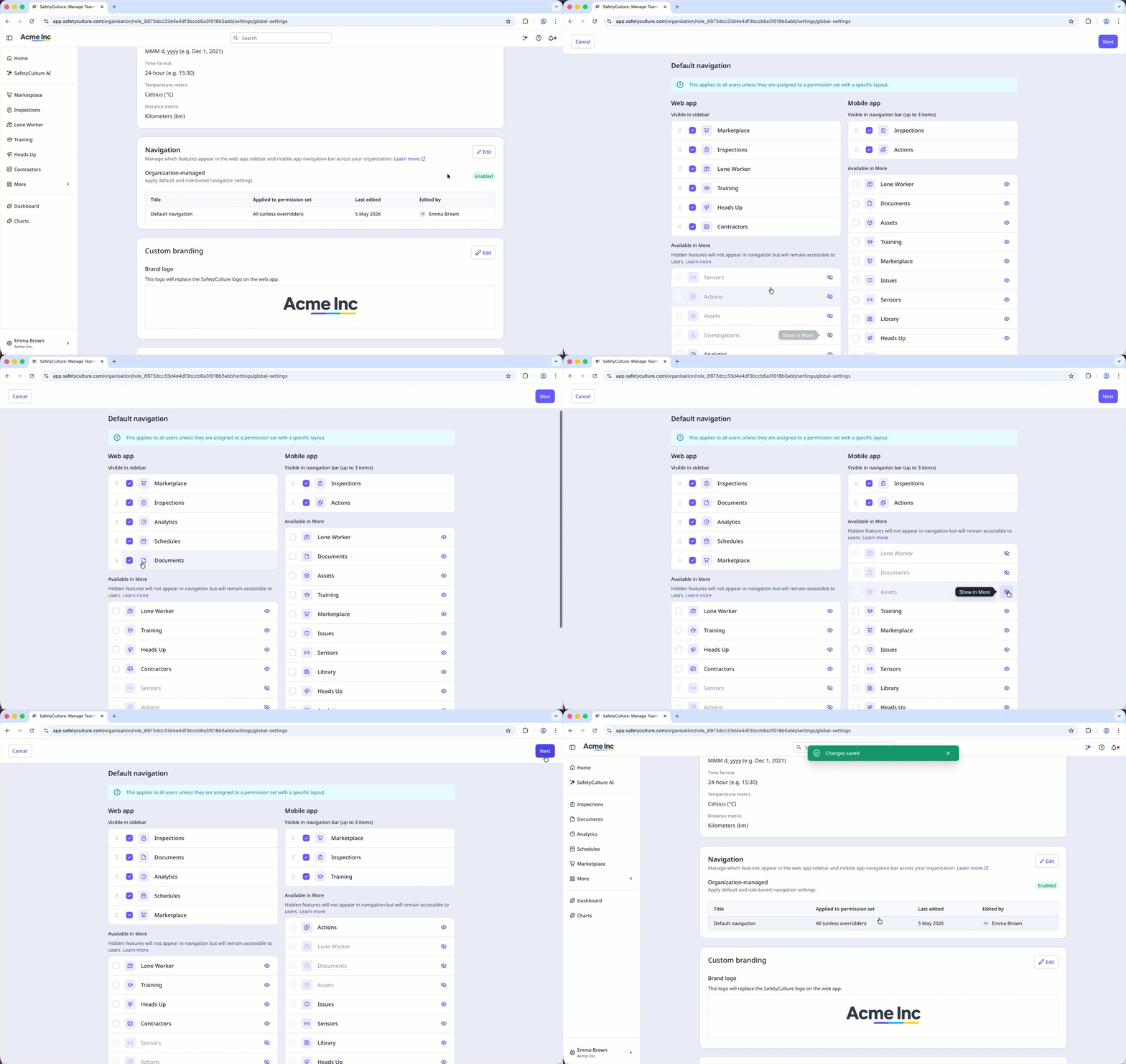
If you selected Organization-managed , select an existing layout or create a new one.
Check the features you want to display on the web app’s sidebar and the mobile app’s navigation bar, and uncheck those you’d like to keep under More .
You can also click and holdon the left-hand side of the features to sort them.
Clickorto hide or show the features from
 More .
Click Next on the upper-right corner of the page.
Click Save changes on the lower-left of the “Navigation” section.
In the pop-up window, click Save and apply .
For mobile app users, navigation changes will appear only after fully closing and reopening the app a few times.