Why start inspections from investigations?
Starting an inspection directly from an investigation helps you gather supporting evidence as you go, making it easier to build a complete picture of what happened. Whether you're starting a new inspection or adding an existing one, this keeps everything connected and relevant, making it easier to take action based on the investigation.
There are several ways to start an inspection in SafetyCulture, but starting from an investigation is especially useful when you need to document details in real time and complete everything in one workflow.
If you're on Free Plan, you can only link or start up to 2 inspections from an investigation.
Start an inspection from an investigation
Select
 Investigations in the sidebar or select it in More .
Create an investigation or select an existing one.
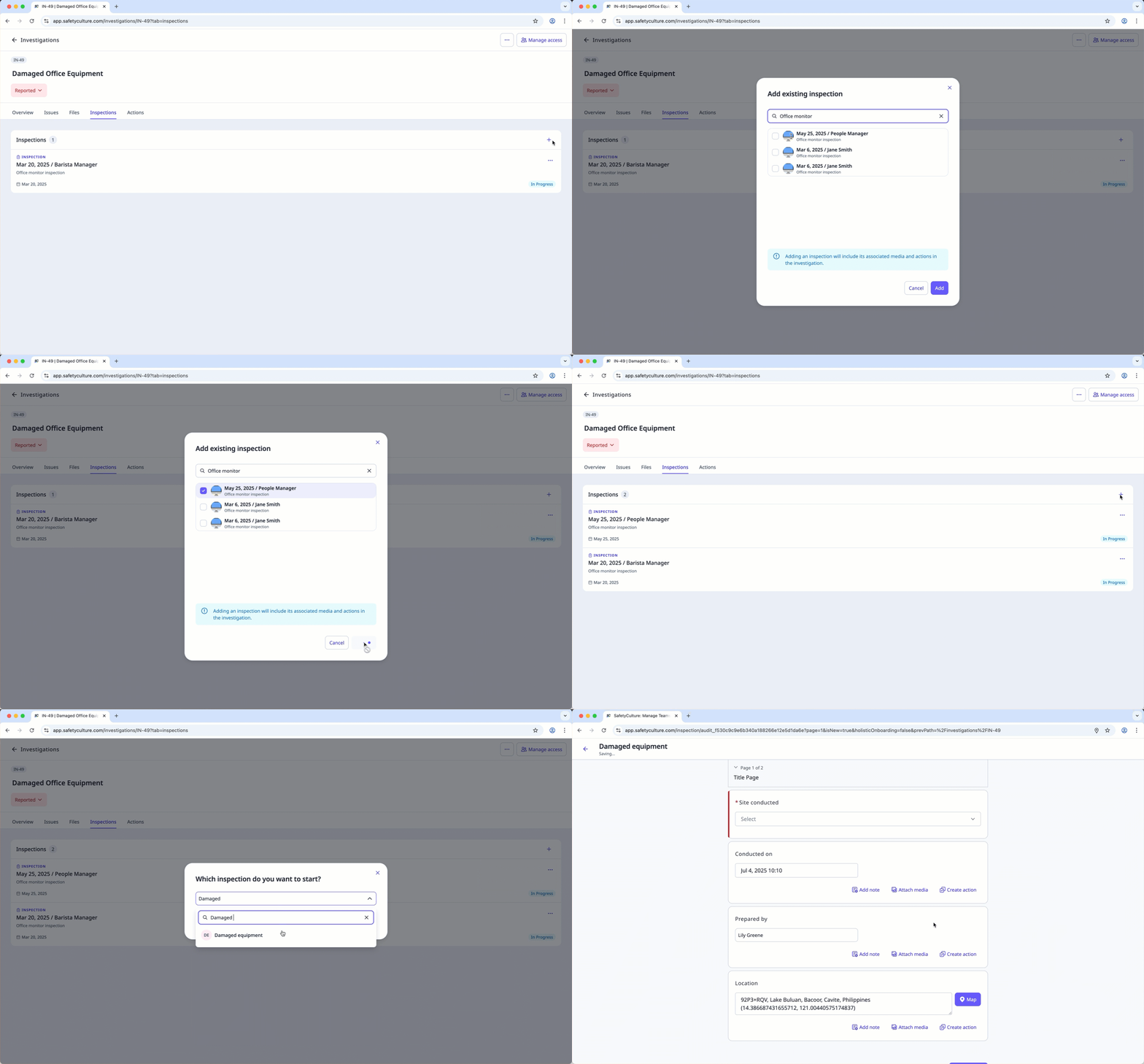
Click Inspections at the top of the page.
Clickon the upper-right of the page and select any of the following options:
Add existing inspection : In the pop-up window, select the inspection you want to add by checking each inspection's box, then click Add .
 Start a new inspection : In the pop-up window, select the template you want to use, click Start inspection , and proceed with the inspection accordingly.