What are investigations in SafetyCulture?
The Investigations feature in SafetyCulture is designed to help teams streamline incident management by capturing key incident details, gathering evidence, and analyzing root causes. It allows you to customize workflows with custom statuses, categories, detail fields, and sections, manage granular access for secure collaboration, and assign corrective actions to ensure timely and effective resolution.
You can also document and share detailed investigation findings with stakeholders for transparency and drive continuous improvement in incident prevention and response.
Get started as an admin
Create custom statuses
Investigation statuses represent the stages an investigation goes through, from start to finish. Before your team can begin adding investigations, you’ll need to set up statuses that align with your organization’s workflow. You can use the default statuses, such as Gathering evidence , Analyzing root cause , and Closed , or create custom ones to match your specific incident management protocols.
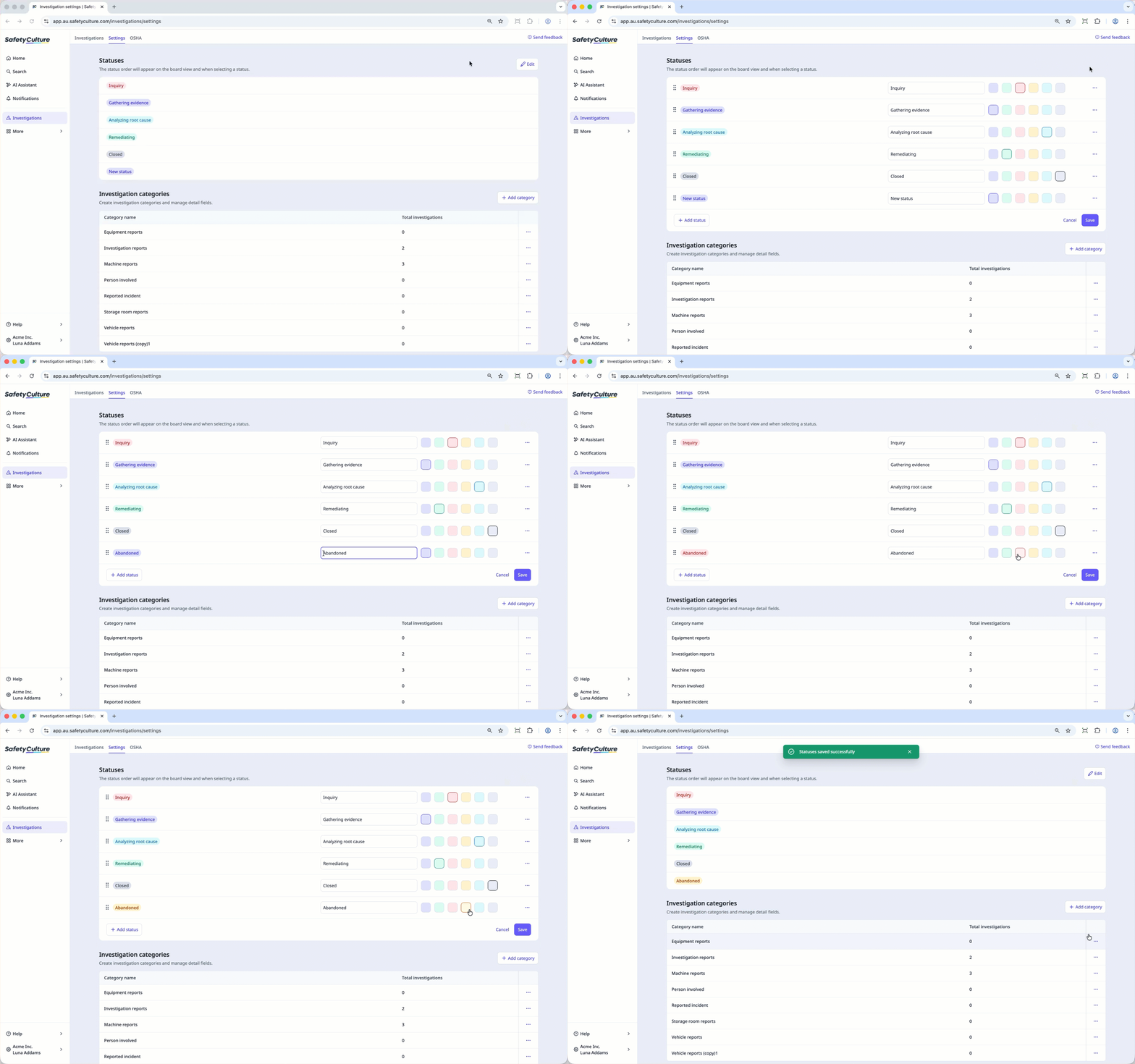
For example, if your organization is in the manufacturing industry, managing equipment failures, workplace injuries, or production incidents often involves thorough investigations. Custom statuses help you build an investigation process that matches your safety protocols, quality control steps, and operational workflows.
Create investigation categories and detail fields
Create investigation categories to help organize and standardize how your team manages investigations across your organization. By assigning investigations with categories based on the type or nature of an incident, such as injuries, near misses, or equipment failures, you can ensure all relevant information is captured consistently.
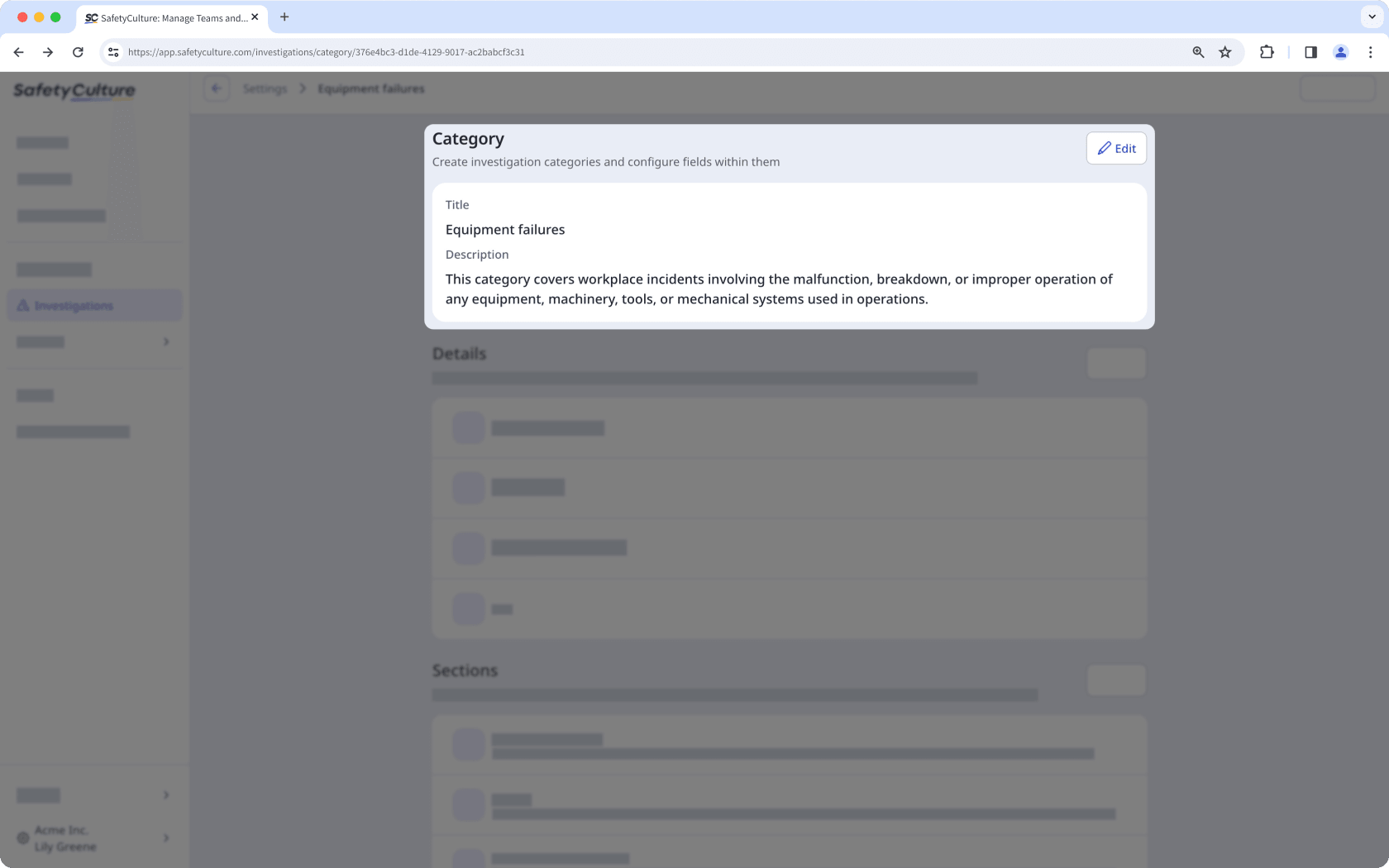
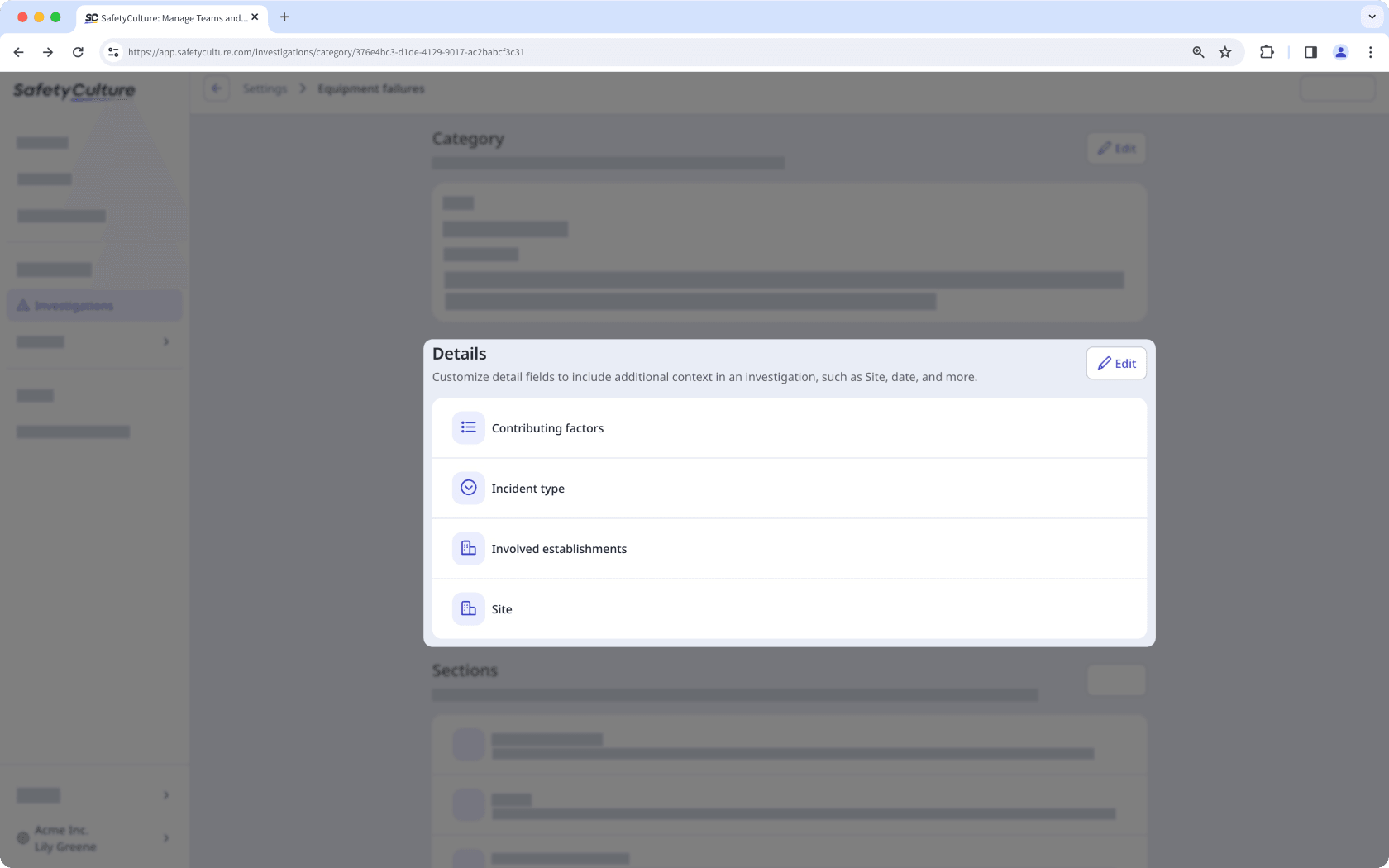
Each investigation category can also include a set of detail fields designed to capture the most important information for that incident type, such as the incident date or the site where the incident occurred. This makes it easier to organize and filter investigations, identify trends, and analyze data, thus helping your team manage incident processes more efficiently.
Create custom investigation sections
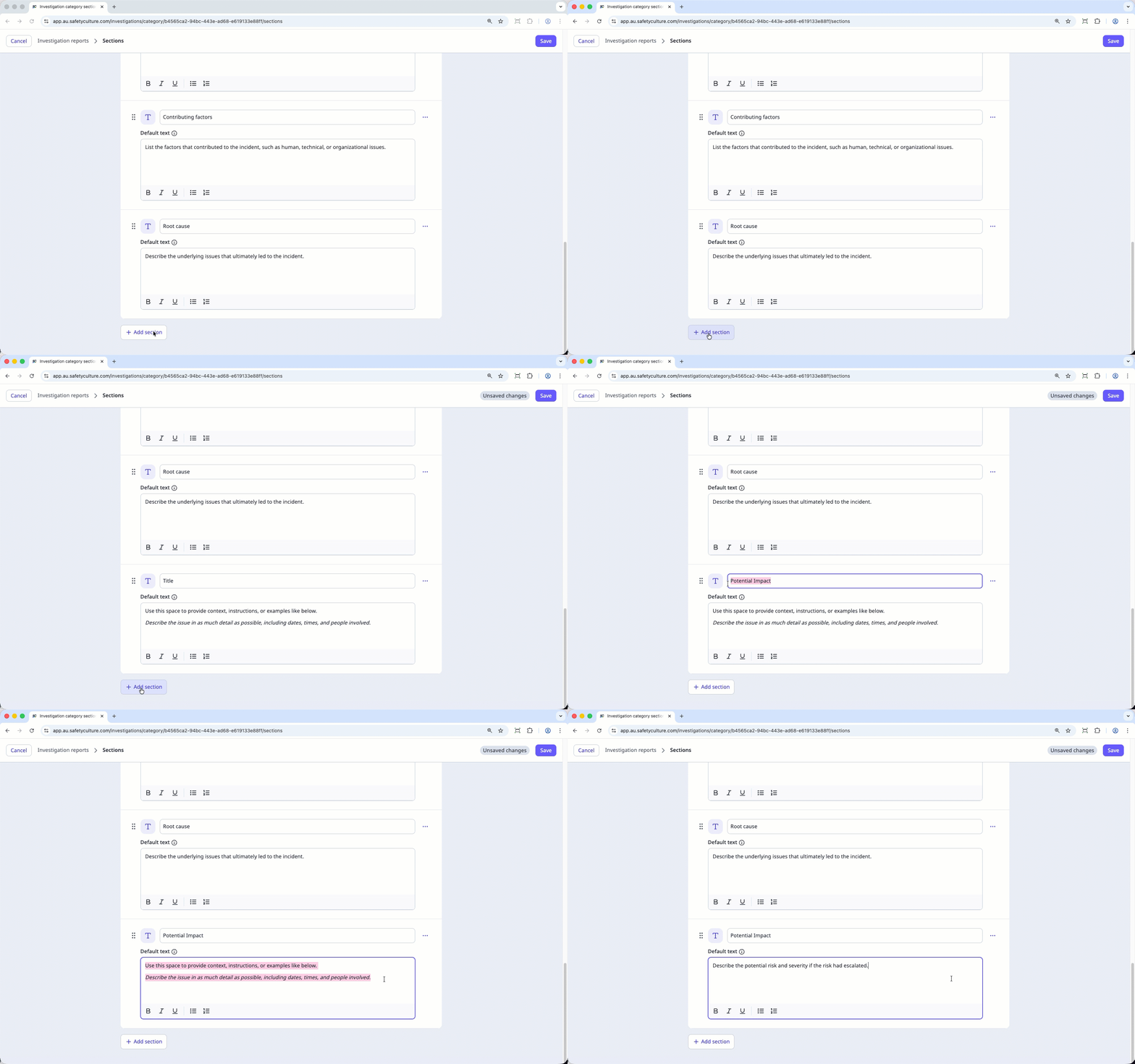
Once your categories and detail fields are in place, you need to create sections to define the key incident details your team should capture during the investigation process.
You can start with the default fields, which include Incident description, Timeline of events, People involved, Immediate actions, Key findings, Contributing factors, Root cause, and Potential impact, or customize them to match your team's workflow.
Manage access to investigations
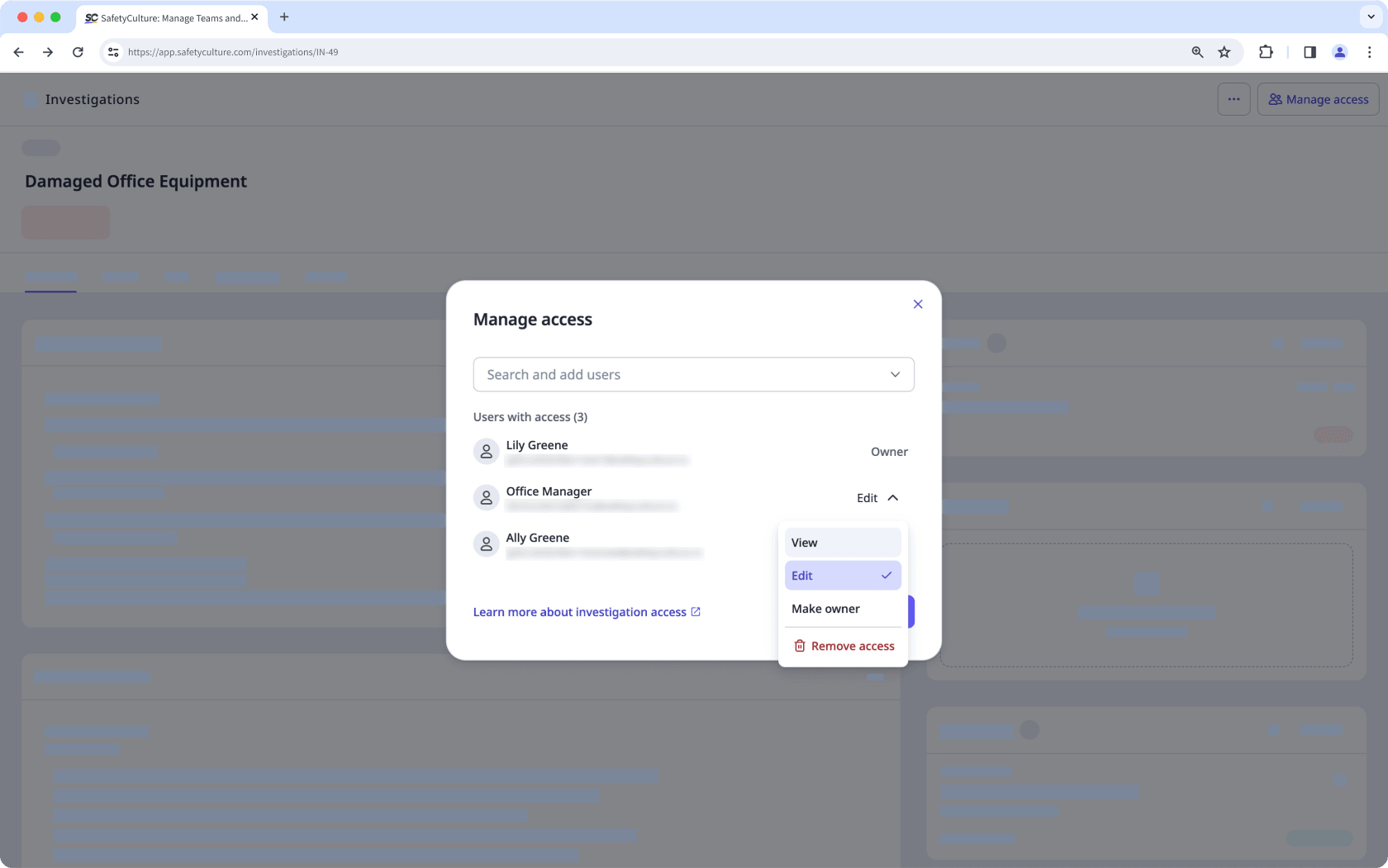
Once you’ve set up investigation statuses and description fields, your team can start adding investigations. Since access to each investigation is managed individually, it’s important to control who can view or update them to protect sensitive information and ensure the right people are involved.
You can give view or edit access to other team members so your team can collaborate securely. This ensures that people only see investigations relevant to them and can take action when needed.
Get started as a team member
To support your team in resolving incidents, make sure to check what actions you can take in the investigations shared with you to keep the process moving:
Check your access
Before you start working on investigations, check if the right investigations have been shared with you. Your access level controls what you can see and whether you can update investigation details.
If you have edit access, you can contribute by adding incident details, updating the investigation status, and downloading reports. If you have view access, you can review investigation details but can’t make changes. If you can’t find the investigation you’re expecting, reach out to your admin to request access.
Gather relevant supporting evidence
Collaborate with your team on investigations by filling out description fields and adding photos, documents, or videos to capture critical incident details. You can also add relevant issues, actions, or inspections to an investigation, either during creation or retroactively to build a complete picture. Keeping all supporting evidence in one place helps your team improve visibility, make informed decisions, and ensure investigations are thorough, easy to track, and audit-ready.