Why use dashboard folders?
Dashboard folders help you organize related dashboards so reports are easier to find and manage. Create folders for teams, sites, projects, or reporting areas to keep related dashboards grouped in one place. Grouping dashboards into folders is useful as the number of dashboards grows, keeping information organized and accessible.
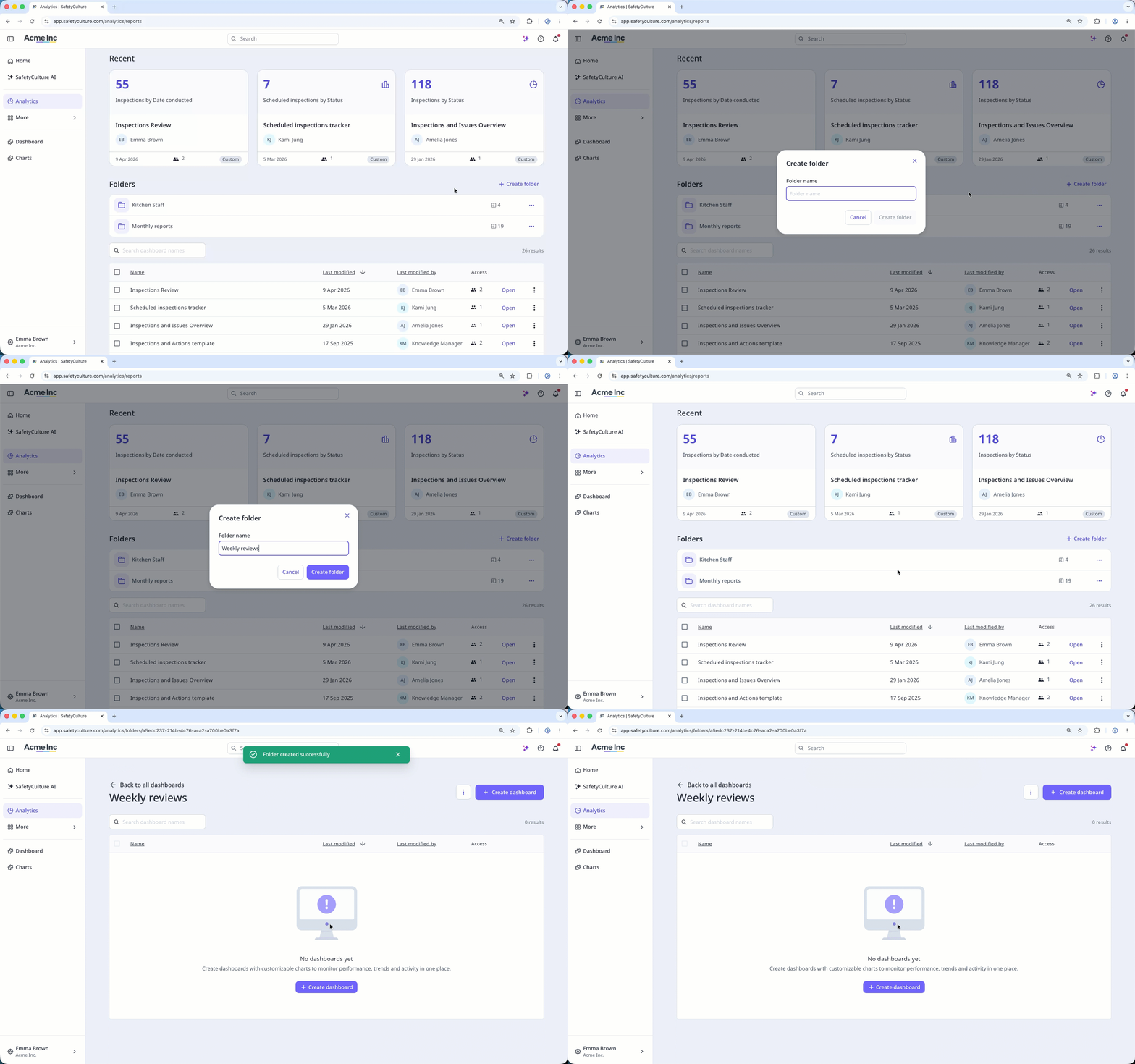
If you have "Analytics: View" permission, you can see any folder that contains at least one dashboard you have access to.
Create a folder
Select Analytics in the sidebar or select it in More.
Click Create folder on the upper-right corner of the "Folders" section or the dashboard list if you don't have folders yet.
In the pop-up window, enter the folder name and click Create.
Each organization can have up to 200 dashboard folders.
Rename a folder
Select Analytics in the sidebar or select it in More.
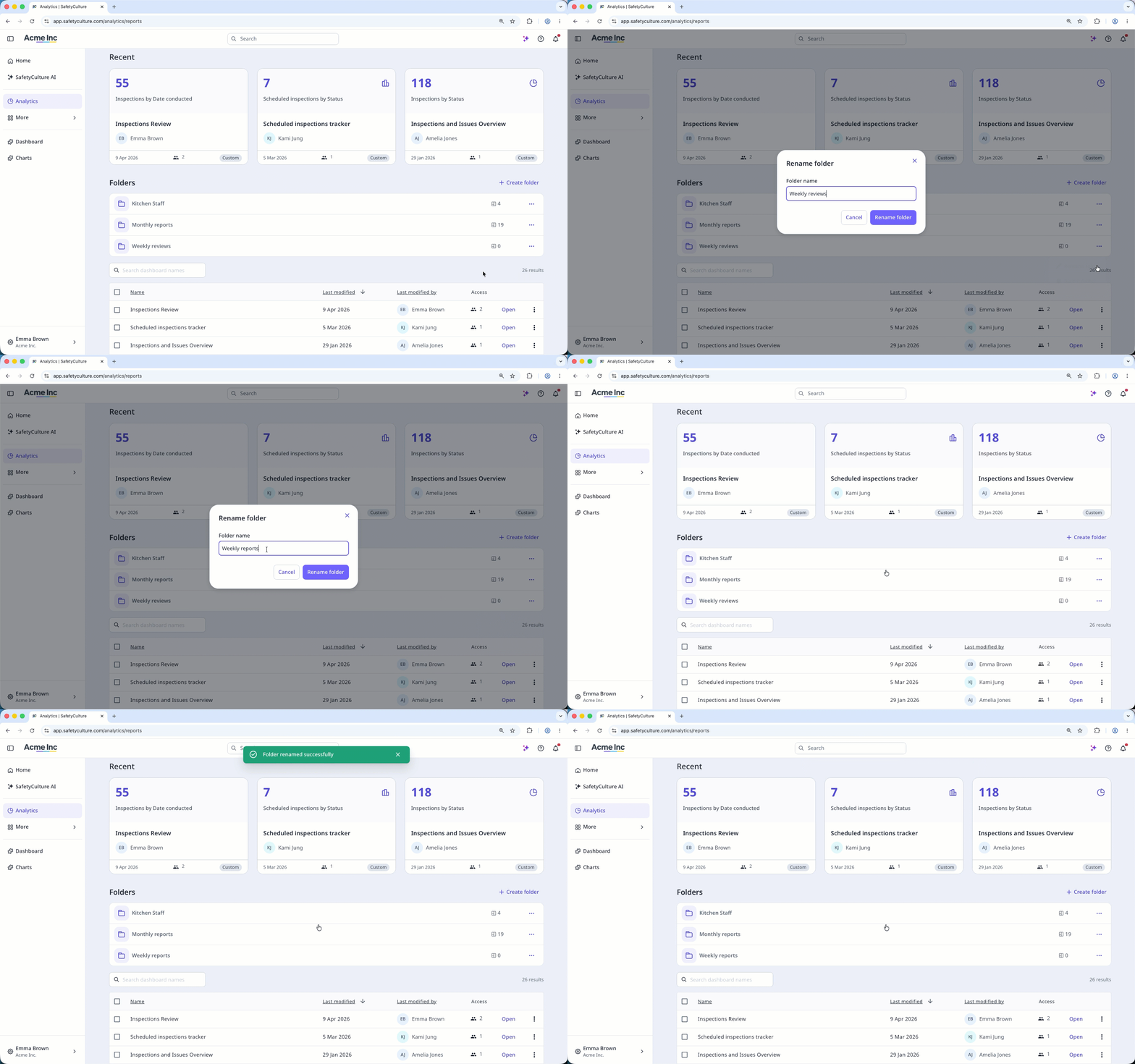
Click on the folder's right-hand side and select Rename folder.
In the pop-up window, enter a new folder name and click Rename folder.
Delete a folder
Select Analytics in the sidebar or select it in More.
Click on the folder's right-hand side and select Delete folder.
In the pop-up window, click Delete.
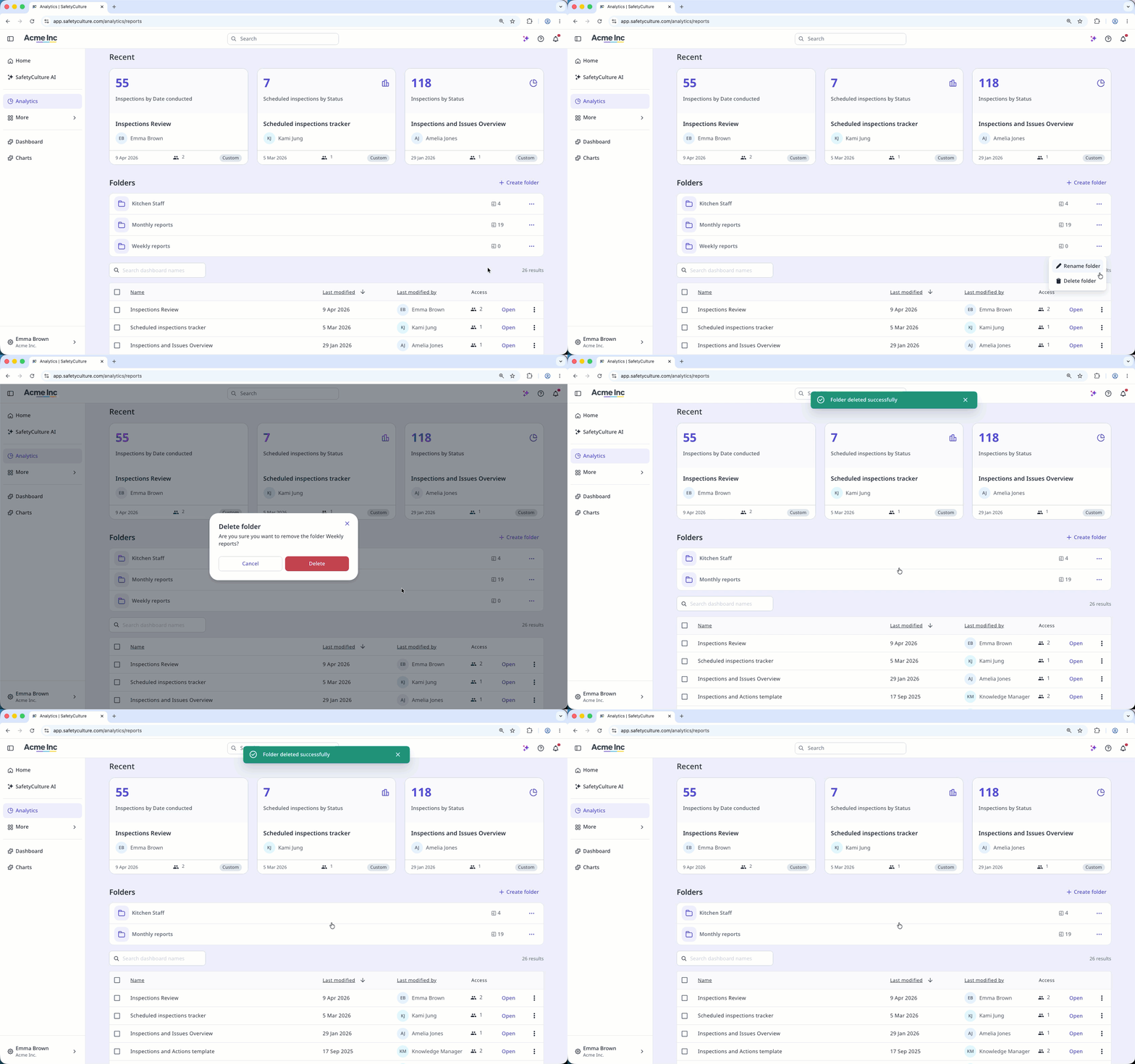
A dashboard folder must be empty before you can delete it.
Deleting is irreversible, and we cannot restore permanently deleted items. Confirmation is always required before any deletion, so be sure you're not accidentally deleting the wrong item.