Why download OSHA logs as PDF?
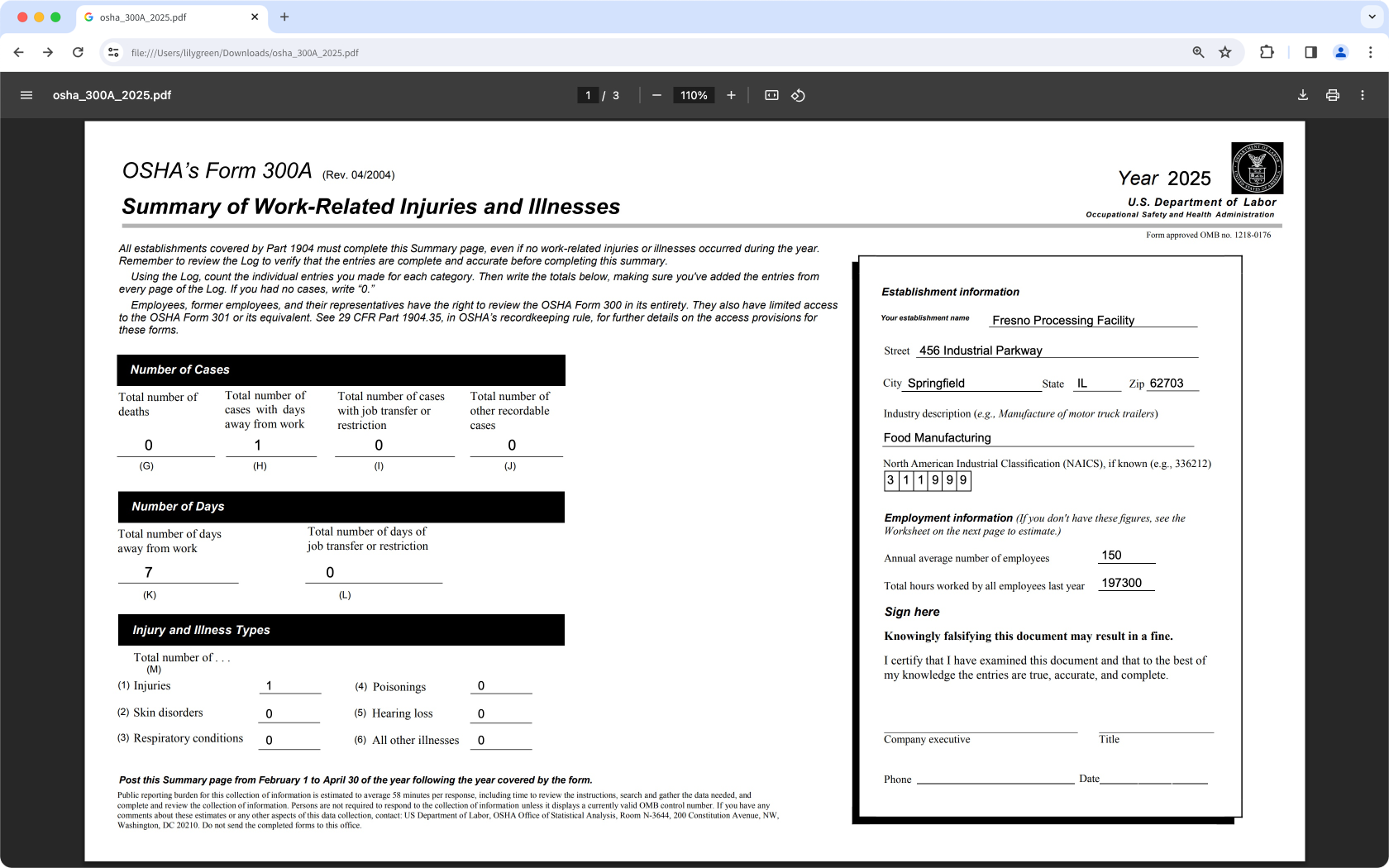
Downloading OSHA logs as PDFs gives you a compliant, print-ready format of Forms 300A, 300, and 301, meeting OSHA’s requirement to post them in a visible location at each establishment. This helps keep your organization compliant while promoting accountability and safety awareness across your workforce by making injury and illness data easily accessible to everyone.
What you'll need
Download 300A logs as PDF
Select Investigations in the sidebar or select it in More.
Select OSHA at the top of the page.
Click Download 300A on the upper-right of the page.
In the pop-up window, select the filing year and PDF (.pdf) from the dropdown menu.
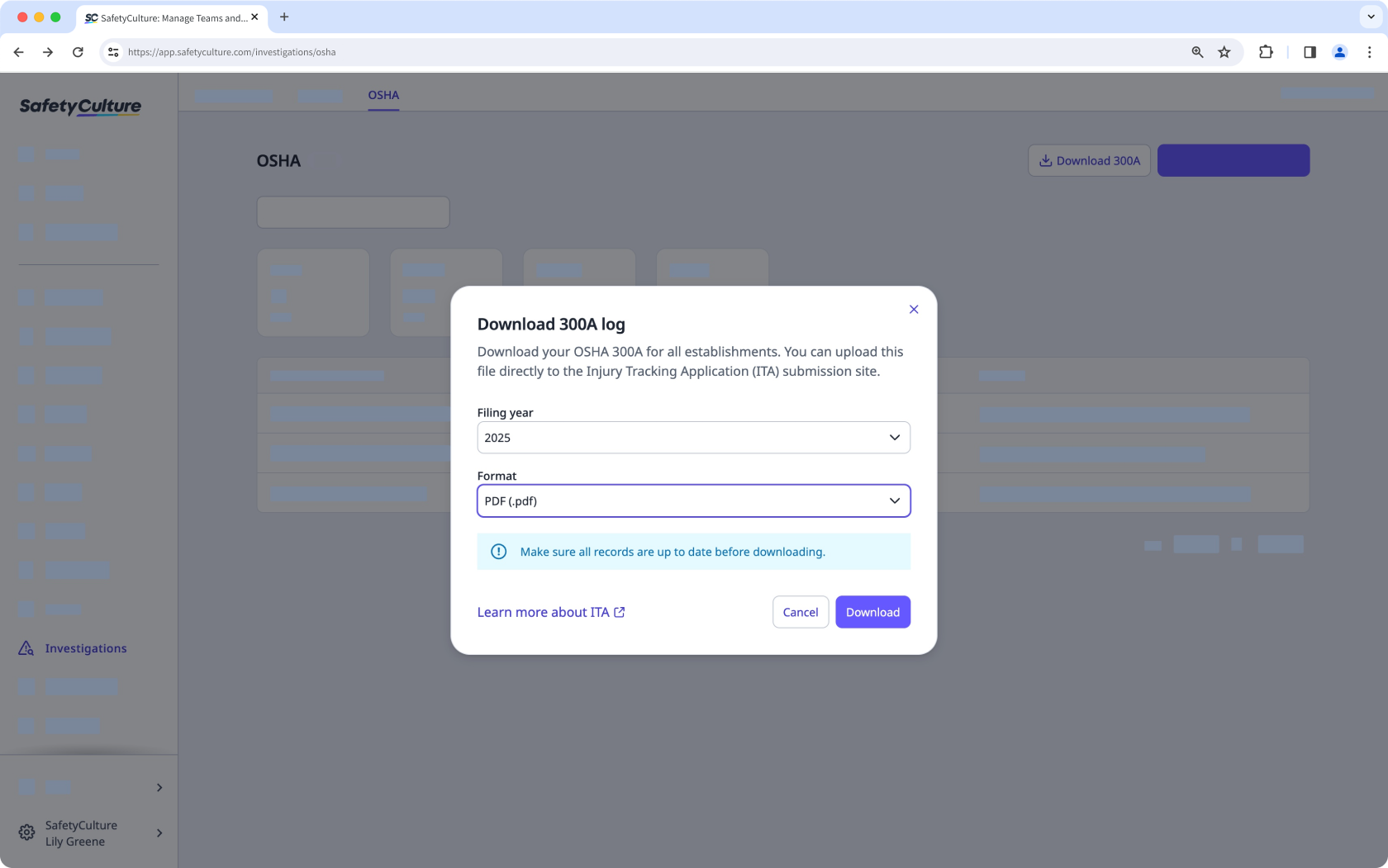
Click Download.
Download 300 and 301 logs as PDF
Select Investigations in the sidebar or select it in More.
Select OSHA at the top of the page.
Select an establishment.
Click Download logs on the upper-right of the page.
In the pop-up window, select the filing year and PDF (.pdf) from the dropdown menu.
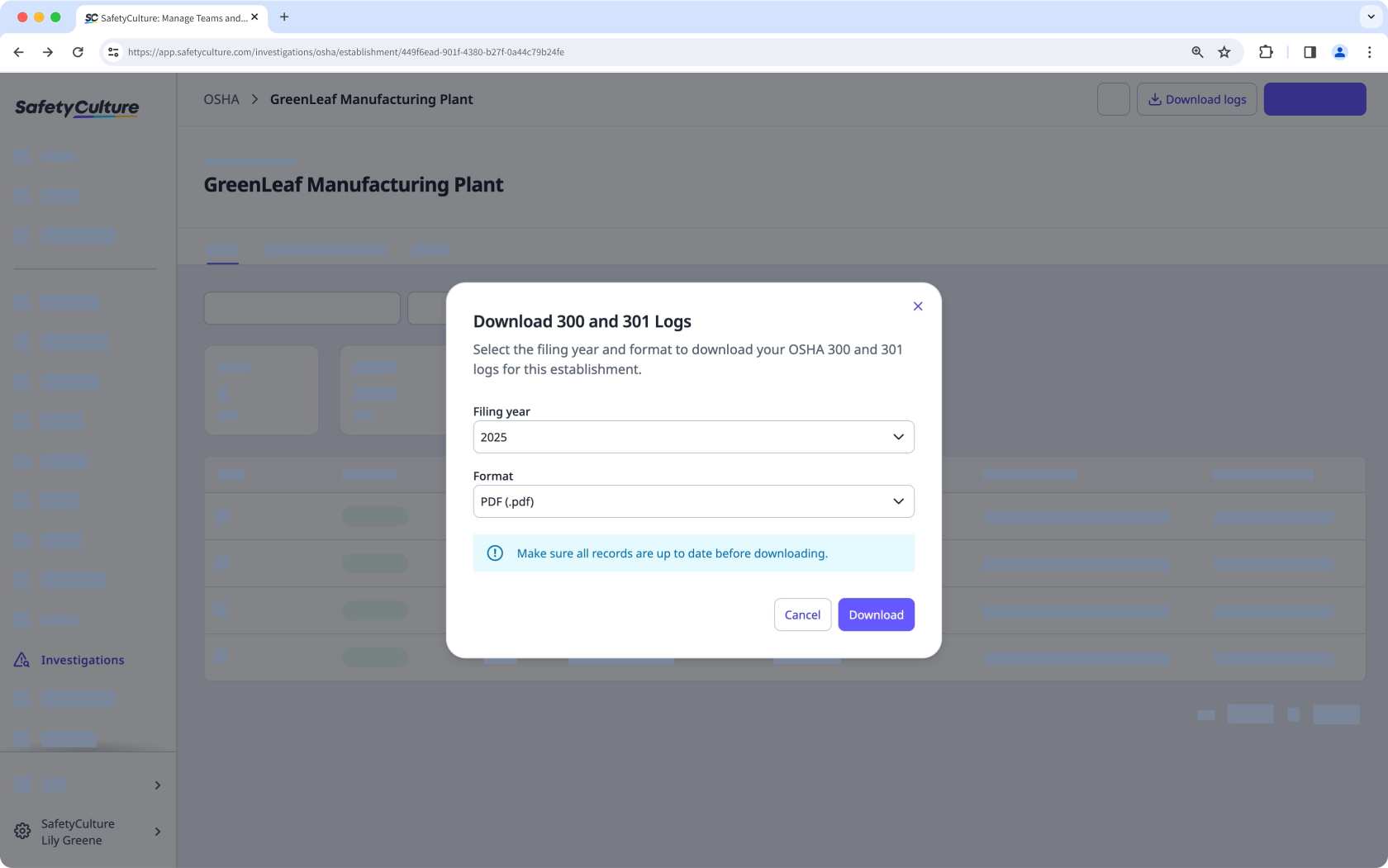
Click Download.
Download 301 logs as PDF
Select Investigations in the sidebar or select it in More.
Select OSHA at the top of the page.
Select an establishment.
Select a case.
Click on the upper-right of the page and select Download 301 PDF.