
What you'll need
If you have "Actions: Settings" permission, you can manage action status transitions and customize status names to fit your organization's needs.
Move an action to a status
Select Actions in the sidebar or select it in More.
You can choose how you want to view your actions by selecting between List, Calendar, and Board on the upper-right of the page.
Depending on the selected view, update the status accordingly:
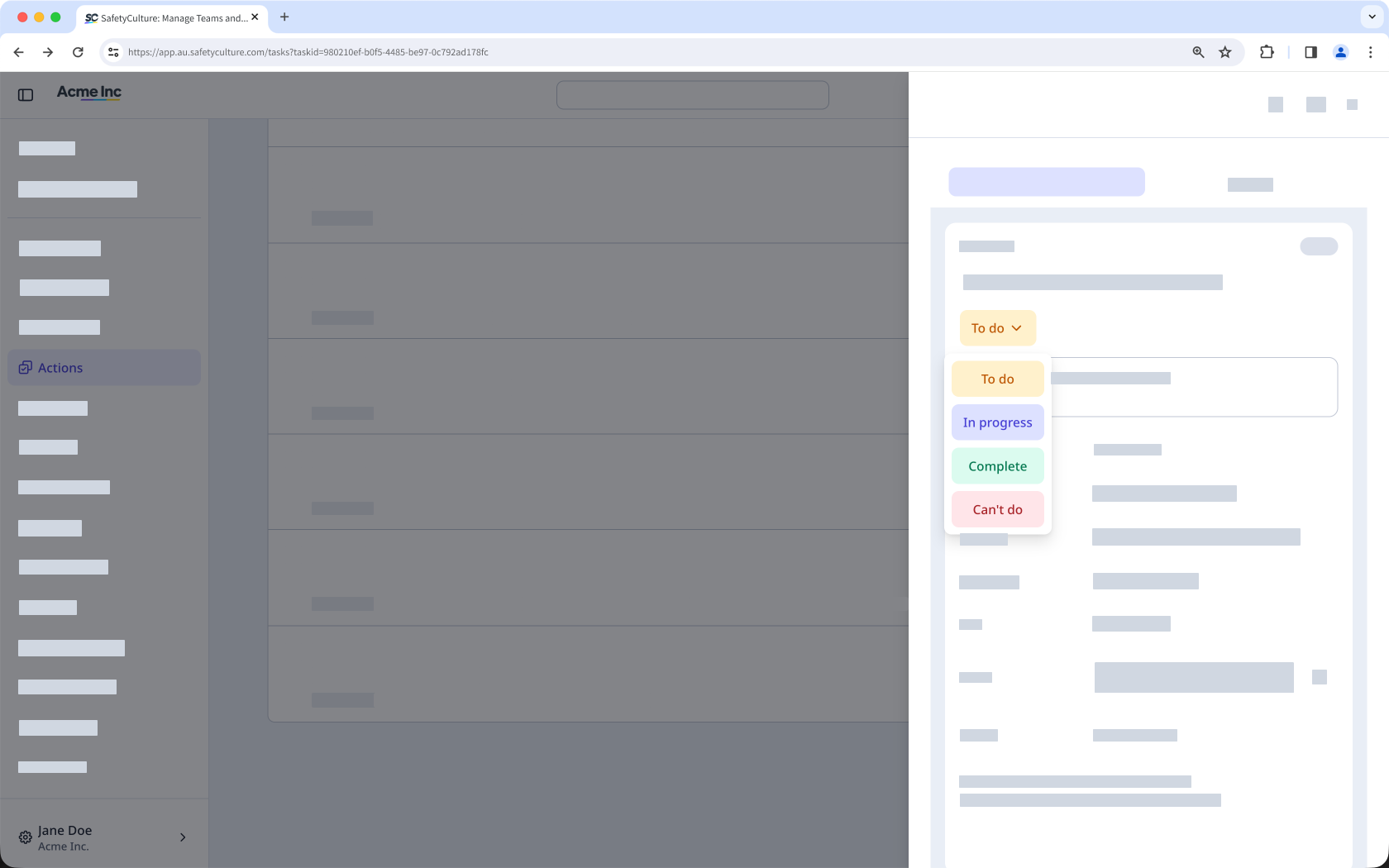
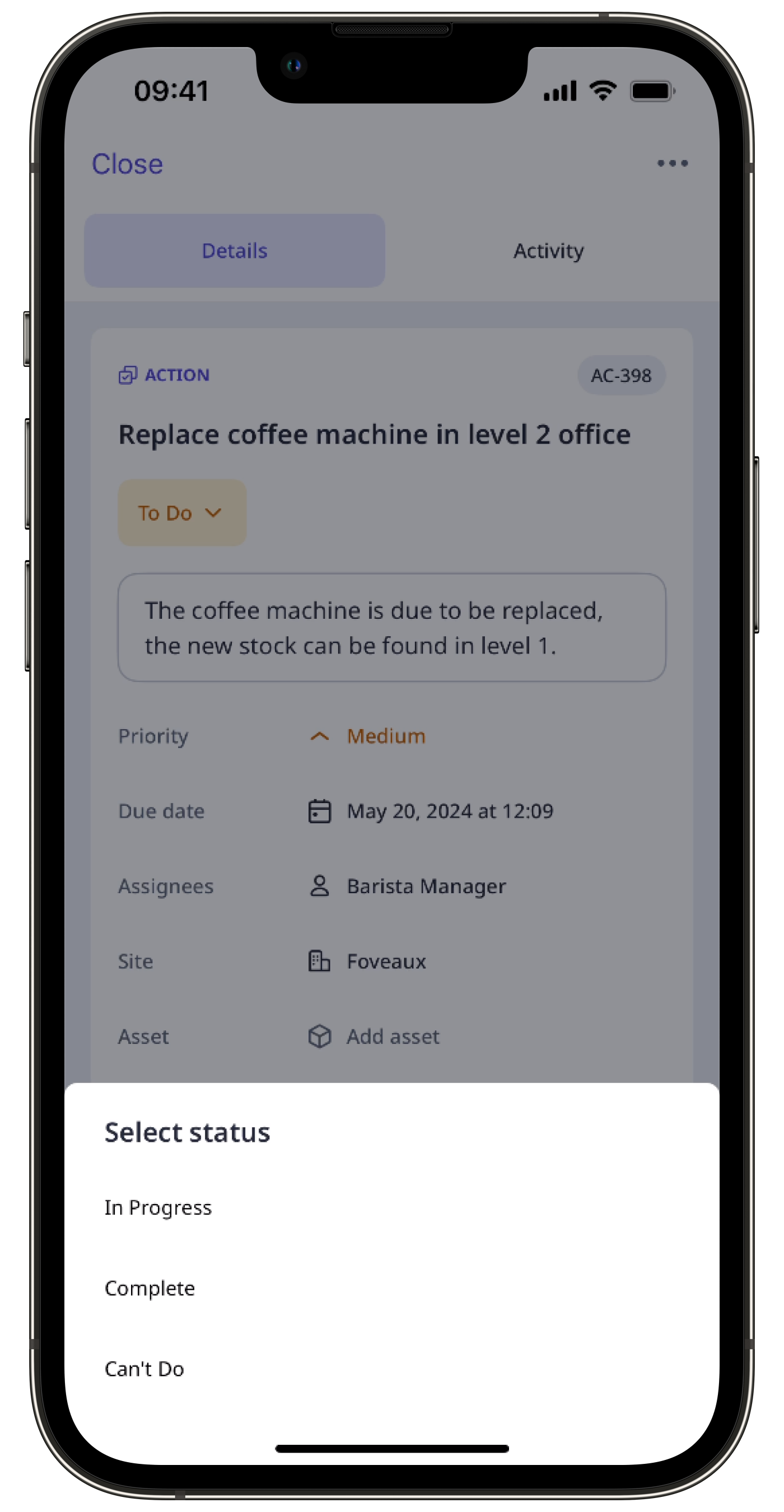
List and Calendar: Click the action. Then, in the side panel, choose between To do, In progress, Complete, or Can't do depending on the action's status.
Board: Drag the action to the relevant status column.
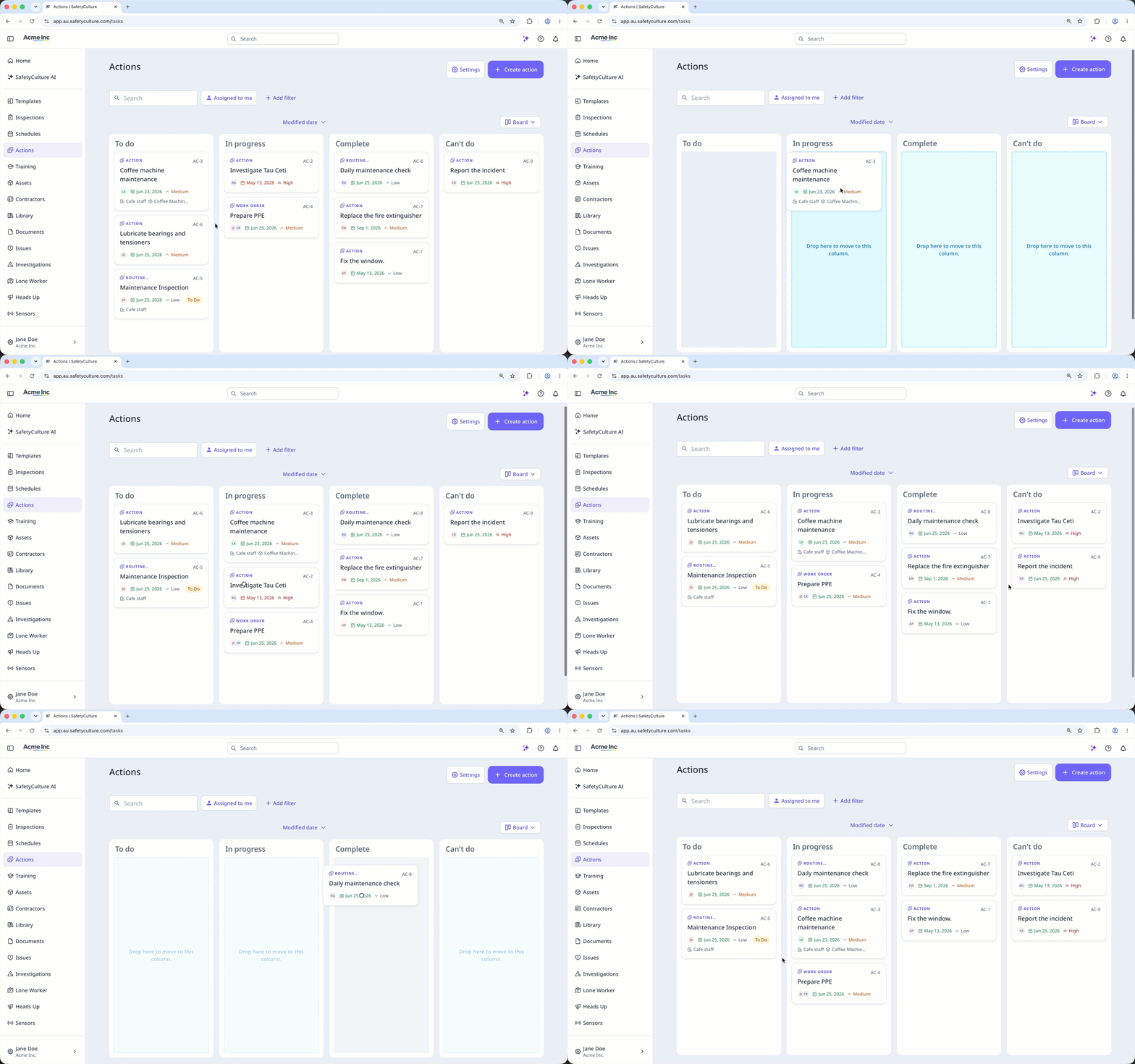
Changes are saved automatically.
Assigning and unassigning actions in bulk is only available in List view. If you're on Calendar view, switch List on the upper-right of the page.
Please also note that you can only bulk manage up to 100 actions at a time.
Bulk move actions to a status
Select Actions in the sidebar or select it in More.
Check the actions' boxes for the actions you want to bulk update statuses for.
Click Update status on the lower-right corner of the page.
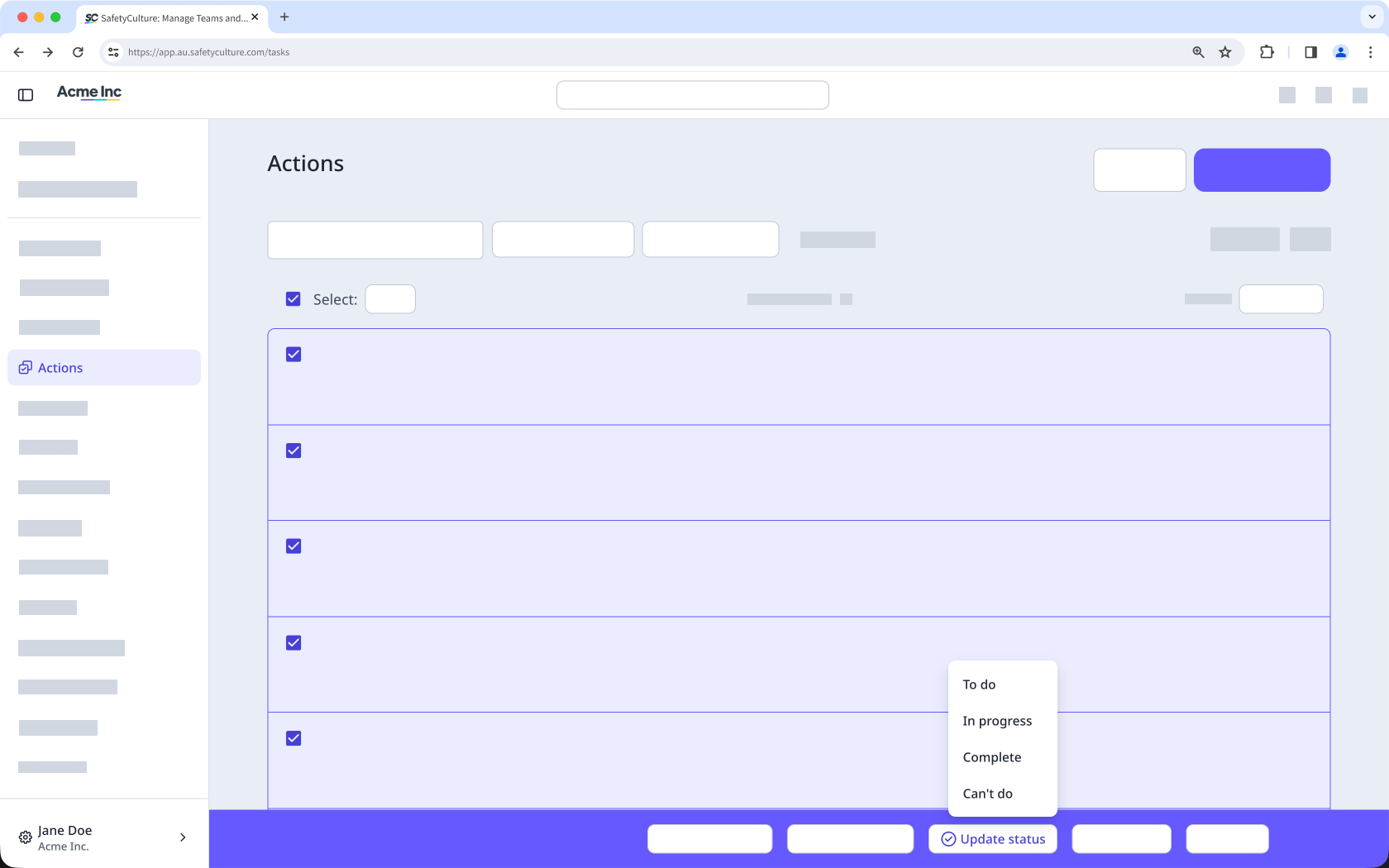
Select the status.
In the pop-up window, click Update status.


