What you'll need
Copying the lesson will not move the lesson analytics within the performance dashboard.
Copy a lesson into another course
Select Training in the sidebar or select it in More.
If you're on the "Learn" page, click Content at the top of the page and select Courses.
Create a new course or click View or Edit on an existing one.
If you're editing a published course, click Edit on the upper-right of the page.
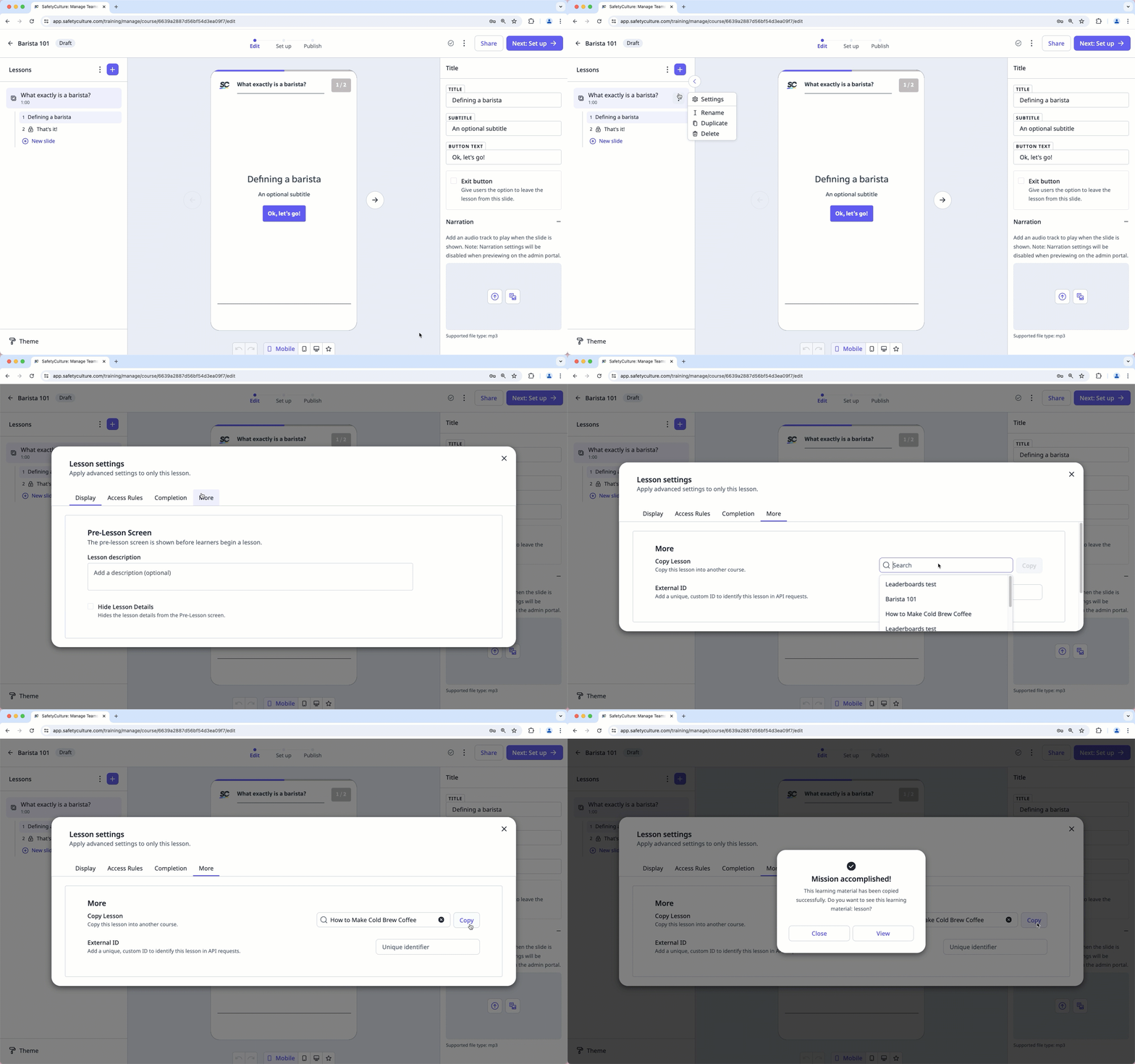
Click next to the lesson title and click Settings.
In the pop-up window, select More.
Click the search bar and select the course you want to copy the lesson to.
Click Copy.
Click View to navigate to the course where you copied the lesson.
We recommend renaming a lesson so that it's easier to recognize in the performance dashboard.
Import lesson slides
Select Training in the sidebar or select it in More.
If you're on the "Learn" page, click Content at the top of the page and select Courses.
Create a new course or click View or Edit on an existing one.
If you're editing a published course, click Edit on the upper-right of the page.
Create a new lesson or click an existing one. If you need some help to get started, use AI to create a lesson or lesson slide.
Click
 New slide on the lower part of your selected lesson.
Click
 Import slide under "More" on the bottom left-hand side.
Select the relevant course, lesson, and range of slides you would like to import.
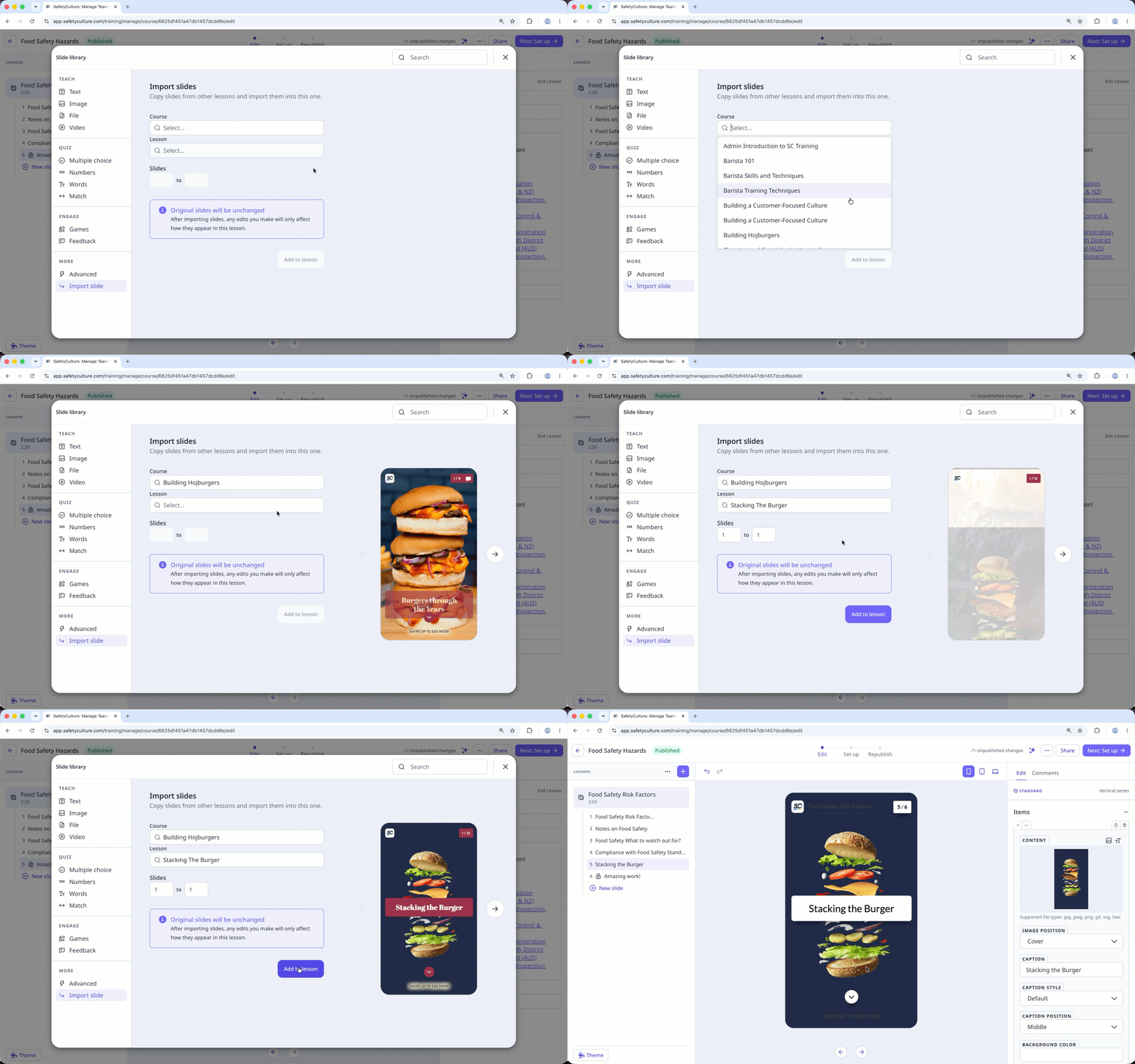
Click Add to lesson, and these slides will appear in the lesson.