
- Using SafetyCulture
- Issues
- Turn Critical Alerts on or off for issues
Turn Critical Alerts on or off for issues
Learn about Critical Alerts and how to turn it on or off for issues via the mobile app to ensure you receive notifications for high-priority issues.What are Critical Alerts?
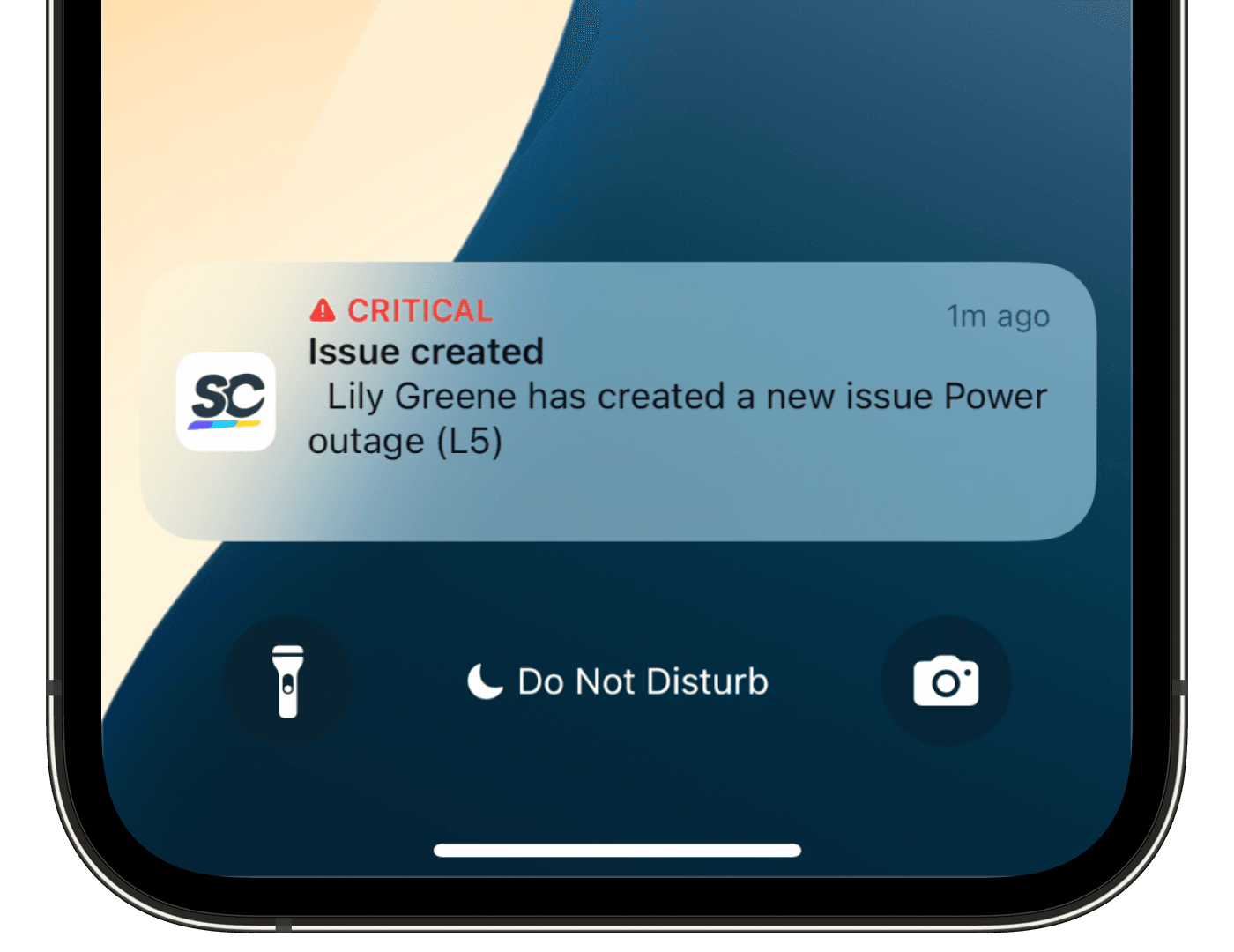
Critical Alerts is a notification feature that notifies the designated contacts the moment a high-priority issue occurs. Alert contacts are defined when you set up an issue category, so the correct people are always notified based on the type of issue. You can then set the priority of an issue from the issue profile, and when marked as high priority, notifications are delivered even if a device is muted or set to Do Not Disturb.
This is especially important in industries like construction, manufacturing, and mining, where a delayed response to a safety issue can put people at risk. Critical Alerts helps teams respond faster and reduce the impact of high-severity incidents immediately relaying important notifications during emergencies.
What you'll need
SafetyCulture version 23.36 or later
Notifications enabled
Depending on the device you’re using, please ensure its operating system version is supported:
Android: Android 9.0 or above
iOS: iOS/iPadOS 15.0 or above
Turn Critical Alerts on or off for issues
Open the mobile app.
Tap
 Home at the bottom of your screen.
Tap your user profile icon at the upper-right corner of your screen and tap
 .
.Scroll down to the “Notifications” section and tap Push.
In the “Critical Alerts enabled” section, tap Open Settings. This will take you to the notification settings for the SafetyCulture mobile app on your Android device.
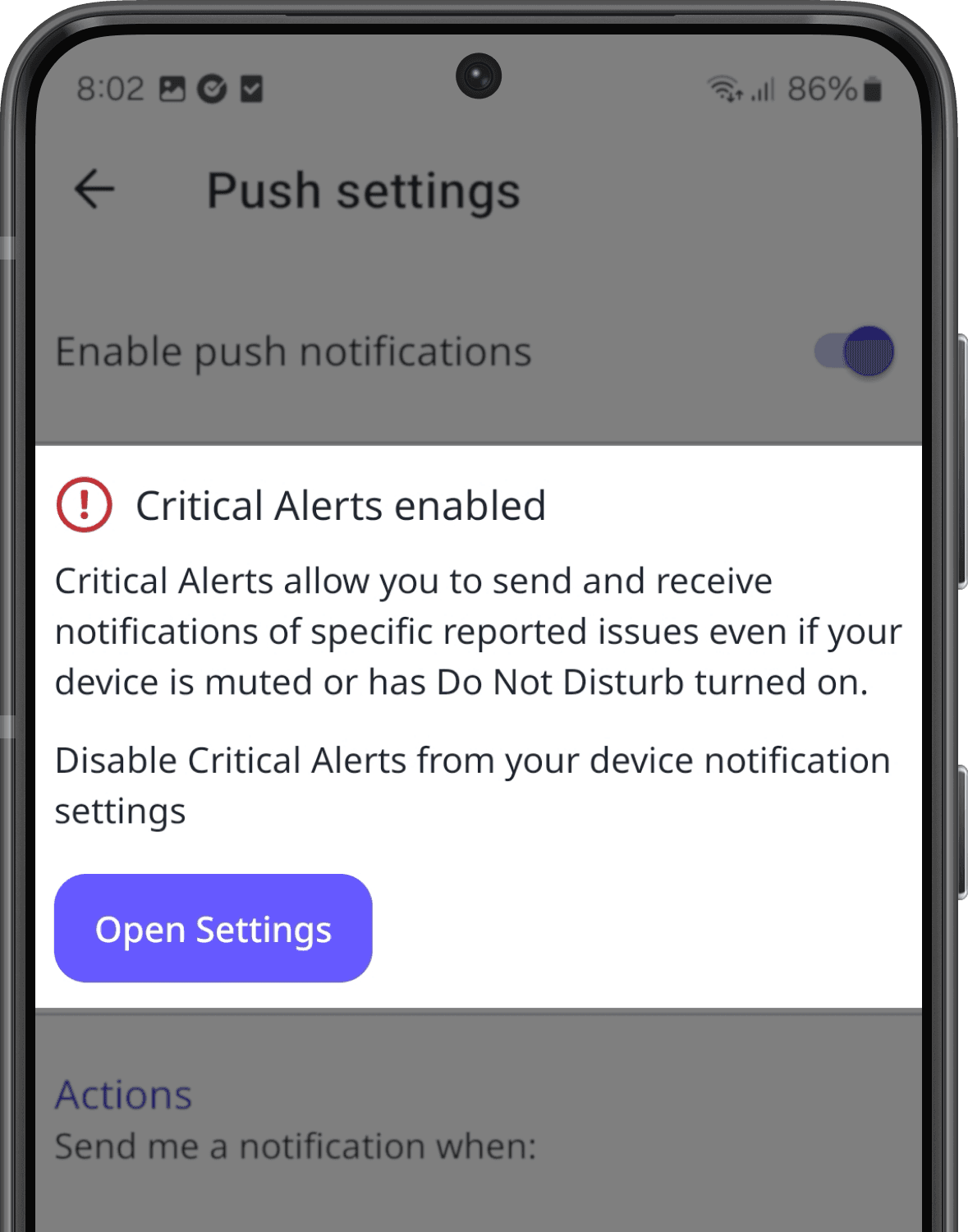
Manage the notification for Critical Alerts accordingly:
Turn Critical Alerts on: Turn on the available settings for Critical Alerts. Make sure you turn on permissions for sound and for overriding Do Not Disturb mode so you can receive Critical Alerts.
Turn Critical Alerts off: Turn off the relevant settings for Critical Alerts.
Open the mobile app.
Tap
Home at the bottom of your screen.Tap your user profile icon at the upper-right corner of your screen and tap
Settings.Scroll down to the “Notifications” section and tap Push.
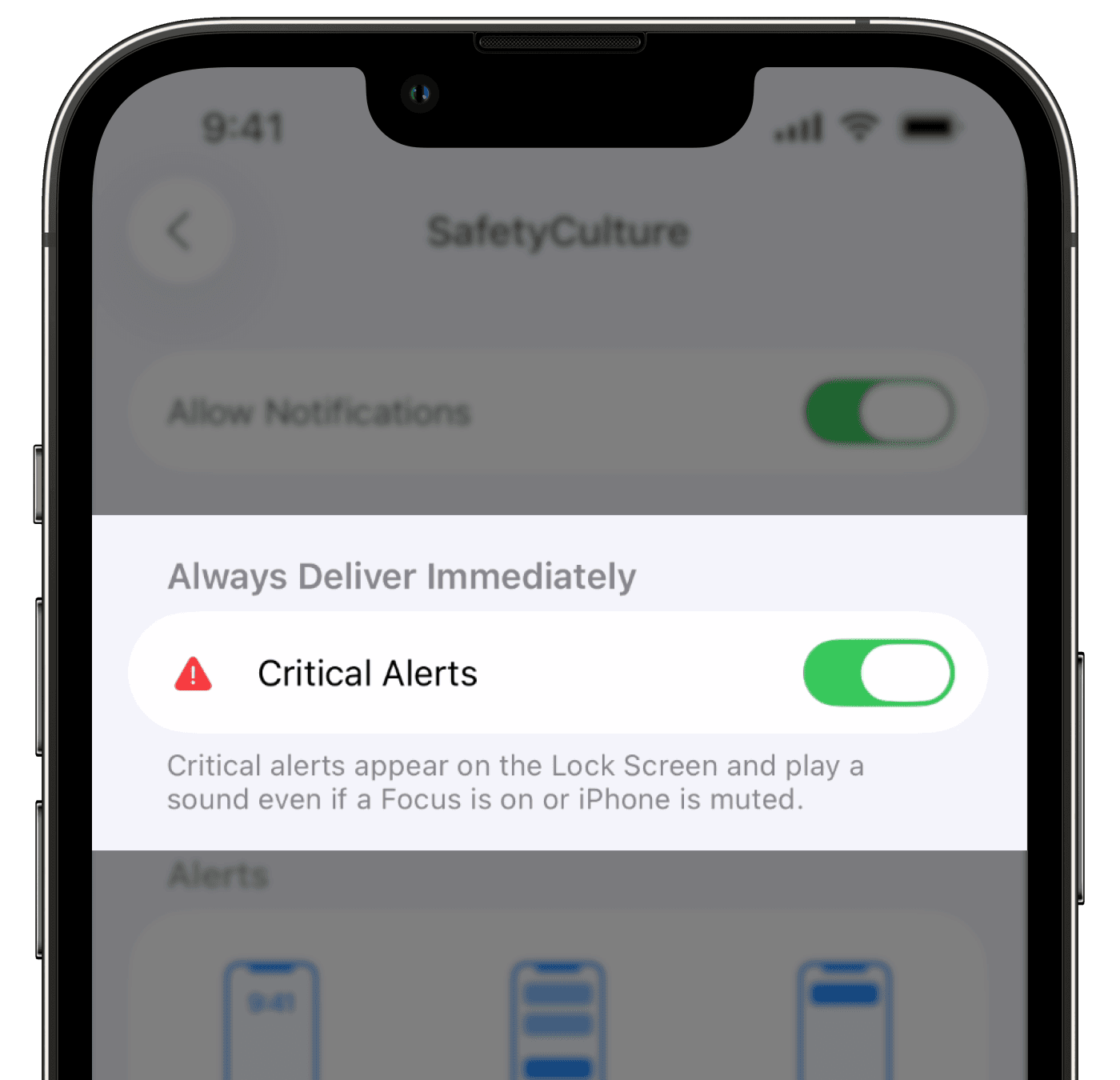
In the “Critical Alerts” section, tap Open Settings. This will take you to the notification settings for the SafetyCulture mobile app on your iOS device.
Turn the notification settings for Critical Alerts on or off accordingly.
Was this page helpful?
Thank you for letting us know.